Fix iPhone Hacked Pop-Up Fast: Remove Fake Alerts
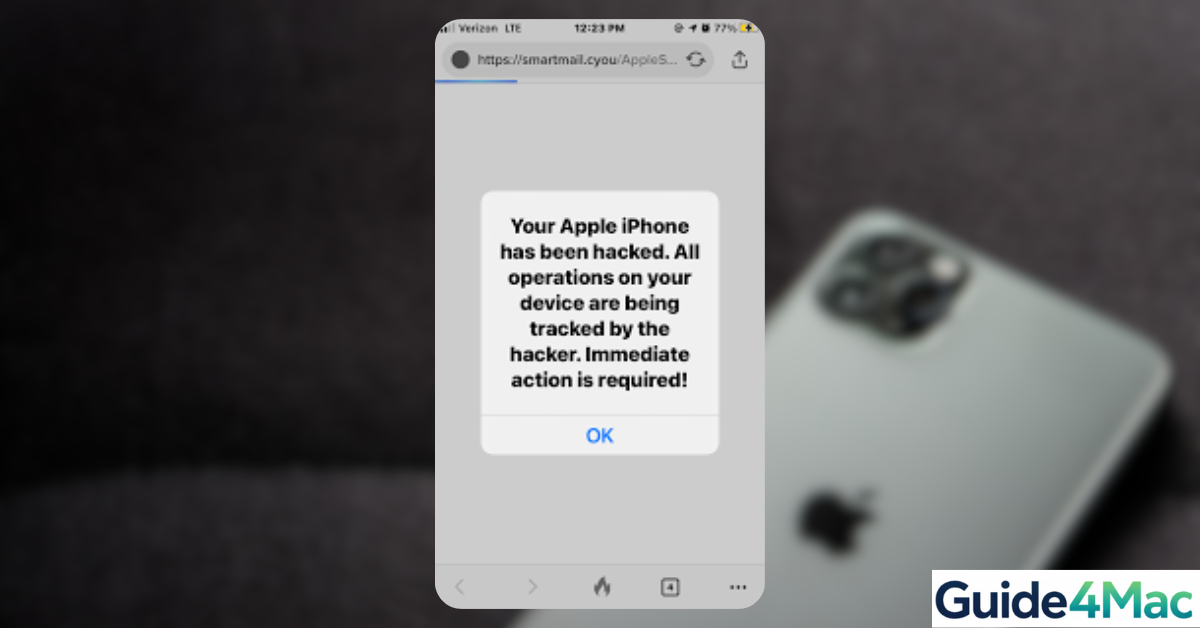
If you’re seeing an “iPhone hacked” pop-up, don’t panic. These alerts are almost always fake warnings designed to trick you into clicking malicious links or downloading suspicious apps. They usually appear in Safari or while browsing certain websites.
In most cases, your iPhone is not actually hacked. The issue is caused by scam websites, browser notifications, or cached data. Below, you’ll find safe and effective ways to remove these pop-ups and protect your device.
Why Are You Seeing an “iPhone Hacked” Pop-Up?
These pop-ups are part of a common scam technique known as scareware. The goal is to make you think your device is compromised so you take immediate action.
Typical causes include:
- Visiting a malicious or ad-heavy website
- Allowing spam notifications in Safari
- Cached browser data triggering fake alerts
- Clicking suspicious ads or redirects
- Installing unknown configuration profiles
These pop-ups may also be linked to broader issues like suspicious activity. If you’re unsure, you can check signs in this guide on how to know if your iPhone has a virus.
1. Close the Safari Tab Immediately
The first step is to exit the page without interacting with the pop-up.
- Open Safari.
- Tap the Tabs icon.
- Locate the suspicious tab.
- Swipe it away to close it.
Avoid tapping any buttons inside the pop-up, especially those claiming to fix the issue.
2. Clear Safari History and Website Data
Clearing Safari data removes cached files that may trigger repeated pop-ups.
- Open Settings.
- Scroll down and tap Safari.
- Tap Clear History and Website Data.
- Confirm the action.
If you want to review browsing activity before clearing it, you can learn how to view Safari history on iPhone.
3. Block Pop-Ups and Enable Fraud Protection
Many “iPhone hacked” pop-ups come from malicious websites trying to scare you into taking action. Blocking pop-ups and enabling fraud warnings in Safari helps prevent these messages from appearing again.
- Open Safari Settings
Go to the Settings app on your iPhone, then scroll down and tap Safari.
- Enable Pop-Up Blocking
Find the Block Pop-ups option and turn it on to prevent unwanted pop-up windows.
- Turn On Fraudulent Website Warning
Enable Fraudulent Website Warning to let Safari detect and block suspicious or scam websites.
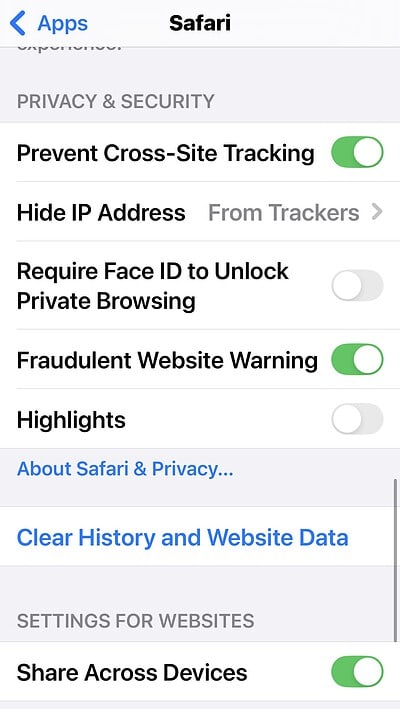
- Access Advanced Settings
Scroll to the bottom and tap Advanced to manage deeper Safari data controls.
- Clear Website Data
Tap Website Data, then select Remove All Website Data to delete stored site information.
- Confirm Data Removal
Tap Remove Now to confirm and fully clear Safari’s cached data.
After completing these steps, Safari will actively block intrusive pop-ups and warn you about suspicious websites.
4. Remove Suspicious Profiles or Apps
Some pop-ups are triggered by configuration profiles or shady apps.
- Open Settings.
- Tap General.
- Select VPN & Device Management.
- Check for unknown profiles.
- Tap and remove suspicious entries.
Also delete any apps you don’t recognize or didn’t install intentionally.
5. Restart Your iPhone
Restarting your iPhone clears temporary glitches and stops background processes tied to pop-ups.
- Press and hold the Power button and a Volume button.
- Drag the Power off slider.
- Wait 30 seconds.
- Turn the iPhone back on.
For more advanced restart methods, you can follow steps to force restart your iPhone when the device becomes unresponsive.
6. Update iOS to the Latest Version
Keeping iOS updated ensures you have the latest security patches.
- Open Settings.
- Tap General.
- Select Software Update.
- Tap Download and Install.
Updates fix vulnerabilities that malicious websites may exploit.
7. Reset Safari Settings (Advanced)
If the issue keeps returning, resetting settings can remove deeper configuration issues.
- Open Settings.
- Tap General.
- Select Transfer or Reset iPhone.
- Tap Reset.
- Choose Reset All Settings.
This will not delete your data but will reset system preferences.
Tips
- Never tap on pop-ups claiming your iPhone is hacked.
- Avoid downloading apps from unknown sources.
- Use Safari’s privacy protections at all times.
- Keep your iPhone updated regularly.
- Be cautious with websites that redirect frequently.
Stay Safe From Fake iPhone Alerts
The “iPhone hacked” pop-up is almost always a scam, not a real security breach. These alerts rely on fear to trick users into taking unsafe actions.
By clearing Safari data, enabling security settings, and avoiding suspicious websites, you can eliminate these pop-ups and prevent them from coming back. With the right precautions, your iPhone remains one of the most secure consumer devices available.
Key Takeaways
The “iPhone hacked” pop-up is a fake warning caused by malicious websites or browser data, not an actual hack. Closing Safari tabs, clearing browsing data, and enabling security settings usually fix the issue. Removing suspicious profiles and updating iOS can prevent it from returning. This guide helps iPhone users safely eliminate scam pop-ups and protect their device.
FAQ
No, it is a scam designed to trick users into clicking malicious links.
It is very rare. Most threats come from user actions like installing unknown apps or profiles.
No, iOS has built-in security. Avoiding suspicious links is usually enough.
It may be caused by cached Safari data or permissions granted to certain websites.
A full reset is rarely needed. Clearing Safari data and removing suspicious profiles usually solves the problem.

0 Comments