Does Apple Watch Have a Body Battery Feature?
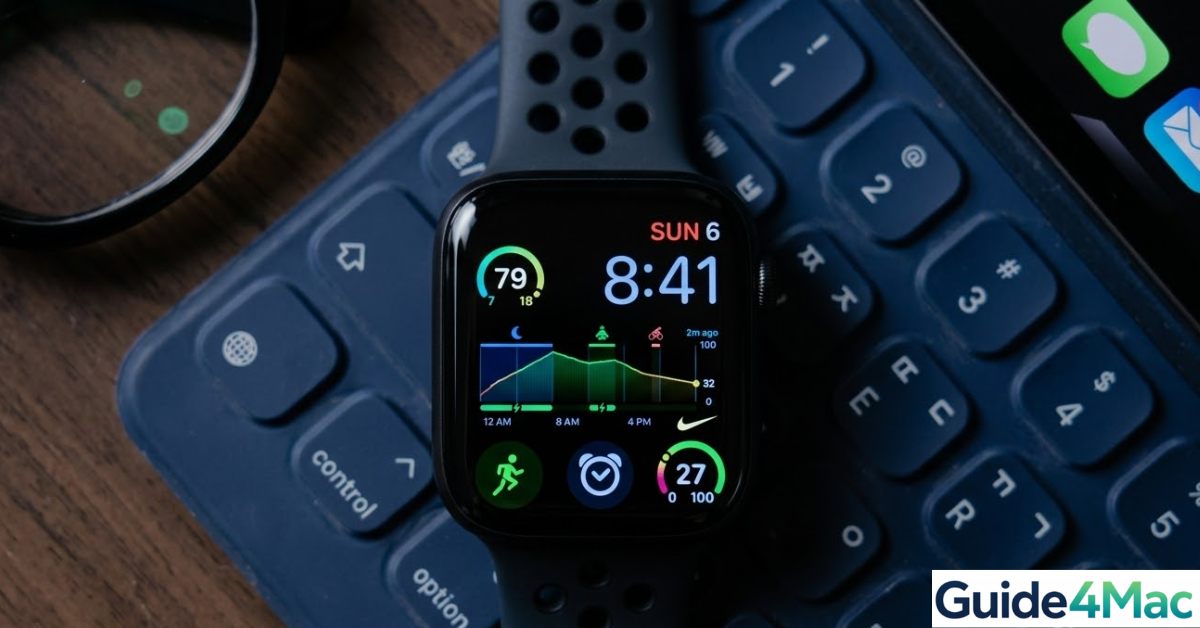
If you’re switching from Garmin or simply trying to better understand your daily energy levels, “Body Battery” is one of those features you quickly start to rely on. It helps you decide when to train, when to rest, and how your habits affect your energy.
Apple Watch doesn’t include a built-in Body Battery—but you can recreate it very effectively using apps and Apple’s own health data. The key is not just setting it up, but understanding how the data works together.
How to Get a Body Battery on Apple Watch (Step-by-Step)
Total Time: 5–10 minutes
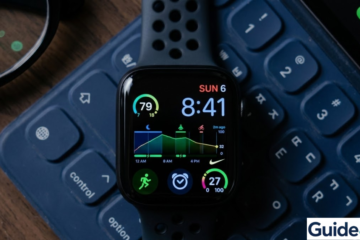
Apple Watch already tracks everything needed for a Body Battery score—like heart rate variability, sleep, and activity. Third-party apps combine this data into a single, easy-to-read energy level that updates throughout the day, giving you a clear picture of how “charged” your body is.
- Download a Body Battery App
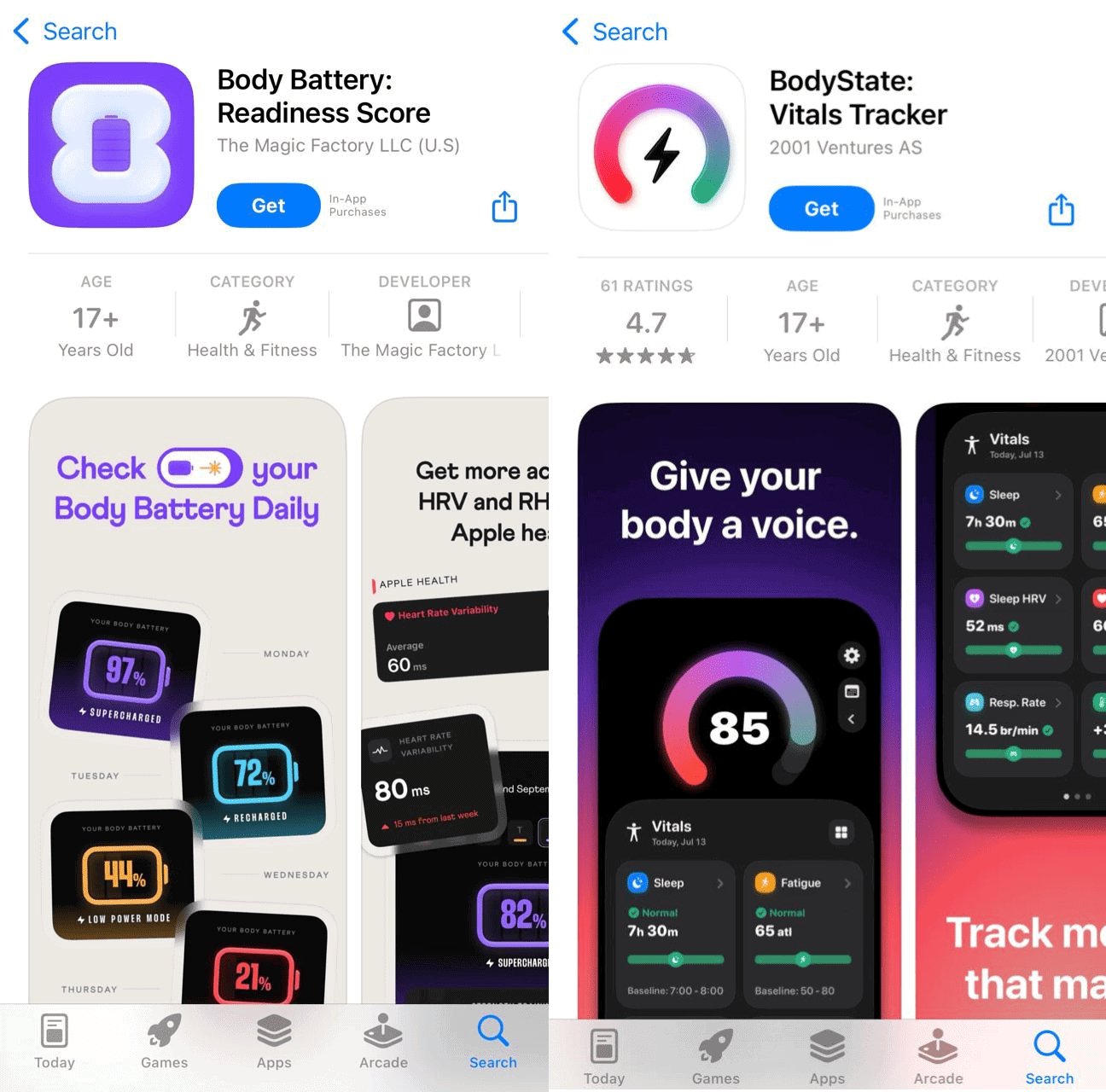
Open the App Store on your iPhone → tap Search → type “Body Battery” or “readiness score” → install an app like BodyState. These apps analyze your Apple Health data and convert it into a daily energy score that’s easy to understand.
- Check Compatibility
Go to Settings → General → Software Update on your iPhone and make sure you’re running the latest version of iOS. Then check your Apple Watch via Watch app → General → Software Update. Updated devices ensure better syncing and more reliable data.
- Allow Health Permissions
After installing the app, open it and follow the prompts. If needed, go to Settings → Privacy & Security → Health → Apps → [Your App Name] and enable access to Heart Rate, HRV, Sleep, and Activity. This step is essential for accurate results.
- Wear Your Apple Watch All Day (and Night)
Make sure your watch is worn consistently throughout the day and while sleeping. To enable sleep tracking, go to Health app → Browse → Sleep → Set Up Sleep and follow the setup. Night-time data is key to calculating recovery.
- Check Your Body Battery Score
Open the app on your iPhone or Apple Watch to view your score. You can also add a widget by going to Home Screen → press and hold → tap “+” → search your app → Add Widget for quick access to your energy levels.
Alternative Methods to Track Energy on Apple Watch
If you prefer not to use third-party apps, you can still understand your energy levels using Apple’s built-in tools—but it requires a bit more interpretation.
Instead of one score, you’ll rely on multiple indicators working together. The Sleep app shows how well you’ve recovered overnight, while HRV (heart rate variability) in the Health app reflects stress and recovery balance. Resting heart rate trends can reveal fatigue, and your Activity rings help you understand how much energy you’ve spent.
This approach gives you deeper insight, but not the simplicity of a single number.
If your Apple data isn’t syncing correctly, it’s worth making sure your account is properly set up—being logged in correctly ensures all your health data flows smoothly across devices.
Top 3 Third-Party “Body Battery” Apps for Apple Watch
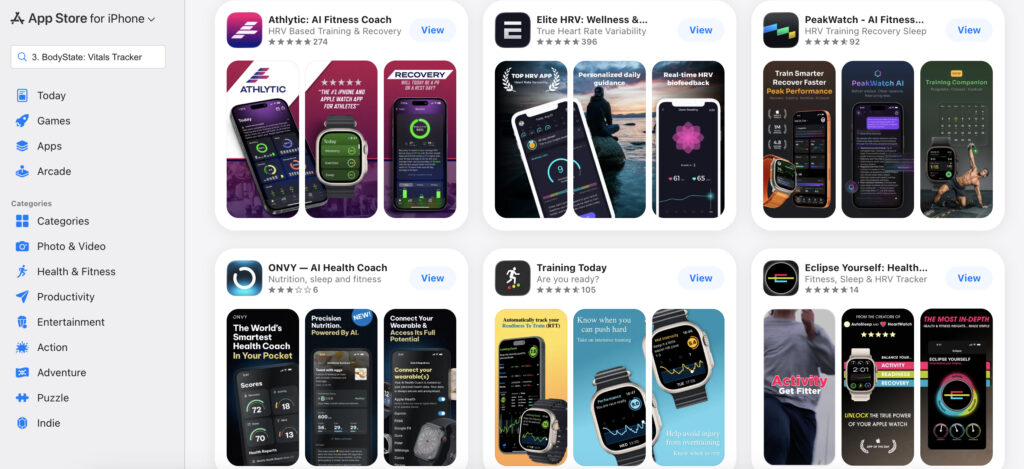
If you prefer the Garmin-style 100-point scale, several elite third-party apps have mastered the “Energy Score” logic. These apps get data from Apple Health and apply proprietary algorithms to create a daily readiness score.
1. Bevel: Health & Recovery
Bevel is a high-density health aggregator that focuses on the relationship between sleep, strain, and recovery. It provides a “Recovery Score” that mirrors the Body Battery experience, helping users decide whether to push for a new personal record or take a rest day.
- Advanced HRV Analytics: Samples heart rate variability during deep sleep for maximum accuracy.
- Strain Target: Recommends an activity level based on your morning recovery.
- Siri Integration: Ask Siri for your current energy levels directly from your wrist.
Pricing: $59.99 per year.
2. Athlytic: AI Fitness Coach
Athlytic is a favorite among professional athletes for its clean UI and AI-driven insights. It categorizes your “Body Battery” into Recovery, Exertion, and Sleep, giving you a comprehensive look at your cardiovascular health trends over time.
- Target Exertion Zone: Dynamically adjusts your workout goals based on HRV.
- Apple Watch Complications: View your recovery percentage directly on your watch face.
- Sleep Architecture: Detailed breakdown of REM and Deep sleep cycles.
Pricing: $29.99 per year.
3. BodyState: Vitals Tracker
BodyState is the most direct “Body Battery” clone for the Apple ecosystem. It provides a simple 1-to-100 energy score and a “Stress Monitor” that updates throughout the day based on your immediate physiological responses.
- Live Stress Tracking: Monitors real-time spikes in heart rate during non-active periods.
- Personalized Baselines: Learns your specific “normal” over 14 days of consistent wear.
- Widget Support: High-quality iOS 26 widgets for your iPhone Home Screen.
Pricing: $39.99 per year.
Common Problems with Body Battery Apps
Even when everything is set up, the experience may not feel perfect right away. Here’s what’s actually happening behind the scenes:
- Scores seem inconsistent at first: apps need a few days of continuous data to understand your baseline energy levels.
- Sleep data is missing: if you don’t wear your watch overnight or sleep tracking isn’t enabled, recovery can’t be calculated properly.
- Health data not syncing: sometimes permissions reset or apps lose access after updates.
- Energy score always low: this can reflect real fatigue—or incomplete HRV and sleep data.
Issues like this are often similar to other Apple syncing problems. For example, when Apple Mail doesn’t update correctly, it’s usually due to account or permission issues, so it’s better to check if your apple mail is properly synced with your gmail account.
Fixes and Troubleshooting
Instead of quick fixes, focus on improving your data quality:
- Check Health permissions in Settings → Privacy & Security → Health
- Enable sleep tracking and maintain a regular schedule
- Restart your iPhone and Apple Watch if syncing feels delayed
- Open the app daily so it refreshes your data
- Reinstall the app if syncing issues persist
If you’ve recently updated or changed account credentials, it can affect syncing across apps. Keeping your email credentials updated can help prevent these hidden issues.
Helpful Tips for Better Accuracy
To get the most out of your “Body Battery” experience, focus on habits rather than just settings.
- Wear your Apple Watch snugly for accurate sensor readings
- Charge it during the day instead of overnight
- Avoid gaps in usage—consistency improves insights
- Look at trends over time, not just daily scores
- Combine the score with how you actually feel
If you use multiple apps or services, setting them up correctly on your device can help avoid missing data.
FAQs? (People Also Ask)
No, Apple doesn’t provide a native Body Battery feature, but third-party apps can replicate it very well.
It’s fairly reliable if you wear your watch consistently and track sleep. It’s best used as a guideline rather than an exact measurement.
Most apps need about 3–7 days of consistent data to give meaningful insights.
Physical activity, stress, and lack of rest all drain your energy levels throughout the day.
Some apps are free, while others offer premium features through subscriptions.
Yes, Apple already collects all the required data, so a built-in version could arrive in future updates.

0 Comments