How to Fix Can’t Swipe Up on iPhone (iOS 26)
Swiping up on your iPhone is essential—whether you’re going back to the Home Screen, opening the App Switcher, or unlocking your device. So when that gesture suddenly stops working, it feels like your iPhone is broken.
In reality, this issue is usually caused by temporary software glitches, touch sensitivity problems, or conflicting settings. The good news: you can fix it in minutes using the step-by-step solutions below.
1. Restart Your iPhone (Yoast How-To)
Time needed: 4 minutes
Restarting your iPhone is the fastest way to fix swipe issues. It clears temporary system glitches and reloads the processes responsible for touch gestures.
- Open Power Menu
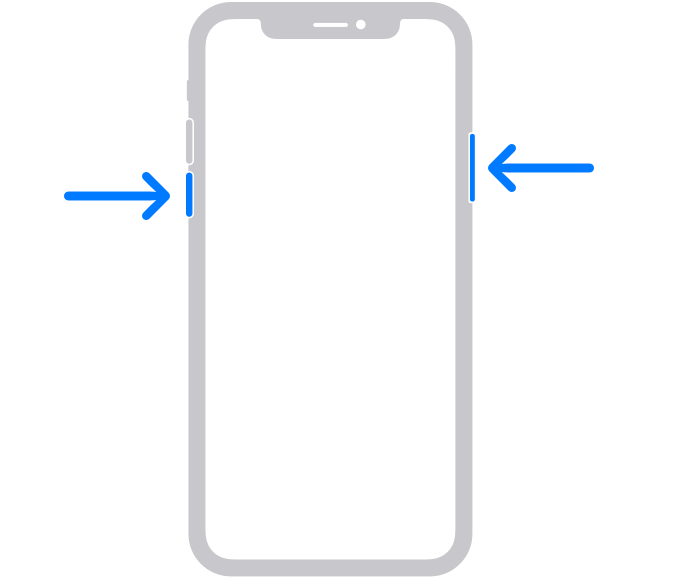
Press and hold the Side button together with either Volume button until the power-off slider appears on the screen.
- Turn Off Your iPhone
Drag the slider to power off your device. Wait about 10–15 seconds to ensure all background processes fully stop.
- Turn iPhone Back On
Press and hold the Side button again until the Apple logo appears. Let the device boot up completely.
- Test the Swipe Gesture
Once your iPhone is on, try swiping up from the bottom of the screen. Give it a second to fully respond.
- Force Restart (if needed)
If the swipe still doesn’t work:
1. Quickly press and release Volume Up
2. Quickly press and release Volume Down
3. Press and hold the Side button until the Apple logo appears
2. Remove Case or Screen Protector
Sometimes the problem isn’t software—it’s physical. Thick cases or poorly fitted screen protectors can block touch input near the bottom edge of the screen.
- Remove your iPhone case completely
- Check if the screen protector is lifting or too thick near the bottom
- Try swiping up directly on the bare screen
If it works, replace your accessory with a thinner, better-fitting one.
3. Clean the Screen
Dirt, oil, or moisture can reduce touch sensitivity—especially for gestures like swipe up that start at the edge.
- Turn off your iPhone
- Use a microfiber cloth to clean the screen
- Remove any moisture, fingerprints, or dust
- Turn your iPhone back on and test the gesture
Even a slightly dirty screen can interfere with gesture recognition.
4. Check Accessibility Settings
Certain accessibility features can interfere with swipe gestures without you realizing it. Try to turn of the AssistiveTouch and test the gesture
- Go to Settings → Accessibility → Touch
- Turn off AssistiveTouch (if enabled)
- Tap Touch Accommodations and make sure it’s disabled
- Go back and test the swipe gesture
These settings can change how your iPhone responds to touch input.
5. Update iOS
Software bugs are a common cause of gesture issues—especially after a new iOS release.
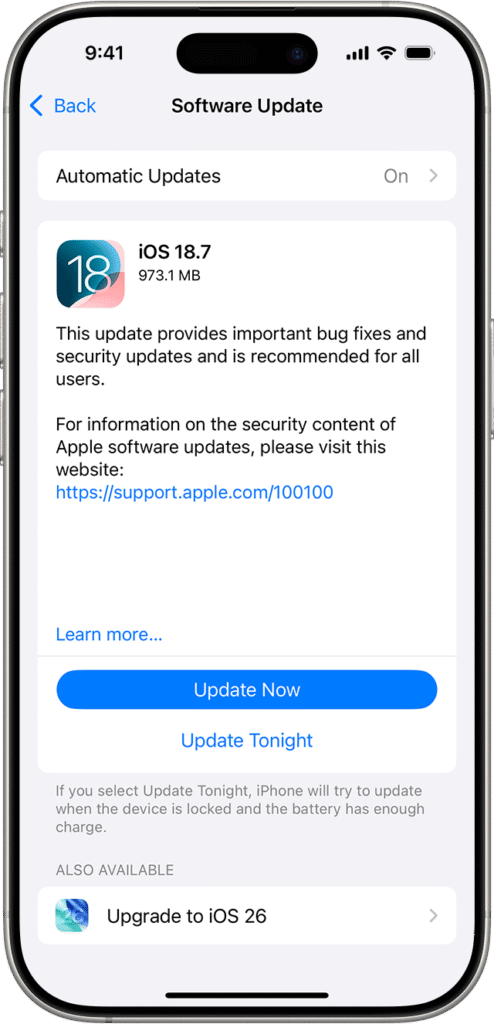
- Open Settings → General → Software Update
- If an update is available, tap Download and Install
- Wait for your iPhone to update and restart
- Test the swipe gesture again
Keeping your device updated also helps prevent other issues, like email syncing problems—similar to what’s explained in fixing Apple Mail syncing issues.
6. Reset All Settings
If nothing else works, resetting all settings can remove hidden conflicts affecting touch gestures.
- Go to Settings → General → Transfer or Reset iPhone
- Tap Reset → Reset All Settings
- Enter your passcode and confirm
- Wait for your iPhone to restart
This won’t delete your data—but it will reset Wi-Fi, preferences, and system settings.
Before doing this, make sure your Apple account is properly configured. If needed, you can sign in again using your Apple ID.
Common Problems
- Swipe up does nothing on the Home Screen
- iPhone won’t go to Home Screen
- App Switcher doesn’t open
- Bottom part of screen feels unresponsive
Tips to Prevent Swipe Issues
- Keep your iPhone updated
- Avoid thick or low-quality screen protectors
- Clean your screen regularly
- Restart your iPhone occasionally
- Avoid installing apps that modify system behavior
FAQs?
Usually due to software glitches, screen issues, or interfering settings.
Yes, it’s the most common and effective fix.
Yes, especially if it’s thick or misaligned.
No, it only resets system settings.
Rarely. Most cases are software-related.
Contact Apple Support—it could be a touchscreen hardware issue.

0 Comments