How to Turn Off Liquid Glass on iPhone (iOS 26)
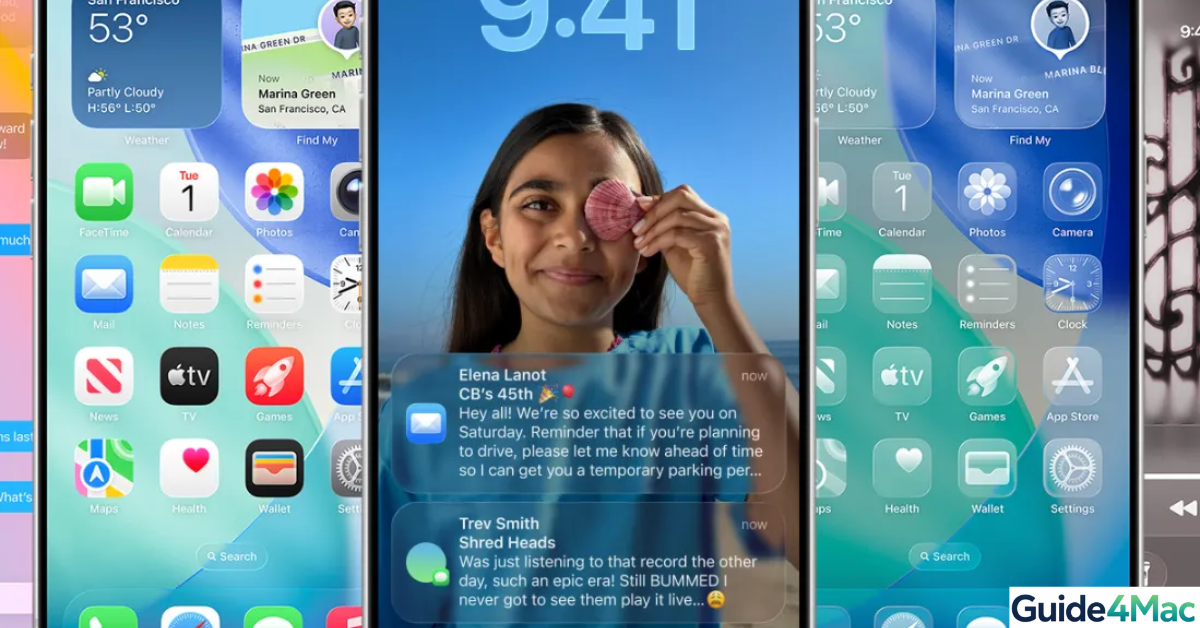
Apple introduced Liquid Glass in iOS 26 as part of its new visual design system. It adds glossy, translucent effects to menus, buttons, and interface elements across your iPhone. While it looks modern, many users find it distracting, harder to read, or simply unnecessary.
The good news? You can reduce or disable most of the Liquid Glass effects using built-in accessibility settings. This guide walks you through the exact steps.
How to Turn Off Liquid Glass on iPhone
Time needed: 3 minutes
You can reduce or effectively disable Liquid Glass effects by adjusting accessibility settings like Reduce Transparency and Increase Contrast. These settings simplify the interface and remove most of the glossy visual layers.
- Open Settings
Go to the Settings app on your iPhone.
- Tap Accessibility
Scroll down and tap Accessibility.
- Open Display & Text Size
Select Display & Text Size to access visual customization options.
- Enable Reduce Transparency
Turn on Reduce Transparency to remove glass-like blur effects.
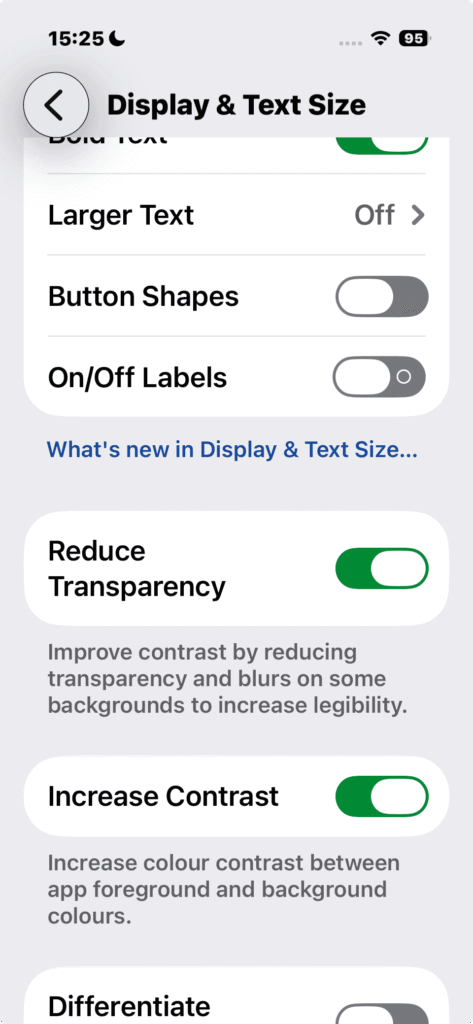
- Enable Increase Contrast
Toggle Increase Contrast to make UI elements more solid and easier to read.
- Test Your Interface
Go back to your home screen and apps to see the cleaner, less glossy design.
After enabling these settings, most Liquid Glass effects will be minimized, making your iPhone easier to use and read.
1. Use Reduce Motion to Simplify Effects
Liquid Glass also includes animations and transitions that enhance the glossy feel. Disabling motion reduces these layered effects and makes the UI feel more straightforward.
- Open Settings → Accessibility → Motion
- Turn on Reduce Motion
- Return to your apps and check the difference
This helps eliminate animation-heavy visuals that contribute to the Liquid Glass look.
2. Switch to Dark Mode
Dark Mode can visually tone down Liquid Glass by reducing brightness and glare from translucent layers.
- Go to Settings → Display & Brightness
- Select Dark Mode
- Adjust brightness to your comfort level
This doesn’t remove Liquid Glass, but it makes the interface easier on the eyes.
3. Restart Your iPhone
Sometimes UI changes don’t apply instantly. Restarting your device refreshes system processes and ensures settings take effect.
- Press and hold the Power + Volume button
- Slide to power off
- Turn your iPhone back on
After restarting, your updated display settings should apply correctly across the system.
4. Keep iOS Updated
Apple frequently refines UI features like Liquid Glass. Updates may improve clarity or give more control over visual effects.
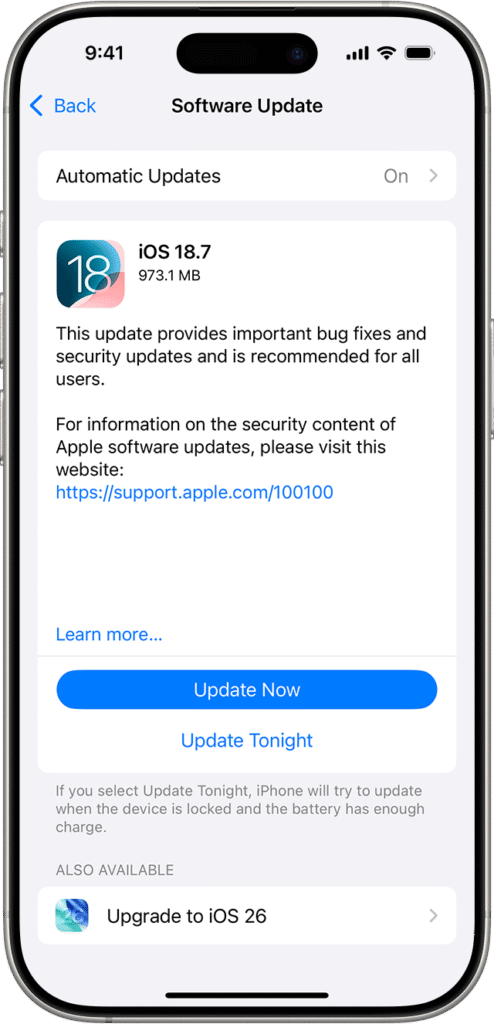
- Open Settings → General → Software Update
- Check for available updates
- Install the latest version
Staying updated ensures you get improvements and possible UI adjustments.
Common Problems
Some users still notice effects even after changing settings. Here’s why:
- Transparency still visible in certain apps
- Effects return after updates
- Some UI elements remain glossy by design
- Settings not applied everywhere
This happens because Liquid Glass is built into iOS and cannot be fully removed.
Fixes and Troubleshooting
If Liquid Glass still feels overwhelming, try these fixes:
- Restart your iPhone after changing settings
- Toggle accessibility options again
- Update your system
- Reset all settings if needed
If your iPhone settings behave unexpectedly, making sure your Apple account is properly configured can help.
And if system-related issues persist, updating your credentials may also improve stability.
Tips
- Combine Reduce Transparency + Increase Contrast for best results
- Use Dark Mode for a softer look
- Keep your iPhone updated
- Adjust text size for readability
If you’re customizing your iPhone experience, setting up accounts properly can also improve overall performance and usability. For example, adding your email correctly helps avoid sync or UI glitches.
FAQs (People Also Ask)
It’s a visual design feature in iOS 26 that adds glossy, translucent UI elements.
No, but you can significantly reduce it using accessibility settings.
It uses blur and transparency effects, which may reduce clarity.
It removes most of the visible effects.
Likely, as Apple often refines UI features in updates.
Not much, but reducing effects can make the UI feel faster.

0 Comments