How to Remove a Virus on Your Mac: Step-by-Step Guide
If your Mac is running slowly, showing unexpected popups, redirecting your browser, or behaving in ways it shouldn't - there's a good chance it's infected. Macs are not immune to viruses, trojans, spyware, and adware, and modern malware is designed to stay hidden until the damage is already done.
Intego Antivirus is built specifically for macOS and has been protecting Mac users since 1997. Its real-time scanning engine detects and removes viruses, malware, ransomware, and spyware - including threats that generic Windows-first tools miss entirely. Here's exactly what to do.
Download and Install Intego Antivirus
Click the download link and open the .dmg file. Drag Intego to your Applications folder and launch it. macOS may ask you to approve it in System Settings - Privacy & Security - click Open Anyway. This is a standard step for all Apple Notarized software and takes under 30 seconds.
Grant Full Disk Access
For Intego to scan hidden system folders and browser data where malware typically hides, it needs Full Disk Access. When prompted, click Open System Settings, find Intego in the list, and toggle it on. Without this permission, the scan will miss the exact locations viruses use to embed themselves and survive reboots.
Run a Full System Scan
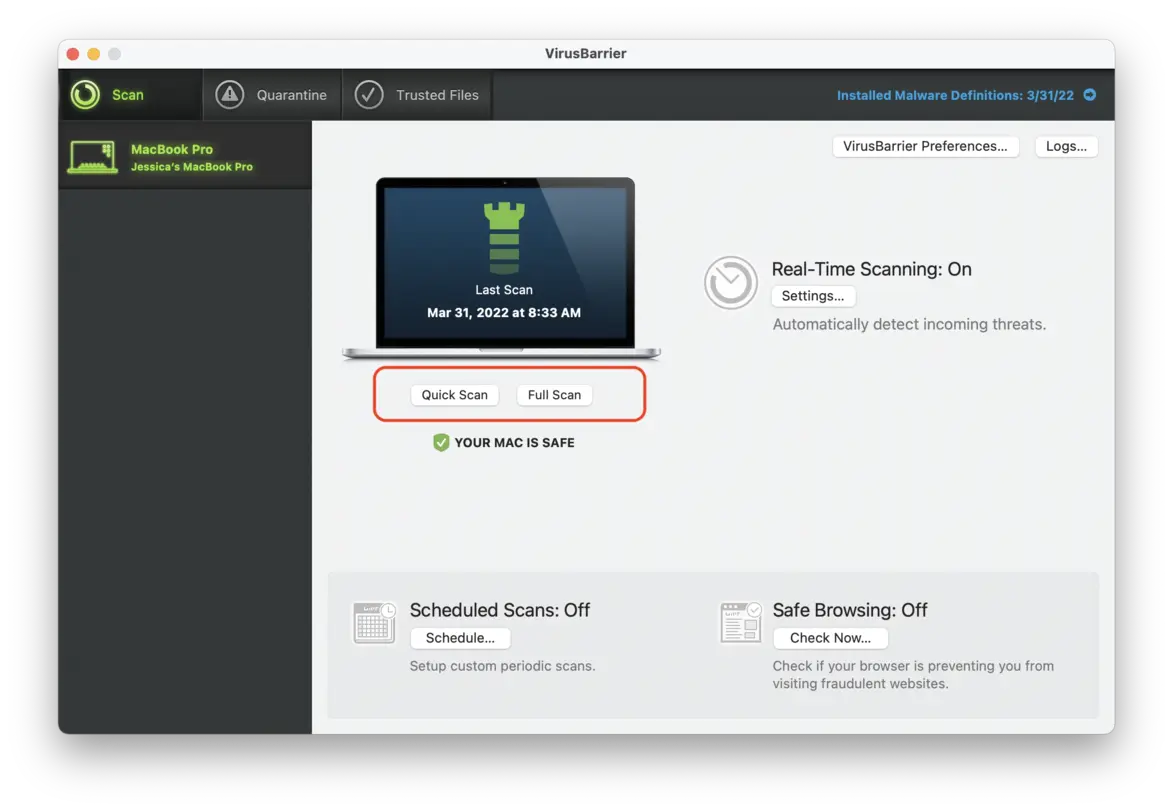
In the Intego dashboard, open VirusBarrier and select Full Scan. This scans your entire drive - including launch agents, hidden Library folders, browser extensions, and application bundles - checking every file against Intego's continuously updated Mac-specific threat database. A full scan typically takes 5–15 minutes depending on drive size.
Review Detected Threats
When the scan completes, Intego displays every threat found - grouped by type (virus, trojan, spyware, adware, ransomware) with a plain-English description of what each one does and how it got there. Review the list carefully before proceeding. In most cases, you can safely select all detected items and remove them.
Quarantine and Remove
Click Remove Selected. Intego moves all threats to a secure quarantine first, so nothing is permanently deleted until you confirm. Once you're satisfied with the results, empty the quarantine to free up space. Any browser settings or system configurations that were altered by the infection will be restored automatically.
Enable Real-Time Protection
Turn on Real-Time Scanning in VirusBarrier settings so Intego monitors every new file, download, and application install going forward. This blocks threats the moment they arrive - before they can execute or spread. You can also schedule weekly background scans to catch anything that slips through.
Your Mac May Already Be Infected
Modern Mac malware doesn't slow your computer to a crawl or flash obvious warnings - it runs silently in the background, stealing passwords, harvesting personal data, and using your machine as part of a botnet. By the time you notice something is wrong, the damage may already be done. The only way to know for certain is to scan.
What Can Infect Your Mac
Malicious programs disguised as legitimate software that execute on your system, corrupt files, and open backdoors for remote attackers.
Silent background processes that record your keystrokes, capture screenshots, and transmit your passwords and personal data to third parties.
Rogue software that injects ads into every website you visit, redirects your searches, and changes your homepage without permission.
Encryption-based attacks that lock your files and demand payment for the decryption key - increasingly targeting Mac users in recent years.
How Intego Removes Viruses from Your Mac
Unlike generic security tools ported from Windows, Intego's engine is built exclusively for macOS - recognising Mac-specific malware strains, including those hidden inside .dmg files, scripts, and app bundles.
Intego checks every corner of your Mac - launch agents, kernel extensions, browser data, and hidden Library folders - leaving nowhere for malware to hide or reinstall itself from.
One click removes all detected threats and restores any altered system or browser settings. Real-time protection then blocks new infections the moment they attempt to run.