MacBook Not Charging? 7 Fast Fixes for Pro, Air & M-Series
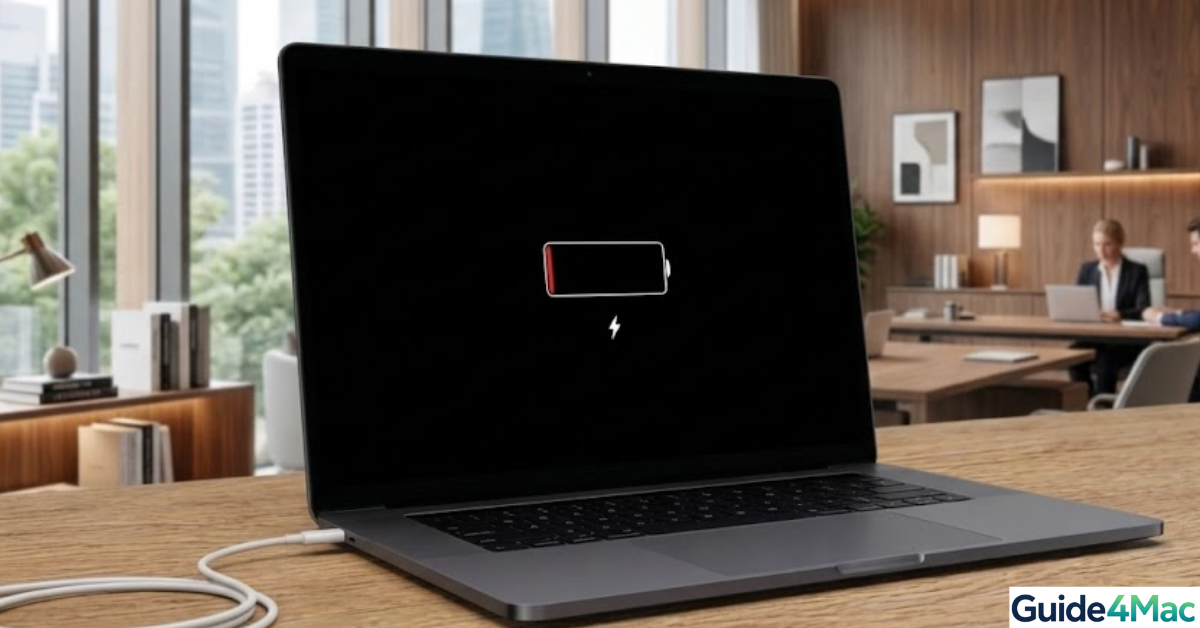
If your MacBook is plugged in but not charging, you’re not alone. This is one of the most searched MacBook issues every year, with thousands of users reporting messages like “Battery Not Charging” or seeing their battery stuck at 80%.
Here’s what’s interesting: in most real-world cases shared by users, the problem isn’t a dead battery. It’s usually caused by low-watt chargers, overheating, macOS battery optimization, or simple connection issues.
Apple itself designs MacBooks to pause or limit charging intentionally in certain situations—like when your device gets too warm or when it predicts you don’t need a full charge yet. That’s why the issue can feel random, even though it’s not.
The goal of this guide is simple: help you quickly identify what’s actually happening and apply the right fix—without wasting time on generic advice.
How to Fix a MacBook That Is Not Charging
1. Fix MacBook Not Charging (Start Here)
Time needed: 15 minutes
This method quickly checks the most common causes—power, connection, heat, and battery status.
- Check the Power Source
Test the outlet with another device. If it doesn’t work, switch to a different wall socket.
- Reconnect the Charger
Unplug and reconnect everything firmly. Loose connections are more common than they seem.
- Check the Charging Indicator
Look at the battery icon or MagSafe light. No response usually means a cable or adapter issue.
- Let Your Mac Cool Down
If your Mac is warm, charging may pause automatically. Let it cool on a flat surface.
- Restart Your Mac
Restarting clears temporary glitches that may affect charging.
- Check Battery Health
Go to System Settings → Battery → Battery Health. If needed, consider battery replacement.
2. Use the Right Charger
If your MacBook isn’t charging, the charger itself may be the issue.
MacBooks require a specific wattage to charge properly. Using a lower-power adapter can result in slow charging—or no charging at all.
What to check:
- Look at the wattage on your charger (e.g. 30W, 67W, 96W)
- Compare it to your Mac model requirements
- Try a certified Apple charger if possible
This should restore normal charging speed and detection, especially if your Mac was previously showing “Not Charging”.
However, keep in mind: using underpowered chargers regularly can lead to inconsistent charging behavior.
3. Check the Cable and Adapter
A damaged cable can silently stop your Mac from charging. Even small internal breaks can interrupt power delivery without obvious signs.
What to look for:
- Frayed or bent areas
- Discoloration or heat marks
- Loose connectors
If possible, test with another cable. This should help restore a stable connection, especially if charging was starting and stopping randomly.
4. Clean the Charging Port
Dust inside the charging port can block the connection completely. Even a small buildup prevents the charger from sitting properly.
What to do:
- Use compressed air or a wooden toothpick
- Gently remove dust or lint
- Avoid metal tools
This should allow proper contact between the charger and your Mac, restoring normal charging.
5. Disable Optimized Battery Charging (80% Limit)
If your MacBook stops charging at 80%, it’s usually intentional—not a problem. You might also see messages like “Charging On Hold”, which simply means your Mac is managing battery health in the background.
Apple uses machine learning to learn your daily routine and delay full charging. Keeping a battery at 100% for long periods can increase wear, so macOS limits it when possible.
To turn it off:
- Go to System Settings → Battery
- Tap Battery Health
- Disable Optimized Battery Charging
This will allow your MacBook to charge fully to 100% without pausing.
However, keep in mind that disabling this feature may slightly reduce battery lifespan over time—especially if your Mac stays plugged in most of the day.
To keep your Apple ecosystem working smoothly, make sure your account is properly set up and if you’ve recently updated your credentials, syncing them correctly helps avoid system inconsistencies.
6. Update macOS
Charging issues can sometimes come from software bugs. macOS updates often include fixes for battery and power management.
To update:
- Go to System Settings → General → Software Update
- Install any available updates
This should improve charging stability and system performance, especially after major updates.
7. Reset SMC and NVRAM (Advanced Fix)
If your Mac still won’t charge, a deeper reset may help.
The SMC (System Management Controller) manages charging, battery behavior, and power flow.
NVRAM stores system-level settings that can sometimes interfere with hardware communication.
Reset SMC (Intel Macs):
- Shut down your Mac
- Press Shift + Control + Option + Power for 10 seconds
- Release and turn it back on
Reset NVRAM:
- Turn off your Mac
- Turn it on and hold Option + Command + P + R
- Hold for about 20 seconds
This should reset power-related processes and clear misconfigurations, especially if your Mac misreads battery or charger input.
However, keep in mind: this won’t fix physical damage—but it often resolves hidden system issues.
8. Avoid Overheating
If your Mac gets too hot, charging may stop automatically. This is a built-in safety feature to protect the battery.
What helps:
- Use your Mac on a flat surface
- Avoid soft materials like beds or sofas
- Let it cool before charging
This should allow charging to resume normally once temperatures drop.
9. Run Apple Diagnostics
If nothing works, it’s time to check for hardware issues.
To run diagnostics:
- Turn off your Mac
- Turn it on and hold D
- Follow on-screen instructions
This will scan your Mac for battery, logic board, or power issues.
Common Problems
- “Battery Not Charging” message
- Charging stuck at 80%
- Charger not detected
- Battery drains while plugged in
Tips to Keep Your Mac Charging Properly
- Use certified chargers and cables
- Keep ports clean
- Avoid overheating
- Don’t fully drain the battery often
FAQs (People Also Ask)
Usually due to charger issues, overheating, or battery settings.
Yes, it’s part of Apple’s battery protection system.
Yes, it’s one of the most common causes.
You may be using a low-watt charger.
When performance drops or macOS shows a warning.



0 Comments