iOS 26 Taking Forever to Install? Fix Slow Download, Stuck Updates & Installation Issues Fast
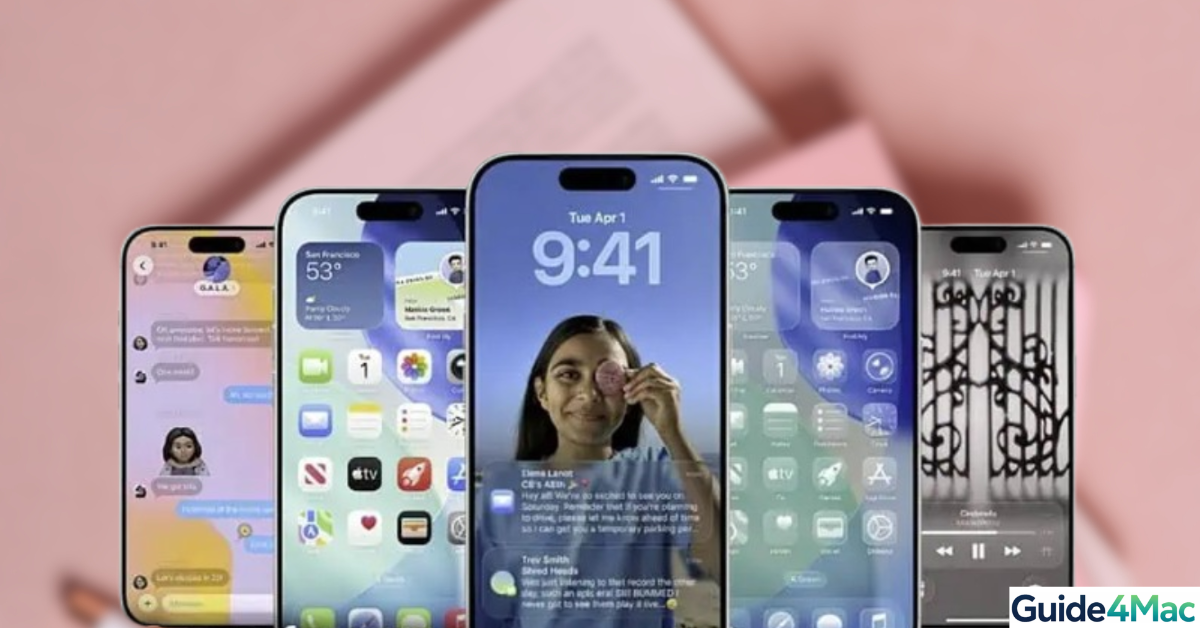
iOS 26 is not just another incremental update. With installation packages often exceeding 5–7 GB, it is closer to a full system rebuild than a simple upgrade. During the first 24–72 hours after release, Apple’s servers experience massive global demand, which means your iPhone is not just downloading files, it is competing for bandwidth, verifying encrypted data, and rebuilding system partitions in real time.
This is exactly why users get stuck on “Preparing Update,” frozen progress bars, or extremely slow installs. In many cases, the issue is not your internet speed alone, but a combination of network instability, storage pressure, and corrupted update sessions.
If your iPhone is already struggling with storage before updating, it is very likely the installation will stall. In that case, fixing system storage overload issues first can dramatically improve update performance.
Below, you will find the exact fixes that target each technical bottleneck, not generic advice, but solutions based on how iOS updates actually work under the hood.
Why Is iOS 26 Taking So Long to Install?
An iOS update runs through three critical stages:
- Download from Apple servers
- Verification using cryptographic signatures
- Installation with system file replacement
Typical install times:
- Fast Wi-Fi: 20 to 40 minutes
- Average home Wi-Fi: 40 to 90 minutes
- Peak release days: 2+ hours
If your update exceeds these ranges, one of the issues below is almost always responsible.
1. How to Restart Settings App to Fix Stuck Update
Time needed: 2 minutes
When you start an update, iOS creates a temporary session with Apple’s update servers. If that session fails due to a timeout or packet loss, your device may stop requesting data without showing an error. Restarting the app force-refreshes this connection.
- Open the App Switcher
On an iPhone with Face ID, swipe up from the bottom edge and pause in the center of the screen. On devices with a Home button, double-click the Home button.
- Locate the Settings App
Scroll horizontally through your open applications until you find the Settings app preview.
- Locate the Settings App
Swipe up firmly on the Settings app card to toss it off the top of the screen. This fully terminates the process and any stalled server sessions.
- Relaunch Settings
Return to your Home Screen or App Library and tap the Settings icon to open it fresh.
- Navigate to Software Update
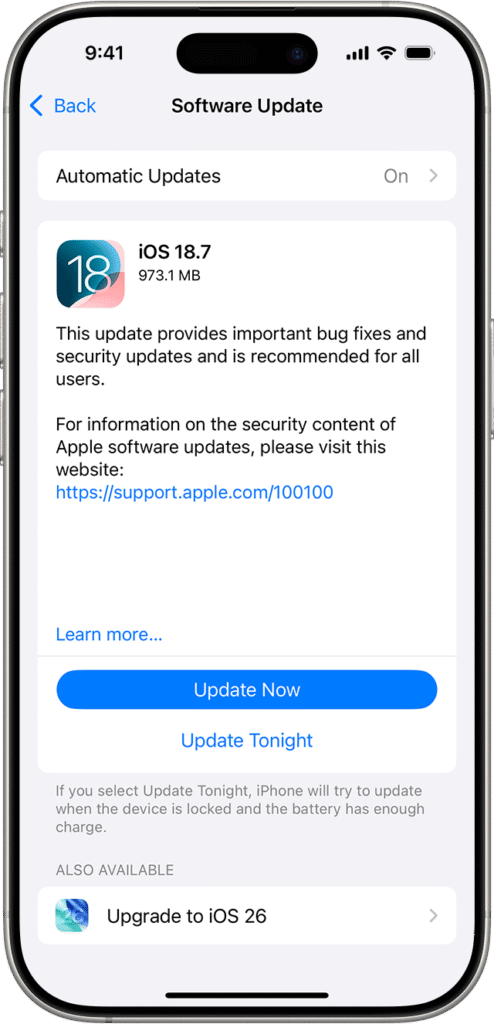
Go to General > Software Update. The system will now initiate a brand-new handshake with Apple’s servers to resume your download.
2. Toggle Airplane Mode to Rebuild Network Routing
Your iPhone stores DNS paths and routing tables. If those become unstable, the update cannot maintain a consistent connection to Apple servers.
- Open Settings.
- Turn on Airplane Mode.
- Wait 10 seconds.
- Turn off Airplane Mode.

3. Switch to a Stable High-Speed Wi-Fi Network
iOS updates rely on continuous integrity checks. Even minor interruptions force the system to re-download parts of the file.
- Open Settings.
- Tap Wi-Fi.
- Select a faster network.
- Move closer to your router.
4. Disable Low Data Mode and iCloud Private Relay
These features reduce bandwidth and add routing layers. That increases latency and slows large downloads like iOS updates.
- Open Settings.
- Tap Wi-Fi.
- Tap the (i) next to your network.
- Turn off Low Data Mode.
- Go back to Settings.
- Tap Apple ID.
- Tap iCloud.
- Turn off Private Relay.
5. Turn Off VPN and Network Filters
VPNs introduce encryption overhead and rerouting, which increases latency and may block Apple verification endpoints.

- Open Settings.
- Tap VPN.
- Turn off VPN.
- Disable DNS or filtering apps.
6. Free Up Enough Storage Space
iOS temporarily duplicates system files during installation. If storage is insufficient, the process stalls mid-install.
- Open Settings.
- Tap General.
- Tap iPhone Storage.
- Delete unused apps.
- Remove large files.
If storage fills up frequently, applying methods from reducing iPhone system data can prevent future update failures.
7. Delete and Re-Download the Update File
Corrupted update files cannot pass Apple’s verification stage, which leads to infinite “Preparing Update.”
- Open Settings.
- Tap General.
- Tap iPhone Storage.
- Select the iOS Update file.
- Tap Delete Update.
- Go back to Software Update.
- Download again.
8. Restart iPhone and Router to Clear System Conflicts
Temporary memory conflicts or router-level congestion can slow or interrupt downloads.
- Turn off your iPhone.
- Wait 10 seconds.
- Turn it back on.
- Unplug your router.
- Wait 15 seconds.
- Plug it back in.
If your device freezes, use techniques similar to force restarting Apple devices.
9. Turn Off Low Power Mode
Low Power Mode limits CPU performance and background tasks, slowing installation speed.
- Open Settings.
- Tap Battery.
- Turn off Low Power Mode.
10. Set Date and Time Automatically
Incorrect system time breaks Apple’s security verification during installation.

- Open Settings.
- Tap General.
- Tap Date & Time.
- Enable Set Automatically.
11. Reset Network Settings
Resetting clears outdated DNS entries and corrupted network configs that block downloads.
- Open Settings.
- Tap General.
- Tap Transfer or Reset iPhone.
- Tap Reset.
- Select Reset Network Settings.
12. Update Using a Mac or Windows PC
This method downloads firmware directly and avoids Wi-Fi instability.
Steps (Mac)
- Connect your iPhone.
- Open Finder.
- Select your device.
- Click Check for Update.
- Click Download and Update.
Steps (Windows)
- Connect your iPhone.
- Open iTunes.
- Select your device.
- Click Check for Update.
13. Remove Beta Profiles
Beta channels use different servers and can conflict with official releases.
- Open Settings.
- Tap General.
- Tap VPN & Device Management.
- Remove profiles.
14. Use Recovery Mode for Stuck Updates
Recovery Mode installs iOS outside the current system, bypassing corruption.

- Connect your iPhone.
- Enter Recovery Mode.
- Select Update.
Tips
- Keep 5 to 10 GB free before updating
- Avoid peak release hours
- Pause iCloud syncing
- Back up using secure iPhone backup methods
- Check known iOS 26 bugs if issues persist
Get iOS 26 Installed Without Delays
Slow iOS 26 installations are not random. They are usually caused by network instability, insufficient storage, or corrupted update sessions.
By addressing each technical bottleneck directly, you can reduce installation time dramatically and avoid getting stuck mid-update.
Key Takeaways
iOS 26 updates can slow down due to server congestion, weak Wi-Fi, or system conflicts. Each solution in this guide targets a specific failure point, from network resets to file corruption.
This guide is designed for users facing slow downloads, stuck updates, or installation failures. Applying these fixes ensures a faster and smoother update process.
FAQs?
This usually happens due to corrupted files or low storage during verification.
Typically between 5 GB and 7 GB depending on your device.
Yes, especially during release days with high server demand.
Yes, it avoids Wi-Fi issues and is more stable.
No, but backing up is always recommended.


0 Comments