How to Update an Old iPad to Latest iPadOS

Here’s a fun fact, Apple supports iPads far longer than most people expect. Some models released nearly a decade ago can still receive updates, just not always the newest iPadOS version you see advertised.
If your iPad feels “left behind,” don’t worry. In this guide, you will learn how to update your old iPad properly, install the latest supported version, and fix common issues that prevent updates from working.
Why Can’t You Update Your Old iPad?
Apple limits iPadOS updates based on hardware capabilities like RAM, chipset, and storage speed. Older devices eventually stop receiving major updates, especially when newer features require more powerful chips.
Even if your iPad cannot install the latest iPadOS version, it can still receive the newest version available for that model, which includes important security updates and stability improvements.
1. Check iPad Compatibility First
Before attempting any update, you need to confirm whether your iPad supports newer iPadOS versions. This avoids wasting time troubleshooting something that is not possible.

- Open Settings.
- Tap General.
- Select About.
- Note your Model Name.
- Compare it with Apple’s supported iPad list.
For a deeper breakdown of all iPad generations and support timelines we wrote a comprehensive guide to all iPad generations.
2. Update iPad Using Settings (OTA Method)
This is the standard method Apple designed for most users. It works because the iPad downloads and installs firmware directly from Apple servers.
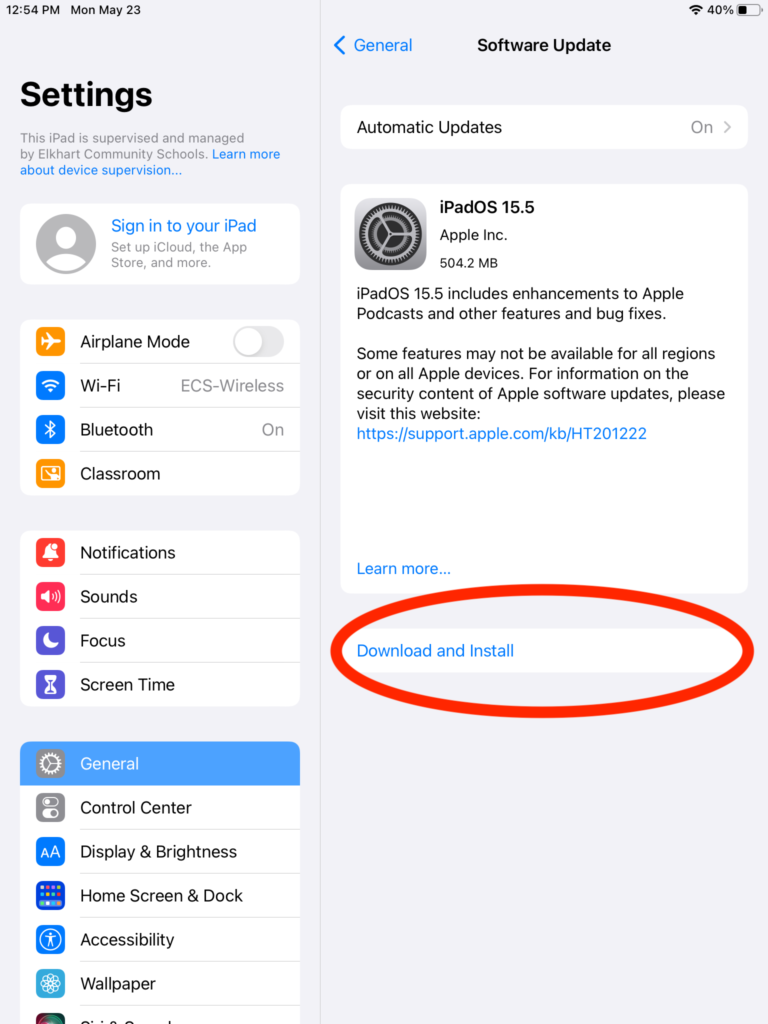
- Open Settings.
- Tap General.
- Select Software Update.
- Tap Download and Install.
- Enter your passcode.
- Tap Install Now.
If this option does not appear, your iPad is either up to date or unsupported.
3. Update iPad Using Finder or iTunes
This method is more reliable because it installs the update via a computer. It bypasses common issues like slow WiFi or limited storage.
- Connect your iPad to a computer.
- Open Finder or iTunes.
- Select your iPad.
- Click Check for Update.
- Click Download.
- Click Update.
This method is especially useful if your iPad is stuck or keeps failing updates.
4. Free Up Storage Space
Older iPads often fail updates due to insufficient storage. iPadOS needs several gigabytes of free space to download and install properly.

- Open Settings.
- Tap General.
- Select iPad Storage.
- Delete unused apps.
- Remove large files.
If your device is constantly low on storage, you can try cleaning the cache to manage system data efficiently.
5. Backup Your iPad Before Updating
Updates can occasionally fail, and a backup ensures you do not lose important data. This step works as a safety net before major system changes.
- Open Settings.
- Tap your Apple ID.
- Select iCloud.
- Tap iCloud Backup.
- Tap Back Up Now.
6. Install the Latest Supported Version
If your iPad is too old, you will not see the newest iPadOS. Instead, Apple offers the most recent compatible version for your hardware.
This works because Apple signs specific firmware versions per device, preventing unsupported installations.
- Open Settings.
- Tap General.
- Select Software Update.
- Install the available version.
7. Fix iPad Not Showing Update
Sometimes the update exists but does not appear due to network or system glitches. Refreshing the system usually resolves it.
- Connect to WiFi.
- Restart your iPad.
- Open Settings.
- Tap General.
- Select Software Update.
8. Force Update Using Recovery Mode
Recovery mode allows you to reinstall iPadOS when the system is corrupted or stuck. This is one of the most effective advanced fixes.
- Connect your iPad to a computer.
- Enter recovery mode.
- Open Finder or iTunes.
- Select Update.
9. Reset Settings to Fix Update Errors
Corrupted system settings can block updates. Resetting them restores default configurations without deleting your data.
- Open Settings.
- Tap General.
- Select Transfer or Reset iPad.
- Tap Reset.
- Choose Reset All Settings.
If your iPad continues to behave abnormally, you may also need a full reset.
Tips
• Always keep your iPad plugged into power during updates
• Avoid using beta software on older devices
• Restart your device before installing updates
• Keep at least 5GB of free storage
• Update apps after installing new iPadOS
Make Your Old iPad Feel New Again
Even if your iPad cannot run the latest iPadOS, it can still perform well for everyday tasks like streaming, browsing, and note taking. Updating to the latest supported version improves security and reduces bugs.
You can also extend its lifespan by resetting the device, managing storage, and avoiding heavy apps that strain older hardware.
Key Takeaways
Updating an old iPad depends on device compatibility and available storage. You can install updates through Settings, a computer, or recovery mode if needed. Even unsupported devices can still run stable versions of iPadOS. This guide is ideal for anyone trying to keep an older iPad usable and secure.
FAQ
No, Apple restricts firmware installations based on hardware compatibility. While unofficial methods exist, they are unstable and can break core features like WiFi, app functionality, and system stability. The safest approach is installing the latest version officially supported by your iPad model, which still delivers security updates.
This usually means your iPad is already running the newest version available for its specific hardware. Apple stops pushing major updates after several years, so your device will not detect newer versions designed for newer iPads.
Most updates require between 3GB and 6GB of free space, but older devices may need additional temporary storage during installation. Keeping at least 5GB free ensures a smoother update process and reduces failure risks.
Yes, updating improves security, keeps apps working properly, and reduces bugs. Even if performance gains are minimal, staying updated helps protect your data and extends the usable life of your device.
Start with basic checks like WiFi stability and available storage. If the issue continues, update using a computer through Finder or iTunes. For persistent problems, recovery mode is the most effective solution since it reinstalls iPadOS from scratch without affecting your data when using the update option.


0 Comments