How to Fix iPhone Not Charging And Get it Back In Line?
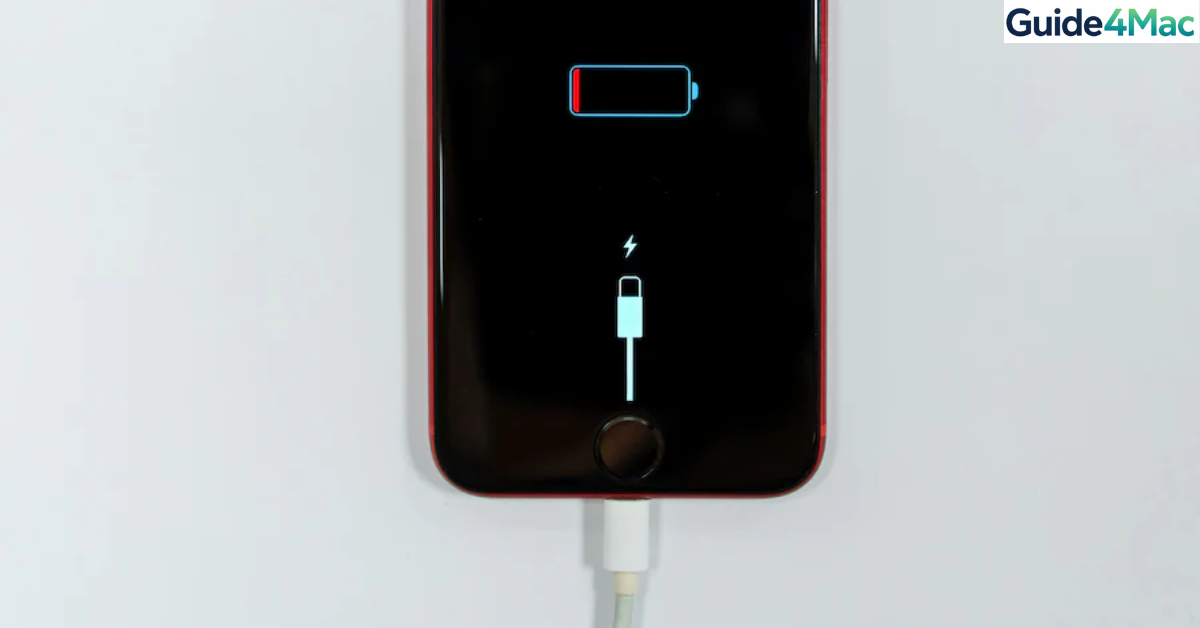
If your iPhone won’t charge, the problem is usually caused by a faulty cable, debris in the charging port, software glitches, or battery issues. Even newer models with USB-C connectors can stop charging if accessories are incompatible or the port is blocked.
This guide walks through the most effective fixes, from simple cable checks to deeper troubleshooting. If your device still refuses to charge after these steps, you may need professional service or a battery replacement.
If your battery drains quickly once it starts charging again, you may first want to check when it’s time to replace it based on battery health percentages.
Why Is Your iPhone Not Charging?
Several common issues can prevent an iPhone from charging normally. These include damaged charging cables, dust blocking the Lightning or USB-C port, outdated iOS software, overheating, or battery degradation.
In many cases, the issue is simple. Lint in the port or a worn cable can stop the connection between the charger and the phone. Apple also notes that charging may pause automatically if the device gets too hot or if the battery optimization feature temporarily limits charging.
Before assuming hardware failure, try the solutions below.
1. Check the Charging Cable and Power Adapter
Faulty accessories are one of the most common reasons an iPhone won’t charge. Charging cables wear out over time, especially near the connector where bending occurs.
A frayed cable or damaged adapter can interrupt power delivery even if the cable looks fine from the outside.
Steps to check your charging accessories
- Inspect your charging cable for frayed wires or bent connectors.
- Check the wall adapter for visible damage.
- Plug the charger into a different power outlet.
- Try a different Lightning or USB-C cable.
- Use an Apple-certified charger if possible.
If another cable works, the original one is likely defective.
2. Clean the iPhone Charging Port
Pocket lint and dust often build up inside the charging port. Even a small amount of debris can prevent the cable from connecting properly.
This is one of the most common causes of charging issues.

- Turn off your iPhone.
- Shine a flashlight into the charging port.
- Use a wooden toothpick or soft brush to remove debris.
- Blow compressed air gently into the port.
- Reconnect the charging cable.
Avoid using metal tools because they can damage the connector pins.
3. Restart Your iPhone
Temporary software glitches sometimes prevent the device from recognizing a charger. Restarting the phone resets system processes that may interfere with charging.
- Press and hold the side button and volume button.
- Drag the Power Off slider.
- Wait 10 seconds.
- Press the side button again to turn the device back on.
After restarting, reconnect your charger to check if charging resumes.
4. Force Restart the iPhone
If the device is frozen or completely unresponsive, a force restart can restore normal behavior.
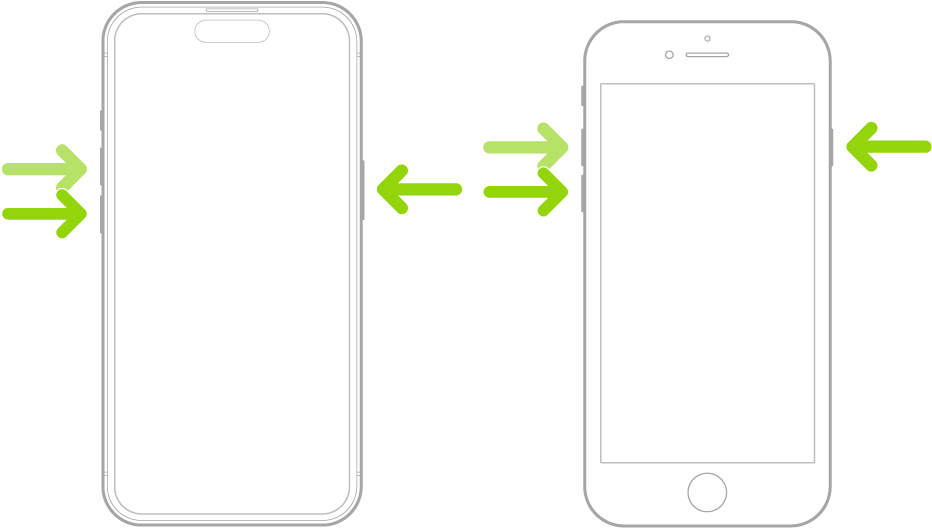
- Press and release the Volume Up button.
- Press and release the Volume Down button.
- Press and hold the Side button.
- Release the button when the Apple logo appears.
This procedure works for iPhone 8 and newer models.
5. Update iOS
Outdated software can cause bugs that interfere with charging or accessory detection. Installing the latest iOS update often fixes system-level problems.
- Open Settings.
- Tap General.
- Select Software Update.
- Tap Download and Install.
Make sure the phone has enough battery before updating.
6. Try Wireless Charging
If your iPhone supports wireless charging (iPhone 8 or later), this can help identify whether the charging port is the issue.
If the device charges wirelessly but not through a cable, the port or cable is likely the problem.
- Place your iPhone on a Qi or MagSafe charging pad.
- Align the phone in the center of the pad.
- Remove thick cases if charging does not start.
- Check for the charging indicator on the screen.
Wireless charging can be a temporary workaround while you troubleshoot.
7. Check Battery Health
Older batteries lose capacity after hundreds of charge cycles. Once the battery health drops below about 80%, charging problems may appear.
Fou can check battery health directly in iOS.
- Open Settings.
- Tap Battery.
- Select Battery Health & Charging.
- Review the Maximum Capacity value.
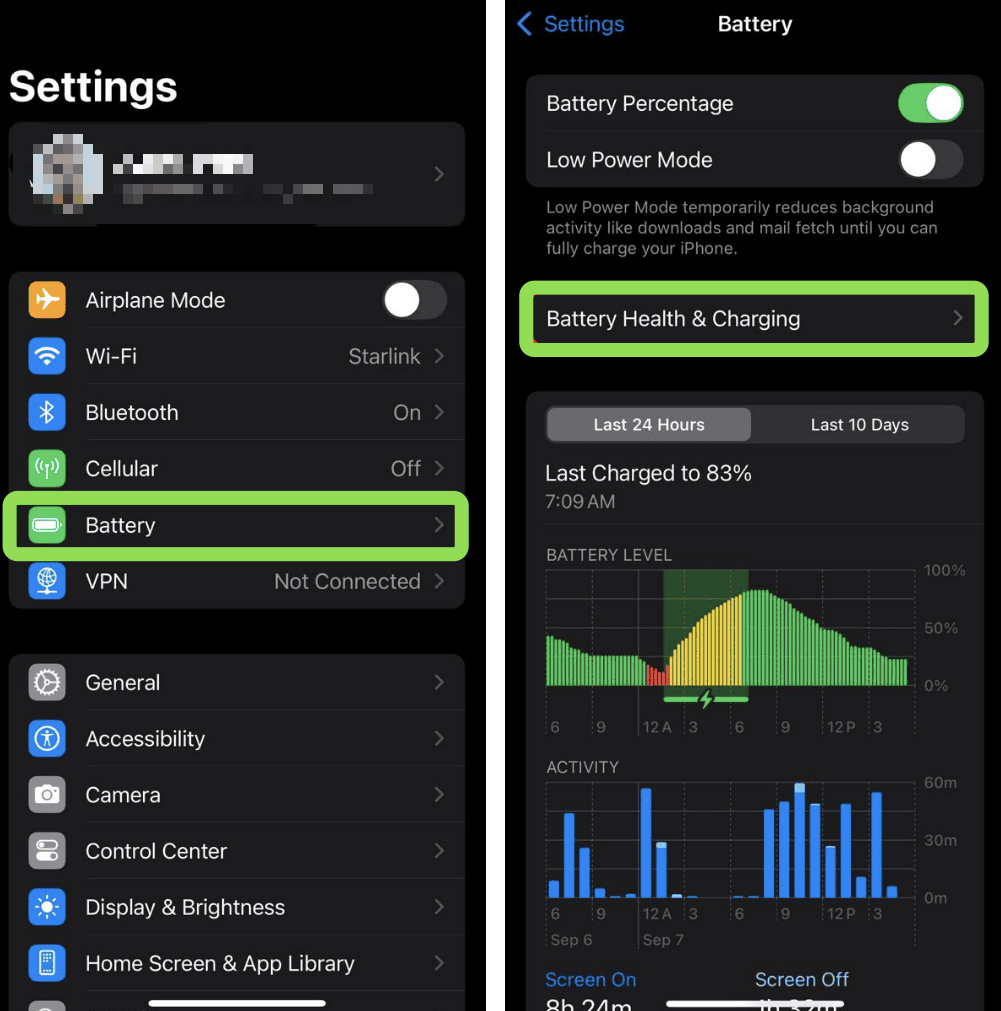
If the capacity is very low, replacing the battery may solve charging issues.
8. Inspect for Liquid or Temperature Warnings
Your iPhone may temporarily stop charging if it detects moisture in the charging port or if the device overheats.
Charging will automatically resume once the phone returns to a safe temperature range.
If you see a liquid detection warning:
- Disconnect the charger immediately.
- Let the phone dry in a well-ventilated area.
- Wait several hours before reconnecting the cable.
Avoid using heat sources like hair dryers to dry the port.
9. Contact Apple Support or Repair Services
If none of the above steps fix the issue, the problem could involve internal hardware. This might include a damaged charging port, faulty battery, or internal power management component.
At this stage, scheduling professional service is recommended. You can also review your coverage first by checking your Apple warranty status.
Tips💡
• Avoid cheap, uncertified charging cables.
• Clean your charging port periodically to prevent lint buildup.
• Remove thick cases while charging if the phone overheats.
• Use a 20W or higher adapter for faster charging on newer iPhones.
• Keep iOS updated to avoid charging related software bugs.
Get Your iPhone Charging Again
An iPhone that refuses to charge can be frustrating, but most cases are easy to fix. The issue usually comes down to accessories, debris in the port, or minor software glitches.
Start with the simplest solutions such as cleaning the charging port or trying another cable. If the device still won’t charge after troubleshooting, a battery replacement or professional repair may be necessary.
Key Takeaways
Charging problems on iPhones are usually caused by damaged cables, dirty ports, software bugs, or worn batteries. Cleaning the port, restarting the device, and testing different chargers resolve many cases quickly. Wireless charging can help determine whether the issue is related to the charging port. This guide helps iPhone users diagnose and fix most charging problems before seeking professional repair.
FAQs
This can happen when the device is overheating or when Optimized Battery Charging temporarily pauses charging at 80 percent to protect battery health.
Yes. Dust, lint, and debris often block the connection between the cable and the internal charging pins, preventing power transfer.
Slow charging is usually caused by low-power adapters, damaged cables, or background apps consuming power while charging.
If wireless charging works but cable charging does not, the Lightning or USB-C port may be dirty or damaged.
If battery health drops below 80 percent or the phone shuts down unexpectedly, replacing the battery is usually recommended.

0 Comments