Connect iPhone to Windows Using Microsoft Phone Link (and 3 Alternatives)
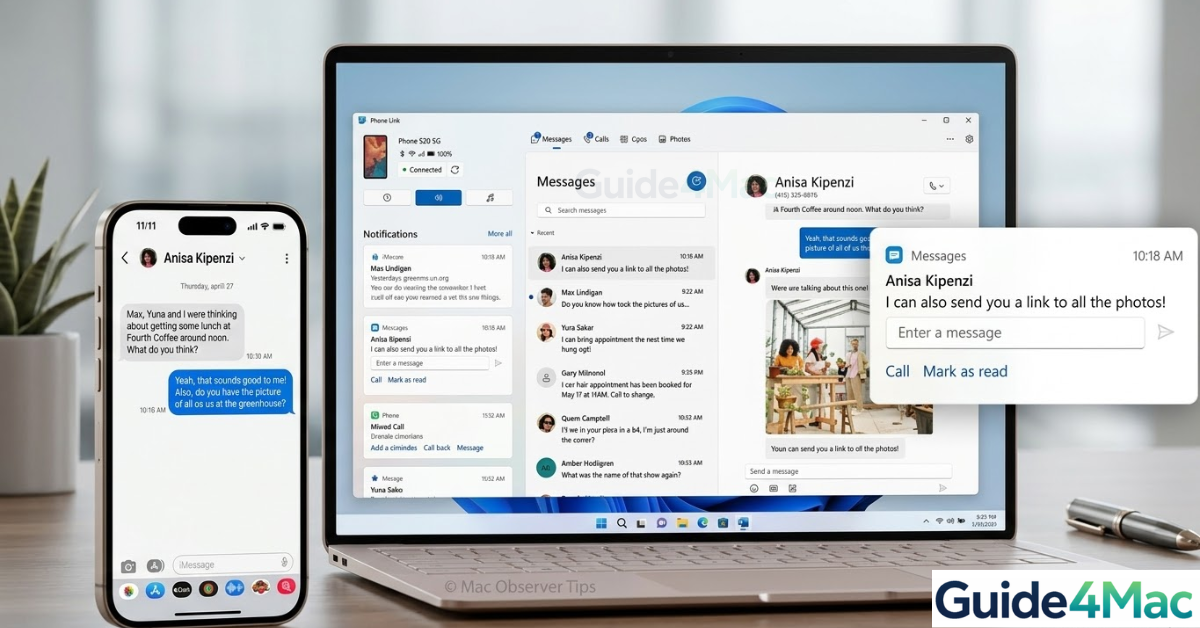
If you want to connect an iPhone to a Windows PC, there are several reliable ways to do it depending on what you want to accomplish. Some users want to transfer photos or files, while others want to mirror notifications or send messages from their computer.
Microsoft and Apple now offer multiple integration methods, including Microsoft Phone Link, USB connections, and wireless syncing tools. In this guide, you will learn how to connect your iPhone to a Windows computer using different methods and when each one works best. If you often move files between devices, it can also help to understand how to compress photos before transferring them so the transfer process is faster.
How Can You Connect an iPhone to a Windows PC?
Unlike a Mac, Windows does not natively integrate with iPhones through features like AirDrop or iCloud syncing. However, several tools allow Windows users to interact with their iPhone.
The most common methods include:
• Using Microsoft Phone Link for notifications and messaging
• Connecting with a USB cable for file transfers
• Using iCloud for Windows to sync photos and files
• Transferring media through the Photos app
Each method offers different capabilities depending on your needs.
1. Connect iPhone Using Microsoft Phone Link
Microsoft’s Phone Link app allows Windows users to connect their iPhone and access notifications, messages, and basic phone functions.

- Install Phone Link from the Microsoft Store.
- Open the Phone Link app on your Windows PC.
- Select iPhone when prompted.
- Scan the QR code using your iPhone camera.
- Follow the pairing instructions on both devices.
- Enable Bluetooth permissions.
Once paired, you can view notifications, read messages, and make calls from your PC.
2. Connect iPhone to Windows Using a USB Cable
A USB cable is the easiest method for transferring files between devices.
- Connect your iPhone to the PC using a Lightning or USB-C cable.
- Unlock your iPhone.
- Tap Trust This Computer on the prompt.
- Enter your iPhone passcode.
- Open File Explorer on the PC.
- Select your iPhone device under Devices.
You can now browse and copy photos and videos stored on your iPhone.
3. Use iCloud for Windows
Apple provides an official tool that allows Windows users to sync content from their iPhone.
- Download iCloud for Windows from Apple’s website.
- Install the app on your PC.
- Sign in using your Apple ID.
- Enable iCloud Photos or other services.
- Choose folders to sync with Windows.
Once enabled, photos and files stored in iCloud automatically appear on your PC.
4. Transfer Photos Using the Windows Photos App
Windows also includes a built-in tool for importing photos directly from an iPhone.
- Connect your iPhone to the PC using a cable.
- Unlock the iPhone.
- Open the Photos app on Windows.
- Click Import.
- Select From a connected device.
- Choose the photos you want to transfer.
This method works well for quickly importing images from your camera roll.
5. Use Third-Party File Transfer Apps
Several apps allow wireless file transfers between iPhone and Windows computers.
These tools usually rely on Wi-Fi or cloud connections to move files quickly without cables. They can also support file types that traditional Windows tools may not manage easily.
Key Features
• Wireless file transfers
• Support for multiple file formats
• Folder synchronization
• Faster transfers over Wi-Fi
• Cross-platform compatibility
Many users choose these apps when they frequently transfer documents or media between devices.
Tips
• Always unlock your iPhone before connecting it to a PC.
• Use the original Apple cable for stable USB transfers.
• Keep Bluetooth enabled when using Phone Link.
• Use Wi-Fi transfers for large files whenever possible.
• Keep both Windows and iOS updated for compatibility.
Getting iPhone and Windows Working Together
While Windows does not integrate with iPhone as deeply as macOS, there are still many ways to connect the two devices. Tools like Microsoft Phone Link allow you to manage notifications and calls, while USB and iCloud options make file transfers simple.
Choosing the right method depends on whether you want to move files, sync content, or simply receive notifications on your computer.
Key Takeaways
You can connect an iPhone to a Windows PC using Microsoft Phone Link, a USB cable, iCloud for Windows, or the Windows Photos app. Each method offers different features, from file transfers to notification syncing. Using the right tool ensures smooth communication between your iPhone and Windows computer.
FAQs
Yes. Microsoft Phone Link now supports iPhones and allows basic integration such as viewing notifications, sending messages, and making calls.
Yes. You can use the Windows Photos app, File Explorer, or iCloud for Windows to transfer images.
While integration is not as seamless as with a Mac, several tools allow reliable file transfers and notifications between devices.
Not always. Phone Link and many third-party apps use Bluetooth or Wi-Fi instead of cables.
For most users, a USB cable combined with the Windows Photos app or File Explorer is the fastest method.


0 Comments