How to Use Do Not Disturb on iPhone: Complete Guide 2026
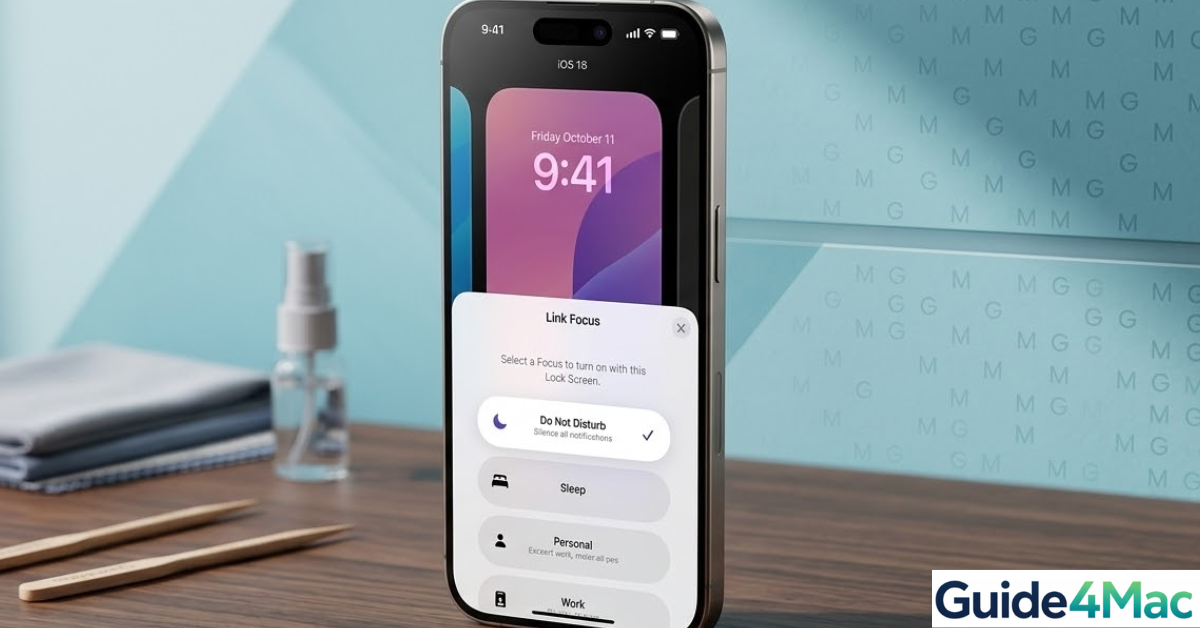
Using properly Do Not Disturb feature on iPhone helps you silence calls, alerts, and notifications while you work, sleep, or focus on important tasks. This feature is part of Apple’s Focus system in iOS and allows you to control when notifications are delivered to your device.
Do Not Disturb feature on iPhone can automatically mute calls, texts, and app alerts while still allowing important contacts or repeated calls to reach you. If you are managing notification behavior on your device, it may also help to understand related calling issues such as when your iPhone sends calls straight to voicemail. In this guide, you will learn how to enable Do Not Disturb, customize its behavior, schedule it, and manage exceptions.
How Does Do Not Disturb Work on iPhone?
Do Not Disturb is part of Apple’s Focus mode system, introduced in modern iOS versions. When enabled, it temporarily silences notifications, calls, and alerts so you can avoid interruptions.
You can configure Do Not Disturb to allow notifications from specific people, apps, or repeated calls. This ensures important contacts can still reach you while the rest of the notifications remain muted.
Below are the most effective ways to enable and customize Do Not Disturb on your iPhone.
1. Turn On Do Not Disturb From Control Center
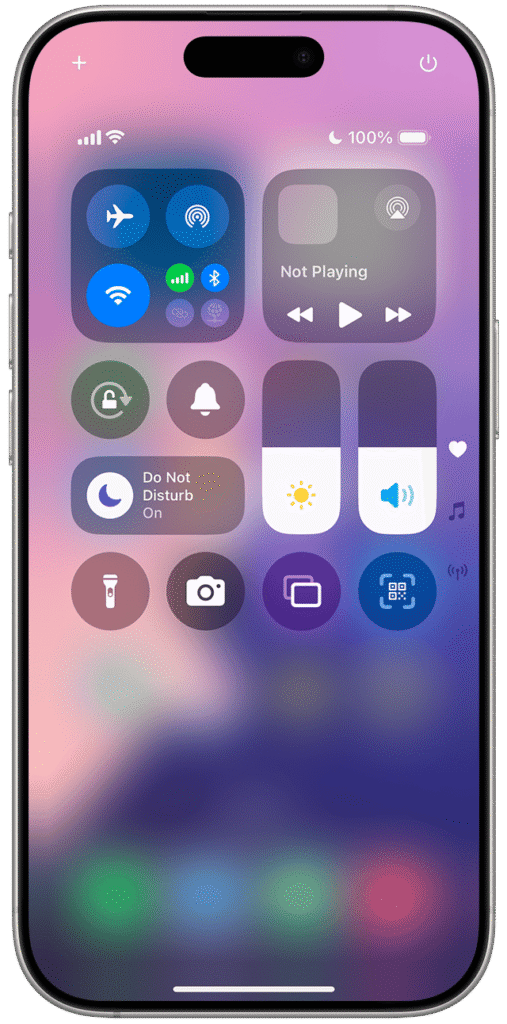
The fastest way to enable Do Not Disturb is through the Control Center.
Time needed: 1 minute
- Open Control Center
Swipe down from the top right corner of the screen.
- Tap the Focus icon
Locate the Focus button in Control Center.
- Select Do Not Disturb
Tap Do Not Disturb from the list of Focus modes.
- Confirm activation
The moon icon will appear in the status bar indicating Do Not Disturb is active.
- Tap again to disable
Open Control Center again and tap Do Not Disturb to turn it off.
This method works on most iPhone models running modern iOS versions.
2. Enable Do Not Disturb in Settings
You can also activate Do Not Disturb directly through the iPhone settings.
- Open the Settings app.
- Tap Focus.
- Select Do Not Disturb.
- Toggle Do Not Disturb on.
- Exit Settings to save the change.
From this menu, you can also customize which people and apps are allowed to send notifications.
If you frequently manage iPhone settings for privacy and communication, it may also be useful to understand messaging behaviors such as how to check if someone blocked you on iPhone or iMessage.
3. Schedule Do Not Disturb Automatically
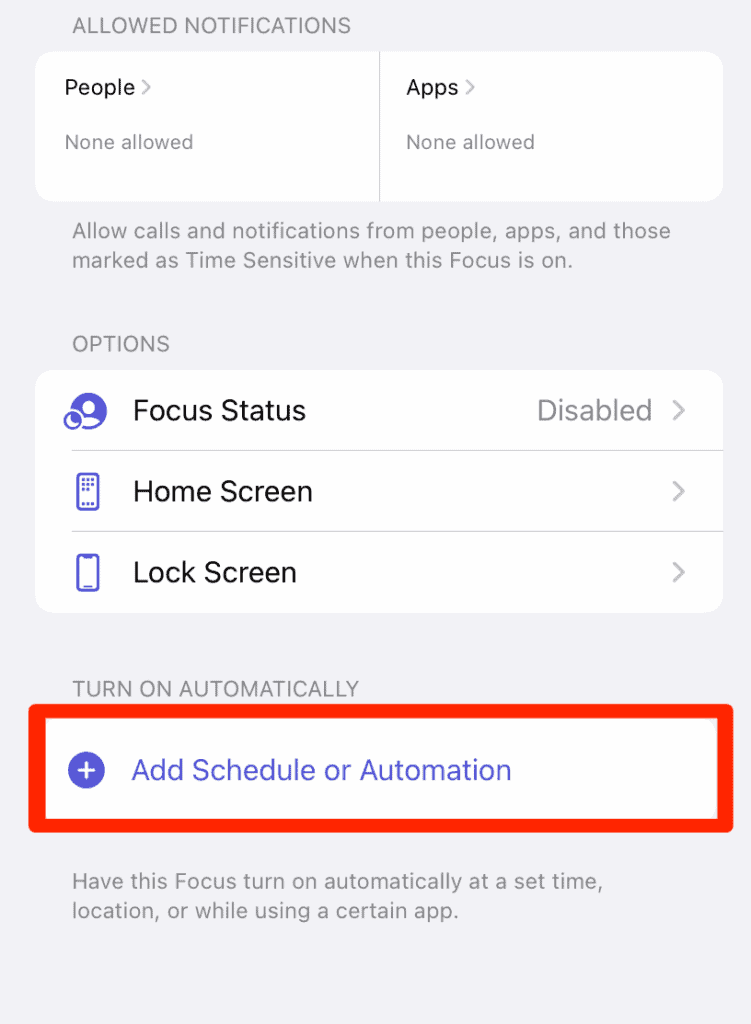
Scheduling Do Not Disturb ensures your iPhone silences notifications during certain hours, such as when you sleep.
- Open Settings.
- Tap Focus.
- Select Do Not Disturb.
- Tap Add Schedule.
- Set the start and end times.
This feature is useful for nighttime schedules or work hours when you want fewer interruptions.
4. Allow Important Contacts During Do Not Disturb
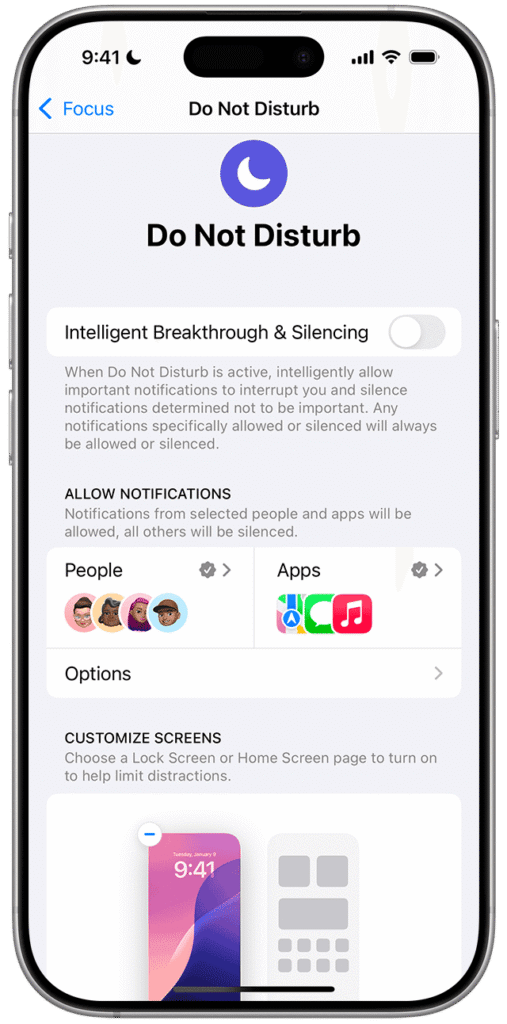
You can configure Do Not Disturb so that specific people can still reach you.
- Open Settings.
- Tap Focus.
- Select Do Not Disturb.
- Tap People under allowed notifications.
- Add contacts who can bypass Do Not Disturb.
This is useful for family members or coworkers who may need to contact you urgently.
Managing allowed contacts can also help prevent missed calls, especially if you experience issues where notifications are muted incorrectly. In some cases, troubleshooting communication features like those explained in this guide about creating an iCloud email address can also help ensure Apple services sync properly.
5. Allow Repeated Calls to Bypass Do Not Disturb
Apple provides a safety feature that allows repeated calls from the same number to bypass Do Not Disturb.
- Open Settings.
- Tap Focus.
- Select Do Not Disturb.
- Tap People.
- Enable Allow Repeated Calls.
If someone calls you twice within three minutes, the second call will ring even while Do Not Disturb is active.
Tips
- Schedule Do Not Disturb during sleep hours
- Allow important contacts to bypass the filter
- Use Focus modes for work or study environments
- Combine Do Not Disturb with Silent mode when needed
- Review notification permissions regularly
Control iPhone Notifications Without Distractions
Do Not Disturb is one of the most useful tools for managing notifications on iPhone. With proper configuration, it allows you to stay focused while still receiving important calls and messages.
By using schedules, allowed contacts, and Focus settings, you can create a notification system that works around your daily routine without constantly interrupting you.
Key Takeaways
Do Not Disturb on iPhone silences notifications, calls, and alerts so you can focus on tasks without interruptions. The feature is part of Apple’s Focus system and can be enabled through Control Center or Settings. Users can schedule Do Not Disturb, allow certain contacts, and enable repeated calls to ensure important communications are not missed.
FAQs
No. You can allow specific contacts or repeated calls to bypass the restriction.
Yes. Alarms and timers will still sound even when Do Not Disturb is active.
Yes. You can set a schedule in Focus settings to activate it at specific times.
Yes. Notifications are muted and do not appear on the lock screen while the feature is active.
Yes. Silent mode only mutes sounds, while Do Not Disturb can block notifications and calls entirely.

0 Comments