Connect AirPods to PS5: What Actually Works
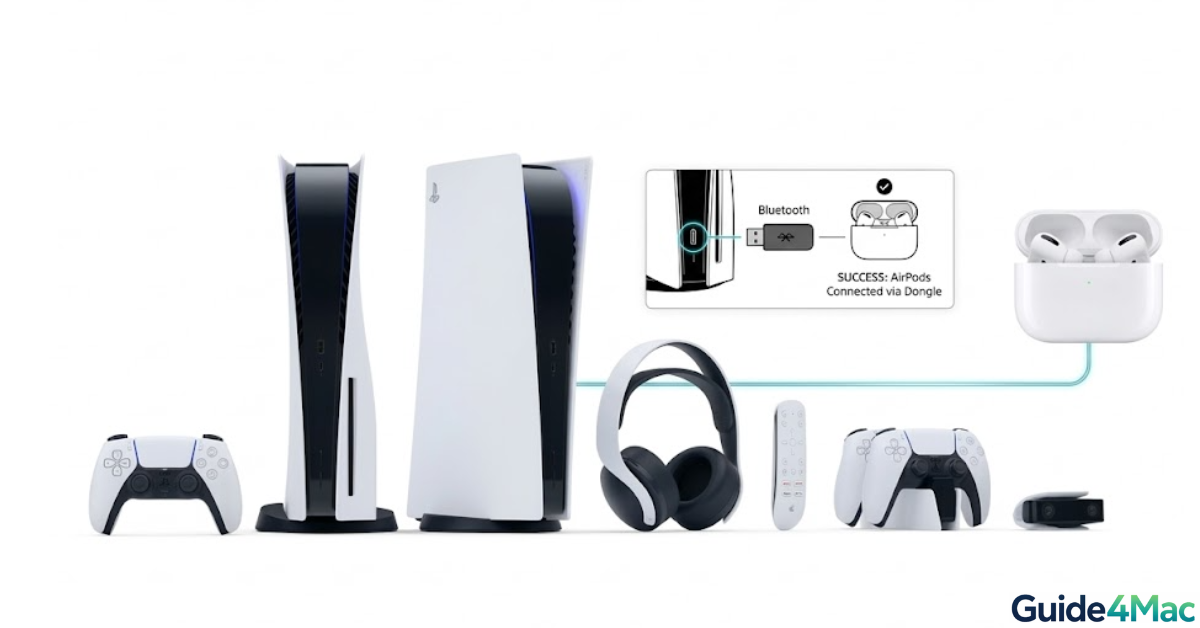
You try to connect your AirPods to PS5, they show up, then nothing happens. No audio, no confirmation, just a failed connection. This is one of the most common frustrations among PS5 users, especially those who expect Apple’s seamless pairing to work the same way across devices.
The problem is not your AirPods, and it is not a bug. It is a limitation built into the PS5 itself. Below, you will find the exact methods that real users rely on to make AirPods work with PS5, explained clearly with what each method actually does and when to use it.
Why Is Your AirPods Not Connecting to PS5?
This limitation comes down to how Sony designed the PS5 audio system.
Here’s what’s going on:
- The system is optimized for USB audio devices and HDMI output.
- The PS5 blocks standard Bluetooth headphones to reduce audio lag.
- AirPods rely on AAC codecs that are not supported by the console.
- Wireless delay would affect gameplay timing and sync.
1. Use a Bluetooth Adapter (Best Method)
This is the most recommended solution if you want to reliably connect AirPods to PS5. A Bluetooth adapter works as a middle device that handles the wireless connection for you.
Time needed: 5 minutes
What You Need: PS5, AirPods, Bluetooth USB adapter
- Plug the Bluetooth adapter into PS5
Insert the adapter into an available USB port on your console.
- Turn on pairing mode on the adapter
Press the adapter button until its LED starts blinking.
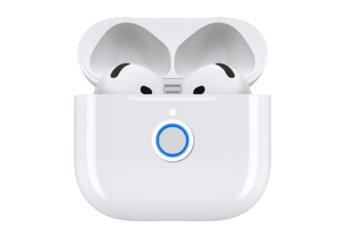
- Open the AirPods case
Keep the AirPods inside and open the lid.

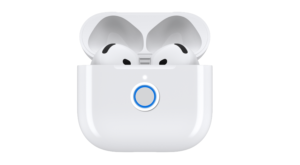
- Activate AirPods pairing mode
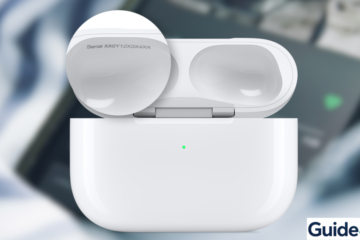
Press and hold the setup button on the back of the case.
- Wait for the white LED to flash
This indicates the AirPods are ready to connect.
- Allow the adapter to detect AirPods
Wait a few seconds for automatic pairing.
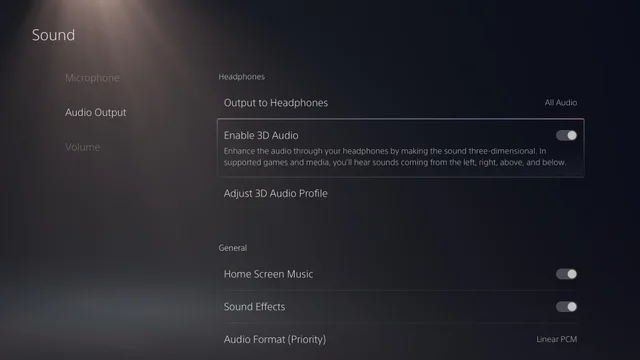
- Open PS5 Settings
Navigate from the home screen to Settings.
- Go to Sound settings
Select the Sound option from the menu.
- Open Audio Output
Access output device settings.
- Select the USB adapter as output
Confirm it as your active audio device.
2. Connect AirPods to Your TV
If your Smart TV supports Bluetooth, you can use it as a bridge to get PS5 audio into your AirPods. The console sends sound through HDMI, and your TV then forwards it wirelessly, which makes this method simple and accessible without extra accessories.
To get everything working, follow this setup:
- Open your TV settings using the remote.
- Navigate to Bluetooth or audio devices.
- Enable pairing mode on the TV.
- Open the AirPods case.
- Press and hold the pairing button until the light flashes white.
- Select your AirPods from the list of available devices.
- Confirm the connection on the TV.
- Make sure the PS5 audio output is set to HDMI.
This setup is great for casual gaming or watching content. Depending on your TV, you might notice a slight delay in audio during fast-paced gameplay.
3. Use Wired Connection (AirPods Max Only)
If you are using AirPods Max, you can avoid all Bluetooth limitations by connecting them with a cable. This gives you the most stable and responsive audio experience possible.
Here is how to set it up:
- Connect a Lightning to 3.5 mm cable to your AirPods Max.
- Plug the cable into the PS5 controller headphone jack.
- Open Settings on the PS5.
- Go to Sound.
- Select Audio Output.
- Choose the controller headset as the output device.
This method completely removes latency and is ideal for competitive gaming where timing matters.
4. Use Bluetooth Adapter via Controller
If your USB ports are already in use, you can connect a Bluetooth transmitter directly to the controller instead. This keeps your setup wireless while avoiding the console’s Bluetooth limitations.
To make it work, follow these steps:
- Plug the Bluetooth transmitter into the controller headphone jack.
- Turn on pairing mode on the transmitter.
- Open the AirPods case.
- Press and hold the pairing button.
- Wait for the devices to connect.
- Adjust the volume on the controller if needed.
This option is flexible and portable, although audio quality may be slightly lower compared to USB adapters.
5. Additional Fixes If It Still Does Not Work
If you are still having trouble, the issue is usually related to pairing glitches or incorrect settings rather than hardware failure.
You can try restarting your AirPods by placing them in the case, closing the lid, waiting about 30 seconds, and then trying again. If that does not help, resetting them often fixes connection issues. Open the case, press and hold the setup button until the light flashes amber, then keep holding until it turns white.
It is also worth checking your PS5 audio output settings. Open Settings, go to Sound, then Audio Output, and make sure the correct device is selected.
Tips
• Use Bluetooth 5.0 or newer adapters for better performance
• Keep AirPods close to the adapter during pairing
• Avoid interference from nearby wireless devices
• Prefer wired audio for competitive games
• Update your TV firmware if using Bluetooth pairing
Best Way to Use AirPods on PS5
For most users, a USB Bluetooth adapter is the best choice. It offers stable performance, easy setup, and the least amount of troubleshooting.
TV pairing is a good alternative for simplicity, while wired connections remain the best option for zero latency and maximum reliability.
Key Takeaways
The PS5 does not support direct Bluetooth audio connections, which is why AirPods fail to connect normally.
Using a Bluetooth adapter is the most effective solution, while TV pairing and wired setups offer practical alternatives.
This guide is designed for users who want to use AirPods on PS5 without dealing with failed pairing attempts or audio issues.
FAQs
No, the PS5 does not support Bluetooth audio devices natively.
Because the PS5 blocks audio profiles required for Bluetooth headphones.
Yes, especially without a low-latency adapter.
Using a USB Bluetooth adapter offers the best balance.
Yes, including AirPods Pro and standard AirPods, with slight differences in performance.

0 Comments