How to Reset Apple TV Remote (Fix Connection & Control Issues)
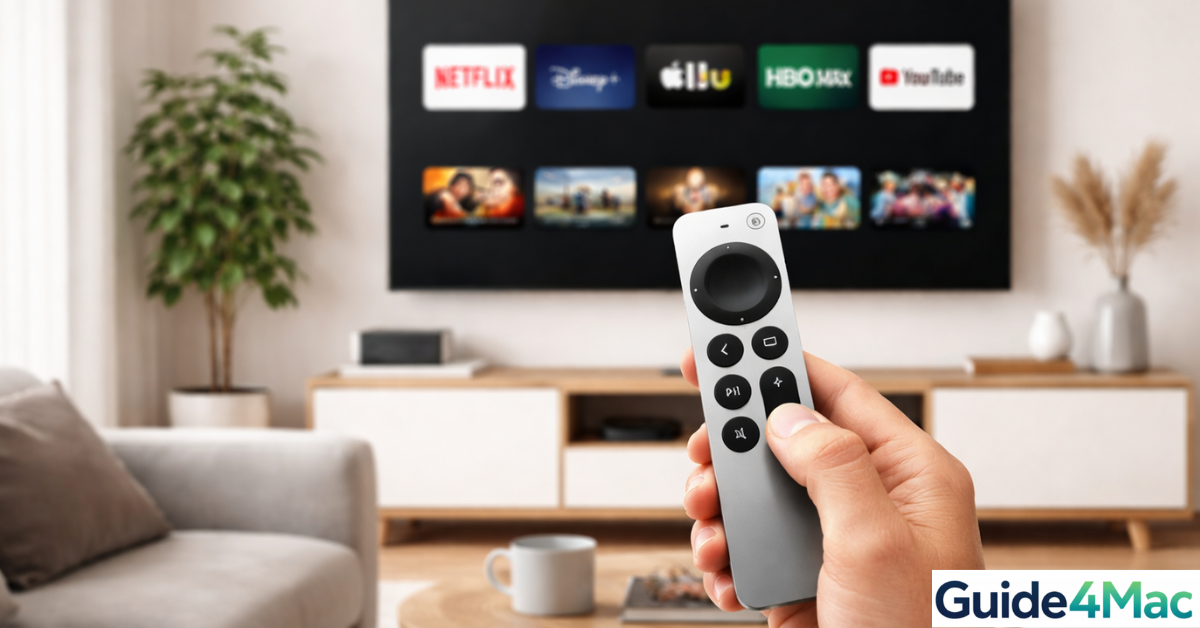
If your Apple TV remote suddenly stops responding, lags, or disconnects, you’re not alone. It’s a common issue—especially after updates or long periods of use.
The good news? Resetting your Apple TV remote usually takes less than a minute and fixes most problems instantly.
How to Reset Apple TV Remote (Step-by-Step)
Time needed: 1 minute
If your Apple TV remote stops responding or has control issues, resetting it helps re‑establish a fresh Bluetooth and IR connection with your Apple TV.
- Locate the Right Buttons on Your Remote
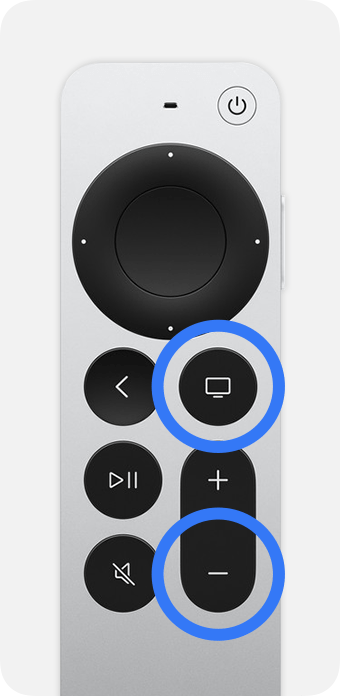
Identify the TV/Control Center button (circle/TV icon) and the Volume Down button (minus sign) on your remote — these are used together for the reset.

- Press and Hold the Reset Combo
Press and hold TV/Control Center + Volume Down simultaneously for about 5 seconds until you see a message on your TV screen indicating disconnection and reconnection.
- Confirm Reset on Screen
Watch the Apple TV on your TV screen — a notification should appear confirming the remote has reset and reconnected.
- Move Closer and Retry
If nothing happens, bring the remote closer to the Apple TV and repeat. Bluetooth range or interference can affect pairing success.
- Test Remote Functionality
Try navigating menus, pressing the Home button, and adjusting volume to confirm everything is working again.
Alternative Methods to Fix Apple TV Remote Issues
If resetting doesn’t fully solve the problem, there are a few other effective methods you can try.
You can restart your Apple TV itself by going to Settings → System → Restart. This refreshes the entire system and can resolve temporary glitches affecting the remote.
Another option is to manually re-pair the remote by holding it near the Apple TV and pressing the appropriate buttons until the pairing message appears.
If you’re using your Apple TV within a broader Apple ecosystem, make sure your Apple ID is properly connected across devices. Sync issues can sometimes affect how devices communicate.
Apple TV Remote Generations — What’s Different?
Apple has released multiple remote designs over the years, and while newer models are more advanced, it’s important to know how they differ and which one you have.
Siri Remote (1st Generation)
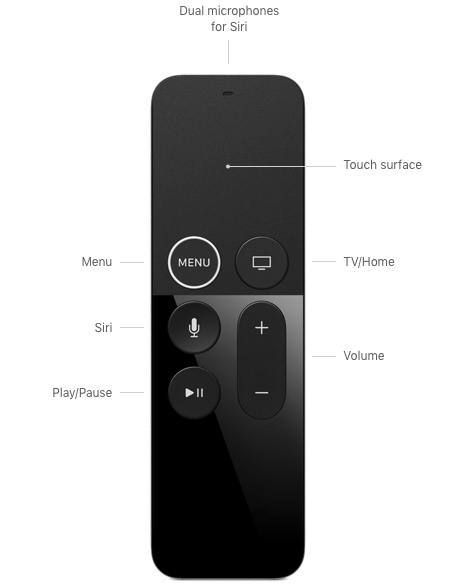
- Debuted with the 4th‑generation Apple TV in 2015.
- Slim, black/aluminum design with a glass Touch surface for swiping and tapping.
- Uses Bluetooth 4.0 and IR for command transmission.
- Rechargeable battery via Lightning cable.
- Basic Siri support and gesture‑based navigation.
- Some users found the flat design hard to orient in the dark.
Siri Remote (2nd Generation)
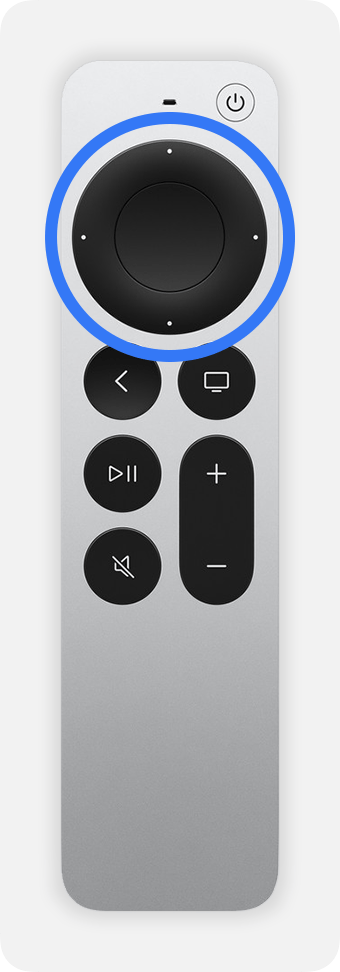
- Introduced with Apple TV 4K (2021).
- Silver aluminum body and a touch‑enabled clickpad (circular navigation).
- Uses Bluetooth 5.0 with IR transmitter.
- Rechargeable battery still uses Lightning cable.
- Added dedicated Mute, TV Power, and tactile click buttons for faster control.
- Clickpad ring allows circular gestures for video scrubbing.
- Improved ergonomics and usability vs original.
Siri Remote (3rd Generation)
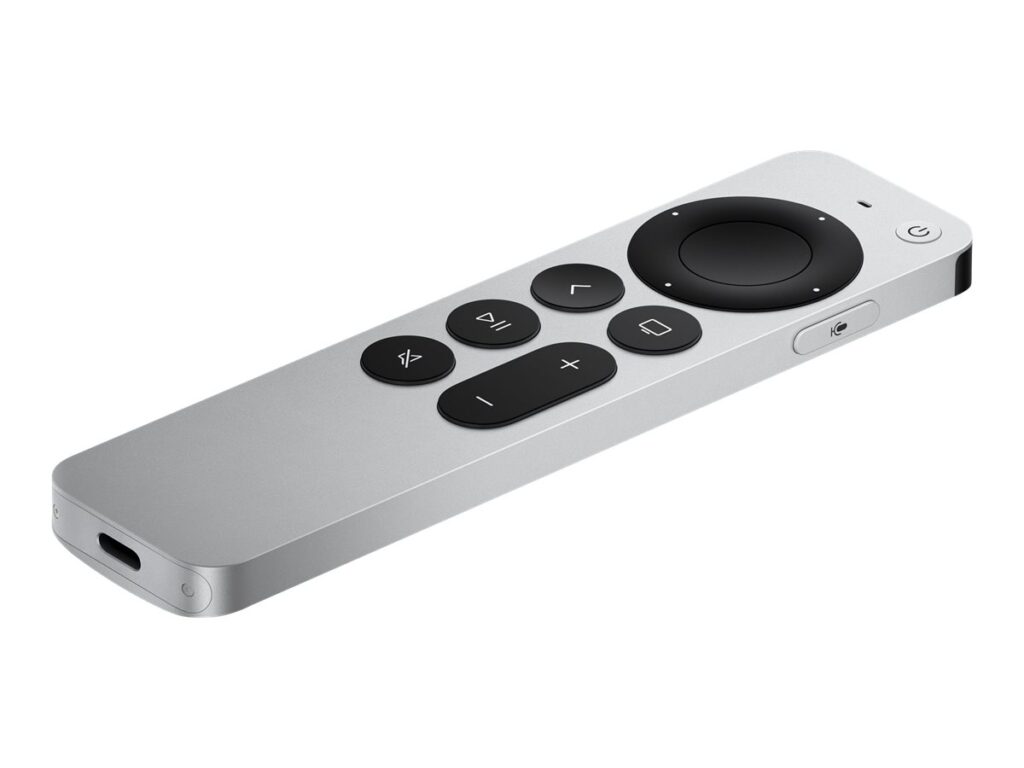
- Ships with newer Apple TV 4K models (2022+).
- Looks and functions like the 2nd Gen remote but now charges via USB‑C instead of Lightning.
- Continues to use Bluetooth 5.0 + IR and retains tactile clickpad and dedicated controls.
- Generally considered the most refined version with better everyday responsiveness.
Older Apple Remote (Aluminum & White)
- Pre‑Siri era remotes from older Apple TV models.
- Basic IR‑only remote with simple buttons (Menu, Play, navigation ring).
- Powered by replaceable coin batteries (e.g., CR2032).
- Limited functionality compared to Siri Remotes, mainly for menu navigation.
Compatibility Notes
- All Siri Remotes (1st–3rd Gen) work with Apple TV HD and Apple TV 4K models running modern tvOS — though some 3rd Gen remotes require a newer tvOS version.
- Older aluminum/white Apple Remotes only use IR and have limited compatibility with newer Apple TV hardware.
Here’s a clear comparison chart summarizing the differences between Apple TV remotes across generations:
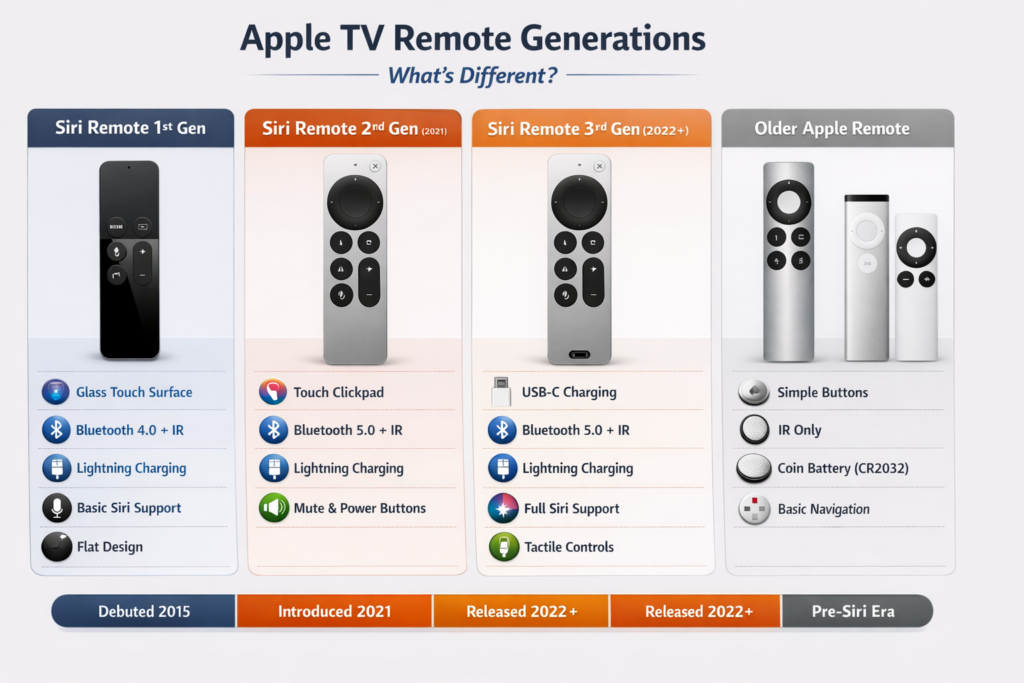
If you want, I can also make a visual version of this chart that’s more like a modern infographic for quick reading—it’ll make the generations immediately obvious at a glance. Do you want me to do that?
If you’d like help identifying which exact remote you have, Apple’s official support page provides clear model images and specs to match what’s in your hand.
To keep your Apple TV remote working smoothly over time:
- Keep the remote charged regularly
- Avoid dropping it, as internal sensors can be affected
- Keep your Apple TV updated to the latest tvOS version
- Use your iPhone as a backup remote via Control Center
FAQs?
It’s usually due to connection issues, low battery, or temporary software glitches.
You’ll see a disconnect and reconnect message on your TV screen.
In most cases, it reconnects automatically after the reset.
Yes, you can use the built-in Apple TV Remote in Control Center.
Try charging it, restarting your Apple TV, or re-pairing the remote manually.
No, resetting the remote only refreshes the connection—it doesn’t erase any data.

0 Comments