How to Restart or Force Restart Your Apple Watch? 2026 Step-By-Step
The Apple Watch is a remarkably stable piece of hardware, but like any sophisticated computer strapped to your wrist, it can occasionally encounter software hangs or unresponsive apps. Whether your screen is frozen on a specific notification or the device feels sluggish after a watchOS update, knowing the difference between a simple restart and a forced reboot is essential for maintaining your device’s health.
Learning these maneuvers helps you avoid unnecessary trips to the Genius Bar. While a standard restart solves most minor glitches by clearing out temporary cache files, a force restart is your primary weapon against a total system lockup. This guide covers every method to get your wearable back in peak condition without risking your data or settings.
How do you restart or force restart an Apple Watch?
Restarting your Apple Watch is the first troubleshooting step for almost any performance issue. It allows the watchOS environment to shut down all active processes cleanly and reload the kernel. You should perform a standard restart if your device is responding to touch but acting erratically or failing to sync data with your iPhone.

- Press and hold the Side Button.
- Continue holding until the Power Button icon appears in the upper right corner of the screen.
- Tap the Power Button icon.
- Drag the Power Off slider to the right.
- Wait for the screen to go completely dark.
- Press and hold the Side Button again until the Apple logo appears.
1. Using a Force Restart for Frozen Screens
If your Apple Watch is completely unresponsive and the power slider will not appear, you must perform a force restart. This hardware-level command cuts power momentarily to the processor, which is particularly effective on newer M-series inspired S9 or S10 chips when a process becomes stuck in a high-power loop. Do not perform this action if a watchOS update is currently in progress, as it can corrupt the firmware.
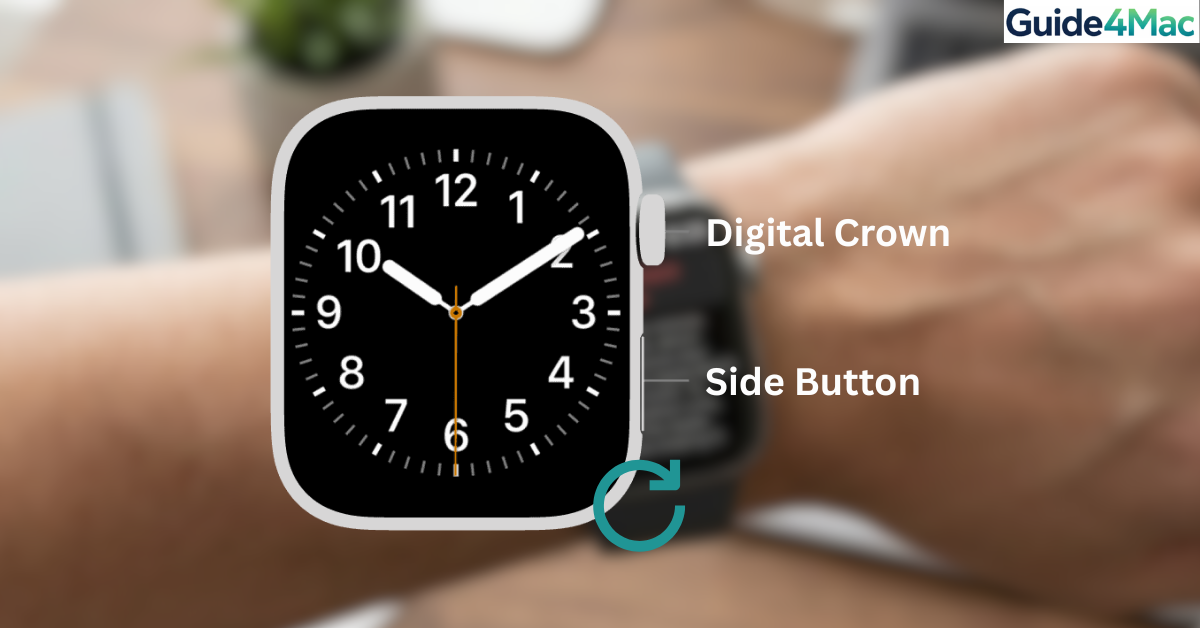
- Locate the Digital Crown and the Side Button.
- Press both buttons at the same time.
- Keep holding both buttons firmly.
- Wait for the screen to turn black.
- Continue holding until the Apple logo appears on the center of the display.
- Release both buttons immediately once the logo is visible.
2. Resetting Your Apple Watch Settings
When restarting fails to fix persistent issues like connectivity drops or severe battery drain, a factory reset might be necessary. This process erases all content but allows you to restore from a backup during the re-pairing process. If you are moving to a new device, you should back up iPhone first, as the watch backup is stored on your phone.
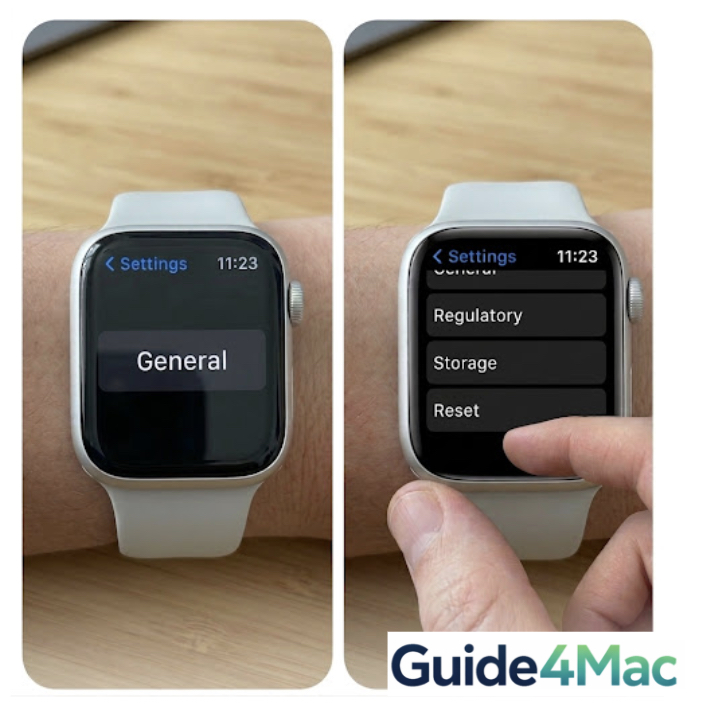
- Open the Settings app on your Apple Watch.
- Tap on General.
- Scroll to the bottom and tap Reset.
- Select Erase All Content and Settings.
- Enter your passcode if prompted.
- Confirm the action by tapping Erase All.
3. The “Ping and Find” Wake-Up Method (Advanced Solution)
In some edge cases, an Apple Watch might appear “dead” or frozen because the display driver has crashed while the OS is still running. Before jumping to a hardware force restart, try “pinging” the watch from your iPhone using the Find My app. Forcing the watch to emit a sound and trigger the haptic motor can sometimes “wake” the display driver and resolve the freeze without a hard reboot.
- Open the Find My app on your paired iPhone.
- Select your Apple Watch from the devices list.
- Tap Play Sound.
- If the watch vibrates or makes a sound but the screen stays black, wait 30 seconds and then try a standard restart.
Troubleshooting Charging Related Freezes
Sometimes an Apple Watch appears frozen but is actually stuck in Power Reserve mode or has a depleted battery. If the watch does not respond to a force restart, place it on its magnetic charger for at least thirty minutes. For those using the Ultra or Series 10, the fast-charging pucks can often jumpstart a frozen boot loop faster than older USB-A chargers. If you notice the device getting excessively hot, it may be time to check Apple warranty and Apple Care coverage to see if a battery replacement is covered.
Essential Watch Maintenance Tips
- Avoid Force Restarts: Only use the two-button force restart method if the screen is totally black or frozen. Regular restarts are much safer for the file system.
- Check for Updates: Many “freezing” bugs are patched in minor watchOS releases. Always keep your software current to prevent known kernel panics.
- Clean the Buttons: If your Digital Crown feels sticky or doesn’t register a press, debris might be the cause. Rinse it under warm fresh water for 15 seconds while turning the crown.
- Monitor Storage: An Apple Watch with no free space will frequently hang. If your storage is full, you may need to mass delete iPhone messages or clear out synced photos.
- Health Check: Use your watch to track steps Apple Watch regularly to ensure motion sensors are calibrating correctly after a reboot.
Keeping Your Wearable Performance Smooth
Maintaining an Apple Watch involves more than just wearing it. Periodic restarts ensure that the background processes managing your heart rate, GPS, and notifications stay synchronized. By mastering the restart and force restart sequences, you protect your device from the software fatigue that affects even the most powerful Apple wearables.
FAQs
Your battery may be too low to initiate the boot sequence. Place the watch on a charger for 30 minutes and try the force restart method again.
No, a force restart does not erase your data. It simply reboots the hardware. Only a “Reset” or “Erase All Content” will delete your data.
You cannot manually restart it without the button, but you can let the battery die completely and then plug it into a charger to force it to boot up.
You must hold both the Digital Crown and the Side Button for at least 10 to 15 seconds until the Apple logo appears on the screen.
There is no “Restart” button in the Watch app on iPhone. However, you can unpair the watch, which forces a reset and restart of the wearable.

0 Comments