How to Track Steps on Apple Watch: Find Your Step Count in 2026
If you want to track steps on Apple Watch, you may notice that Apple does not display step counts directly on the watch face like many fitness trackers. Instead, Apple focuses on activity rings, calories burned, and movement goals through the Activity and Fitness apps.
Even though step tracking is not the primary metric, the Apple Watch still records your steps automatically using its motion sensors. In this guide, you will learn how to view your step count on Apple Watch, check steps on your iPhone, and use apps or complications that make step tracking easier. If you are also trying to get more accurate health data, you can learn how to properly use Apple AirTags and other Apple tracking tools to better understand Apple’s ecosystem of sensors and devices.
How Does Apple Watch Track Your Steps?
The Apple Watch tracks steps using built-in motion sensors such as the accelerometer and gyroscope. These sensors detect movement patterns that match walking or running.
The data collected is processed by watchOS and synced with the Fitness app and Health app on your iPhone. Although Apple emphasizes Activity Rings, your step count is still recorded throughout the day and stored in the Health database.
Below are several ways to check and track your steps on Apple Watch.
1. Check Steps Using the Activity App
The Activity app is the main place to view your daily movement statistics on Apple Watch.
Time needed: 1 minute
Requirements: Apple Watch running watchOS 10 or later.
- Open the Activity App:
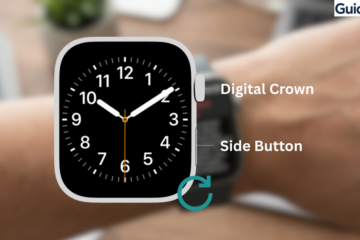
Press the Digital Crown and tap the Activity icon (three colored rings).
- Scroll Down:
Use the Digital Crown or your finger to scroll past the Move, Exercise, and Stand rings.
- Find Total Steps:
Locate the section titled “Total Steps” near the bottom of the list.
- View Distance:
Continue scrolling to see your total distance traveled and flights of stairs climbed for the day.

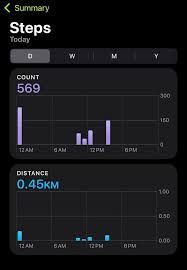
The app also shows distance walked, calories burned, and activity ring progress.
2. View Steps in the Fitness App on iPhone
Your iPhone stores detailed fitness data collected by the Apple Watch.
- Open the Fitness app on your iPhone.
- Tap Summary.
- Select the Activity section for the current day.
- Scroll down to see Steps.
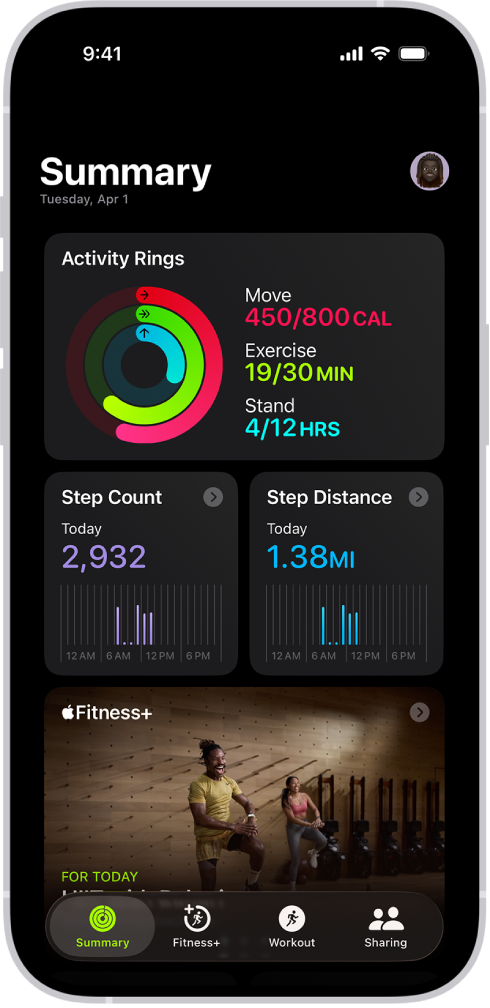
This screen also displays workouts, move goals, and trends over time.
3. Check Step Count in the Health App
The Health app provides a more detailed breakdown of step data.
- Open the Health app on your iPhone.
- Tap Browse.
- Select Activity.
- Tap Steps.
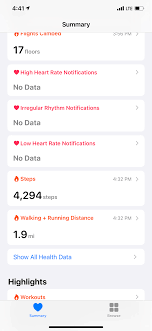
You can view daily, weekly, monthly, and yearly step trends from this section.
4. Add a Step Tracking App to Your Watch Face
Since Apple Watch focuses on activity rings, some users prefer step-count complications on the watch face.
Many third-party apps can display step counts directly on the watch face. Examples include step counter apps that sync with the Health database and show your daily progress without opening the Activity app.
Key Features
• Step count complications for watch faces
• Daily goal tracking
• Progress charts and history
• Health app integration
• Notifications when goals are reached
These apps make it easier to monitor your step count throughout the day.
5. Set Daily Step Goals
While Apple emphasizes the Move ring instead of step goals, you can still track a personal step target.
- Open the Health app on your iPhone.
- Tap Browse.
- Select Activity.
- Tap Steps.
- Review your daily step totals.
You can then compare your daily steps against common targets such as 8,000 or 10,000 steps per day.
Tips
• Wear the Apple Watch snugly for accurate motion tracking.
• Keep Location Services enabled for better distance tracking.
• Check your data in the Health app for detailed step history.
• Use watch face complications for quick step monitoring.
• Start workouts to improve tracking accuracy during exercise.
Make the Most of Your Apple Watch Activity Data
The Apple Watch automatically tracks steps using its advanced motion sensors, even though Apple emphasizes activity rings instead of traditional step counters. By checking the Activity app on your watch or reviewing the Fitness and Health apps on your iPhone, you can easily monitor your daily step totals and movement trends.
Once you understand where to find this data, tracking steps becomes simple and helps you stay motivated to maintain an active lifestyle.
Key Takeaways
Apple Watch tracks steps automatically using motion sensors such as the accelerometer and gyroscope. Although step counts are not displayed on the main interface by default, they can be viewed in the Activity app on the watch and in the Fitness or Health apps on the paired iPhone.
Users who prefer step-focused tracking can also install third-party apps that display step counts directly on the watch face.
FAQ
Yes. Apple Watch automatically tracks steps using its built-in motion sensors throughout the day.
Apple focuses on Activity Rings instead of step counts, so steps are visible inside the Activity app rather than on the default watch face.
Step data collected by Apple Watch is stored in the Health app and synced with the Fitness app.
Apple Watch uses Move goals instead of step goals, but you can track personal step targets using the Health app.
Apple Watch step tracking is generally accurate when the watch is worn properly and updated to the latest watchOS version.

0 Comments