How to Track Steps on Apple Watch (5 Easy & Accurate Methods)
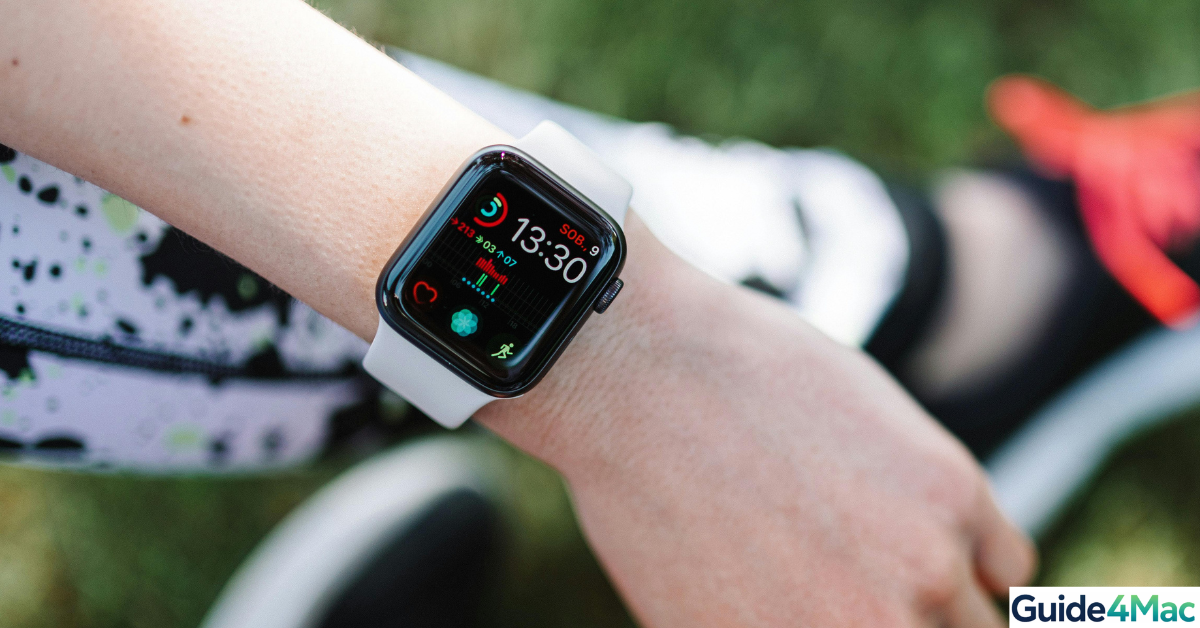
Most Apple Watch users don’t realize this: your watch tracks steps all day long—even if you never open a fitness app. The data is already there, you just need to know where to look and how to use it properly.
Below are 5 practical ways to check and improve your step tracking, explained simply, with a few useful insights along the way.
Best ways to track steps on Apple Watch
1. Check steps directly on Apple Watch (Activity app)
This is the built-in way Apple designed step tracking. It runs automatically in the background using motion sensors—no setup needed.
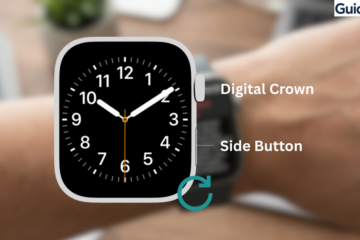
- Press the Digital Crown → open Activity app (rings icon)
- Scroll down using your finger or Digital Crown
- Look for Steps and Distance
- Check your daily progress
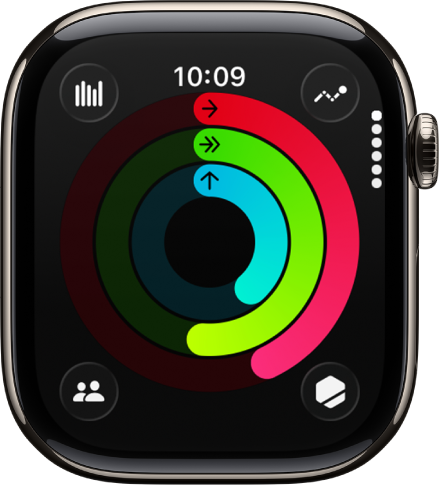
Good to know: Apple focuses more on Move calories than steps, but the step counter is still there—and surprisingly accurate once calibrated.
2. View steps on iPhone (Fitness app)
If the Apple Watch screen feels too small, the Fitness app gives a much clearer daily overview.
- Open iPhone → Fitness app
- Tap your Activity rings
- Scroll down to find Steps
- Swipe to explore previous days
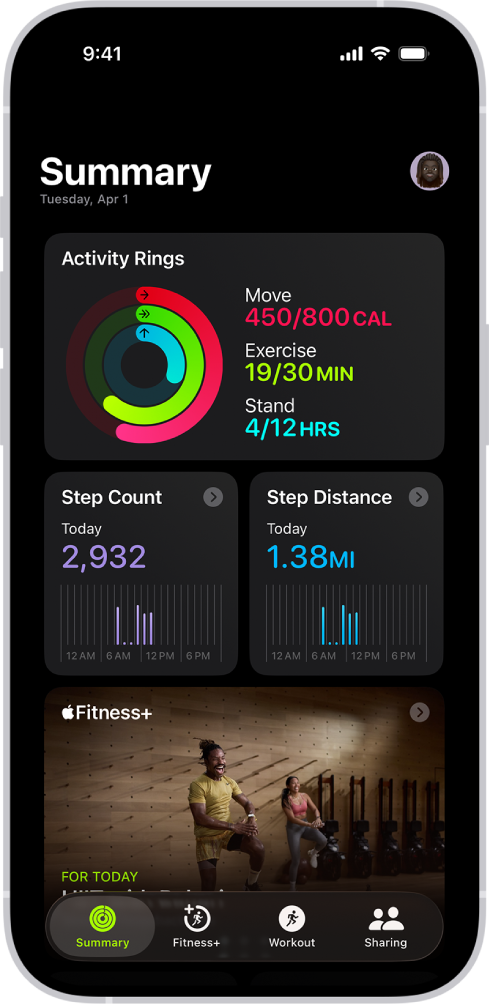
When you are checking your steps on your iPhone can quickly spot patterns—like whether you walk more on weekdays or weekends.
3. Use the Health app for detailed step tracking
Think of the Health app as your data center. It stores every step, from both your Apple Watch and iPhone.
- Open iPhone → Health app
- Tap Browse → Activity → Steps
- View charts (daily, weekly, monthly)
- Scroll down → check Data Sources
Did you know that your iPhone also counts steps using its own sensors? So even without your watch, your steps may still be recorded.
4. Add Steps to Your Apple Watch Face
Time needed: 2 minutes
This method lets you display your daily steps directly on your Apple Watch face using a complication, so you can check them instantly without opening any app.
- Enter watch face edit mode
Press and hold your current Apple Watch face until the Edit option appears on screen.
- Open the complications section
Swipe left until you reach the Complications panel where widgets can be customized.
- Select a complication slot
Tap on any available slot where you want your step counter to appear.
- Choose a step tracking app
Scroll through the list and select a step app like Pedometer++ (or another installed step tracker).
- Save and apply changes
Press the Digital Crown to save your setup and return to your watch face with steps now visible.
5. Use a step tracking app (more features and control)
If you want more than just numbers, third-party apps add extra insights and customization.
- Open App Store on iPhone
- Search for apps like Pedometer++ or StepsApp
- Install and open the app
- Allow access to Health data
- Check steps on your Apple Watch
Many users switch to these apps because Apple’s default system doesn’t emphasize steps as much as calories.
Common problems with step tracking (and how to fix them)
Sometimes steps don’t show or feel inaccurate. Here’s what usually fixes it:
- Steps missing → Open Watch app → Privacy → Fitness Tracking → turn ON
- Inaccurate count → Open Watch app → Privacy → Reset Calibration Data
- Not syncing → Restart both devices → ensure Bluetooth is ON
- No data in Health → Check Health app → Steps → Data Sources
Tips to improve step tracking accuracy
A few small adjustments can make a big difference:
- Wear your watch snugly (not loose)
- Enable Fitness Tracking in settings
- Walk outdoors occasionally to calibrate sensors
- Keep Bluetooth active between iPhone and Watch
- Keep your devices updated
Quick tip: A loose watch is one of the biggest reasons for inaccurate step counts.
FAQs (People Also Ask)
Yes, it tracks steps continuously using built-in sensors.
They’re inside the Activity app—you need to scroll down.
Yes, especially after calibration.
Yes, Apple Watch works independently.
Pedometer++ and StepsApp are popular choices.
Yes, it uses motion sensors even without Apple Watch.

0 Comments