Why is My Mac Disk Space Full?
Before you start deleting files, it’s important to understand where the space goes. Over time, macOS accumulates temporary files, app fragments, and cache data. While some of this is necessary for the system to run, much of it becomes “digital junk” that stays on your drive indefinitely.
Managing this manually allows you to free gigabytes of space without deleting your personal photos or important documents. However, there are more time-effective and more efficient methods to do that.
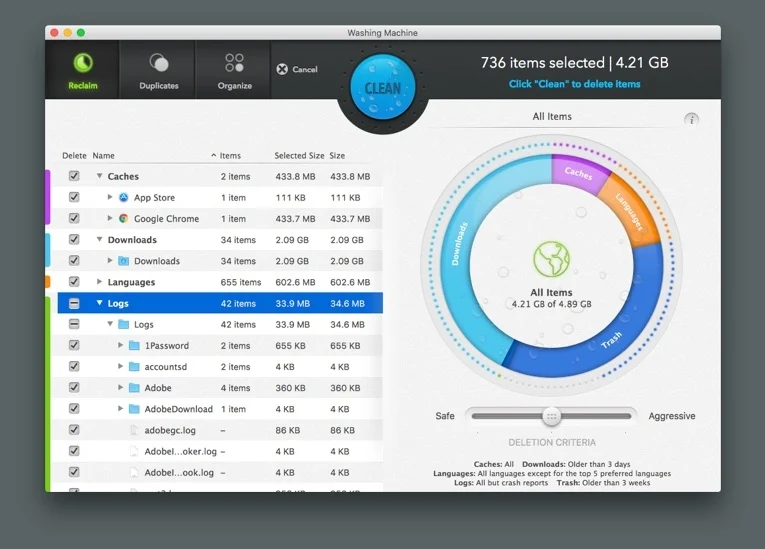
Intego Washing Machine is a utility tool with a history of over 20 years, designed to “decode” the grey bar and clean the files Apple hides from you without you making it manually.
How Intego Washing Machine Works
1. Scan & Decode
– Launch the tool to initiate a deep system scan. Washing Machine bypasses standard Finder views to analyze the “System Data” block, identifying exactly which 3rd-party apps are hoarding space in hidden library folders.
2. Review the Hoarders
– Get a detailed report of what is actually eating your drive. See exactly how much space is being wasted by old Adobe caches, unneeded language files, or dormant developer data.
3. Free Up Space
– With one click, wipe the hidden junk safely. Washing Machine knows exactly what is safe to delete, instantly freeing up space without affecting your operating system or active applications.
Key Features
-Decode “System Data”: Finally understand and remove the mysterious files clogging your hard drive.
-Target Hidden Hoarders: Specifically identifies massive cache folders from apps like Adobe Creative Cloud, Spotify, and Xcode.
-Smart Clean Technology: Our algorithms distinguish between “Trash” and critical system files, ensuring you never delete something your Mac needs to run.
-Duplicate Remover: Scans for redundant file copies that are scattered across different folders, wasting space.
-Automatic Organization: Not only does it clean, but it also organizes your Desktop and Dock for a faster, smoother macOS experience.
Verified Safety: AppEsteem Certified / Mac Safe
Compatibility: Supported on all modern macOS versions.
How to Clear Disk Space on Mac Manually?
1. Clear User Cache Files
The first place to look when you want to clear disk space on Mac is the Cache folder. Apps store data here to load faster, but these folders can grow to massive sizes.
-Open Finder, click on Go in the top menu bar, and select Go to Folder.
-Type ~/Library/Caches/ and hit Enter.
-Go through the folders and delete the contents of the ones you don’t need (do not delete the folders themselves).
Note: You can repeat this for the system-wide cache at /Library/Caches/.
2. Clean the Application Support Folder
When you delete an app by dragging it to the Trash, its “Application Support” files often stay behind. Removing these orphaned files is a great way to clear disk space on Mac.
-Open Finder > Go > Go to Folder.
-Type ~/Library/Application Support/ and press Enter.
-Look for folders named after apps you have already uninstalled and move them to the Trash.
3. Delete Large and Unused Files
Sometimes we forget about that 4K movie we downloaded months ago or a large ZIP file in the Downloads folder. macOS has a built-in tool to help identify these.
-Navigate to System Settings > General > Storage.
-Review the Documents section.
-Sort by size to see which files are taking up the most room and delete the ones you no longer use.
4. Remove Language Files (Localization)
Most Mac apps come with dozens of language files (Localization) for languages you probably don’t speak. These can add up to several gigabytes across your entire app library.
-Go to your Applications folder.
-Right-click an app and select Show Package Contents.
-Go to Contents > Resources and look for folders ending in .lproj.
-Delete the languages you don’t need (e.g., keep en.lproj for English).
So, how to fix Mac Disk Space Full?
Learning how to clear disk space on Mac doesn’t have to be complicated. By following these five steps, you can significantly reduce the “System Data” burden on your SSD and improve your Mac’s overall performance.
Remember to always Empty the Trash after performing these steps, as the space won’t actually be “cleared” until the Trash is emptied. For a more thorough and automated approach, using a tool like Intego Washing Machine can save you hours of manual work.