How to Clear Disk Space on Mac
Running out of storage on your Mac? The “Your disk is almost full” alert is a common bottleneck that severely impacts speed and stability across all models, from older MacBooks to the latest M5. Maintaining free space is essential, as a packed drive leads to application crashes, slow performance, and failed system updates.
The primary culprit is often “System Data,” a mysterious category that can hog hundreds of gigabytes through hidden caches, old iOS backups, and local snapshots. Identifying and clearing these “Other” files is the fastest way to reclaim your physical memory and restore your Mac’s peak performance.
Instantly.
Remove junk files, free up gigabytes, and keep your Mac running at its best — with one click.
Get Intego Washing Machine →The "System Data" Trap
macOS quietly dumps everything it doesn't recognize into a folder called System Data — and it grows silently. Orphaned caches from deleted apps, Adobe and Xcode holdovers, gigabytes of Spotify streaming data. None of it is visible in Finder, so you can't delete it yourself.
How Intego Washing Machine Works
Launch the tool to initiate a deep system scan. Washing Machine bypasses standard Finder views to analyze the System Data block — identifying exactly which apps are hoarding space in hidden library folders.
Get a detailed breakdown of what's actually eating your drive. See exactly how much space is wasted by old Adobe caches, unneeded language files, or dormant developer data.
With one click, wipe the hidden junk safely. Washing Machine knows exactly what is safe to delete — freeing up space instantly without touching your OS or active applications.
Key Features
Finally understand and remove the mysterious files clogging your hard drive.
Identifies massive cache folders from Adobe Creative Cloud, Spotify, Xcode, and more.
Distinguishes junk from critical system files — you'll never accidentally delete something your Mac needs.
Scans for redundant file copies scattered across different folders that silently waste space.
How to Clear Disk Space on Mac Manually?
Prefer to do it yourself? Here are the most effective manual methods — though they take time and carry some risk if done incorrectly.
Clear User Cache Files
The first place to look when you want to clear disk space on Mac is the Cache folder. Apps store data here to load faster, but these folders can grow to massive sizes.
1. Open Finder, click on Go in the top menu bar, and select Go to Folder.
2. Type ~/Library/Caches/ and hit Enter.
3. Go through the folders and delete the contents of the ones you don’t need (do not delete the folders themselves). Note: You can repeat this for the system-wide cache at /Library/Caches/.
Clean the Application Support Folder
When you delete an app by dragging it to the Trash, its “Application Support” files often stay behind. Removing these orphaned files is a great way to clear disk space on Mac.
1. Open Finder > Go > Go to Folder.
2. Type ~/Library/Application Support/ and press Enter.
3. Look for folders named after apps you have already uninstalled and move them to the Trash.
Delete Large and Unused Files
Sometimes we forget about that 4K movie we downloaded months ago or a large ZIP file in the Downloads folder. macOS has a built-in tool to help identify these.
-Navigate to System Settings > General > Storage.
-Review the Documents section.
-Sort by size to see which files are taking up the most room and delete the ones you no longer use.
Remove Language Files
Most Mac apps come with dozens of language files (Localization) for languages you probably don’t speak. These can add up to several gigabytes across your entire app library.
-Go to your Applications folder.
-Right-click an app and select Show Package Contents.
-Go to Contents > Resources and look for folders ending in .lproj.
-Delete the languages you don’t need (e.g., keep en.lproj for English).
Skip the Manual Work
Let Intego Do It in One Click
The fastest, safest way to free up your Mac Disk Space.
Get Intego Washing Machine →✓ Apple Notarized · Safe & Verified
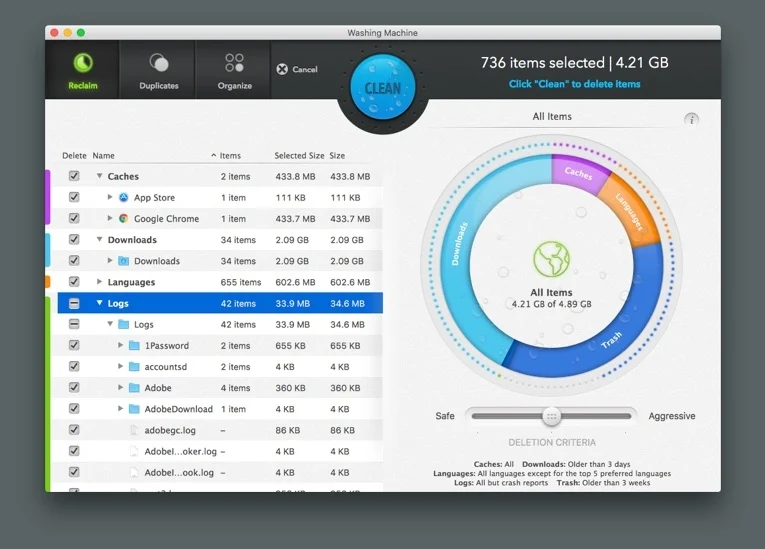
- Step 1. Get Intego Washing Machine
- Step 2. Install and launch the application
- Step 3. Scan your Mac for Junk Files
- Step 4. Click the CLEAN button to get rid of cache and junk files
| Compatibility | macOS 10.13 or later |
| Requirements | 1.5 GB Disk Space |