Apple Intelligence Not Showing Up? Here’s How to Fix It on iPhone, iPad, and Mac
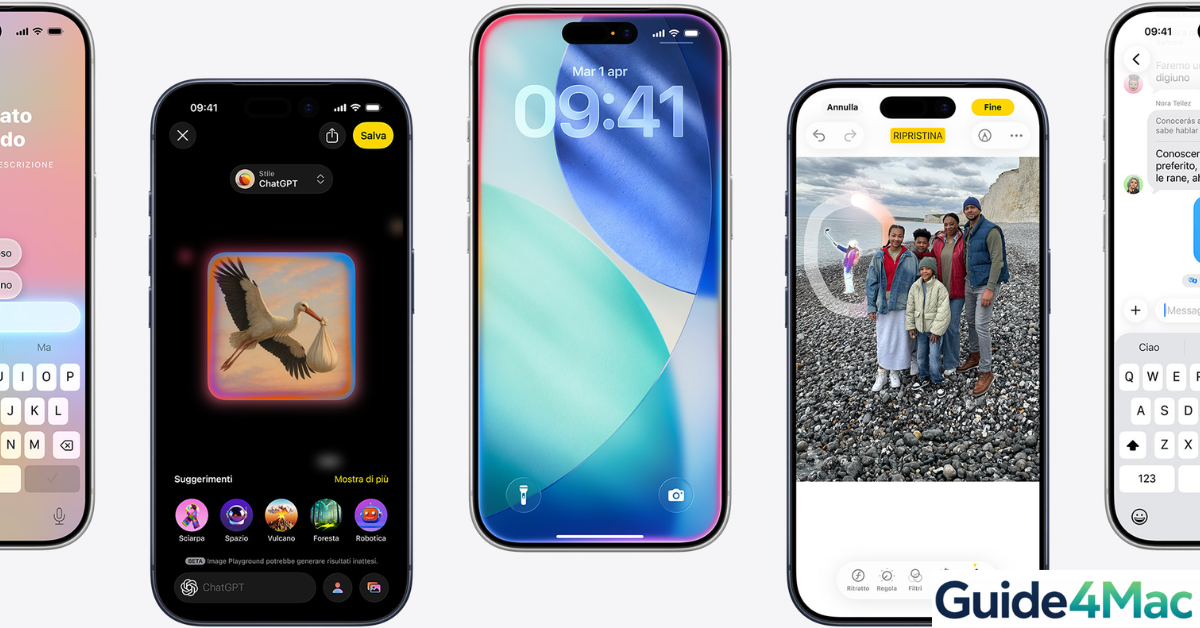
Apple Intelligence is one of the biggest upgrades in the Apple ecosystem—but many users open their iPhone, iPad, or Mac and simply… don’t see it. No features, no toggle, nothing.
This usually isn’t a bug. In most cases, it’s due to region restrictions, device compatibility, Apple ID settings, or software requirements. The fixes below walk you through exactly what to check and how to enable it step by step.
1. Check Device Compatibility
Total Time: 2–3 minutes
Apple Intelligence only works on specific newer Apple devices. If your device isn’t supported, the feature won’t appear at all—no matter what settings you change.
- Identify Your Device Model
Go to Settings → General → About on iPhone/iPad or Apple menu → About This Mac. Note your model name.
- Compare With Supported Devices
Apple Intelligence currently works on:
– iPhone 15 Pro and newer
– iPads and Macs with Apple Silicon (M1, M2, M3 or later) - Confirm Chip Compatibility
If your device uses an older chip (like A16 or Intel Macs), Apple Intelligence will not be available.
- Decide Next Step
If your device is unsupported, the only solution is upgrading. If it is supported, continue with the next fixes.
2. Update to the Latest iOS, iPadOS, or macOS
Apple Intelligence requires the latest software versions. If you’re running an older system, the feature won’t show up.
- Go to Settings → General → Software Update (iPhone/iPad)
- On Mac, go to System Settings → General → Software Update
- Install the latest available update
- Restart your device
After updating, check again for Apple Intelligence features.
Keeping your Apple ID properly configured also matters—if needed, you can sign back in using this Apple account setup walkthrough.
3. Check Region & Language Settings
Apple Intelligence is not available in all regions yet. Even if your device supports it, your location settings can hide it.
- Go to Settings → General → Language & Region
- Set Region to a supported country (e.g., United States)
- Set iPhone Language to English (US)
- Restart your device
After rebooting, check if Apple Intelligence appears.
4. Make Sure You’re Signed Into Apple ID
Apple Intelligence features rely heavily on your Apple account. If you’re not signed in—or something is misconfigured—the feature may not appear.
- Open Settings
- Tap your name at the top
- If not signed in, log in with your Apple ID
- If already signed in, try signing out and back in
If you need help managing your account credentials, updating your email password can also resolve sync-related issues.
5. Enable Apple Intelligence (If Available)
Even if your device supports it, Apple Intelligence may not be enabled by default.
- Go to Settings
- Look for Apple Intelligence & Siri
- Tap it and enable available features
- Follow any on-screen setup instructions
If you don’t see this section, it usually means one of the earlier conditions isn’t met.
6. Restart Your Device
Sometimes the feature is available—but hasn’t loaded properly.
- Turn off your device
- Wait 10–15 seconds
- Turn it back on
- Check Settings again
This simple step refreshes system services and can make hidden features appear.
Common Problems
- Apple Intelligence option not visible in Settings
- Siri looks the same as before
- Features missing after update
- Works on one device but not another
Tips to Make Apple Intelligence Appear Faster
- Always install the latest iOS/macOS updates
- Use a supported device (Apple Silicon or newer iPhones)
- Set region and language correctly
- Keep your Apple ID active and synced
- Restart after making changes
FAQs?
Most commonly due to unsupported device, wrong region, or outdated iOS.
iPhone 15 Pro and newer, plus iPads and Macs with Apple Silicon.
Yes, it requires the latest software version.
No, it’s limited to certain regions (like the US) for now.
Yes, Apple Intelligence relies on Apple account integration.
Double-check compatibility, region, and updates—or wait if it’s not yet available in your country.


0 Comments