How to Easily Change Your Email Password on iPhone, iPad (iOS Devices)?
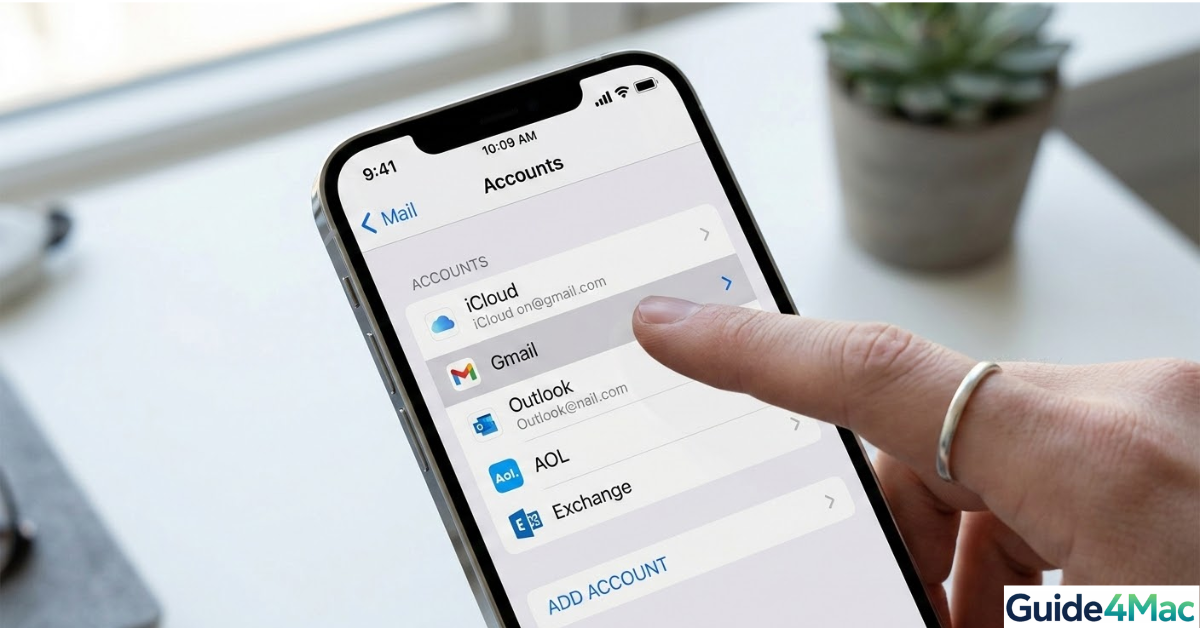
Changing an email password on your iPhone is a common task that usually happens after you update your credentials on a provider’s website. Whether you use Gmail, Outlook, or a custom IMAP server, your iPhone needs the new password to continue syncing your inbox and sending messages. If you notice a “Password Incorrect” pop-up or a “Cannot Get Mail” error, it is time to refresh your settings.
Modern versions of iOS handle most major email providers through a secure web-based login. This means that for services like Yahoo or Google, you might not see a simple password field in your settings. Instead, the system will prompt you to “Re-authenticate” or “Sign In” again to refresh the security token. This process ensures your data remains encrypted and follows the latest security protocols used by Apple.
How do you change your email password on an iPhone?
The exact steps depend on whether you are using a major service provider or a manual setup. If you use a service like Gmail, the iPhone uses OAuth to connect. For these accounts, you must update the password via the provider’s website first. Your iPhone will eventually detect the mismatch and ask you to sign in again. If you are using a work or private IMAP account, you can often type the new password directly into the Settings app.
Updating Passwords for IMAP and POP Accounts
If your email address is from a smaller provider or a private domain, you likely configured it manually. These accounts allow for direct editing of the incoming and outgoing mail server credentials. It is vital to update both the incoming and outgoing (SMTP) settings to ensure you can still send replies.
- Direct access to server port settings.
- Manual control over SSL and TLS encryption.
- Ability to update username and password strings independently.
How to do it:
- Open the Settings app.
- Scroll down and tap Mail.
- Tap Accounts.
- Select the specific Email Account you need to update.
- Tap the Account or Email Address field at the top.
- Locate the Password field.
- Delete the old password.
- Type in your New Password.
- Tap Done in the upper right corner to save.
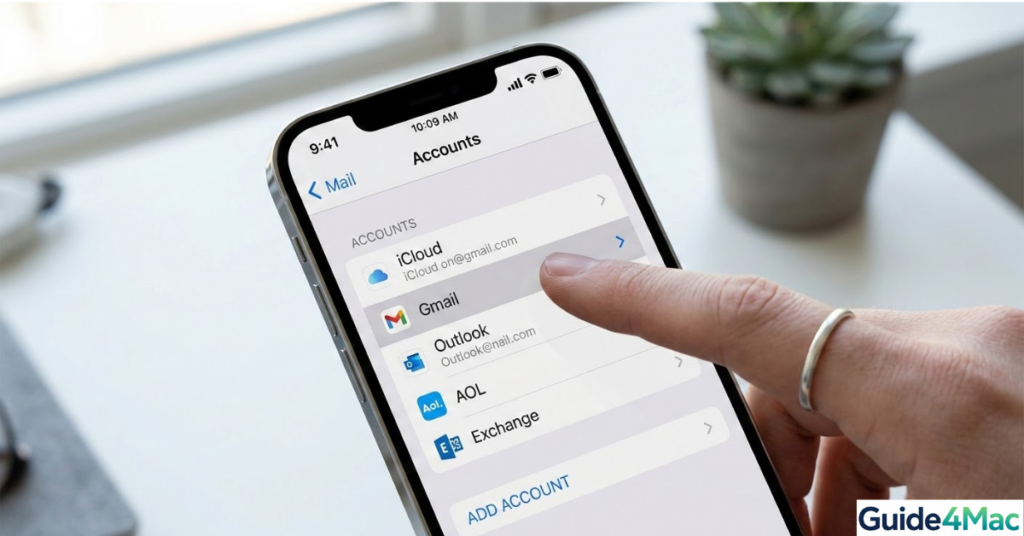
Re-authenticating Gmail, Outlook, or Yahoo
For major providers, iOS does not store a “static” password that you can view or change. Instead, it uses a digital key. When you change your password on the web, this key breaks. You must then change your email password on iPhone by triggering the official login portal within the iOS interface.
- Secure web-based login via the provider’s own portal.
- Support for Two-Factor Authentication (2FA) during the update.
- Automatic synchronization across all your Apple devices using iCloud.
How to do it:
- Launch the Settings app.
- Tap Mail.
- Tap Accounts.
- Select your Gmail or Outlook account.
- Tap the prompt that says Re-authenticate or Edit Settings.
- Wait for the provider’s login page to load.
- Enter your Email Address.
- Tap Next.
- Enter your New Password.
- Follow any Two-Factor Authentication prompts.
Verifying Outgoing Server (SMTP) Settings
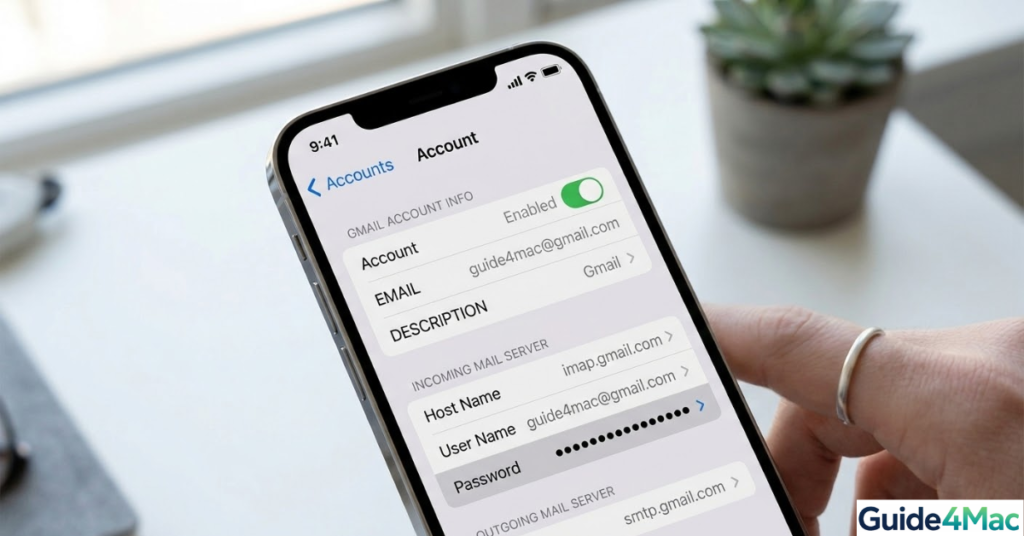
A common frustration occurs when a user can receive mail but cannot send it. This happens because the iPhone sometimes fails to update the Outgoing Mail Server password automatically. You must ensure the SMTP credentials match your primary account settings, or your outgoing messages will sit indefinitely in the Outbox.
- Go to Settings.
- Tap Mail.
- Tap Accounts and select your account.
- Tap the Account info at the top.
- Scroll down and tap SMTP under the Outgoing Mail Server section.
- Tap the Primary Server.
- Tap the Password field.
- Enter the New Password.
- Tap Done.
Troubleshooting Account Connection Errors
If the mail app still refuses to connect after an update, you may need to check if your iPhone is not receiving verification texts or check your internet connection. Sometimes, a simple toggle of Airplane Mode can refresh the DNS cache and allow the phone to find the mail server again. If all else fails, deleting the account and adding it back from scratch is the cleanest solution. This does not delete your emails from the server, as they will resync once you sign in into your Apple account and re-add the mail profile.
Troubleshooting Solutions from Apple Communities
According to expert discussions on the Apple Support Communities, many users facing greyed-out settings or persistent login loops find that deleting the account and re-adding it is the most reliable “nuclear” option. This forces a fresh fetch of the provider’s modern server configurations.
- Fix Greyed-Out Fields: If you cannot tap on your account or the password field is greyed out, check your Screen Time settings. Go to Settings, tap Screen Time, select Content & Privacy Restrictions, and ensure that “Account Changes” is set to “Allow.”
- Toggle Mail Sync: A clever community fix involves toggling the “Mail” switch off in the account settings, which sometimes triggers a fresh password prompt. After entering the new credentials, toggle Mail back on to resync.
- App-Specific Passwords: For providers like Yahoo or AOL, you may need to generate a unique App-Specific Password on their security portal rather than using your primary login password.
Helpful Email Maintenance Tips 💡
- Check App-Specific Passwords: If you use iCloud with a third-party app, or have 2FA enabled on Gmail, you might need a unique app-specific password rather than your main account password.
- Update All Devices: Remember that changing the password on your iPhone won’t automatically update your Mac.
- Verify Storage: If your iPhone storage is full, the Mail app might glitch during the credential update. Ensure you have at least 1GB of free space.
Smooth Sailing for Your Inbox
Managing your email credentials on an iPhone is straightforward once you identify whether you are using a standard IMAP setup or a modern OAuth provider. Keeping your passwords updated ensures that your communication remains secure and your notifications stay current. By verifying both incoming and outgoing server settings, you avoid the trap of being able to read mail but being unable to reply.
FAQ
Major providers like Gmail and Yahoo use a secure token system, meaning you must tap “Re-authenticate” to sign in through their web portal rather than typing a password into a box.
Verify the password on a web browser first. If it works there, go to Settings, then Mail, then Accounts on your iPhone to re-enter the credentials.
No, as long as you are using IMAP or a cloud service, your emails stay on the provider’s server and will reappear when you add the account back.
Go to your account settings, tap SMTP, and ensure the password in the Outgoing Mail Server section matches your current password.
Check Settings > Screen Time > Content & Privacy Restrictions and make sure “Account Changes” is set to “Allow” to enable editing.

0 Comments