Most Common iOS 26 Bugs With Fixes: Complete List 2026
If you are experiencing iOS 26 bugs after installing the update, you might be our “brother in arms”, as Dire Straits say. Many iPhone users report battery drain, overheating, connectivity failures, and app crashes immediately after updating. We got almost all of them: overheating is still a mystery for iPhones from our team.
The following list covers every major issue along with practical fixes you can apply right away. You will also find deeper troubleshooting steps, system-level resets, and helpful workarounds that go beyond what most articles provide.
Why Is iOS 26 Causing Problems?
Most issues after installing iOS 26 are caused by background processes. Your iPhone reindexes files, rebuilds Spotlight data, and syncs services like iCloud and Apple Intelligence.
These processes can temporarily slow down performance and drain the battery. However, if problems persist beyond a few days, you will need to apply targeted fixes like the ones below.
Fix Battery Drain and Overheating
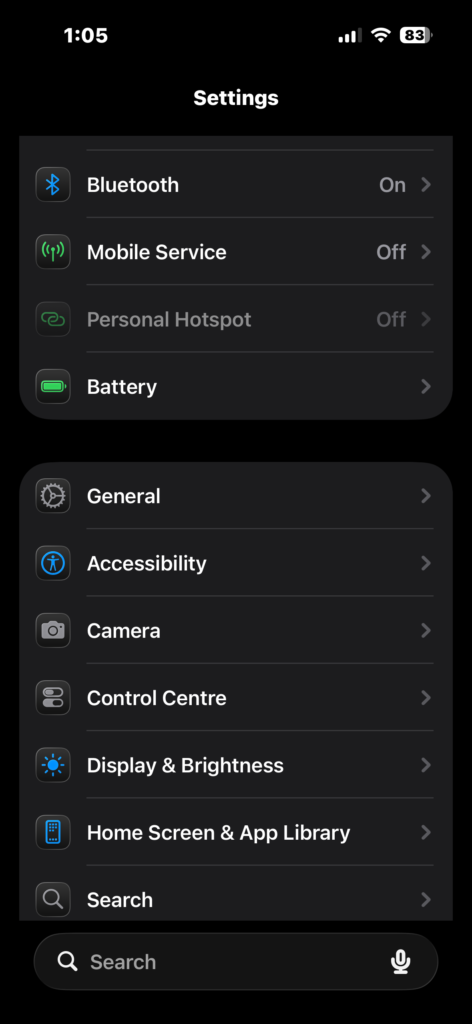
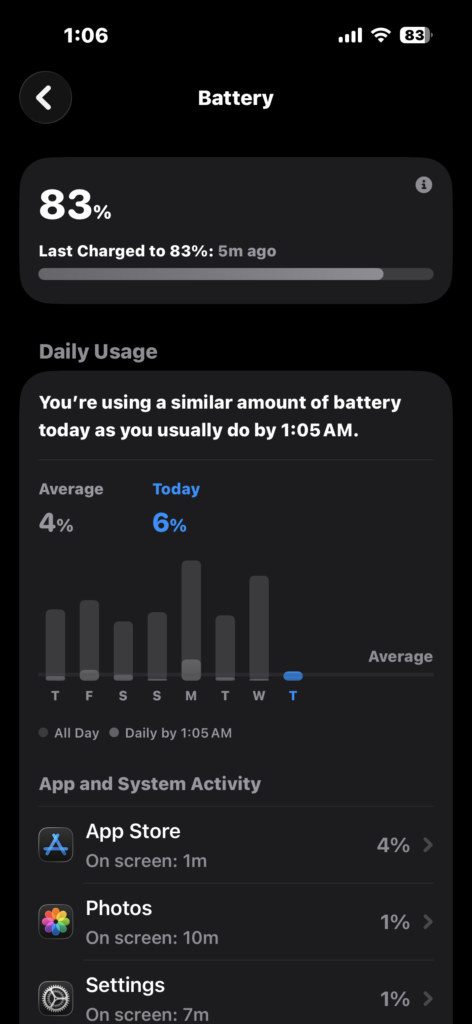
Battery drain and heat are the most common complaints. This usually happens because your iPhone is processing data in the background.
- Connect your iPhone to a charger.
- Connect to Wi-Fi.
- Lock your device.
- Leave it idle for a few hours.
If the issue continues:
- Open Settings.
- Tap General.
- Tap Transfer or Reset iPhone.
- Tap Reset.
- Select Reset All Settings.
If your battery health is already low, it may be time to check when replacement is needed, especially if performance keeps dropping even after updates.
Fix iOS 26 Lag and Slow Performance
Time needed: 2 minutes
Lag, stuttering animations, and slow app launches are common after major updates. Here is how to fix them
- Restart your iPhone
Restart your iPhone to clear temporary system processes that may be causing lag.
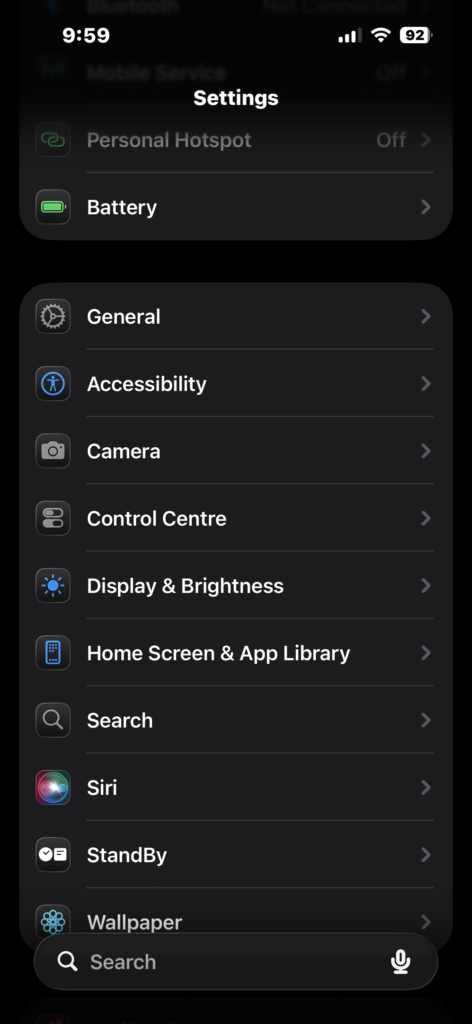
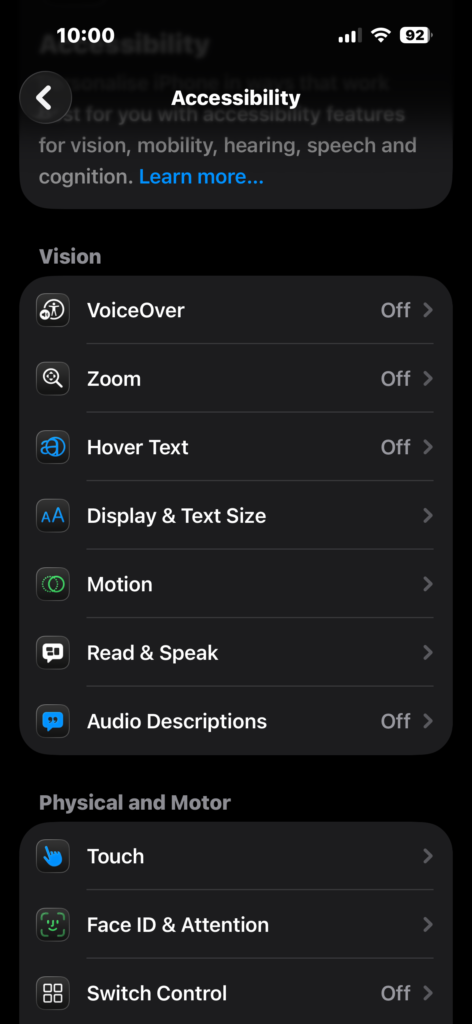
- Open Settings.
Open the Settings app on your iPhone.
- Tap Accessibility.
Scroll down and tap Accessibility.
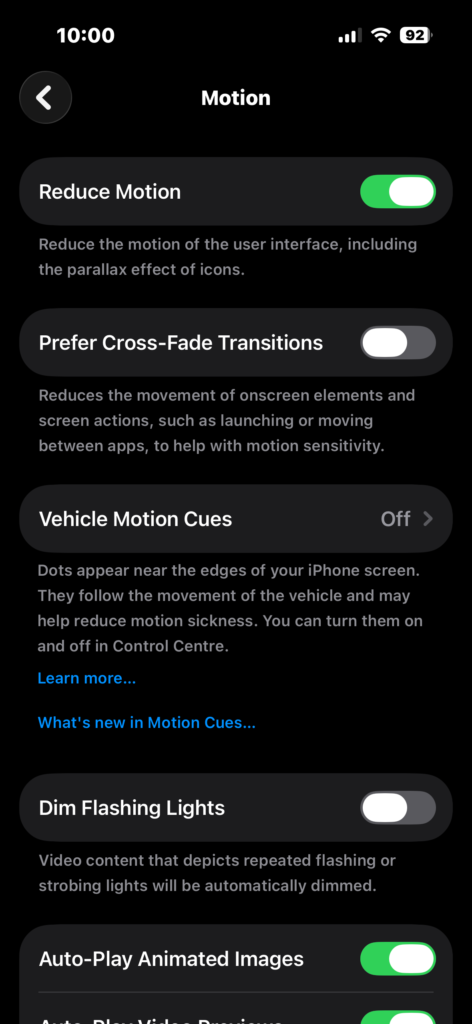
- Tap Motion.
Find and tap Motion inside Accessibility settings.
- Enable Reduce Motion.
Turn on Reduce Motion to reduce animations and improve overall performance.
You can also free up storage to improve performance. If your system data is unusually large, follow the more detailed approach explained in this guide on reducing excessive system storage usage.
Fix Cellular Data Not Working
If your mobile data is on but apps cannot connect, the issue is likely related to network configuration.
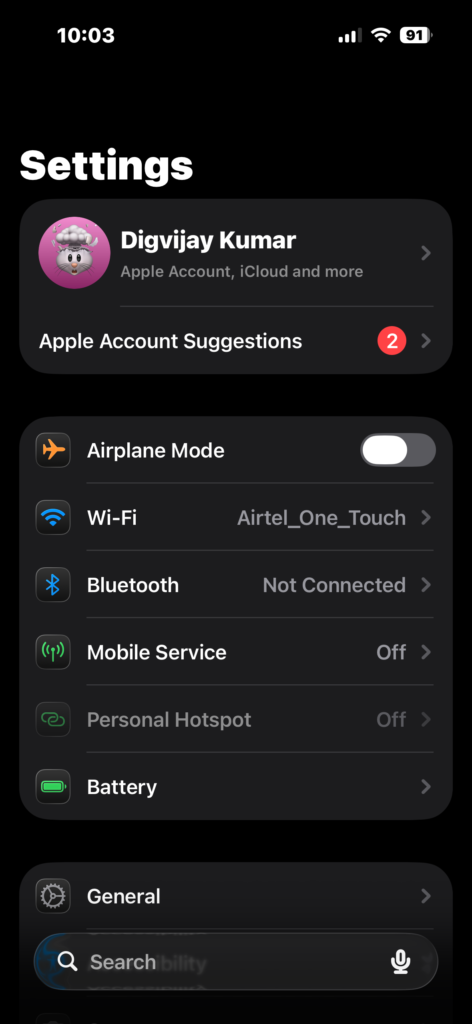
- Open Settings.
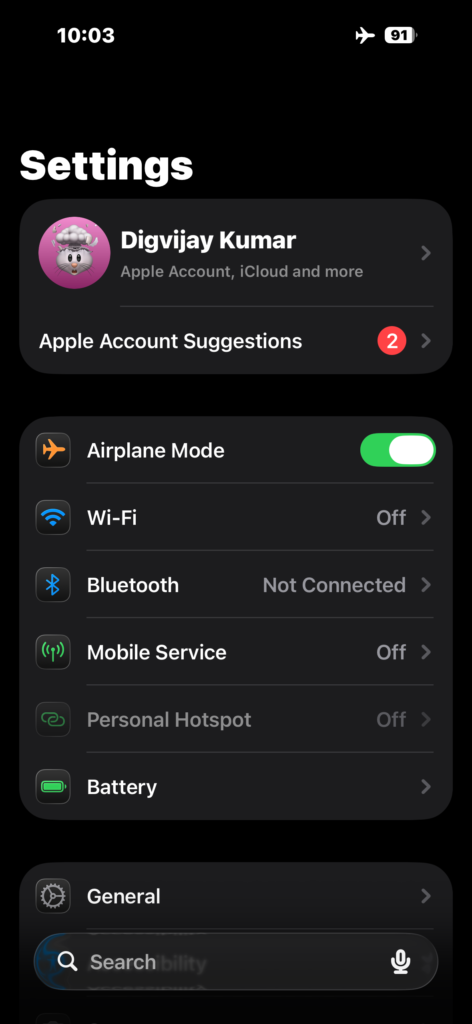
- Enable Airplane Mode.
- Wait 30 seconds.
- Disable Airplane Mode.
If that does not work:
- Open Settings.
- Tap General.
- Tap Transfer or Reset iPhone.
- Tap Reset.
- Select Reset Network Settings.
If your device keeps switching to SOS mode, it may indicate a deeper carrier issue, similar to what users encounter when dealing with persistent emergency signal problems.
Fix Wi-Fi and Bluetooth Issues
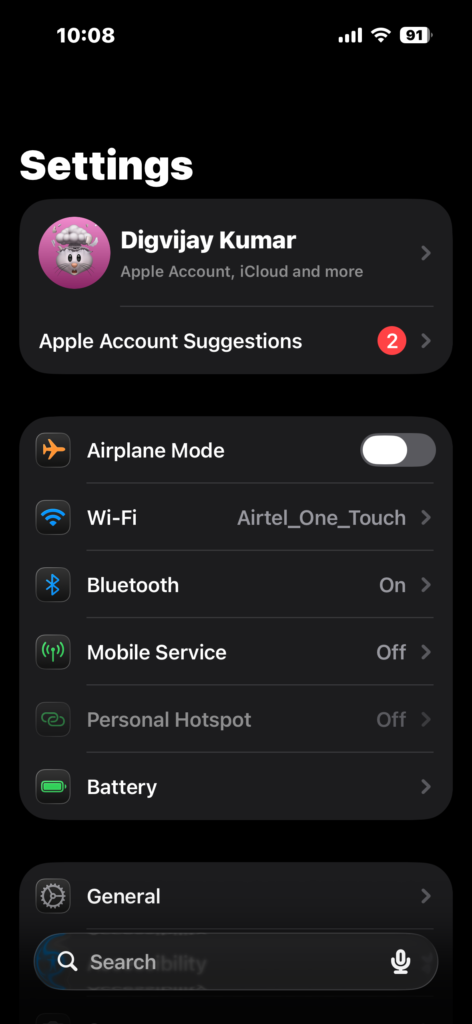
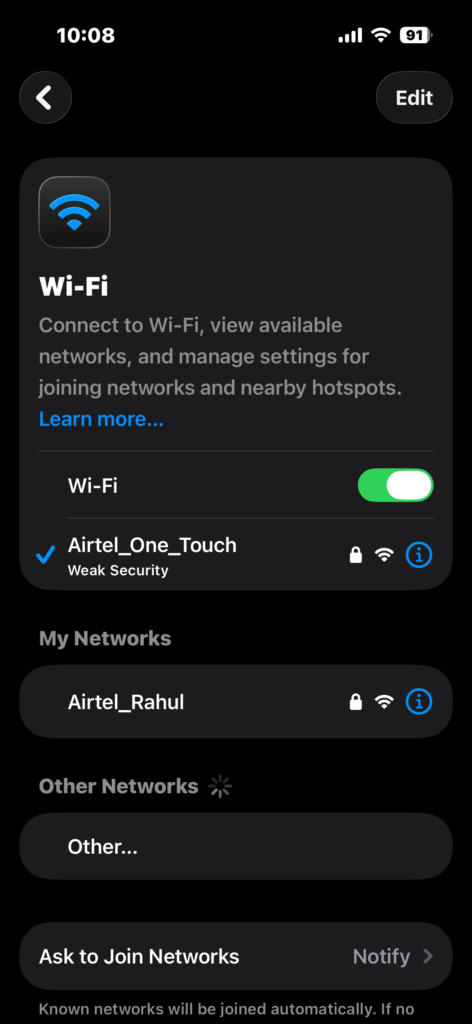
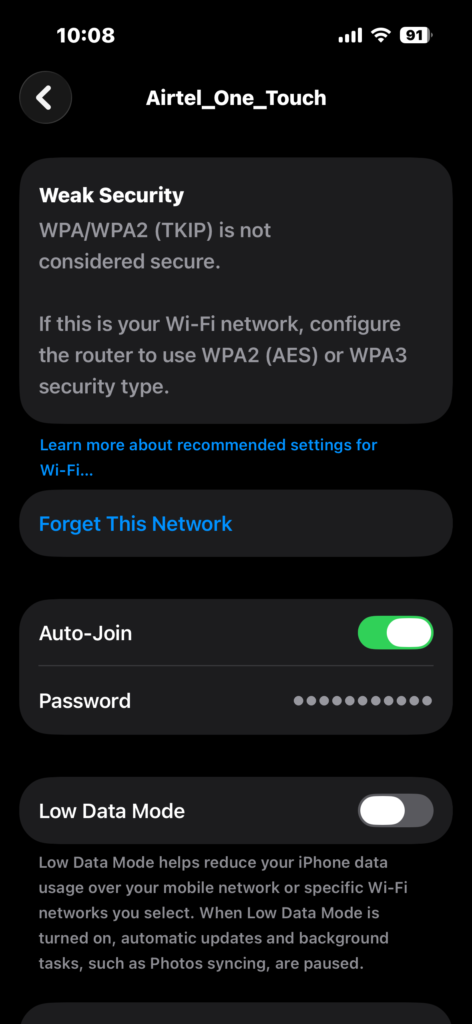
Wireless connections can become unstable after system updates.
- Open Settings.
- Tap Wi-Fi.
- Tap i icon next to your network.
- Tap Forget This Network.
- Reconnect again.
For Bluetooth:
- Open Settings.
- Tap Bluetooth.
- Turn it off.
- Turn it back on.
If you are using accessories like AirPods and notice issues, troubleshooting them follows a similar pattern to fixing connection or audio problems on wireless Apple devices.
Fix Apps Crashing or Freezing
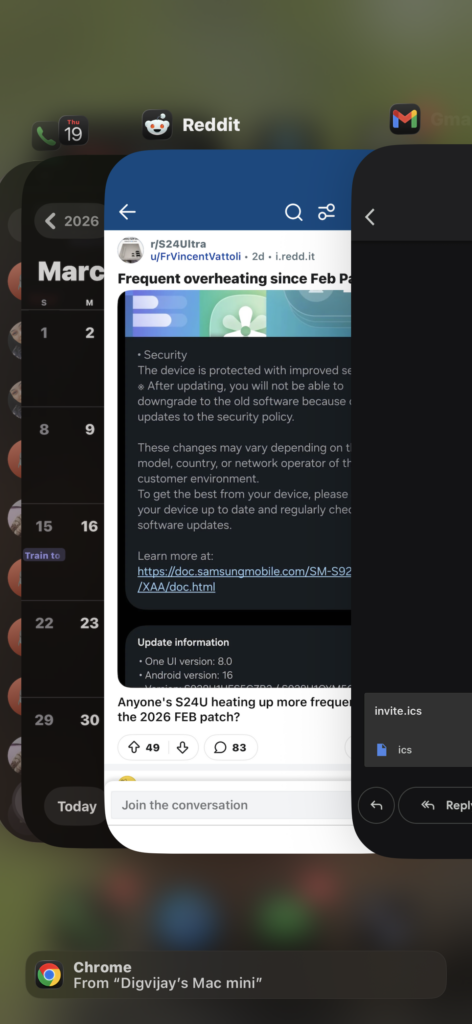
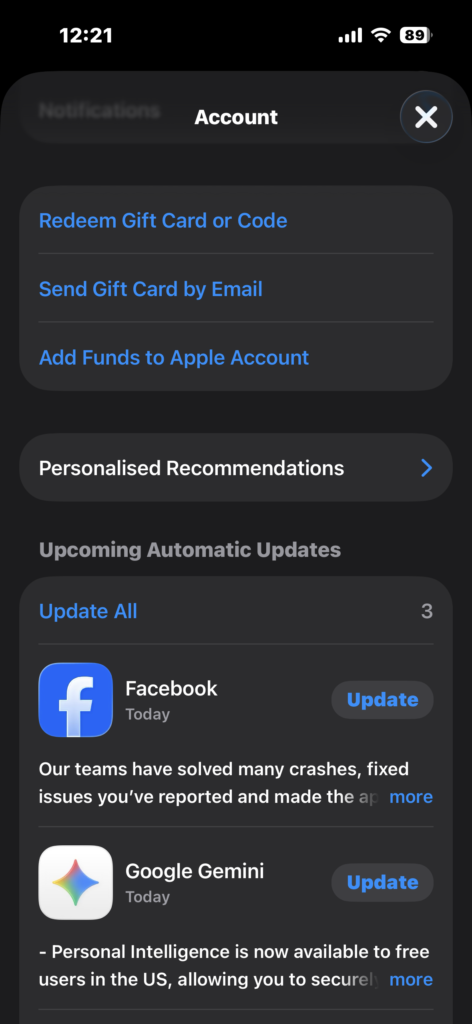
Apps may crash because they are not optimized for iOS 26 yet.
- Open the App Switcher.
- Close the problematic app.
- Reopen it.
If crashes continue:
- Open the App Store.
- Update all apps.
- Delete the app.
- Reinstall it.
If messaging apps are affected, you can also check this step-by-step solution for turning messaging services back on properly.
Fix iMessage Not Working
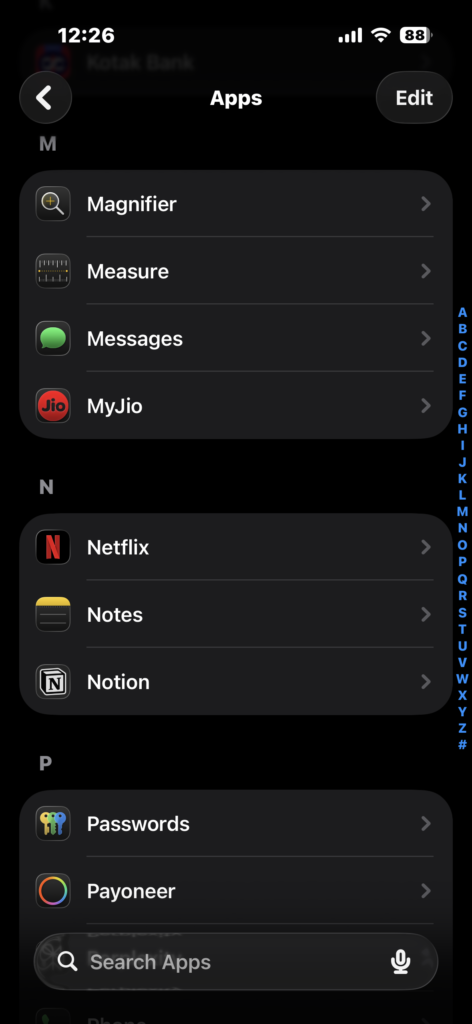
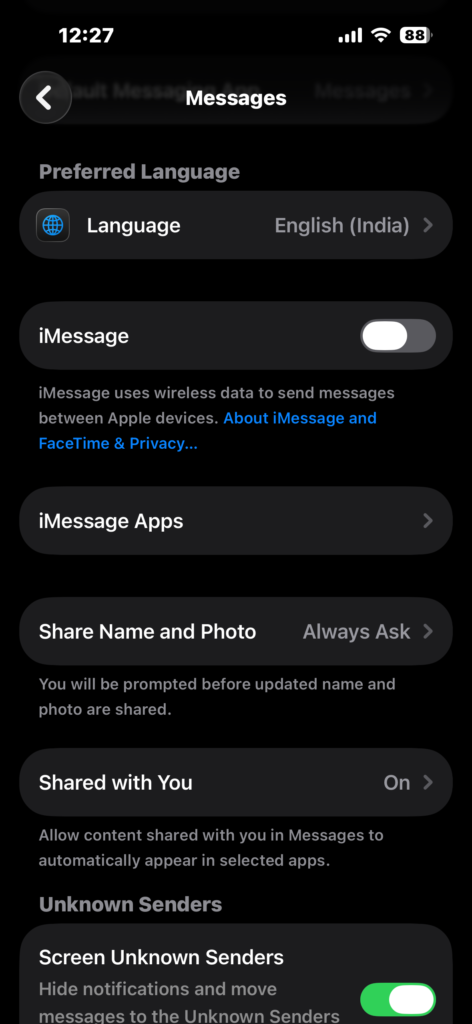
iMessage issues can prevent sending or receiving messages.
- Open Settings.
- Go to Apps > Messages.
- Turn off iMessage.
- Wait 30 seconds.
- Turn iMessage back on.
If needed, refresh your Apple ID session. You can follow a more detailed walkthrough on how to sign back into your Apple account correctly.
Fix Screenshot Not Working
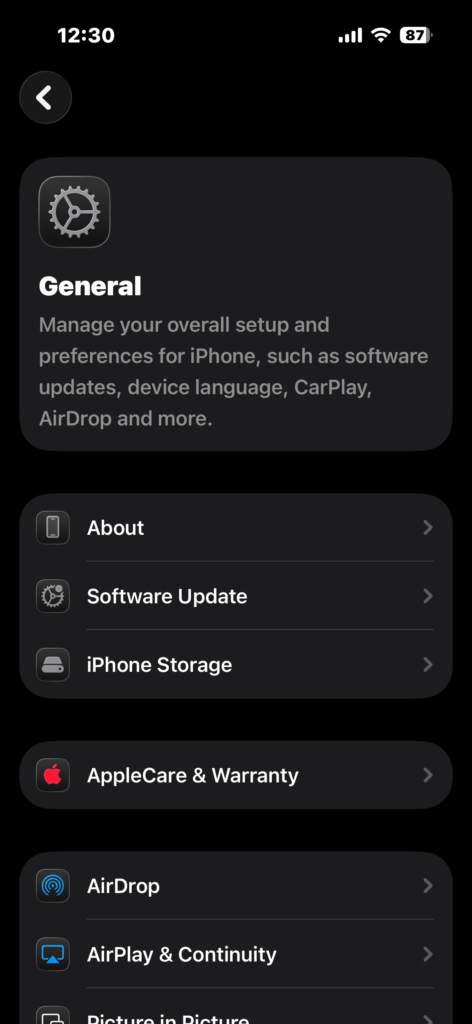
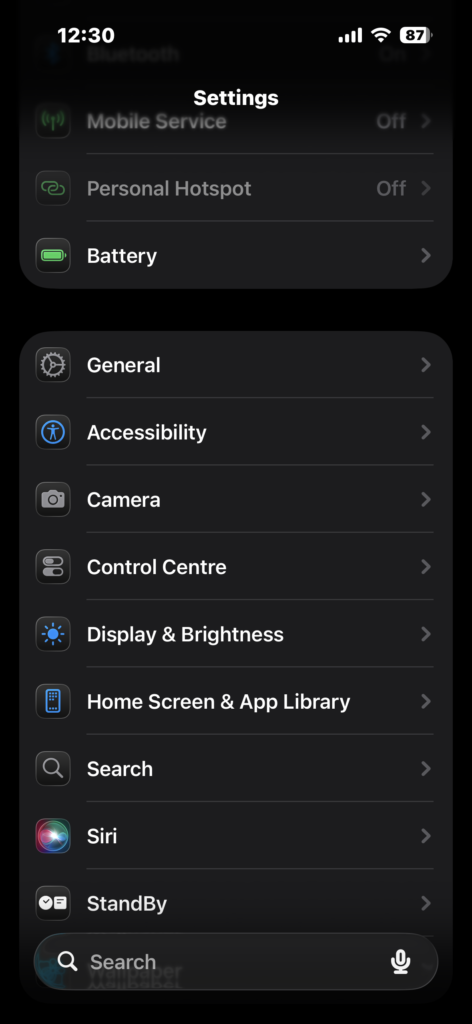
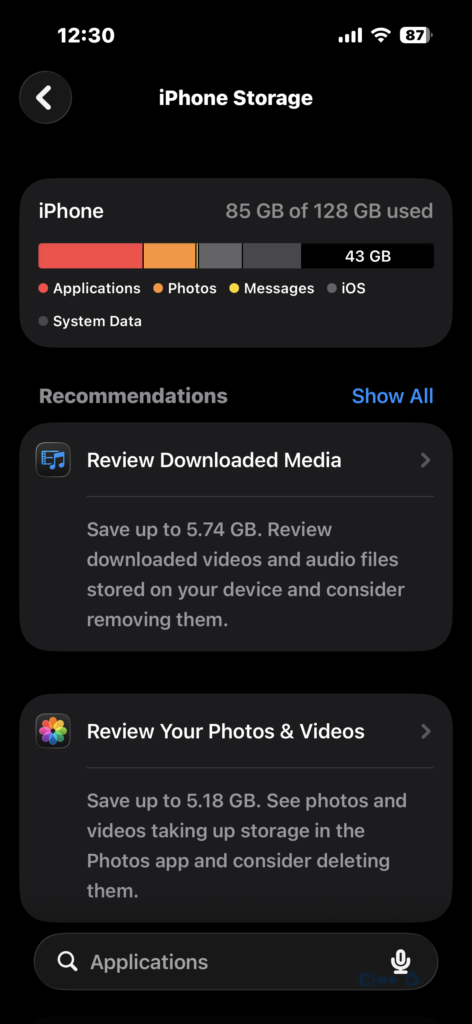
If screenshots are not saving, the issue is usually related to storage or temporary glitches.
- Restart your iPhone.
- Open Settings.
- Tap General.
- Tap iPhone Storage.
- Free up space if needed.
If you are unsure about proper screenshot methods or want more control, you can review different ways of capturing screens across Apple devices in this helpful breakdown on taking screenshots on a Mac.
Fix Notifications Not Visible
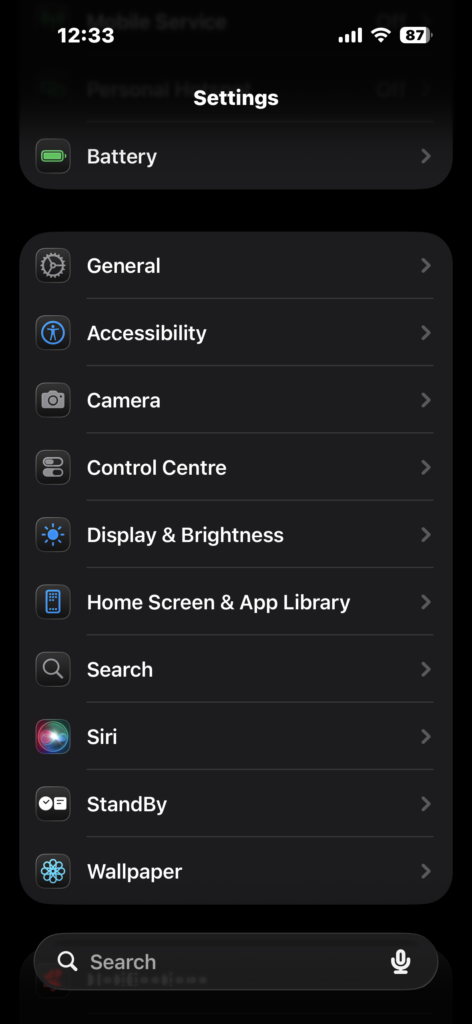
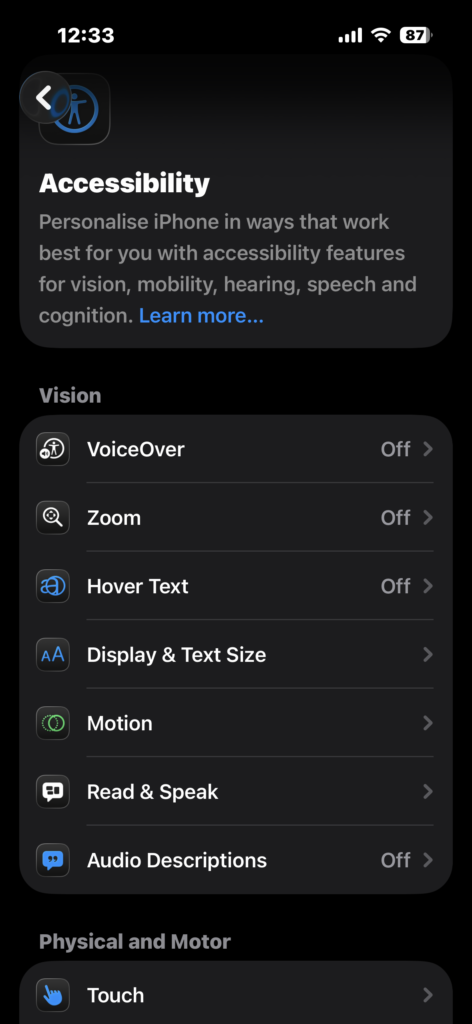
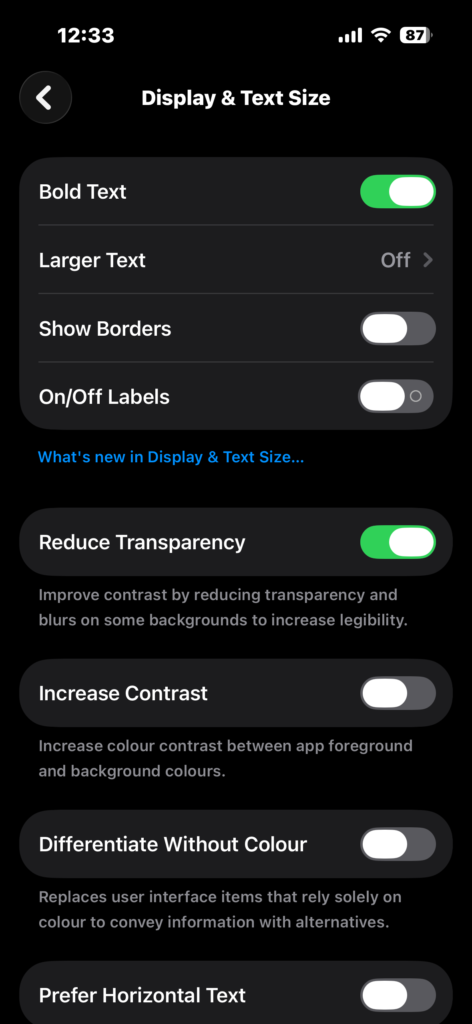
iOS 26 introduced visual changes that can make notifications hard to read.
- Open Settings.
- Tap Accessibility.
- Tap Display and Text Size.
- Enable Reduce Transparency.
If visual elements still feel uncomfortable, adjusting interface effects or disabling certain design features can improve readability significantly.
Fix Mail App Not Downloading Attachments
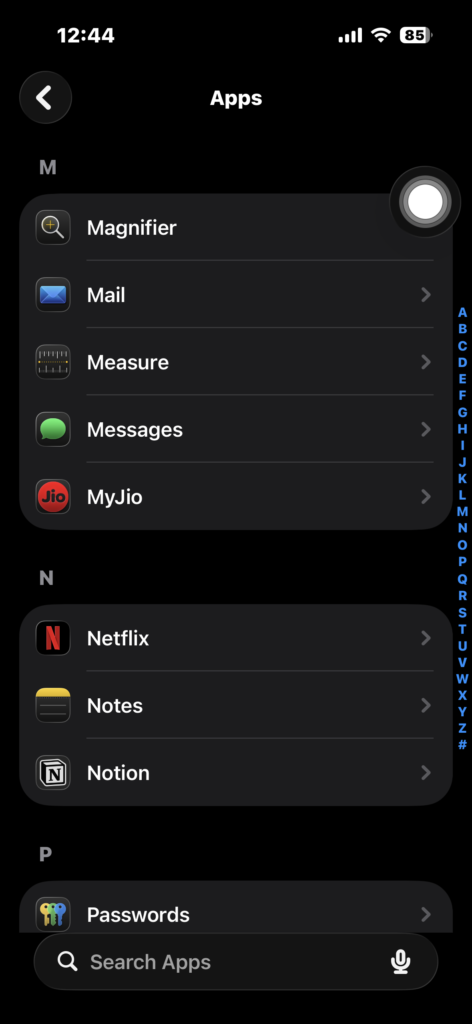
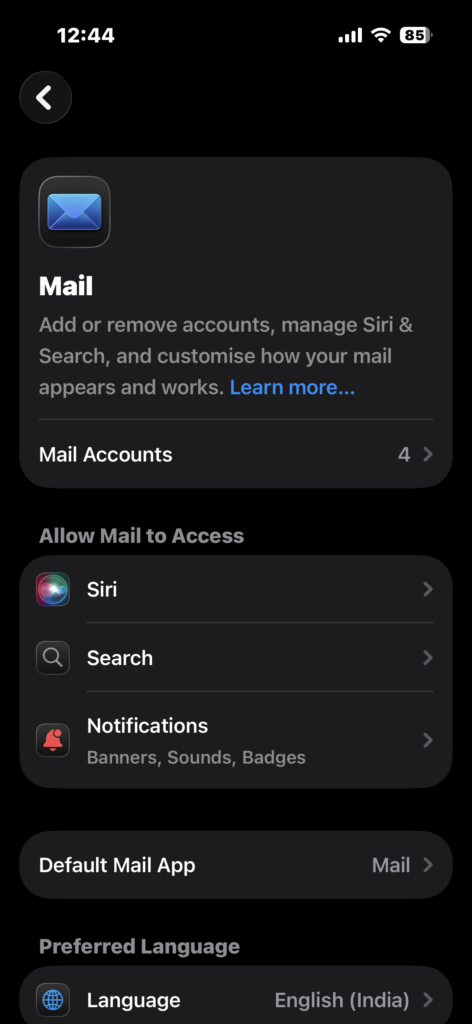
Mail issues are often caused by sync or connectivity errors.
- Close the Mail app.
- Reopen it.
If the problem continues:
- Open Settings.
- Tap Mail.
- Tap Accounts.
- Remove your account.
- Add it again.
Also, ensure that Mail has access to mobile data if you are not connected to Wi-Fi.
Fix Location Services and GPS Issues
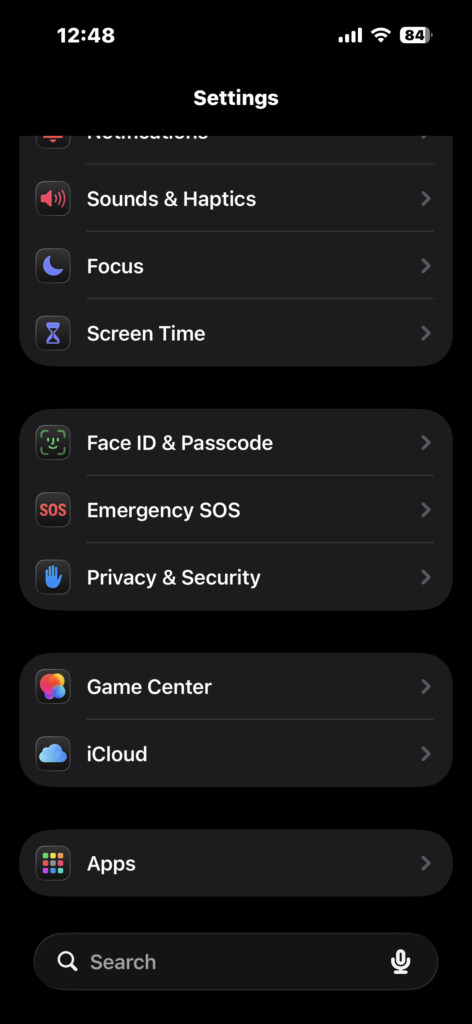
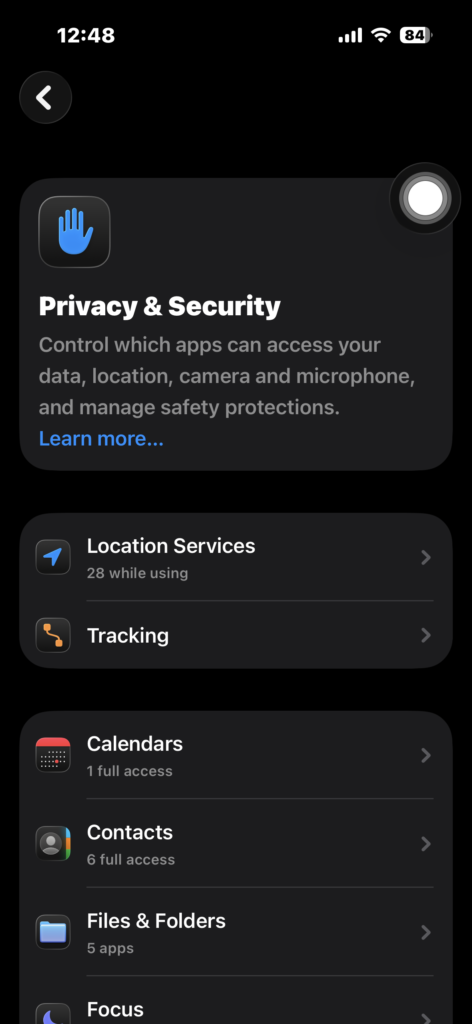
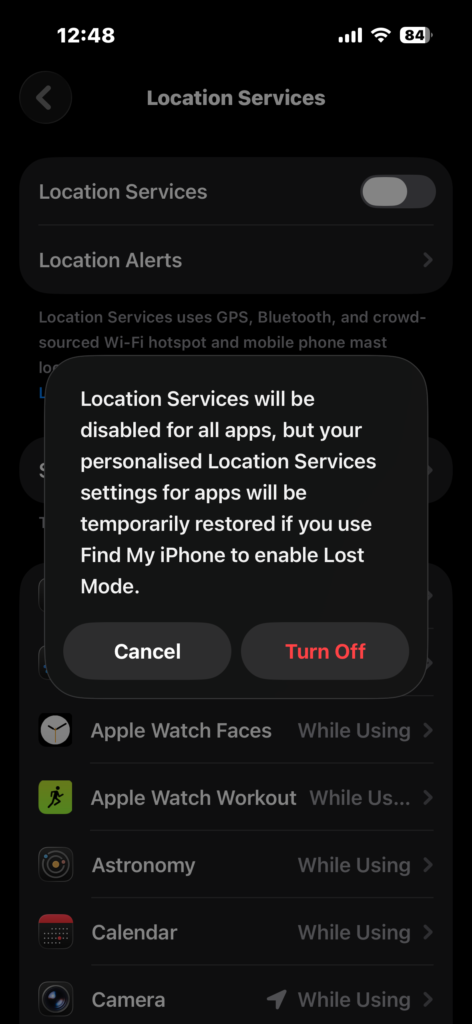
Location-based apps may stop working correctly after updating.
- Open Settings.
- Tap Privacy & Security.
- Tap Location Services.
- Turn it off.
- Turn it back on.
If apps still cannot detect location, resetting permissions often resolves deeper conflicts.
Fix Apple Intelligence Download Issues
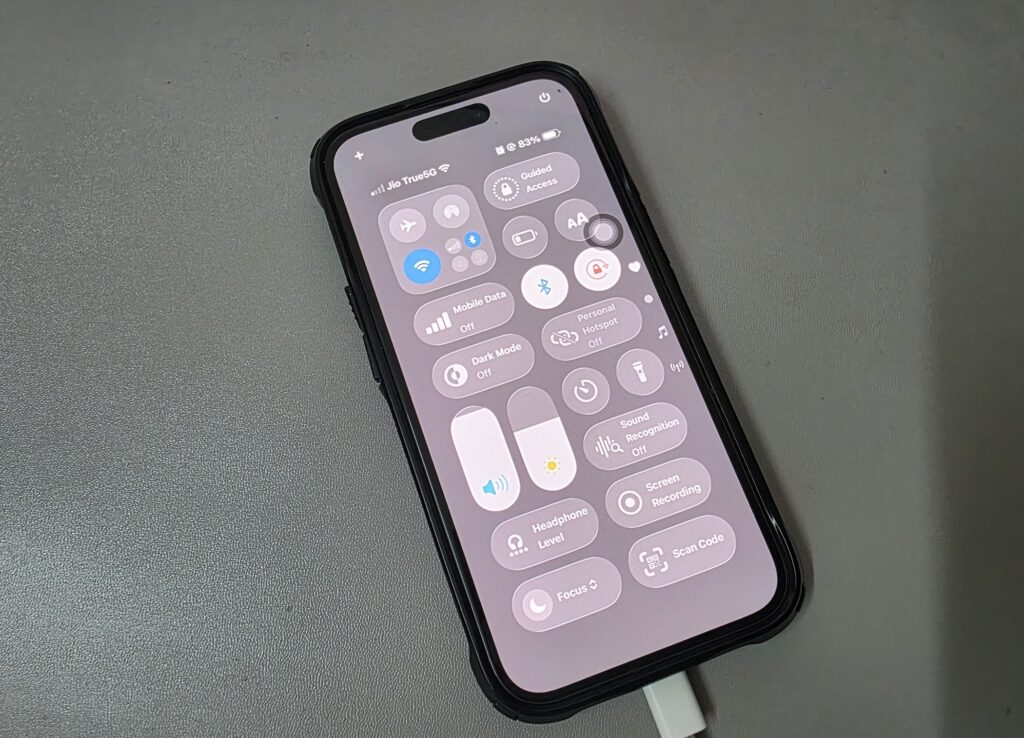
Apple Intelligence features require downloading large models in the background.
- Connect your iPhone to Wi-Fi.
- Plug it into a charger.
- Lock the device.
- Leave it overnight.
Interrupting this process can delay completion and extend performance issues.
Fix Update Stuck or Installation Failed
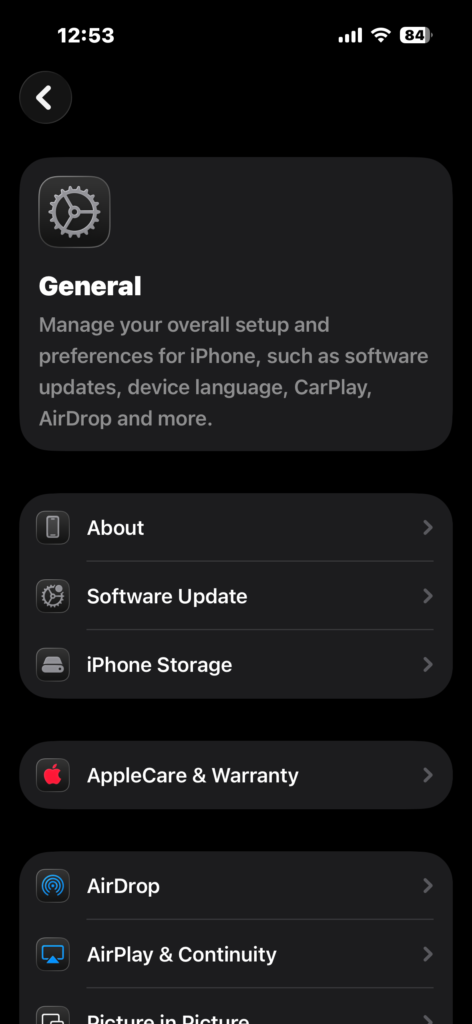
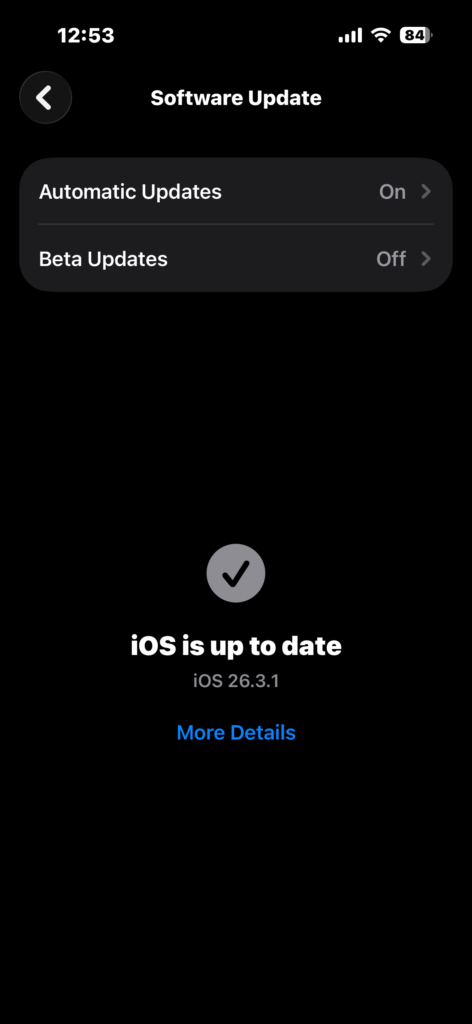
Some users cannot complete the iOS 26 installation.
- Restart your iPhone.
- Open Settings.
- Tap General.
- Tap iPhone Storage.
- Delete the update file.
- Download the update again.
If the update still fails, using a Mac with Finder or recovery mode may help. In more severe cases, you can explore how to roll back to a previous iOS version safely.
Tips
- Wait up to 72 hours after updating before applying major fixes
- Keep at least 10 to 15 percent storage free
- Restart your iPhone regularly
- Avoid beta updates on your main device
- Install minor updates as soon as they are available
Getting Your iPhone Running Smoothly Again
iOS 26 issues can range from minor annoyances to serious usability problems. The good news is that most of them are temporary or easy to fix with the right steps.
By following the solutions in this guide, you can restore performance, fix connectivity, and stabilize your device without needing advanced tools or support.
Key Takeaways
iOS 26 bugs are mostly caused by background processes, system changes, and app compatibility issues. Problems like battery drain, lag, and connectivity failures are common but usually fixable. With the right troubleshooting steps, most users can resolve issues quickly and avoid long-term performance problems.
FAQs?
Most problems resolve within 24 to 72 hours after installation as background processes complete.
This is caused by indexing, syncing, and downloading system data in the background.
Only if a critical feature like cellular data is completely unusable.
Many apps are not yet optimized for the new system and need updates from developers.
Yes, Apple typically releases updates quickly to address major issues and improve stability.

0 Comments