iOS System Data Taking Up Too Much Storage? Here Easy Ways to Clear It
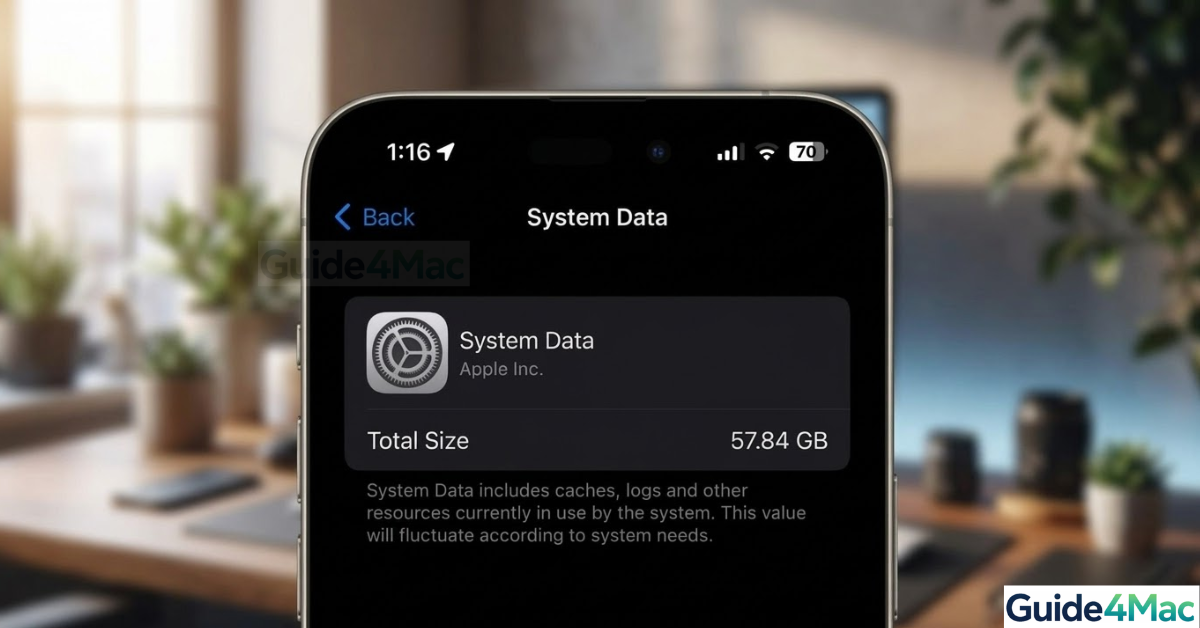
If iOS System Data is taking too much storage, you may notice that a large portion of your iPhone storage is used by something called System Data or iOS. This category can grow unexpectedly and leave little room for apps, photos, or files.
System Data includes cached files, logs, temporary data, and system resources used by iOS. While it is necessary for the device to function, it can sometimes expand more than it should. In this guide, you will learn several practical ways to reduce System Data storage and free space on your iPhone. If your storage is full because of media files as well, it may also help to reduce the size of photos before storing them on your device to prevent future storage issues.
Why Is iOS System Data Using So Much Storage?
On iPhones running recent versions of iOS, the System Data category includes files required by the operating system and apps. These files help speed up processes but can accumulate over time.
Common reasons System Data becomes large include:
• Cached Safari and app data
• Temporary system files
• Streaming media caches
• iOS update leftovers
• Logs and diagnostic data
You cannot delete System Data directly, but several actions can significantly reduce its size.
1. Restart Your iPhone
Restarting your iPhone clears temporary files and cached processes that can contribute to large System Data usage.
- Press and hold the Side button and a Volume button.
- Wait for the Power Off slider to appear.
- Drag the slider to turn off the device.
- Press the Side button again to turn the device back on.
After the restart, some temporary system files may be removed automatically.
2. Clear Safari Website Data
Safari stores cached files, cookies, and browsing data that can accumulate over time.
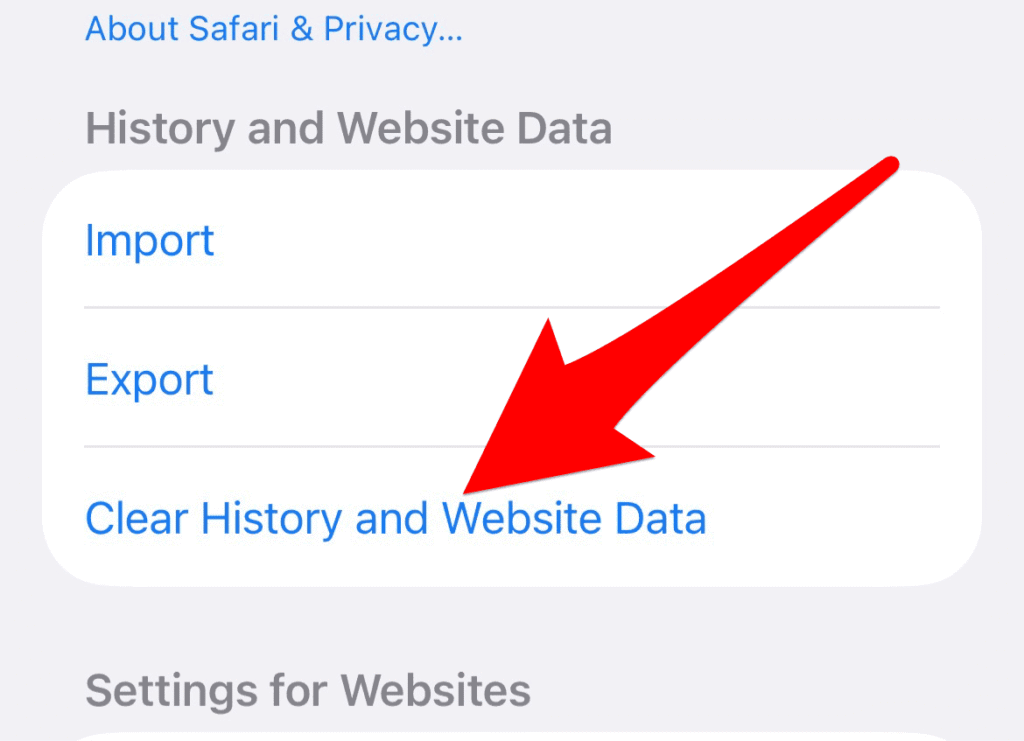
- Open Settings.
- Scroll down and tap Safari.
- Tap Clear History and Website Data.
- Confirm the action.
Clearing Safari data can reduce storage used by cached website content.
3. Remove Large Message Attachments
iMessage conversations often store photos, videos, and other attachments that increase System Data usage.
- Open Settings.
- Tap General.
- Select iPhone Storage.
- Tap Messages.
- Review Large Attachments.
- Delete files you no longer need.
If you frequently share photos through Messages, you might also want to check how to fix missing photos in iMessage conversations since attachment storage and indexing issues are sometimes related.
4. Offload or Delete Unused Apps
Apps store cache files that contribute to System Data.
- Open Settings.
- Tap General.
- Select iPhone Storage.
- Tap an unused app.
- Select Offload App or Delete App.
Offloading removes the app but keeps its documents and data.
5. Remove Downloaded Media
Streaming apps like music or video services often download media that increases system storage.
- Open Settings.
- Tap General.
- Select iPhone Storage.
- Review apps with large storage usage.
- Delete downloaded content from those apps.
This often frees up several gigabytes if you use offline downloads.
6. Update iOS
Sometimes System Data grows because of software bugs or leftover update files.
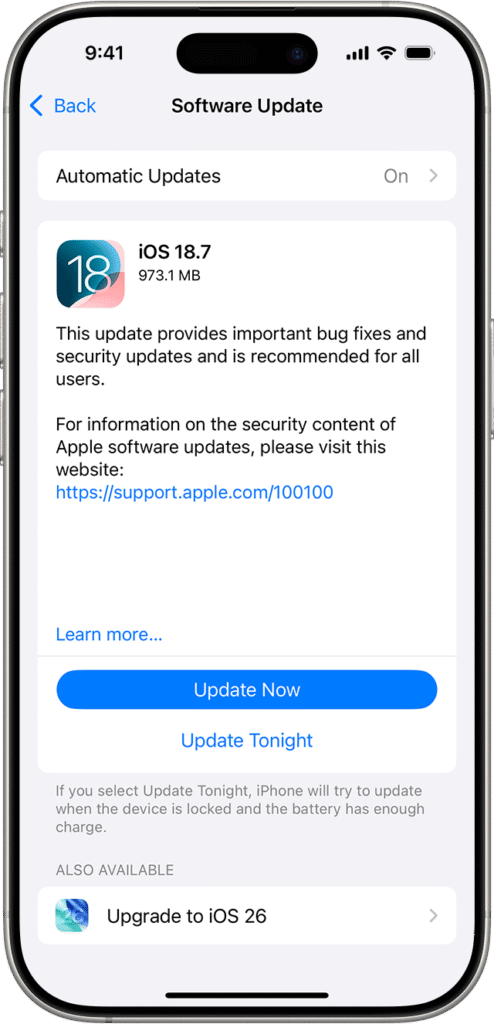
- Open Settings.
- Tap General.
- Select Software Update.
- Install any available updates.
Apple frequently improves storage management in new iOS versions.
7. Reset iPhone Storage (Last Resort)
If System Data remains unusually large, resetting the device can rebuild storage indexes.
- Open Settings.
- Tap General.
- Select Transfer or Reset iPhone.
- Tap Reset.
- Choose Reset All Settings.
This does not erase personal files but resets system settings.
Tips
• Restart your iPhone periodically to clear temporary caches.
• Avoid storing large message attachments for long periods.
• Delete downloaded streaming media you no longer need.
• Keep iOS updated for improved storage management.
• Review storage usage regularly in iPhone Storage settings.
Freeing Up Valuable iPhone Storage
When System Data takes too much storage on an iPhone, it is usually caused by accumulated caches, temporary files, or large attachments. Clearing browser data, deleting unused files, and updating iOS can significantly reduce the space used by the system.
Once these steps are completed, your iPhone should have more available storage for apps, photos, and important files.
Key Takeaways
iOS System Data can grow large because of caches, temporary files, and stored attachments. While you cannot delete it directly, restarting your device, clearing Safari data, removing large message attachments, and updating iOS can reduce its size. Regular storage management helps prevent the problem from returning.
FAQ
System Data includes cached files, logs, temporary system resources, and other data used by iOS to operate efficiently.
It often grows because of cached browser files, message attachments, streaming media downloads, and leftover system files.
No. Apple does not allow direct deletion, but clearing caches and removing stored data can reduce its size.
Yes. Restarting can clear temporary system caches and reduce storage usage.
The amount varies, but it typically ranges from a few gigabytes to around 10 GB depending on usage.



0 Comments