How to Remove White Icon Borders in iOS 26
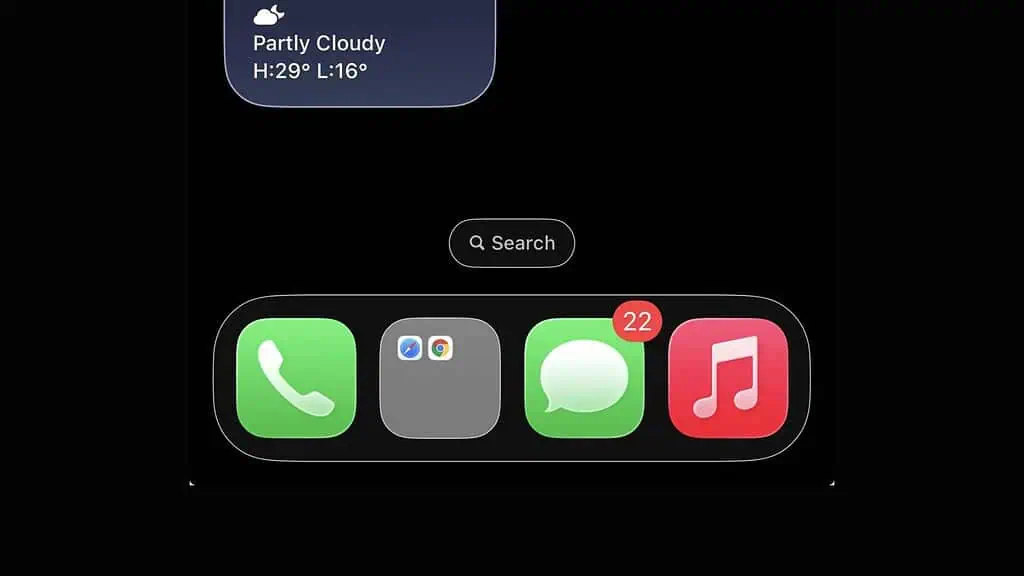
If you want to remove white icon borders in iOS 26, you are likely seeing the new visual style introduced with recent iOS updates. Apple added these borders as part of updated accessibility and interface design settings, but many users prefer the classic icon look without outlines.
Fortunately, you can disable the white icon borders by adjusting a few display and accessibility settings on your iPhone. In this guide, you will learn several methods that restore the traditional icon appearance on iOS 26. If you are also adjusting your interface after the update, you may want to review how to disable the Liquid Glass design in iOS since both features affect the visual style of the Home Screen.
Why Are There White Borders Around iPhone Icons?
The white icon borders in iOS 26 usually appear when certain Accessibility settings are enabled. These options are designed to improve visibility and contrast for users who need clearer interface elements.
Common causes include:
• Button Shapes enabled
• Increased Contrast turned on
• Accessibility visual settings
• Display appearance changes after an iOS update
Adjusting these settings typically removes the white outlines immediately.
1. Turn Off Button Shapes
The Button Shapes feature highlights tappable elements by adding visual outlines, which can create borders around icons.
- Open Settings.
- Tap Accessibility.
- Select Display & Text Size.
- Find Button Shapes.
- Turn the toggle off.
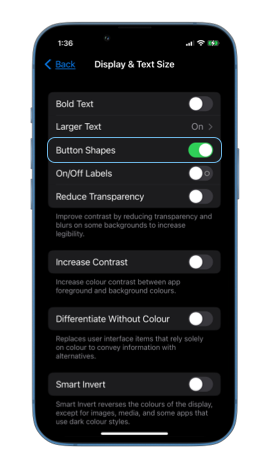
After disabling this setting, the icon borders should disappear.
2. Disable Increase Contrast
Higher contrast settings can add outlines and visual emphasis around interface elements.
- Open Settings.
- Tap Accessibility.
- Select Display & Text Size.
- Locate Increase Contrast.
- Turn the toggle off.
Reducing contrast can restore the default icon appearance.
3. Turn Off Differentiate Without Color
The Differentiate Without Color setting changes how interface elements appear, sometimes adding visual borders.
- Open Settings.
- Tap Accessibility.
- Select Display & Text Size.
- Find Differentiate Without Color.
- Disable the toggle.
This returns icons and interface elements to their default visual style.
4. Restart Your iPhone
Sometimes visual glitches appear after a system update and disappear after a restart.
- Press and hold the Side button and Volume button.
- Wait for the Power Off slider.
- Drag the slider to shut down the device.
- Turn the iPhone back on.
Restarting refreshes system interface processes and can remove temporary UI artifacts.
5. Update iOS
Apple occasionally fixes visual interface bugs through software updates.
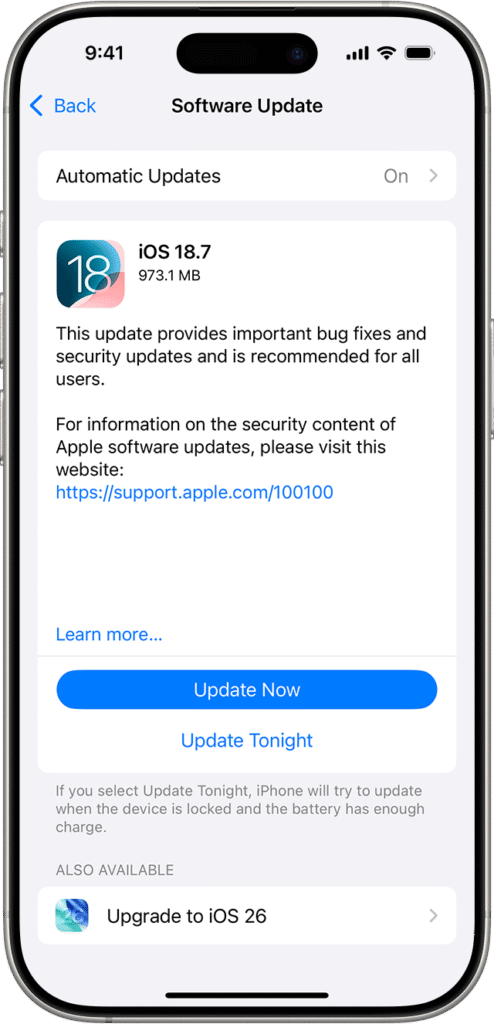
- Open Settings.
- Tap General.
- Select Software Update.
- Install any available update.
Installing the latest update ensures your device runs the most stable version of iOS.
Tips
• Avoid enabling multiple accessibility display features at the same time.
• Restart your device after major iOS updates.
• Keep your iPhone updated to receive interface fixes.
• Review display settings if icons suddenly change appearance.
• Test visual changes before adjusting other accessibility options.
Restore the Classic iPhone Icon Look
White icon borders in iOS 26 usually appear because of accessibility display settings designed to improve contrast and usability. Disabling features like Button Shapes or Increased Contrast typically removes the outlines immediately.
Once these settings are adjusted, your Home Screen icons should return to their normal appearance without borders.
Key Takeaways
White icon borders in iOS 26 usually appear when accessibility features such as Button Shapes or Increase Contrast are enabled. Disabling these settings in the Display & Text Size menu restores the standard icon appearance. Restarting the device or installing the latest iOS update can also resolve visual interface issues.
FAQs
White borders usually appear when accessibility settings such as Button Shapes or Increased Contrast are enabled.
Open Settings, go to Accessibility, select Display & Text Size, and disable visual accessibility features that add outlines.
No. These settings only change visual interface behavior and do not affect device performance.
Yes. Some updates automatically enable or modify accessibility display settings.
Not usually. They are typically the result of accessibility features designed to improve interface visibility.

0 Comments