How to Fix iMessage Not Working After iOS 26 Update
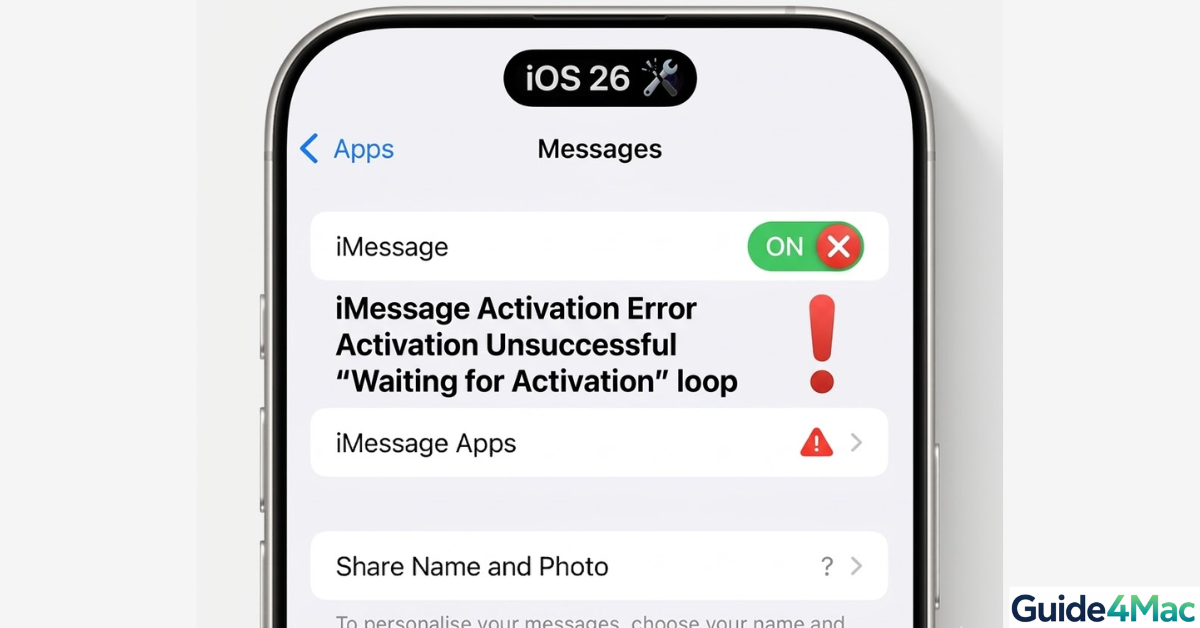
After updating to iOS 26, some users notice iMessage stops working—messages fail to send, notifications are delayed, or activation errors appear. These issues are usually caused by network problems, Apple ID glitches, or temporary iOS bugs.
Most problems can be resolved quickly with the steps below, restoring normal iMessage functionality on your iPhone or iPad.
1. Restart Your iPhone
Total Time: 2–3 minutes
Restarting your iPhone refreshes system processes, clears temporary glitches, and reconnects iMessage to Apple servers. This is often the fastest way to fix iMessage after an iOS update.
- Press and Hold the Power Button
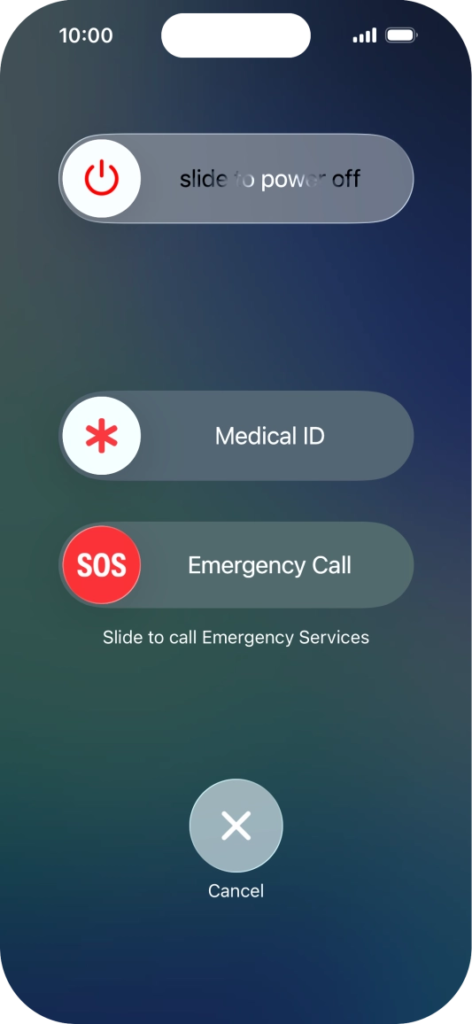
Hold the Side (Power) button until the power-off slider appears.
- Slide to Power Off
Drag the slider to turn off your iPhone completely.

- Wait a Few Seconds
Let your iPhone fully power down for about 10–15 seconds.
- Power On
Press and hold the Side button until the Apple logo appears.
- Test iMessage
Open Messages and send a new text. Most iMessage issues resolve after a restart.
After performing this step, iMessage should reconnect automatically, but if it doesn’t, continue with the next solutions below.
2. Check Your Internet Connection
A stable Wi-Fi or cellular connection is essential for iMessage. Many iOS 26 issues occur because devices switch networks automatically.
What to do:
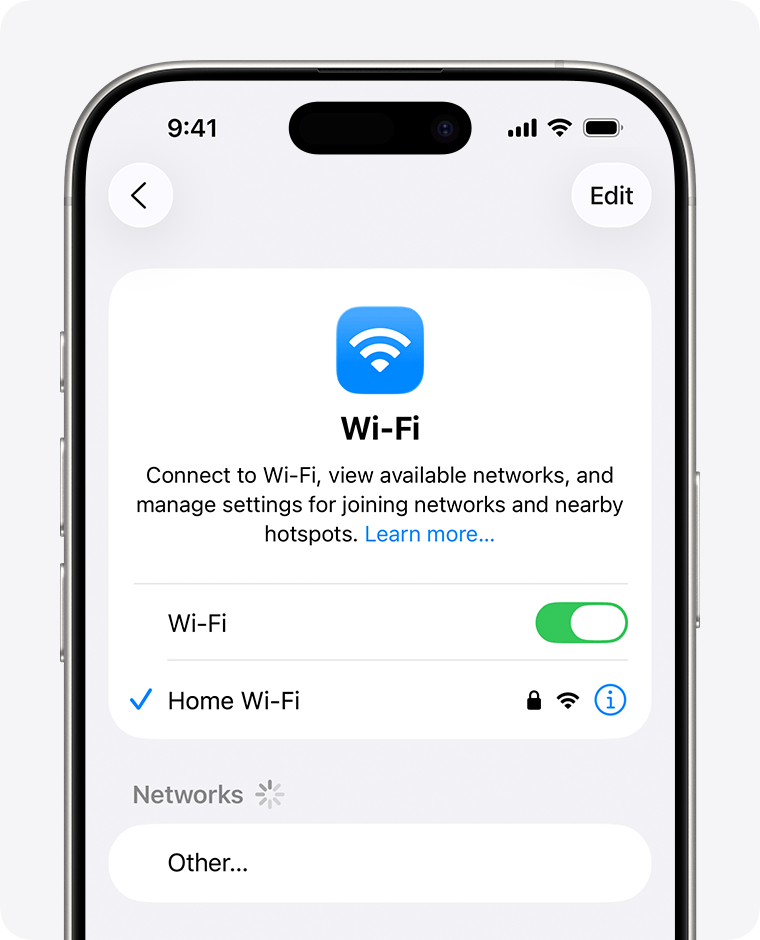
- Open Settings → Wi-Fi and confirm you’re connected
- Switch networks if possible
- Make sure Airplane Mode is off
- For cellular, ensure Mobile Data is enabled
Once your connection is stable, iMessage will often start working immediately.
3. Sign Out and Back Into Apple ID
iMessage sync issues often occur after updates. Refreshing your Apple ID can fix activation and sending errors.
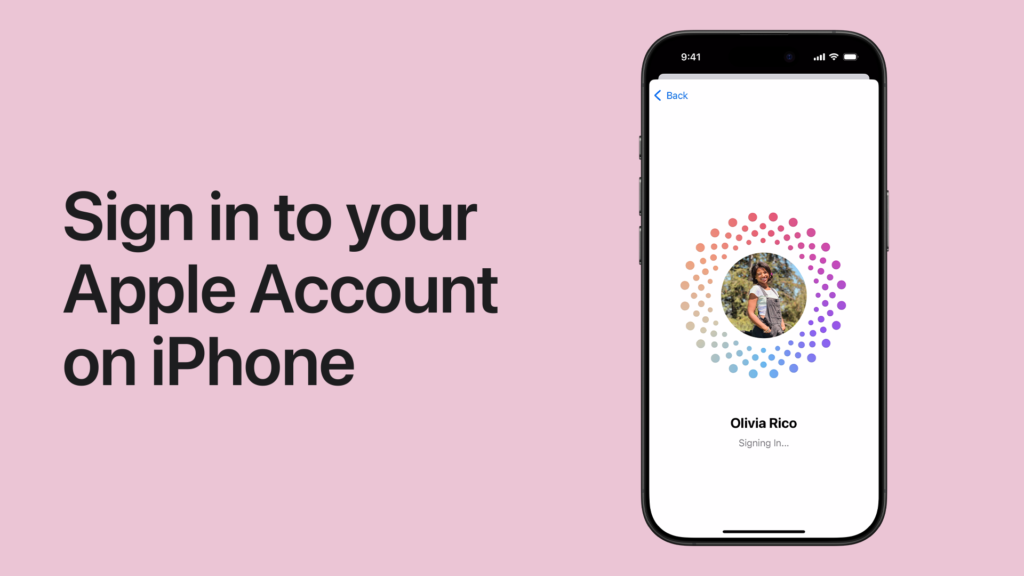
What to do:
- Go to Settings → [Your Name] → Sign Out
- Restart your iPhone
- Sign back in with your Apple ID
- Test iMessage
Signing out and back in ensures your Apple ID reconnects properly to iMessage servers.
4. Toggle iMessage Off and On
Sometimes iMessage activation gets stuck after an update. Turning it off and back on forces the connection to refresh.
What to do:
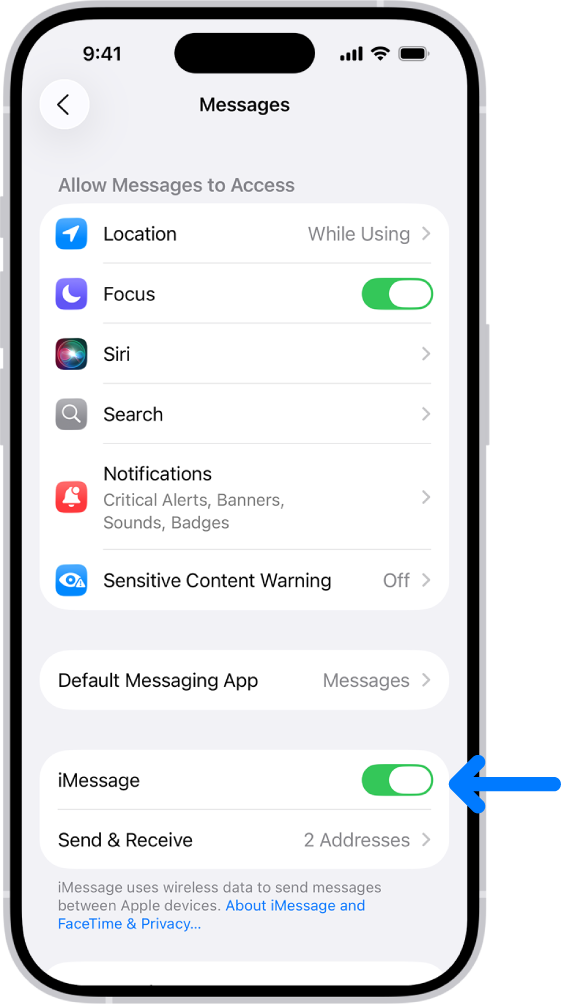
- Open Settings → Messages
- Turn iMessage Off
- Wait 10 seconds
- Turn iMessage On and wait for activation
After toggling iMessage, give it a few moments to fully reconnect to Apple servers before sending messages.
5. Check Date and Time Settings
Incorrect date or time can prevent iMessage from connecting to Apple servers, especially after updates.
What to do:
- Open Settings → General → Date & Time
- Enable Set Automatically
- Restart the Messages app and test sending
Setting the correct date and time ensures your iPhone communicates with Apple servers without errors.
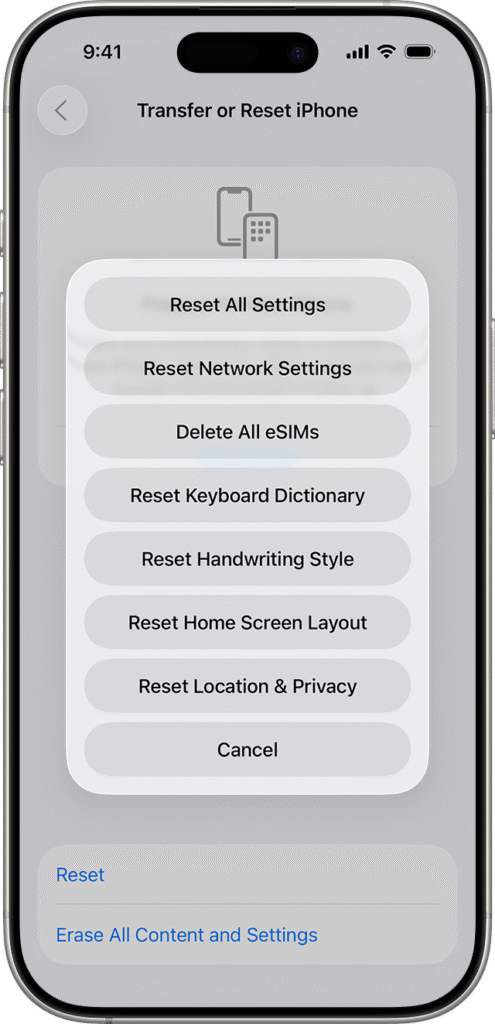
6. Reset Network Settings
If iMessage still isn’t working, network configuration issues may be the cause. Resetting network settings often solves stubborn problems.
What to do:
- Go to Settings → General → Transfer or Reset iPhone → Reset
- Tap Reset Network Settings
- Enter your passcode and confirm
- Reconnect Wi-Fi or cellular and test iMessage
This clears any lingering network conflicts and ensures a clean connection to iMessage servers.
Common Problems
- Messages stuck on “Sending…”
- iMessage activation errors
- Notifications not appearing
- SMS fallback not working
Recognizing the type of problem helps you choose the most effective solution quickly.
Tips
- Keep iOS updated to the latest patch
- Restart iPhone after major updates
- Check Apple System Status if issues persist
- Use strong Wi-Fi for sending large attachments
Following these tips reduces the chance of iMessage problems after future updates.
FAQs (People Also Ask)
Usually due to network issues, Apple ID problems, or temporary iOS bugs.
Yes, restarting clears temporary glitches and reconnects the service.
Signing out and back in can fix activation and sending errors.
Yes, incorrect Wi-Fi or cellular settings can block iMessage.
It usually takes a few minutes, but sometimes longer if Apple servers are busy.

0 Comments