How to Fix Screen Rotation Not Working on iPhone
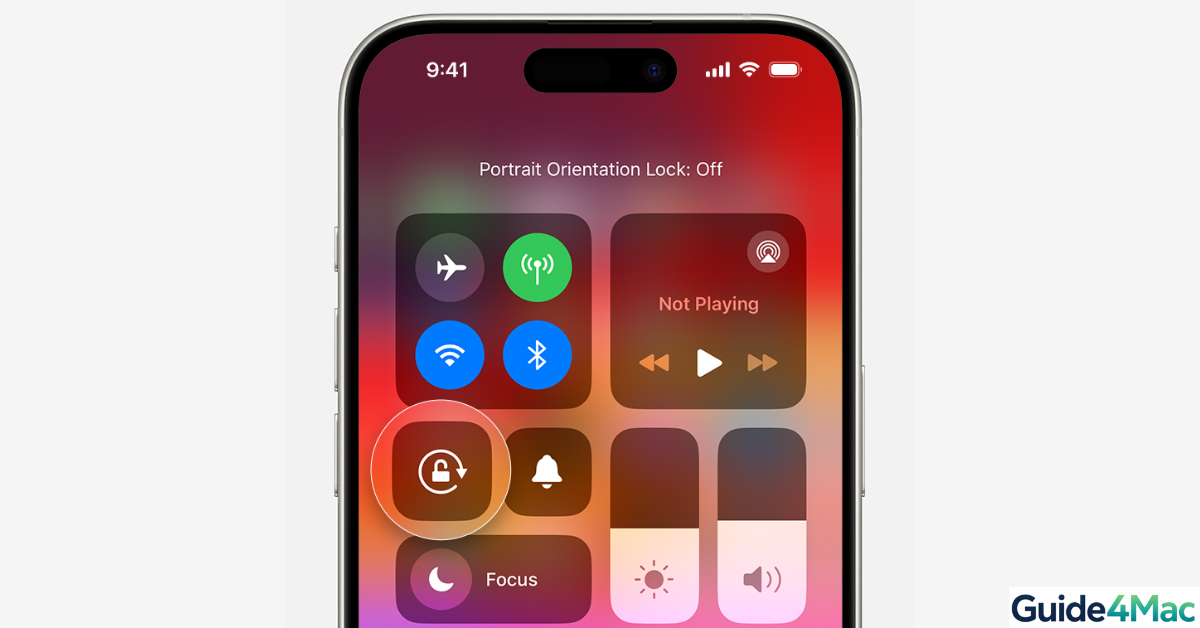
Screen rotation on iPhone is a convenient feature that automatically switches your display between portrait and landscape modes. After iOS updates or due to minor settings issues, the rotation feature may stop working, leaving your display stuck in one orientation.
Most rotation problems are simple to fix, and you don’t need any technical knowledge to get your iPhone working properly again.
1. Check the Orientation Lock
Time needed: 2 minutes
Orientation Lock prevents your iPhone from rotating the screen. Many users accidentally enable it, causing the screen to stay fixed in portrait mode. Turning it off restores normal rotation.
- Open Control Center
Swipe down from the top-right corner on iPhone X or later, or swipe up from the bottom on older iPhones.
- Check the Orientation Lock Icon
Look for the lock icon with a circular arrow.

- Toggle Orientation Lock Off
If it’s enabled, tap the icon to turn it off.
- Test Screen Rotation
Open an app that supports landscape mode, like Safari or Photos, and rotate your iPhone. The screen should switch smoothly.
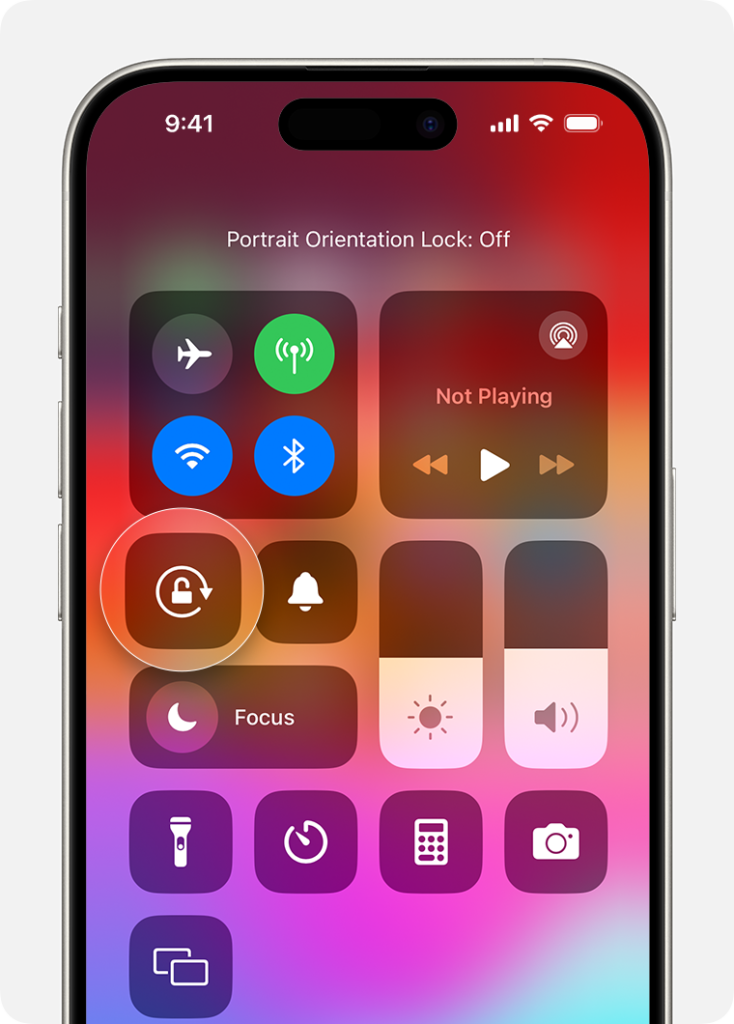
Turning off orientation lock usually resolves most screen rotation issues immediately.
2. Restart Your iPhone
A simple restart can fix temporary glitches that prevent rotation from working.
What to do:
- Press and hold the Side (Power) button
- Slide to power off
- Wait 10–15 seconds
- Press the Side button to turn on the iPhone
- Test screen rotation
Restarting clears temporary memory conflicts that may block the rotation sensor.
3. Check Display Settings
Sometimes Display Zoom or certain accessibility settings prevent rotation.
What to do:
- Go to Settings → Display & Brightness
- Tap View (Display Zoom) and choose Standard
- Test screen rotation again
Using Standard Display Zoom ensures apps properly detect orientation changes.
4. Reset All Settings
If rotation still doesn’t work, some system settings may be corrupted. Resetting all settings restores defaults without deleting your data.
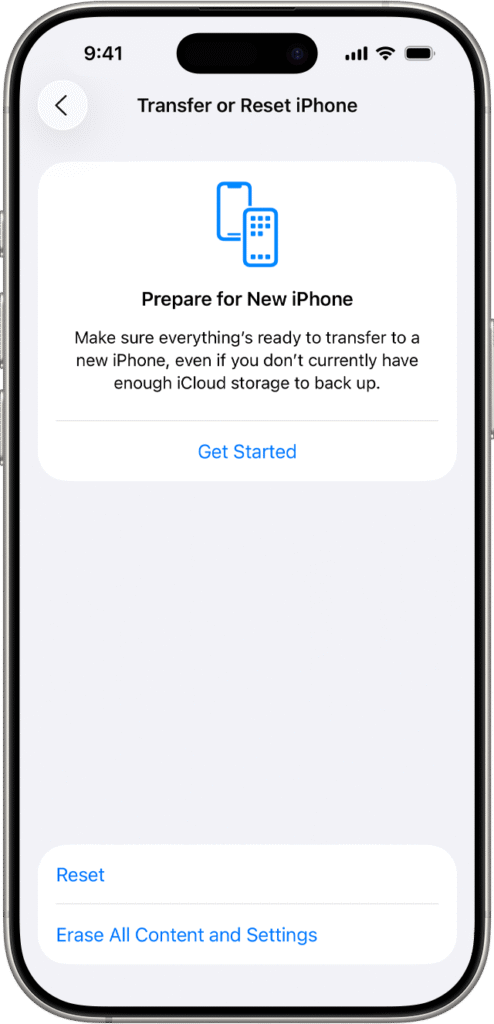
What to do:
- Open Settings → General → Transfer or Reset iPhone → Reset
- Tap Reset All Settings
- Enter your passcode and confirm
- Test screen rotation
This refreshes system preferences and often resolves persistent rotation issues.
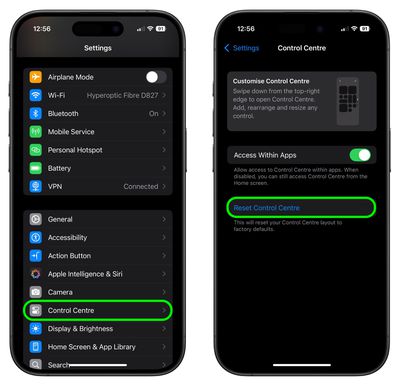
5. Update iOS
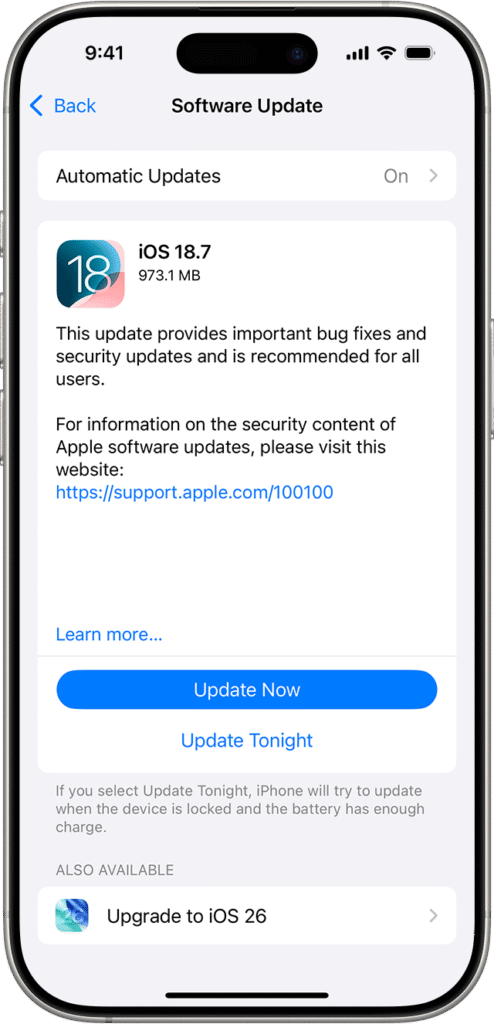
Screen rotation issues sometimes result from iOS bugs. Updating to the latest version can resolve them.
What to do:
- Open Settings → General → Software Update
- Download and install any available updates
- Restart your iPhone if prompted
- Test screen rotation
Keeping iOS updated ensures bug fixes and stability improvements for screen rotation.
Common Problems
- Screen stuck in portrait mode
- Rotation works in some apps but not others
- Photos or Safari won’t rotate
Identifying which apps fail to rotate helps pinpoint the cause quickly.
Tips
- Always check Orientation Lock first
- Restart after updates
- Set Display Zoom to Standard
- Keep iOS updated for best performance
Following these tips prevents future rotation problems and keeps your iPhone running smoothly.
FAQs (People Also Ask)
Orientation lock, display settings, or temporary glitches are usually responsible.
Disable Orientation Lock from Control Center and turn your iPhone.
Yes, Zoomed display can prevent proper rotation in some apps.
Yes, it often resolves temporary system glitches affecting rotation.
Sometimes, yes; updates include bug fixes that restore rotation functionality.

0 Comments