Fix “Your Apple ID Is Being Used to Sign In to a Device Near You” (iPhone, iPad & Mac)
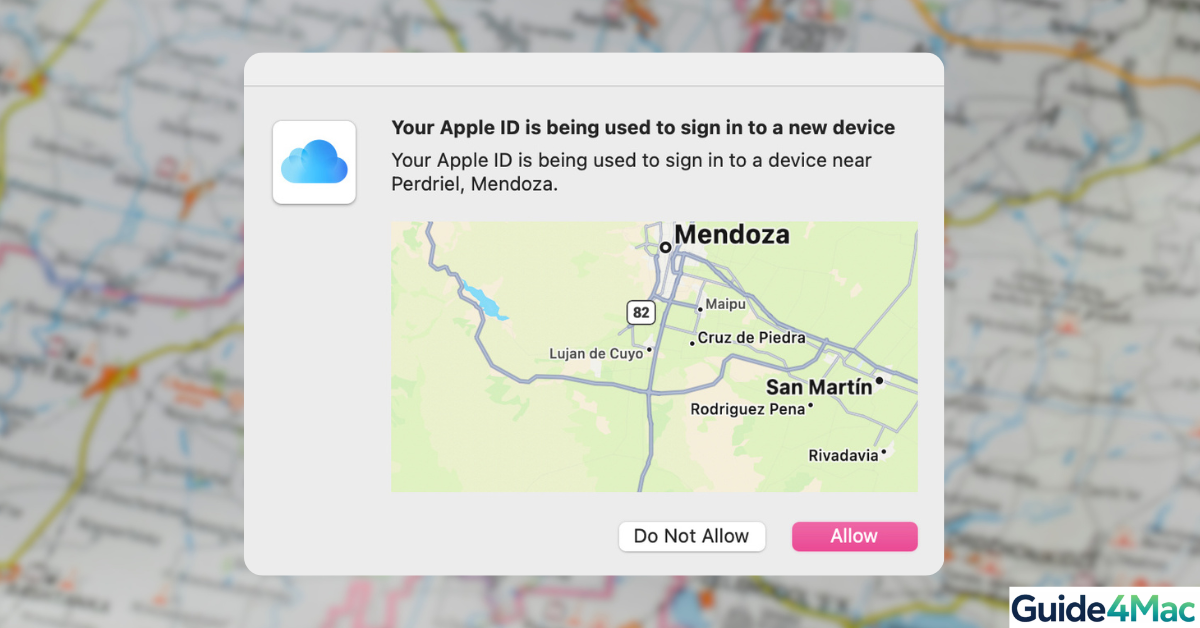
That message—“Your Apple ID is being used to sign in to a device near you”—can definitely catch you off guard. And if it shows up on your iPhone while you’re not doing anything, it’s easy to assume the worst.
Here’s the reality: most of the time, it’s completely normal. Apple is just double-checking that it’s really you trying to log in—whether that’s on a Mac, iPad, or even a browser.
But sometimes, it does require action. Let’s walk through it together so you know exactly what’s going on and what to do next.
Quickly Check and Secure Your Apple ID
Time needed: 8 minutes
This quick process helps you figure out whether the alert is safe and shows you how to protect your Apple ID across iPhone, iPad, and Mac.
- Look at the alert details
When the notification appears, take a second to check the location and device type. It won’t be exact—Apple uses approximate location.

- Tap “Allow” only if it makes sense
If the timing and device match what you’re doing, approve it and enter the code.
- Tap “Don’t Allow” if anything feels off
Not sure? Trust your instinct—deny it. You can always sign in again safely.
- Change your password if needed
On iPhone/iPad: Settings → your name → Password & Security
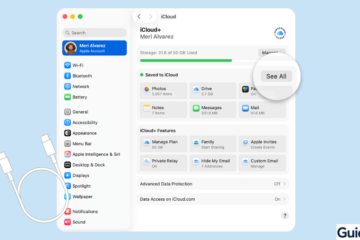
On Mac: System Settings → Apple ID → Password & Security - Check which devices are connected
Scroll through your Apple ID devices list and remove anything you don’t recognize.
- Sign back in if something seems off
If you denied the request or things look strange, signing in again properly helps reset everything.
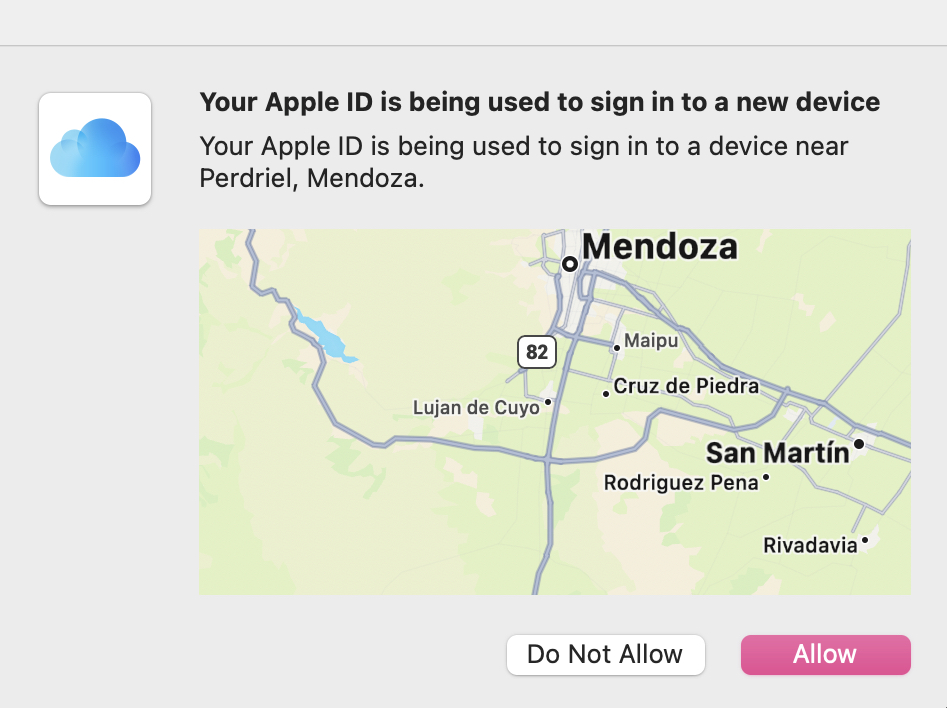
1. You’re Actually the One Signing In (This Happens a Lot)
This is by far the most common situation—and honestly, it confuses a lot of people at first.
Maybe you:
- Just set up a new Mac or iPad
- Logged into iCloud on a browser
- Opened an app that needed your Apple ID
- Updated your device and it asked you to sign in again
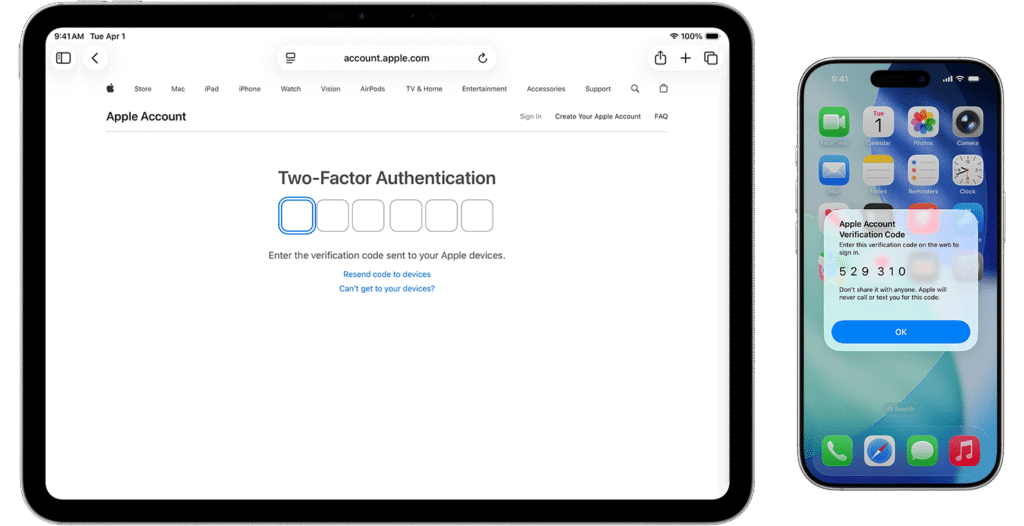
So why the alert? Apple uses something called Two-Factor Authentication. It’s basically a second layer of protection. Even if someone has your password, they still need your approval from a trusted device.
That “near you” location? It’s not precise. It might show a nearby city or even something slightly off—that’s totally normal.
If everything lines up, just tap Allow, enter the code, and move on.
2. The Alert Pops Up Randomly (Even When You’re Not Doing Anything)
This is where things feel a bit weird. You’re just scrolling your phone or working on your Mac—and suddenly the alert appears.
Here’s what’s usually going on behind the scenes:
- Apps or services are quietly re-checking your login
- iCloud is syncing (Photos, Notes, Mail, etc.)
- You recently changed your password
- One of your devices is reconnecting in the background
It’s not always obvious, but Apple devices are constantly syncing—and sometimes that triggers a login check.
What should you do?
- If it could be you → allow it
- If it feels random → deny it, then sign in yourself manually
- If it keeps happening → restart your devices
A lot of users (especially on forums and Reddit) report this exact behavior—it’s more common than you’d think.
3. It Might Be a Real Security Attempt (Rare, But Important)
Now let’s talk about the situation you don’t want—but should be ready for.
If you see this alert and:
- You’re not signing in anywhere
- The timing makes no sense
- The device looks unfamiliar
Then treat it as suspicious.
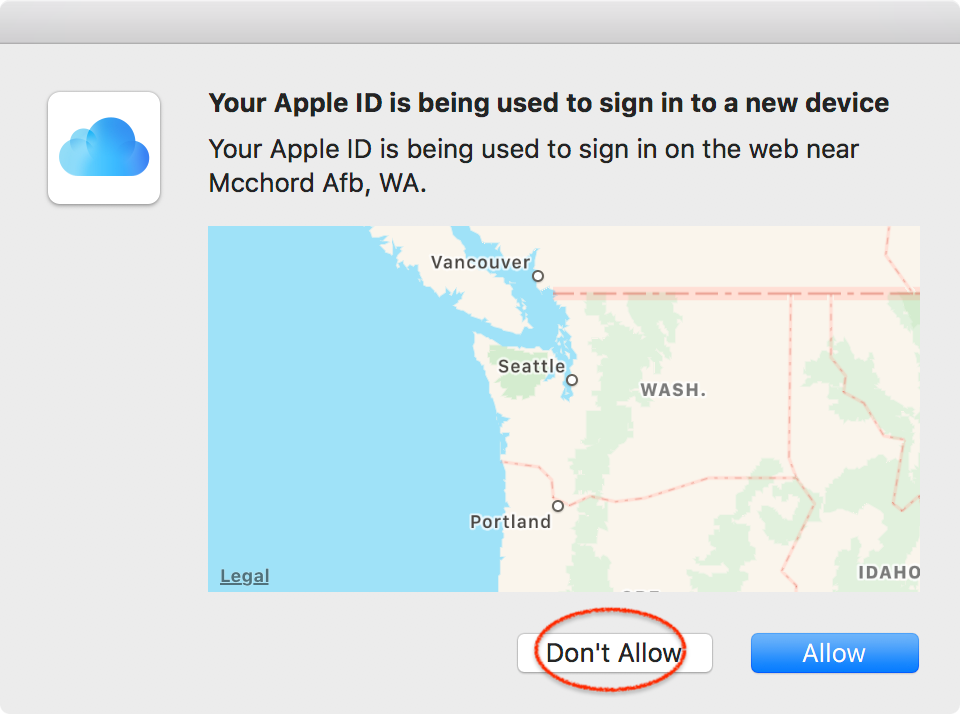
Here’s how to respond right away:
- Tap Don’t Allow
- Change your Apple ID password immediately
- Review your devices list and remove anything unknown
- Double-check that Two-Factor Authentication is enabled
This alert is actually a good thing—it’s Apple stopping someone before they get in.
Common Situations (and what they really mean)
Sometimes the issue isn’t the alert itself, but how often it appears.
It keeps popping up → This usually means something keeps trying to sign in in the background. Restarting your devices often fixes it.
The location looks wrong → Totally normal. Apple uses internet-based location, not GPS.
You’re not getting the code → Check your connection and make sure your device is trusted.
A Few Simple Habits That Make This Easier
You don’t need to overthink security—but a few small habits go a long way:
- Keep your iPhone, iPad, and Mac updated
- Occasionally check which devices are signed in
- Don’t reuse your Apple ID password elsewhere
- Avoid logging in on public or shared devices
FAQs (People Also Ask)
Because they’re all connected to the same Apple ID and act as trusted devices for verification.
It’s based on internet location (IP), not your exact GPS position.
Usually no—but if you don’t recognize it, deny the request.
No. They need your verification code or approval.
A device or app may be trying to re-authenticate in the background.
Tap Don’t Allow, then sign in again yourself.

0 Comments