Fix Apple Mail Not Syncing with Office 365
Over 400 million people use Microsoft 365 (Office 365), and a huge number of them connect their accounts to Apple Mail instead of Outlook. The catch? Apple Mail doesn’t always handle Microsoft’s modern authentication perfectly, especially with Exchange, OAuth, and MFA (multi-factor authentication) in play.
That’s why you might see emails working fine in Outlook, but not syncing at all in Apple Mail. In most cases, the issue isn’t your email account; it’s how the account is configured or authenticated on your device.
This guide walks you through the exact fixes that restore syncing, including the most overlooked causes like Exchange vs IMAP setup, Push settings, and Microsoft security policies.
How to Fix Apple Mail Not Syncing with Office 365 Easy?
1. Re-Add Your Account Using Exchange
Time needed: 5 minutes
The most common reason Office 365 doesn’t sync with Apple Mail is that the account is added as IMAP instead of Exchange. Exchange enables full sync, including push email, folders, calendar, and contacts.
- Remove Existing Account
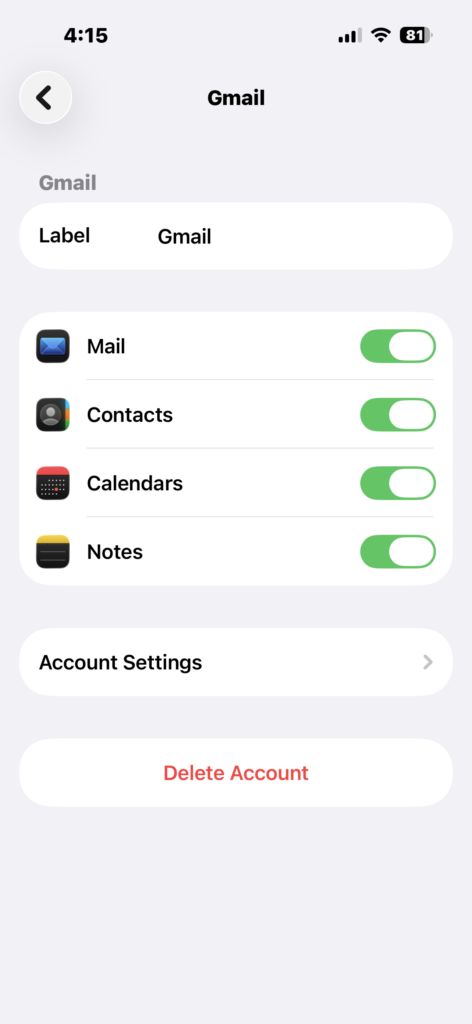
On iPhone/iPad: Settings → Mail → Accounts → select your account → Delete Account.
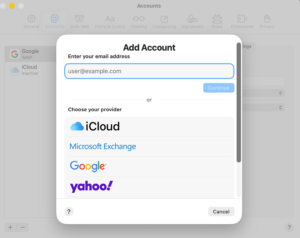
On Mac: Mail → Settings → Accounts → Remove account.
- Add Account as Exchange
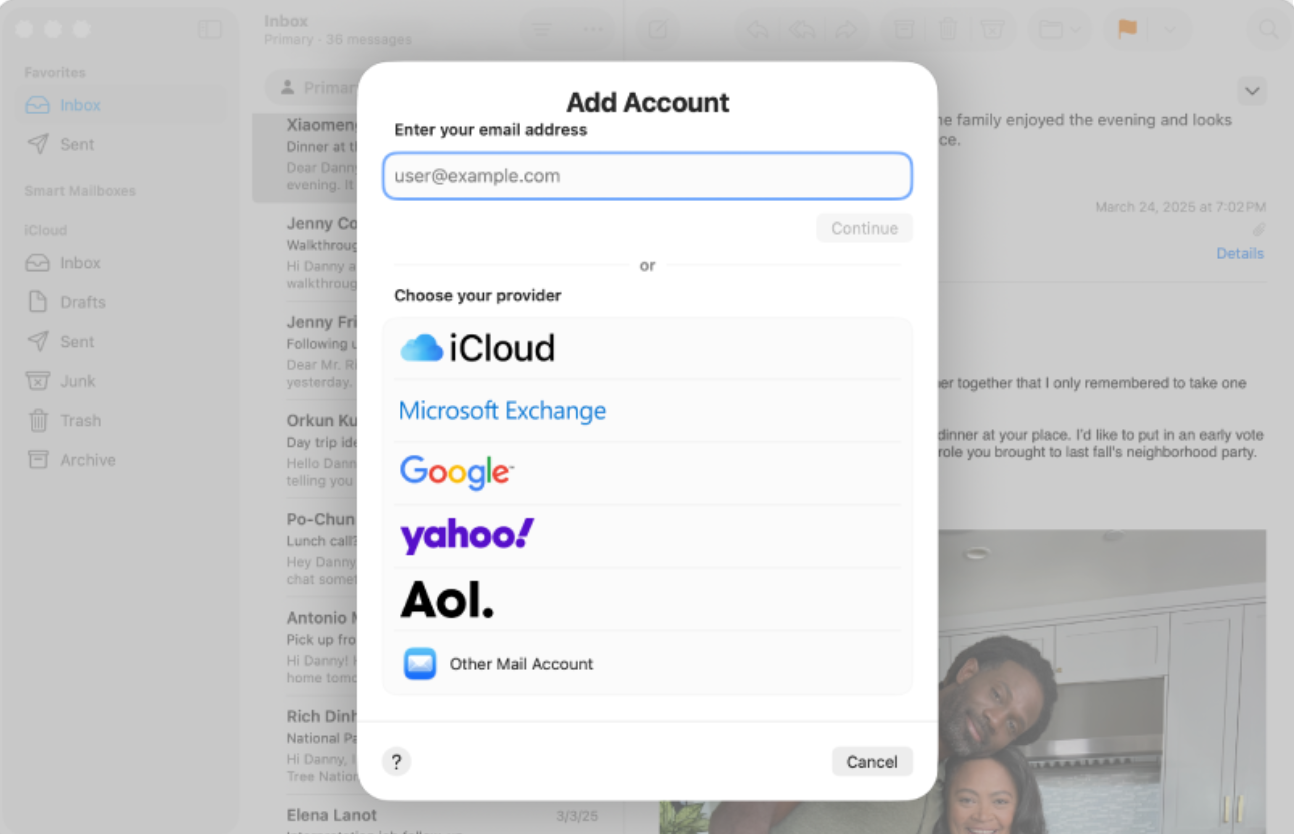
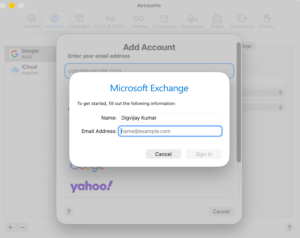
Go to Add Account → choose Microsoft Exchange (not Other/IMAP)
- Enter Email Address
Type your full Office 365 email address and tap Next
- Sign In via Microsoft Page
Complete the Microsoft login (OAuth). This may include MFA verification
- Enable Mail Sync
Turn on Mail (and optionally Contacts, Calendar)
- Open Apple Mail and Test
Your inbox should begin syncing automatically
- Reauthenticate if Prompted
If login loops occur, update credentials or follow steps to sign in into your Apple account
2. Enable Push Mail (Fix Delayed Sync)
One of the biggest differences between IMAP and Exchange is Push vs Fetch. If Push is disabled, your emails won’t arrive in real time, which makes it look like syncing is broken.
Many users miss this setting completely, even after configuring Exchange correctly.
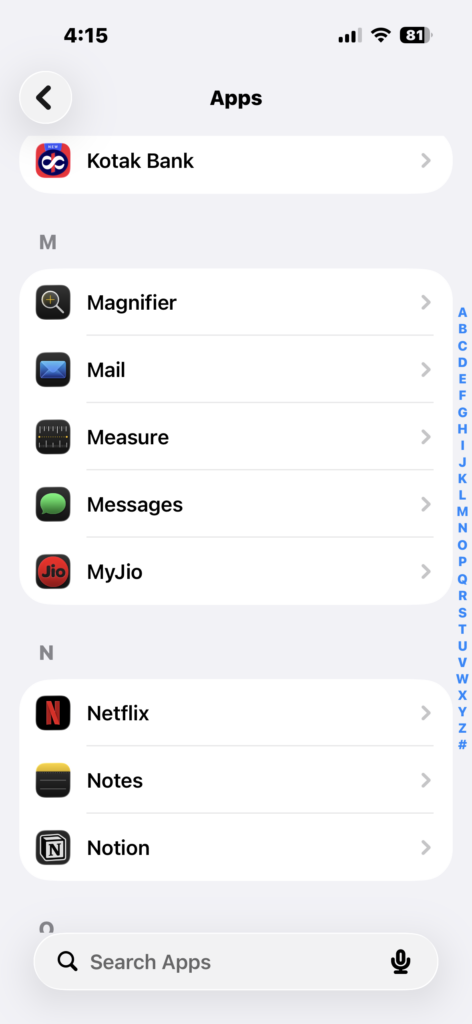
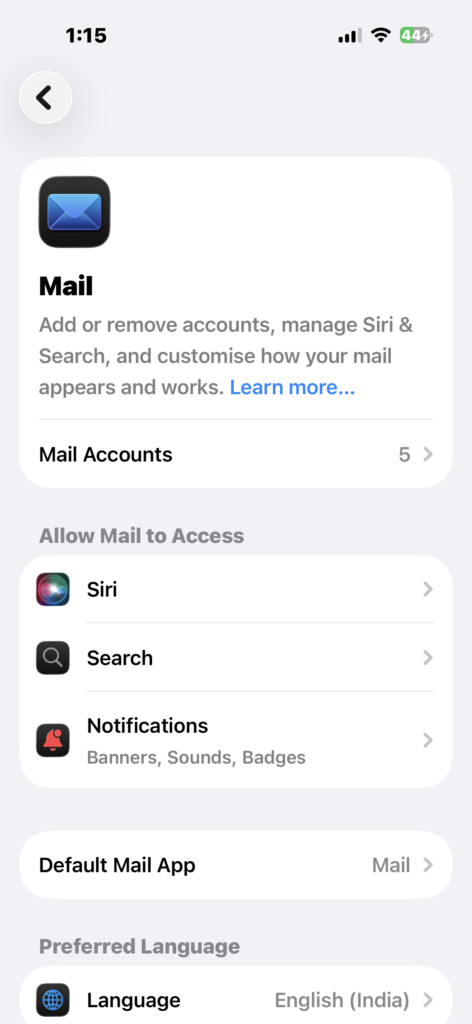
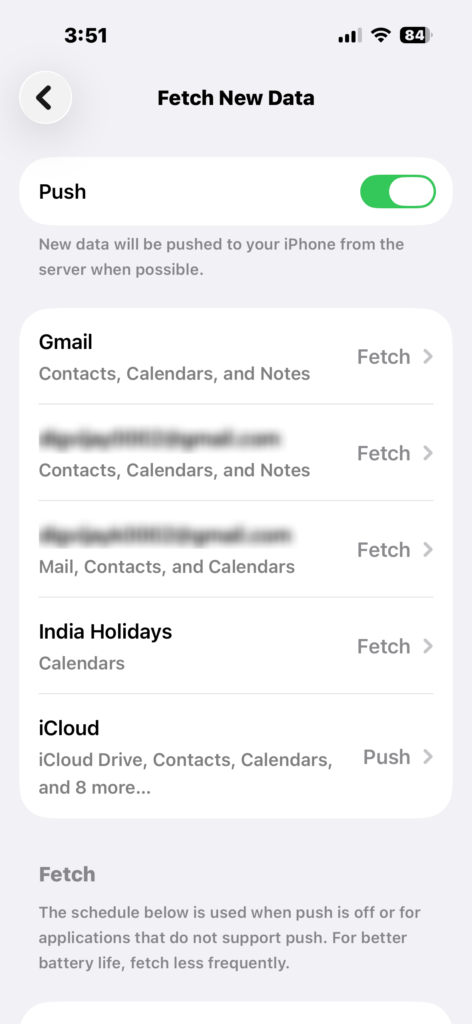
- Go to Settings → Mail → Mail Accounts → Fetch New Data.
- Enable Push.
- Set your Exchange account to Push.
- Keep Fetch as Automatic or manual backup.
3. Check Microsoft Authentication (OAuth & MFA)
Office 365 uses modern authentication (OAuth) and often requires multi-factor authentication (MFA). If authentication fails, Apple Mail may repeatedly ask for your password or stop syncing entirely.
This is especially common with work or school accounts.
- Try signing in again when prompted
- Complete MFA verification (code, app, etc.)
- If login fails, remove and re-add the account
- Contact your admin if using a corporate account
4. Check Sync Settings (Mail Days to Sync)
Sometimes emails appear missing, but they are actually just outside the sync range. Apple Mail may only sync recent emails by default.
- Go to account settings
- Look for Mail Days to Sync
- Change to No Limit or longer duration
- Refresh Mail
5. Restart Apple Mail and Device
Temporary bugs in Apple Mail or the OS can interrupt Exchange syncing. Restarting clears background processes and forces a new connection to Microsoft servers.
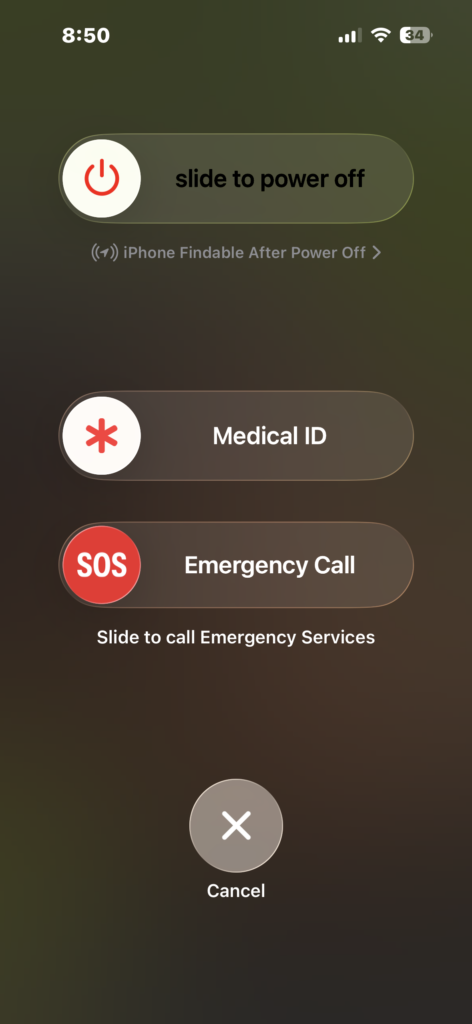
- Force close Apple Mail
- Reopen it
- Restart your iPhone, iPad, or Mac
6. Check Internet and Network Restrictions
Exchange relies on constant server communication. Network issues or restrictions can silently block syncing.
- Switch between Wi-Fi and mobile data.
- Disable VPN temporarily.
- Try a different network.
- If using work Wi-Fi, check for restrictions.
7. Update iOS, iPadOS, or macOS
Outdated software can break compatibility with Microsoft’s authentication systems. Updates often fix bugs related to Exchange syncing.
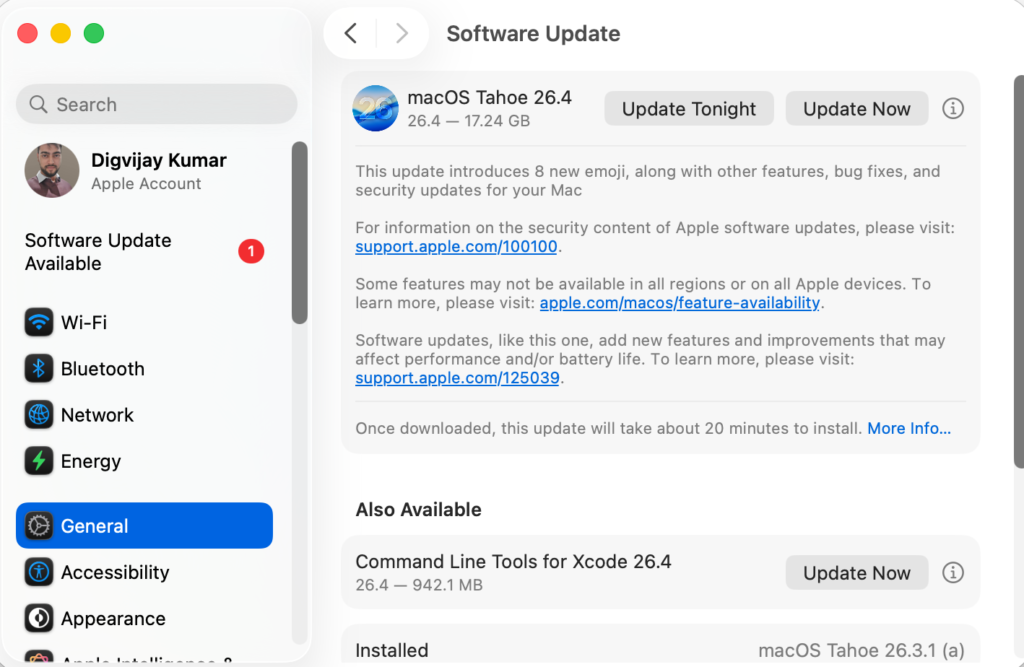
- Go to Settings → General → Software Update.
- Install updates if available.
- Restart your device.
8. Check Corporate or Admin Restrictions
If you’re using a work or school account, your organization may enforce security policies that block Apple Mail. In some cases, only the Outlook app is allowed.
- Check with your IT administrator
- Verify Exchange ActiveSync is enabled
- Confirm your device meets security requirements
Common Problems
- Office 365 emails not syncing in Apple Mail
- Inbox not updating automatically
- Apple Mail keeps asking for password
- Emails appear in Outlook but not Apple Mail
- Calendar and contacts not syncing
- Only recent emails visible
Tips
Keeping Office 365 working smoothly in Apple Mail comes down to correct setup and authentication:
- Always use Exchange, not IMAP
- Enable Push for real-time syncing
- Complete all MFA login steps
- Keep your device updated
- If you run into similar issues with other providers, check fixes for Gmail, Yahoo Mail, Hotmail, or iCloud
Apple Mail and Office 365 can work seamlessly, but only when configured correctly. By switching to Exchange, enabling Push, and ensuring proper authentication, you can restore full syncing across all your devices.
FAQs?
Usually because the account is set up as IMAP instead of Exchange or due to authentication issues with Microsoft login.
Re-add the account using Exchange and enable Push Mail.
This is typically caused by OAuth or MFA authentication failures.
Yes, IMAP does not support full syncing like Exchange.
Your sync range is limited. Change it to “No Limit” in settings.
Yes, some organizations restrict access and require using Outlook instead.


0 Comments