How to Chat Directly with Apple Support (iPhone, iPad & Mac)
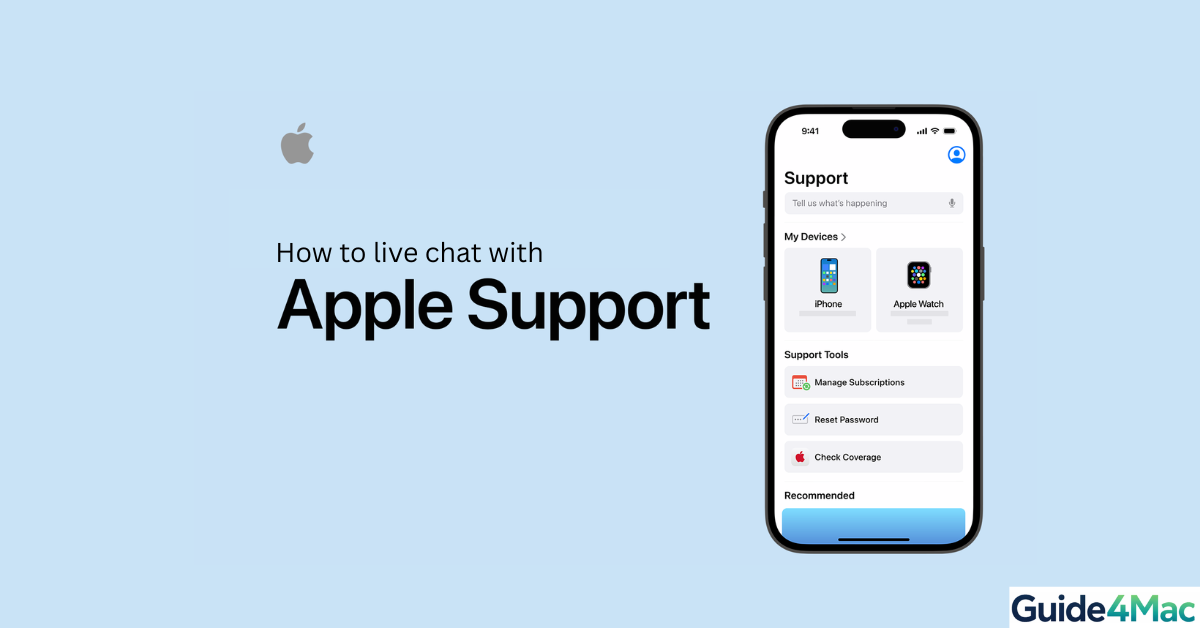
Apple handles millions of support requests every week, yet many users still struggle to find the fastest way to contact a real person. In fact, one of the most common complaints in Apple Community threads is that the chat option simply doesn’t appear—even when users need quick help.
The good news? There is a reliable way to start a live chat with Apple Support in minutes. And once you know where to look (and how to unlock the option), it becomes one of the easiest ways to solve issues on your iPhone, iPad, or Mac.
How to start a live chat with Apple Support (fastest method)
Time needed: 3 minutes
This is the most reliable way to access Apple Support chat. The Apple Support app connects your Apple ID, devices, and issue type—making it much more likely that the chat option appears compared to the website.
- Install or open the Apple Support app
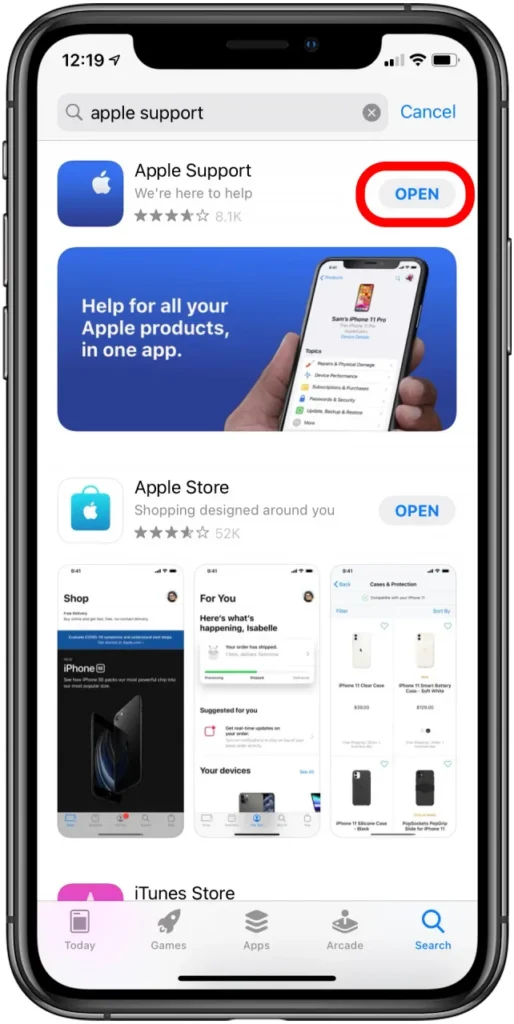
Download the Apple Support app from the App Store (if not already installed), then open it on your iPhone or iPad.

- Sign in with your Apple ID
Make sure you’re logged in so your devices automatically show up. If needed, signing into your Apple account can be done quickly via Apple Menu.
- Select your device
Tap the device you need help with (iPhone, iPad, Mac, or services like iCloud).
- Choose the issue category
Pick a category that matches your problem. If you’re unsure, select “Something else” to unlock more support options.
- Tap “Chat” when available
If chat is offered, tap it to start messaging an Apple advisor instantly.
- Explain your issue clearly
Send a short description and attach screenshots if needed to speed up the process.
Alternative method: Use Apple’s Get Support website (Mac or browser)
If you’re on a Mac or prefer a browser:
- Go to Apple’s Get Support page
- Sign in with your Apple ID
- Select your device and issue
- Choose Chat if available
This works well on MacBooks and desktops, especially if your iPhone isn’t accessible.
Quick Tips from the Community:
1. Select “Something else” to unlock chat
One of the most useful tricks (confirmed by multiple users in Apple Community discussions) is this:
- Specific issue categories often hide chat
- Broader categories like “Something else” often reveal it
If you don’t see chat, go back and choose a less specific option.
2. Try during Apple Support business hours
Chat isn’t always available 24/7 for every issue or region.
- Try during standard business hours (morning to evening)
- Late-night requests often show call-only options
- Availability varies by country
3. Switch from website to Apple Support app
Many users report this exact issue:
- Chat missing on browser
- Chat available instantly in the app
Why? The app is more tightly integrated with your Apple ID and device data, which helps Apple offer more support options.
4. Change the issue category (even slightly)
Another trick from real user cases:
- “Billing & Subscriptions” often shows chat faster
- “Technical issues” may limit options
- Trying 2–3 categories can make a difference
This doesn’t affect the help you receive—you can still explain your real issue once connected.
5. Fix account or device issues first
Sometimes chat isn’t necessary at all.
For example, common problems like:
- Email not syncing
- Wrong password
- Gmail login errors
…can often be fixed faster with simple steps. We’ve got different guides on common issues that can help you out.
RECAP: Tips for getting faster help from Apple Support
- Use the Apple Support app instead of the website
- Write a clear, short problem description
- Attach screenshots immediately
- Avoid sharing passwords or sensitive info
- Ask for a transcript if needed
These small steps can reduce resolution time significantly.
FAQs (People Also Ask)
It depends on your issue, category, time, and region. Switching categories or using the app usually fixes it.
Yes, chatting with Apple Support is completely free.
Yes, through the Apple Get Support website using any browser.
Usually within a few minutes, depending on demand and time of day.
Yes, and it’s highly recommended for faster troubleshooting.
You can request a callback or try again later using a different issue category.



0 Comments