How to Fix Apple Mail Not Syncing with Gmail? (iPhone, iPad & Mac)
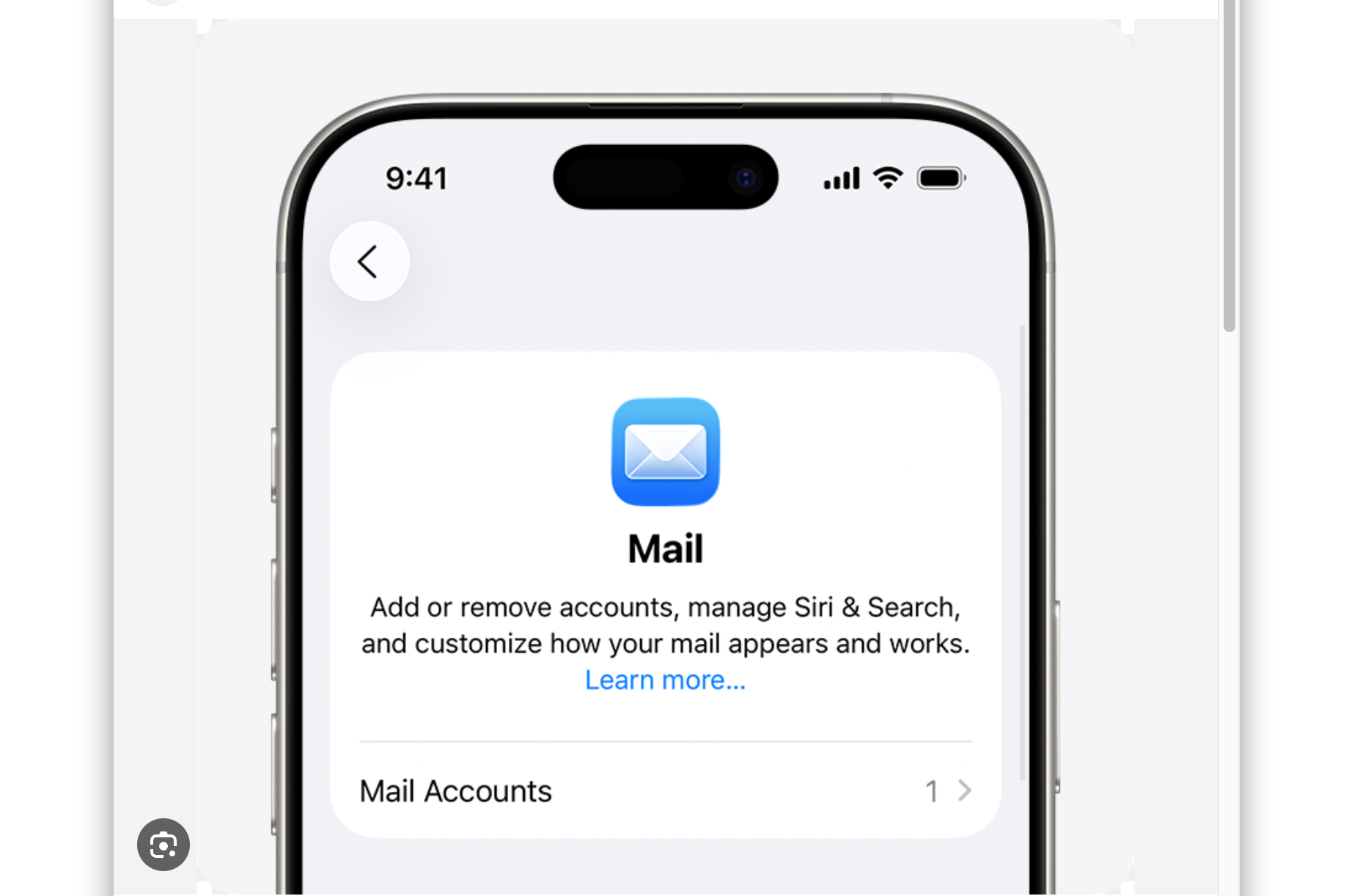
Statistics show that the average professional checks their email 15 times per day. If your Gmail is not syncing with Apple Mail, you might be in big trouble, missing important ones. This is a common issue across iPhones, iPads, and Macs, especially with newer iOS and macOS versions. Luckily, most syncing problems are caused by simple settings that can be fixed in minutes.
Fix Apple Mail Not Syncing with Gmail (Step-by-Step)
1. Fix Gmail Not Syncing in Apple Mail
Time needed: 7 minutes
This method helps restore Gmail syncing in Apple Mail by correcting fetch settings, reconnecting your account, and ensuring proper configuration.
- Check Fetch Settings
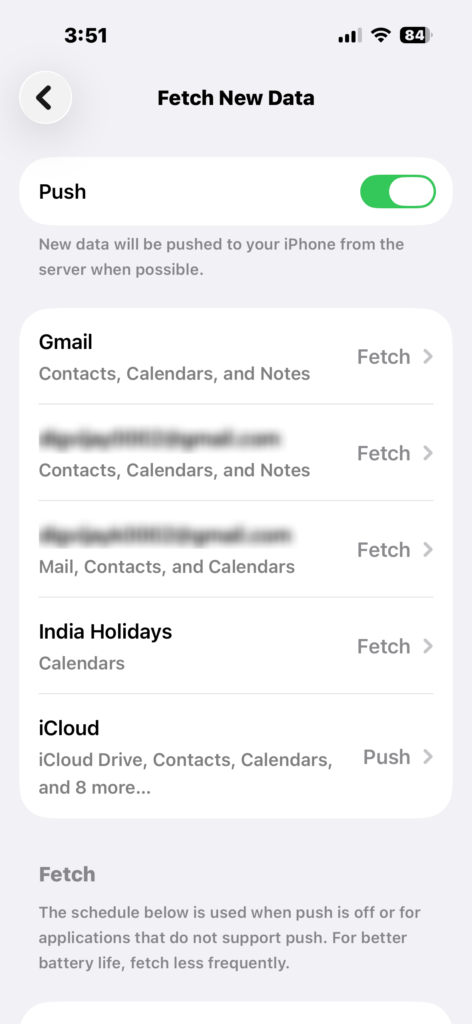
Gmail does not support push in Apple Mail, so it relies on Fetch. Go to Settings > Apps > Mail > Mail Accounts > Fetch New Data, turn Push ON, and set it to Every 15 Minutes or Automatically.

- Enable IMAP in Gmail
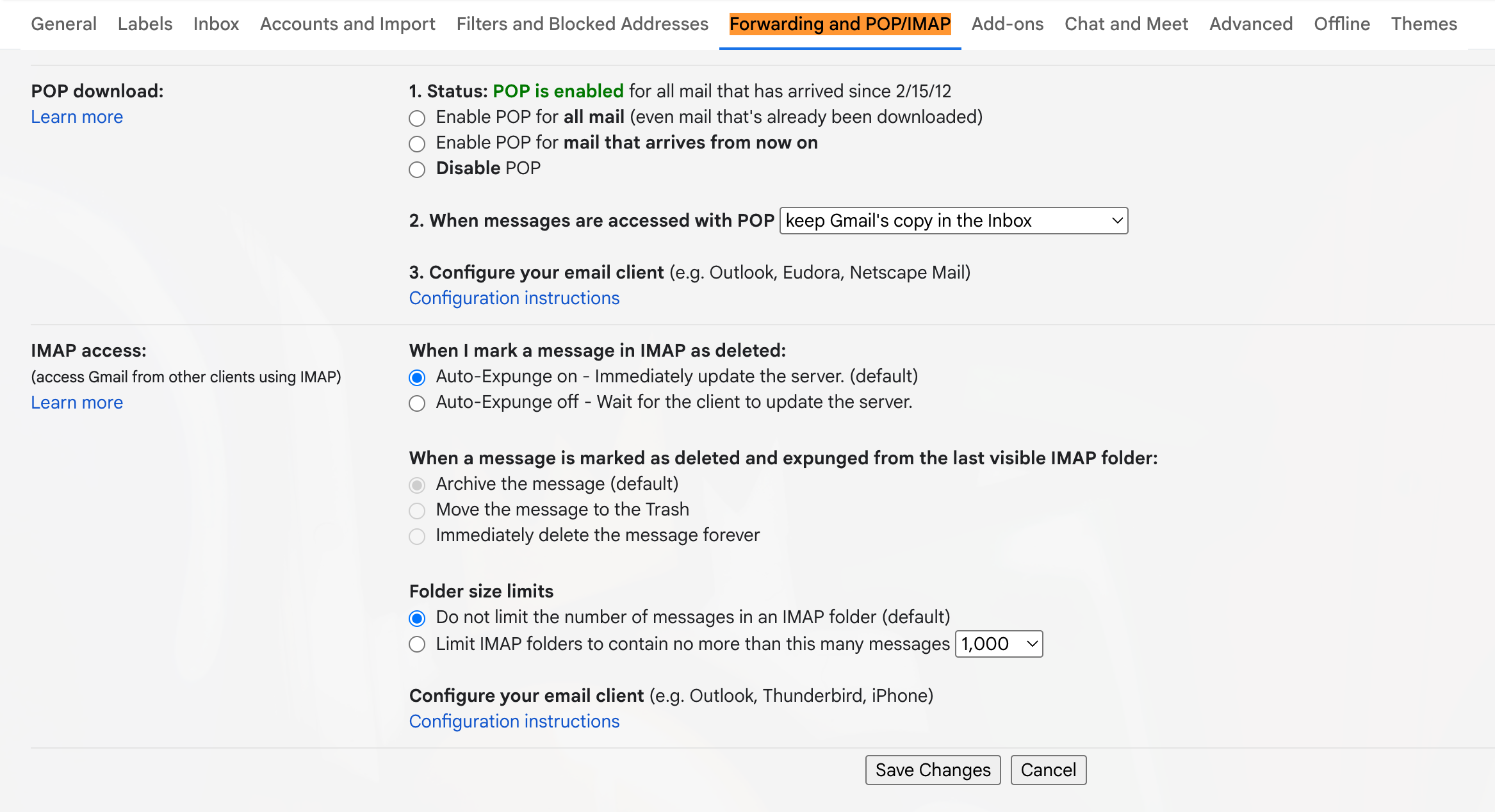
Open Gmail in a browser, go to Settings > Forwarding and POP/IMAP, and make sure IMAP is enabled. This allows emails to sync across devices.
- Re-Enter Your Gmail Password
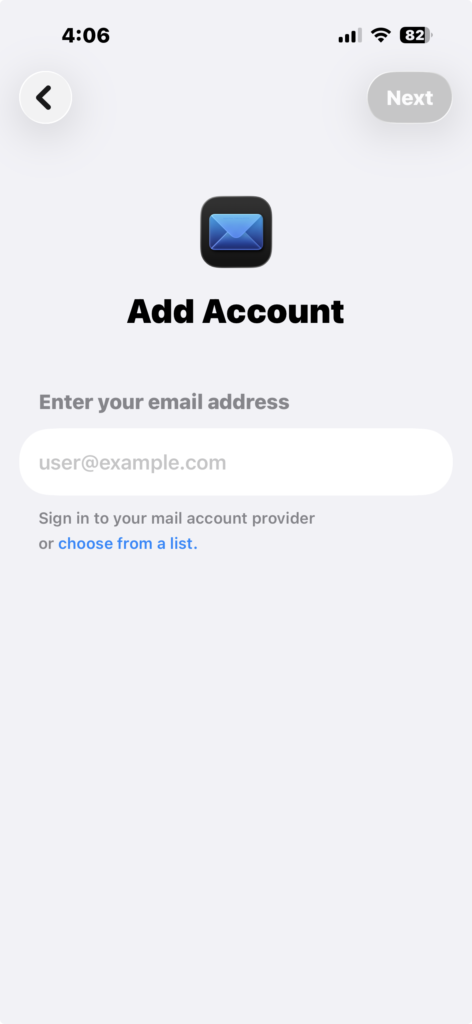
If your password has changed or expired, go to Settings > Apps > Mail > Mail Accounts > Add Account and sign in again. Google may open a secure login page.
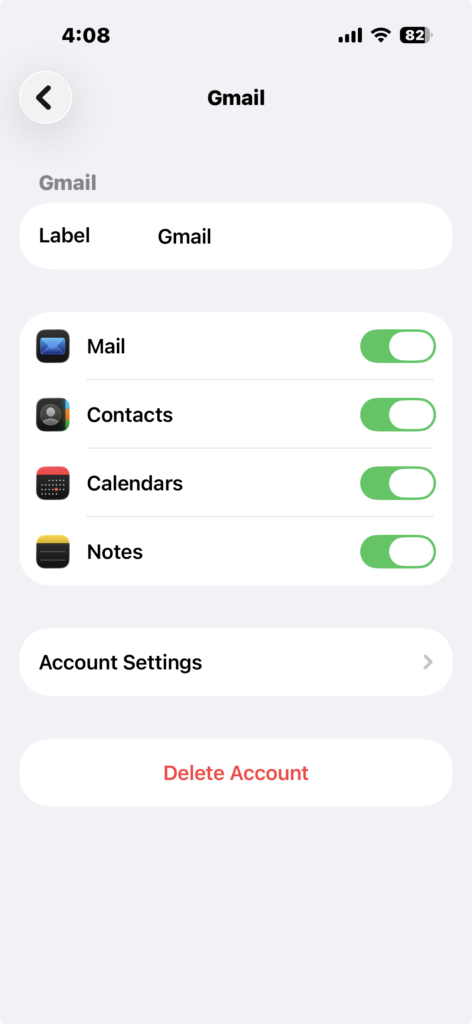
- Check Mail Sync Toggle
Go to Settings > Apps > Mail > Accounts > Gmail and make sure the Mail toggle is turned ON.
- Restart Your Device
Restart your iPhone, iPad, or Mac to refresh connections and clear temporary glitches affecting sync.
2. Remove and Re-Add Gmail Account
Sometimes the fastest way to fix syncing issues is to reset the connection completely.
Reconnect Your Gmail Account
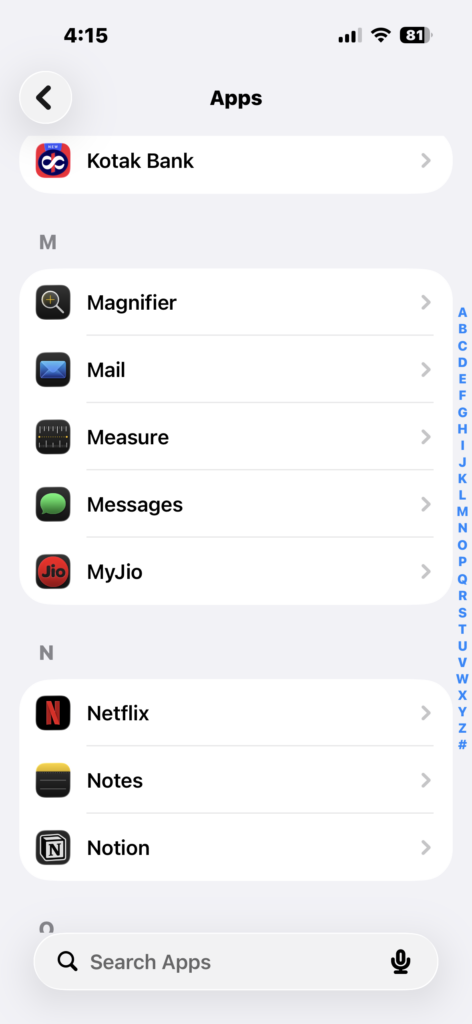
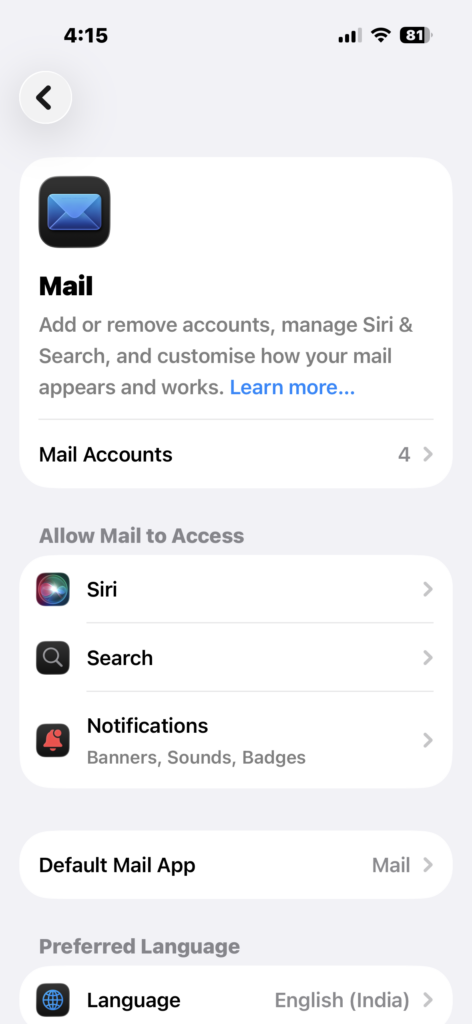
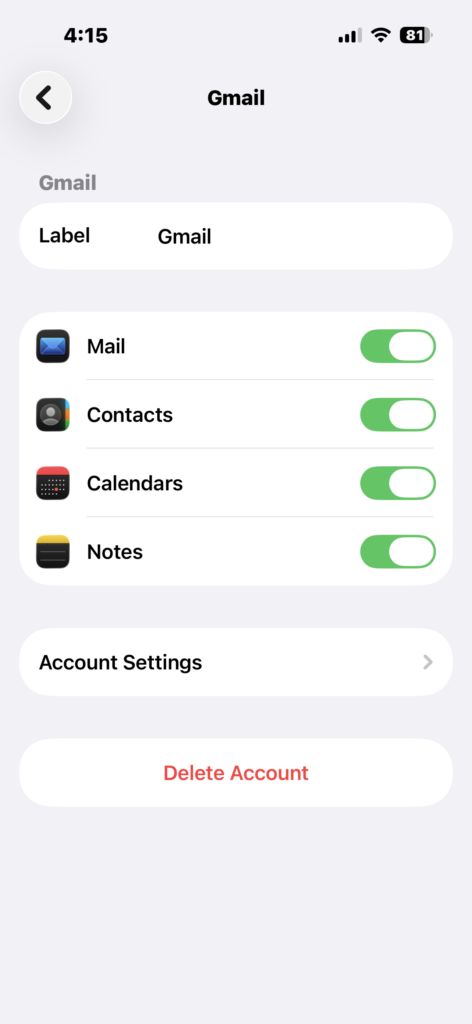
- Go to Settings > Apps > Mail > Mail Accounts.
- Select Gmail.
- Tap Delete Account.
- Restart your device.
- Add the account again.
If you need help adding your account again, you can follow the steps used to add an email account to your iPhone or apply the same logic when you add an email account to your Mac.
Common Problems When Gmail Is Not Syncing
Gmail Not Updating Automatically
This usually happens when Fetch is set to manual or background refresh is disabled.
Login Errors
Incorrect passwords or Google security blocks can prevent syncing.
Missing Emails
Using POP instead of IMAP or disabled sync settings can cause emails to disappear.
Connection Errors
Messages like “Cannot Get Mail” often point to network or authentication issues.
Fixes and Troubleshooting
Enable Background App Refresh
Go to Settings > General > Background App Refresh and turn it ON to allow Mail to update in the background.
Check Gmail Storage
If your Google storage is full, new emails may stop syncing.
Disable Low Power Mode
Low Power Mode limits background activity. Turn it off in Settings > Battery.
Update Your Device
Keeping iOS and macOS updated helps fix sync bugs and compatibility issues.
Update Email Password Across Devices
If your password changed, syncing may break. Updating it properly, similar to the process used to change your email password on iPhone, ensures everything reconnects correctly.
Verify Apple Account Connection
Make sure your Apple account is active and properly connected by following the same steps used to sign in to your Apple account.
Helpful Tips to Prevent Sync Issues
- Use IMAP instead of POP for reliable syncing
- Keep Fetch set to automatic or every 15 minutes
- Avoid using outdated mail configurations
- Keep all devices updated
- Don’t add the same Gmail account multiple times
Managing Gmail across devices becomes easier when you understand how login and syncing work together, including on Mac, like when you log into Gmail on a MacBook or on mobile when you log into Gmail on iPhone.]
By applying these steps, you can fix Gmail syncing issues in Apple Mail and keep your emails updating smoothly across all your Apple devices.
FAQs?
This is usually caused by incorrect Fetch settings, disabled IMAP, or login issues.
No, Gmail uses Fetch instead of Push in Apple Mail.
It depends on your Fetch settings (15 minutes, 30 minutes, or manual).
This can happen if IMAP is disabled or sync settings are incorrect.
Yes, this is one of the most effective fixes for persistent sync issues.
Go to Settings > Mail > Accounts > Gmail and adjust your sync and login settings.

0 Comments