How to Fix Apple CarPlay Not Working: Step-By-Step
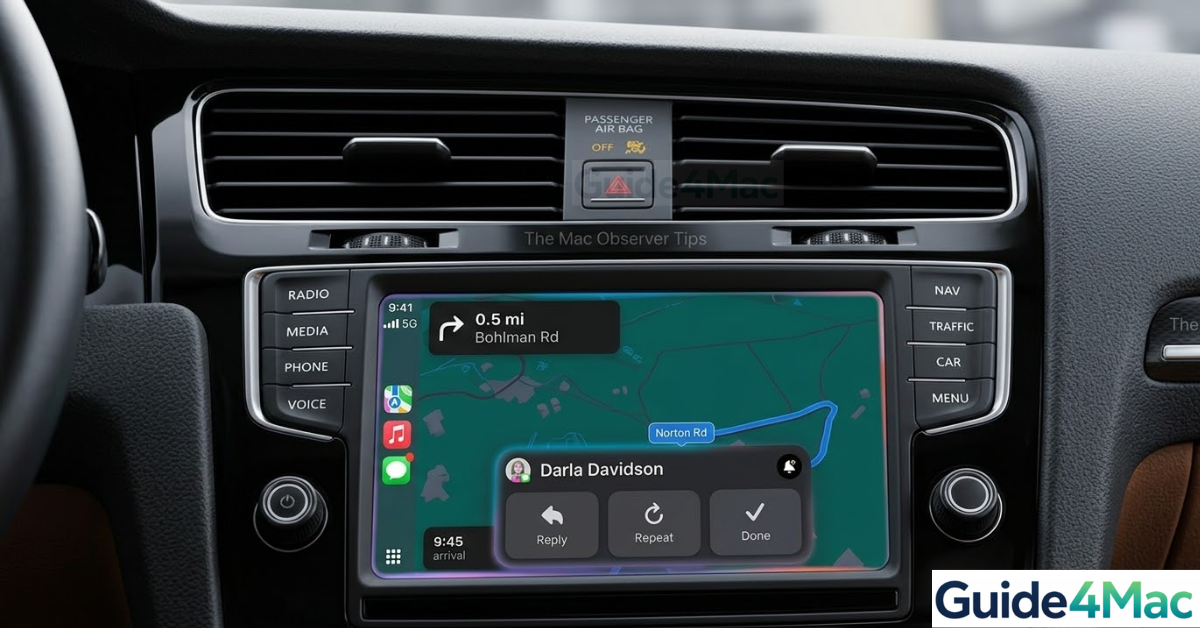
If Apple CarPlay is not working, it can prevent you from accessing navigation, music, calls, and messages while driving. This issue may appear when your iPhone fails to connect to the car system, CarPlay does not launch, or apps stop responding on the vehicle display.
This guide explains the most reliable ways to fix CarPlay connection problems on iPhone. You will learn how to check compatibility, reconnect the device, reset settings, and troubleshoot both wired and wireless CarPlay connections.
If your iPhone also struggles with other connectivity issues, you may want to check this guide on how to enable CarPlay on iPhone before continuing.
Why Is Apple CarPlay Not Working?
CarPlay problems usually occur due to connection errors, incorrect settings, outdated iOS versions, or incompatible cables. Wireless CarPlay can also fail because of Bluetooth or WiFi pairing issues.
Another common cause is when CarPlay is disabled in Screen Time restrictions or the vehicle system fails to recognize the iPhone after a software update. Fortunately, most of these issues can be fixed quickly using the steps below.
1. Check If Your Car Supports Apple CarPlay
Before troubleshooting further, confirm that your vehicle supports Apple CarPlay.
- Turn on your car’s infotainment system.
- Open Settings on your iPhone.
- Tap General.
- Select CarPlay.
- Check if your vehicle appears in the list.
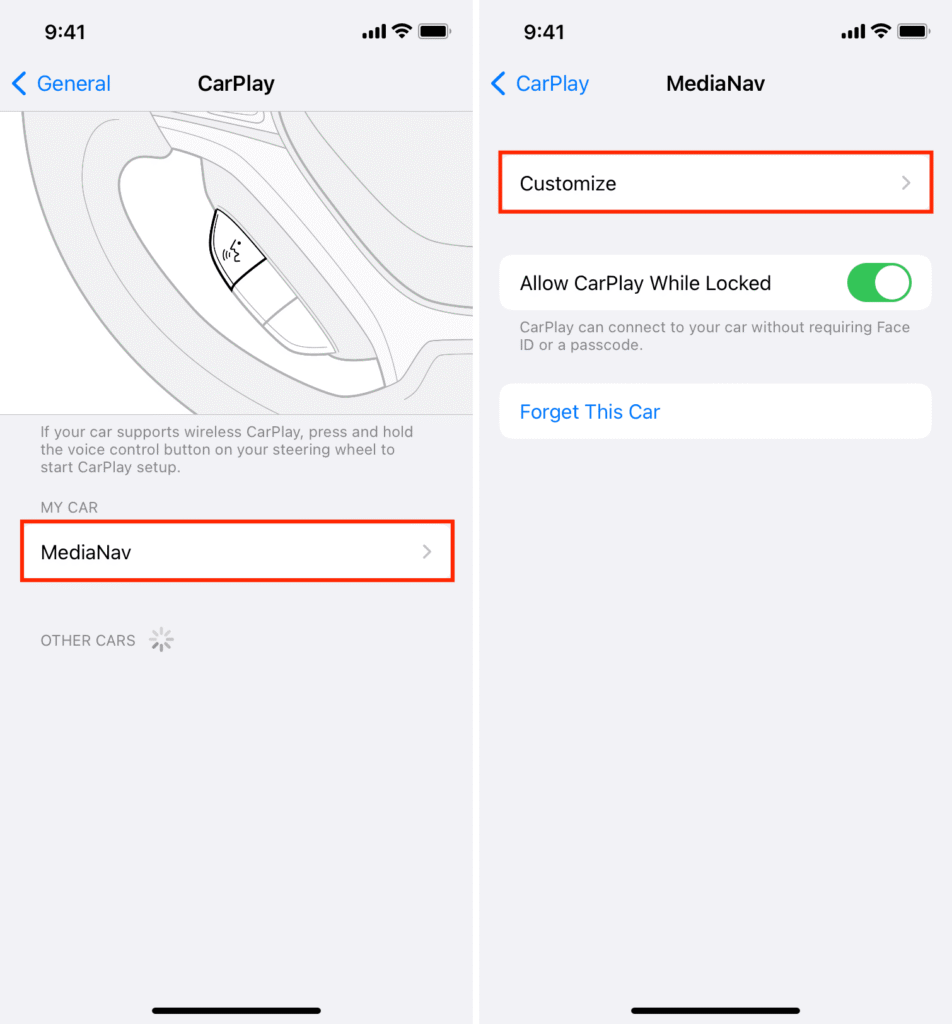
If your car does not appear, the vehicle may not support CarPlay or the connection has not been established yet.
2. Restart Your iPhone and Car System
Temporary system glitches often prevent CarPlay from launching correctly.
- Disconnect your iPhone from the car.
- Turn off your vehicle infotainment system.
- Restart your iPhone.
- Start the car again.
- Reconnect the iPhone.
If you are unsure how to restart your device, follow the steps explained in this guide on force restarting or shutting down a Mac or Apple device, which explains similar restart procedures.
3. Check the USB Cable or Port
Most wired CarPlay connections rely on a stable USB connection.
- Disconnect the current USB cable.
- Inspect the cable for damage.
- Connect a certified Lightning or USB-C cable.
- Plug the cable directly into the car’s USB port.
- Avoid using USB hubs or adapters.
Using uncertified or damaged cables is one of the most common causes of CarPlay connectivity problems.
4. Enable CarPlay in Screen Time Restrictions
Screen Time restrictions can disable CarPlay without you realizing it.
- Open Settings.
- Tap Screen Time.
- Select Content & Privacy Restrictions.
- Tap Allowed Apps.
- Enable CarPlay.
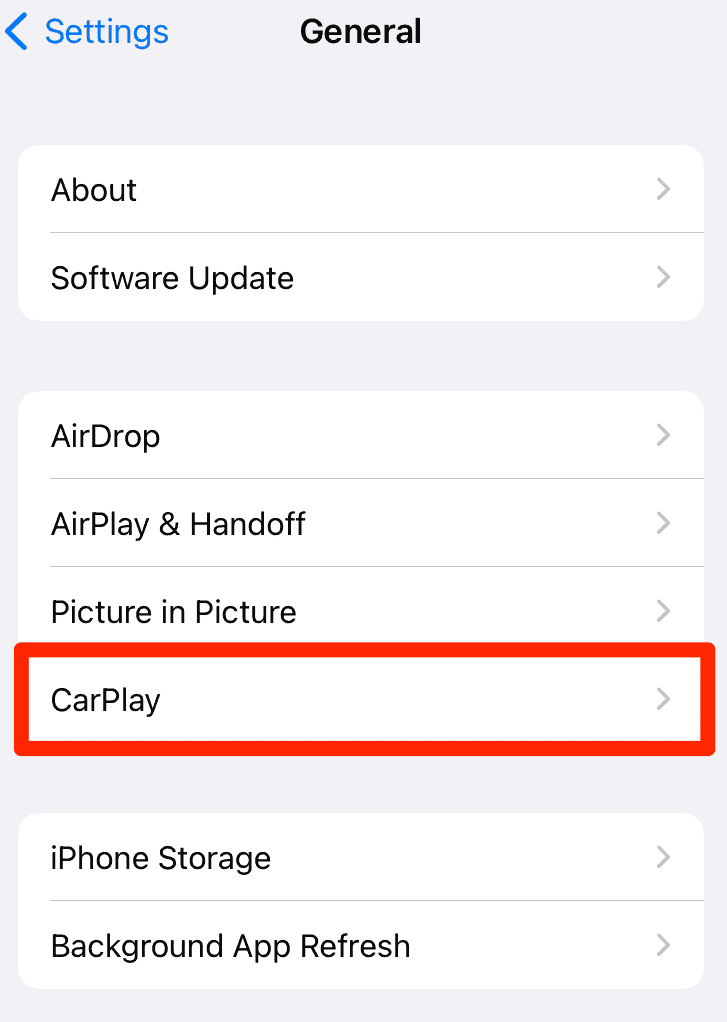
Once enabled, reconnect your iPhone to the car system.
5. Reset Your CarPlay Connection
Sometimes the saved connection between your iPhone and vehicle becomes corrupted.
- Open Settings on your iPhone.
- Tap General.
- Select CarPlay.
- Tap your car name.
- Tap Forget This Car.
- Reconnect your iPhone to the vehicle.
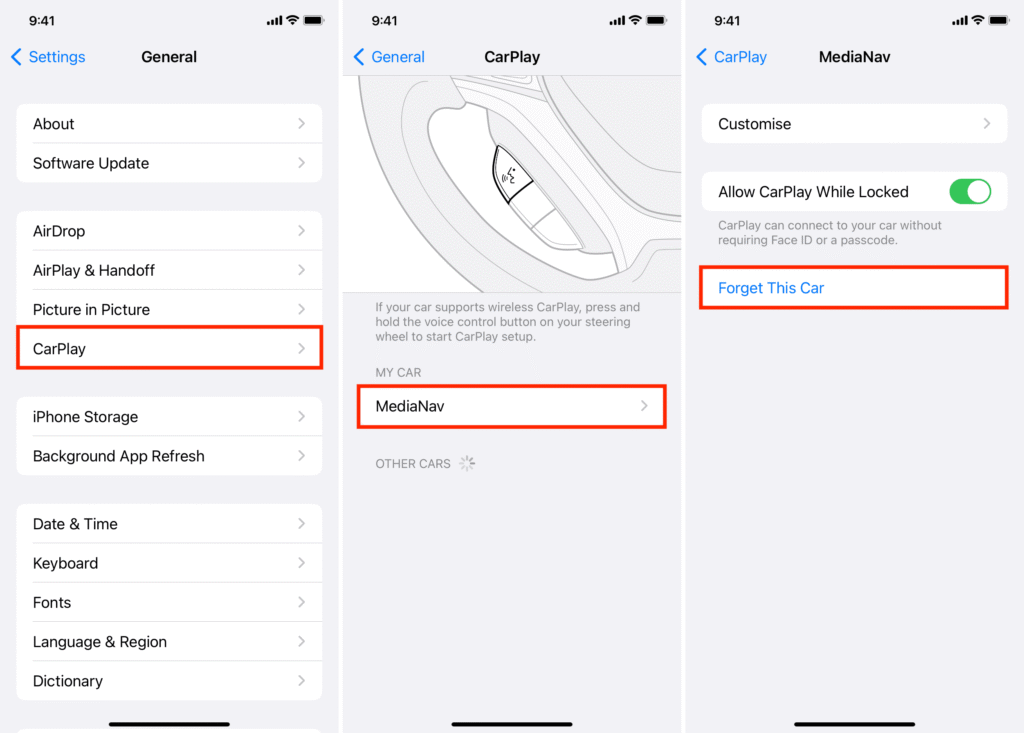
After reconnecting, the system will set up the connection again.
6. Check Siri Settings
CarPlay requires Siri to function correctly.
- Open Settings.
- Tap Siri & Search.
- Enable Listen for “Hey Siri.”
- Enable Press Side Button for Siri.
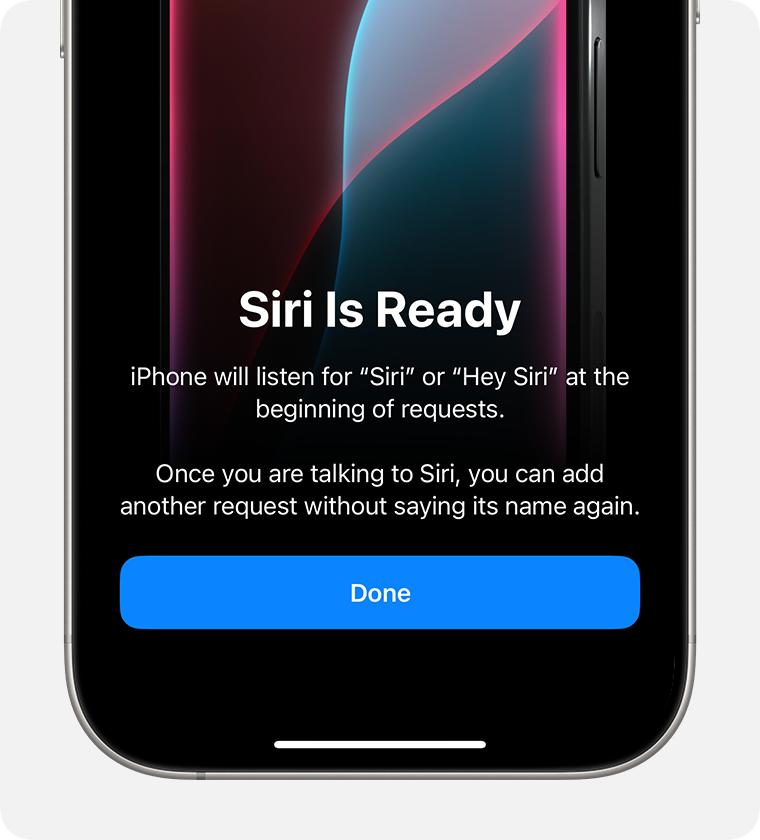
If Siri is disabled, CarPlay may fail to start.
7. Update Your iPhone Software
Software bugs in iOS sometimes cause CarPlay connectivity issues.
- Open Settings.
- Tap General.
- Select Software Update.
- Download and install the latest update.
Keeping your iPhone updated helps maintain compatibility with modern vehicle infotainment systems.
8. Reset Network Settings
If wireless CarPlay is not connecting, resetting network settings can help.
- Open Settings.
- Tap General.
- Select Transfer or Reset iPhone.
- Tap Reset.
- Choose Reset Network Settings.
- Enter your passcode.
- Confirm the reset.
This removes saved WiFi networks and Bluetooth connections, which may resolve wireless CarPlay pairing issues.
If your iPhone also experiences connectivity problems like random SOS mode or signal loss, this guide on fixing iPhone stuck in Emergency SOS may help diagnose broader network problems.
Tips
• Use certified Apple Lightning or USB-C cables for wired CarPlay.
• Keep Bluetooth and WiFi enabled for wireless connections.
• Restart both the car system and iPhone periodically.
• Update your vehicle infotainment system if updates are available.
• Avoid connecting multiple phones to the system simultaneously.
Get CarPlay Working Again
Apple CarPlay is designed to make driving safer and more convenient by integrating navigation, music, and communication apps directly into your vehicle’s display. When it stops working, the issue is usually caused by connection problems, disabled settings, or outdated software.
By checking compatibility, restarting devices, resetting the CarPlay connection, and updating your iPhone, you can usually restore the connection quickly and get CarPlay working again.
Key Takeaways
CarPlay problems typically result from connection errors, disabled settings, or outdated software on either the iPhone or the vehicle system. Most issues can be resolved by restarting devices, reconnecting the car, checking cables, and updating iOS.
Once properly configured, Apple CarPlay should automatically connect whenever your iPhone is plugged in or paired with your vehicle.
FAQs
Connection failures are usually caused by faulty USB cables, disabled CarPlay settings, or Bluetooth and WiFi pairing issues.
Yes. Many modern vehicles support wireless CarPlay through Bluetooth and WiFi.
This may happen due to unstable cables, weak wireless signals, or outdated software on your iPhone or car system.
Yes. Siri must be enabled because many CarPlay features rely on voice commands.
It can help if the issue is related to Bluetooth or WiFi connections used by wireless CarPlay.

0 Comments