iPhone Not Receiving Verification Texts? Check These Fixes
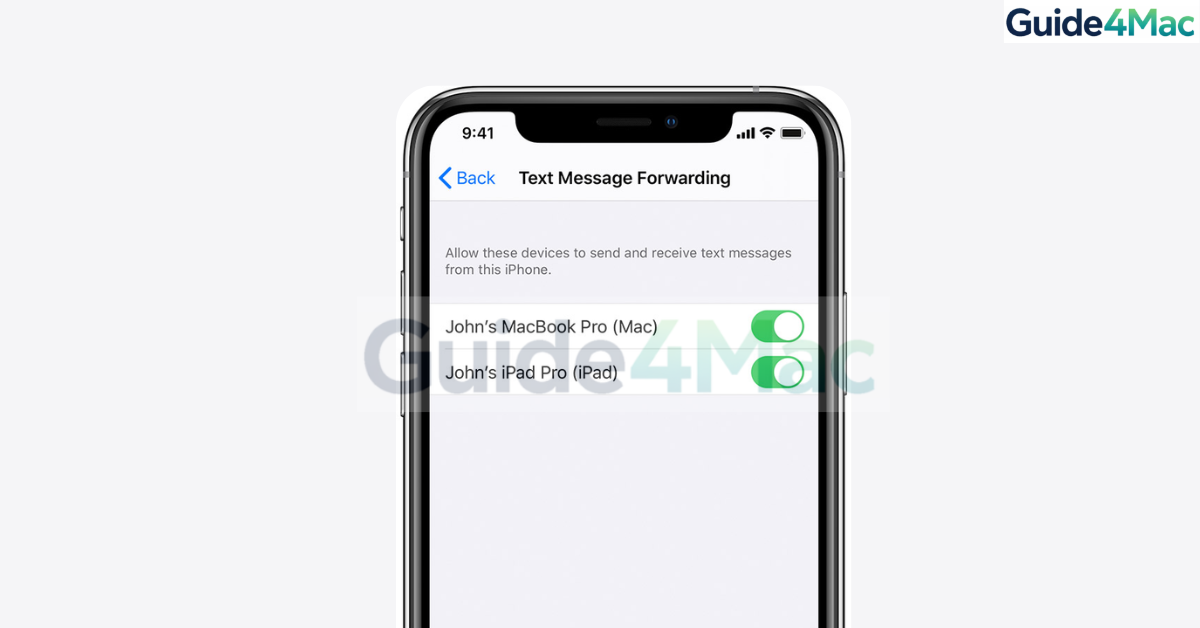
If your iPhone is not receiving verification texts, you may be unable to sign in to apps, confirm accounts, or complete two factor authentication. These messages usually come from banks, social media platforms, or Apple services and are often required to verify your identity (or else you cannot login).
In most cases, the problem is related to network settings, blocked senders, or misconfigured messaging options on your iPhone. Here, we will explain how to fix verification texts not arriving by checking your messaging settings, carrier connection, and Apple ID configuration. If you suspect an issue with your account settings, it may also help to review your Apple account login and configuration to ensure your device is properly cionfigured, including the mobile network settings.
Why Is Your iPhone Not Receiving Verification Texts?
Verification codes are typically sent through SMS or short code messages. These special messages are handled differently from regular texts, which means they can fail if certain settings or carrier restrictions interfere.
Common causes include:
• Poor cellular signal or network problems
• Blocked unknown numbers or short codes
• Incorrect date and time settings
• Carrier filtering or SMS restrictions
• iMessage configuration problems
• Outdated iOS software
Fortunately, most of these problems can be resolved with a few simple checks.
1. Check Your Cellular Signal
Verification texts require a stable cellular connection because they are delivered through SMS rather than internet messaging services.
- Look at the signal bars in the status bar.
- Move to an area with better reception if signal is weak.
- Turn Airplane Mode on.
- Wait 10 seconds.
- Turn Airplane Mode off.
Refreshing the cellular connection often restores SMS delivery.
2. Restart Your iPhone
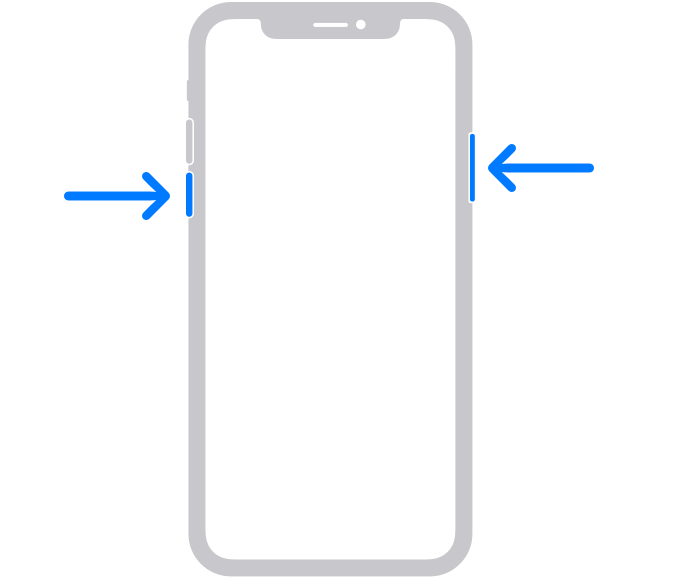
Temporary system glitches can prevent SMS messages from appearing, especially if messaging services have stalled.
- Press and hold the Side button and Volume button.
- Drag the Power Off slider.
- Wait 30 seconds.
- Turn the device back on.
Restarting clears background processes that may block incoming verification codes.
3. Check Blocked Numbers
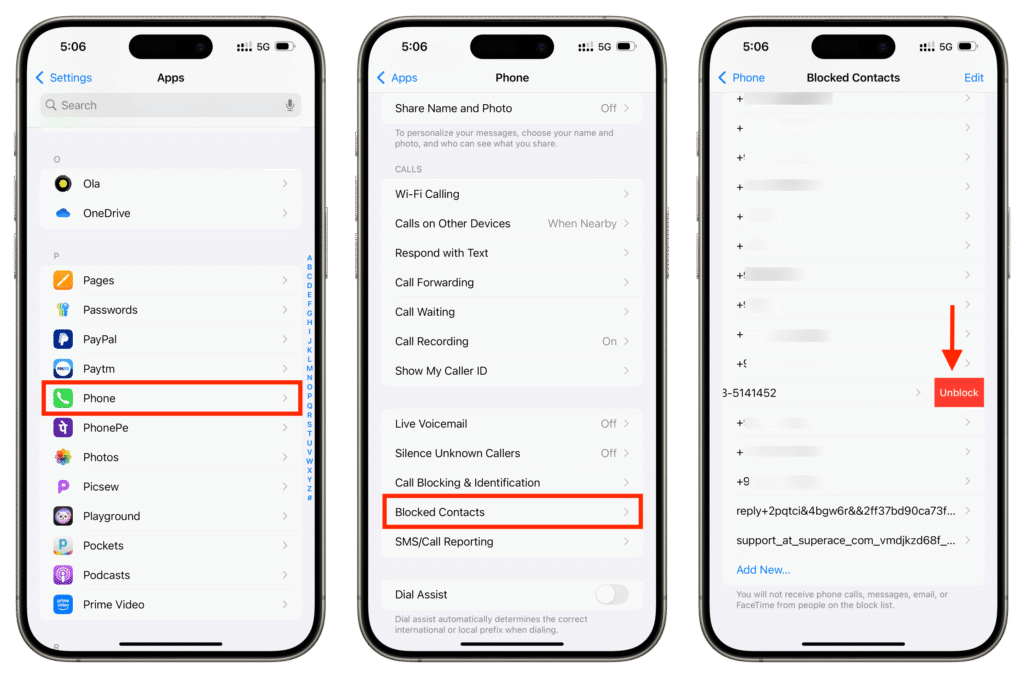
If a number used by a service is blocked, your iPhone may silently reject verification messages.
- Open Settings.
- Tap Messages.
- Select Blocked Contacts.
- Review the list for unknown numbers.
- Remove any suspicious blocked entries.
Some services send codes from rotating numbers, which makes this step important.
4. Check Date and Time Settings
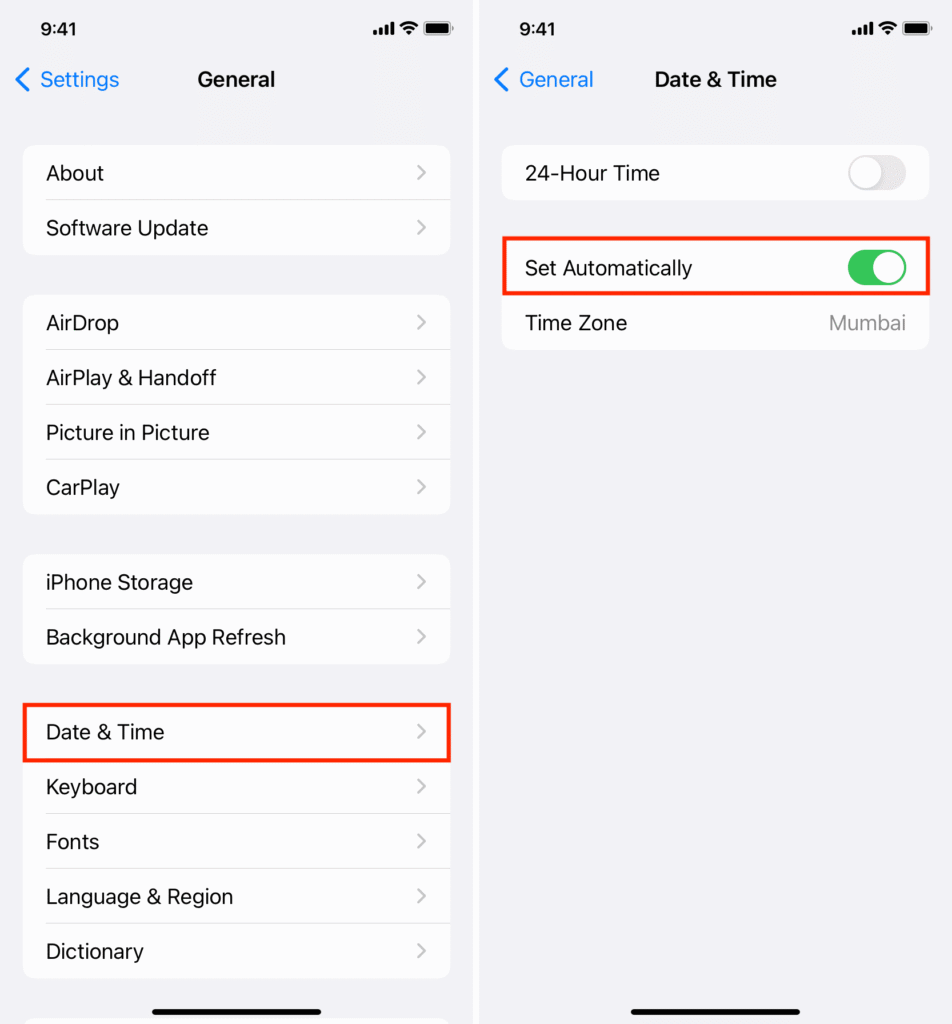
Incorrect date or time settings can interfere with authentication services.
- Open Settings.
- Tap General.
- Select Date & Time.
- Turn on Set Automatically.
This ensures your device clock matches your carrier and authentication servers.
5. Reset Network Settings
Network configuration errors can block SMS delivery or carrier communication.
Time needed: 5 minutes
Requirements: Your Wi-Fi passwords (as they will be erased).
- Navigate to Reset Options
Open Settings > General and scroll to the bottom. Tap on Transfer or Reset iPhone. This menu controls the fundamental communication protocols of the iOS 26 kernel.
- Choose Reset Network Settings
Tap Reset, then select Reset Network Settings. Enter your passcode to confirm. This will wipe your cellular handoff cache and Wi-Fi credentials to clear any stuck signal loops.
- Wait for Reboot
Your iPhone will turn off and restart. During this time, the Apple Silicon Modem recalibrates its connection to the nearest cell tower.
- Test the Verification
Once the device reboots, ensure you have at least two bars of signal. Request the verification text again. The “clean” network handshake should now allow the 2FA code to pass through.
If your device has recently experienced connection problems, resetting network settings can also help resolve issues similar to when an iPhone cannot set the time zone manually due to network errors.
6. Update iOS
Outdated software can cause messaging bugs or compatibility issues with carrier services.
- Open Settings.
- Tap General.
- Select Software Update.
- Install any available update.
Updating your iPhone ensures you have the latest fixes for messaging and network features.
7. Contact Your Carrier
If none of the above fixes work, the issue may be related to carrier restrictions on short code messages.
- Contact your mobile carrier support team.
- Ask if short code SMS messages are blocked.
- Request that verification messages be enabled on your account.
Carriers sometimes disable these messages to prevent spam.
Tips
• Make sure your SIM card is active and properly inserted.
• Avoid using VPN apps while waiting for verification codes.
• Keep your iPhone connected to a stable cellular network.
• Check if the service sending the code is experiencing outages.
• Wait a few minutes before requesting another code to avoid rate limits.
Getting Verification Codes Working Again
When an iPhone is not receiving verification texts, the cause is usually a network setting, blocked number, or carrier restriction. Checking your SMS settings and refreshing your network connection often resolves the issue quickly.
If the problem continues, resetting network settings or contacting your carrier typically restores short code messaging so verification texts arrive normally again.
Key Takeaways
Verification texts may fail to arrive on iPhone because of network problems, blocked numbers, or SMS configuration errors. Checking cellular signal, enabling SMS messaging, and resetting network settings usually fixes the issue. Updating iOS and confirming that short code messages are allowed by your carrier can also restore verification codes. These steps help most users receive authentication texts again.
FAQ
This usually happens when SMS messaging is disabled, network connectivity is weak, or short code messages are blocked by your carrier.
Most verification codes are delivered using SMS rather than iMessage because they must work on all phones and networks.
Yes. If a service sends messages from a number that was previously blocked, your iPhone will not receive those texts.
Usually, a Network Reset is enough. Only reset iPad or iPhone to factory defaults if the issue persists across different SIM cards.
Delays often occur when your cellular signal is weak or when the service sending the code is experiencing heavy traffic.
A full reset is rarely necessary. Resetting network settings usually resolves the issue without deleting personal data.

0 Comments