How to Fix macOS System Data Huge Or Too Large? [Simple Solutions]
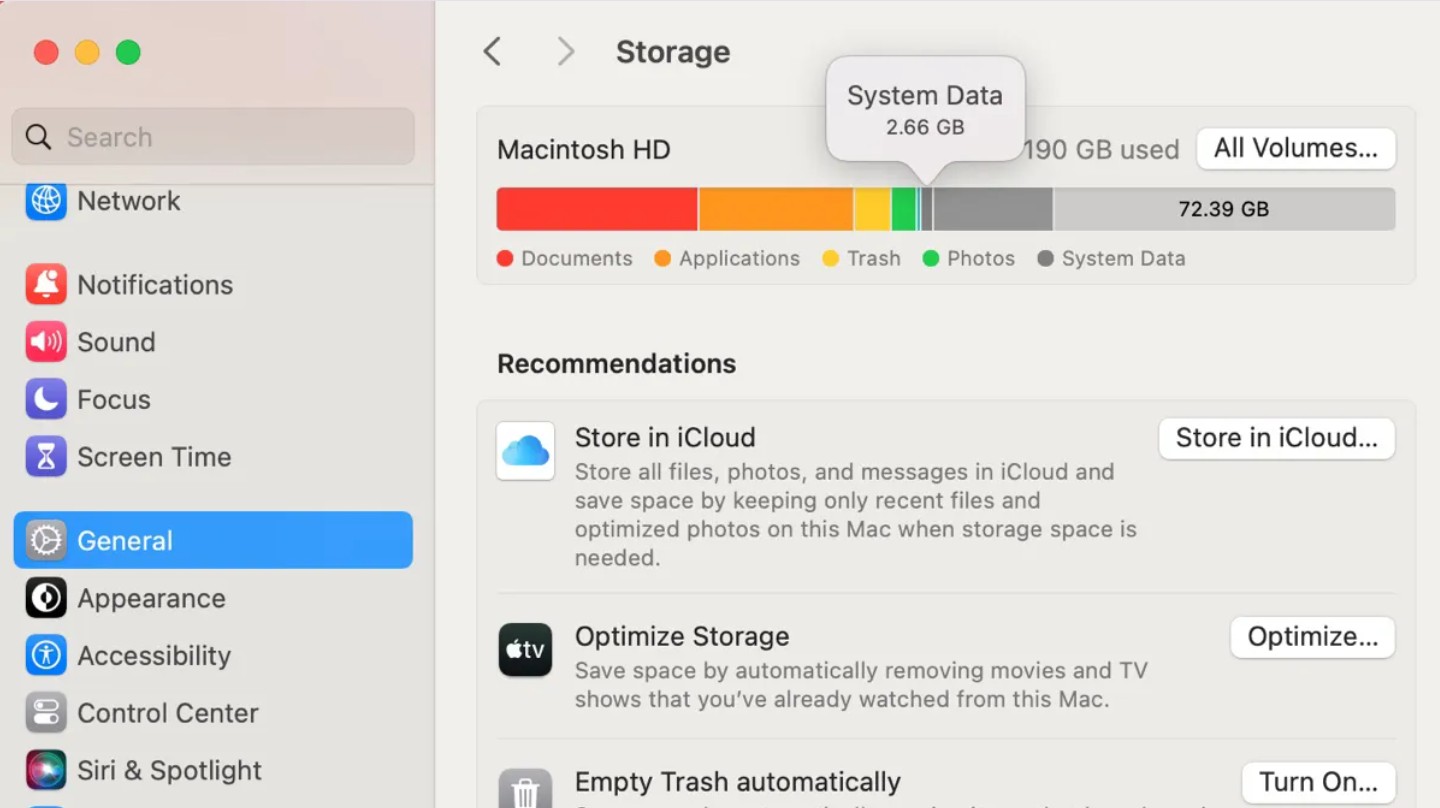
If macOS System Data is taking too much storage, your Mac may suddenly show tens or even hundreds of gigabytes used by something called “System Data.” This =”System Data” may include:
- caches
- logs
- temporary files
- backups
- other hidden system resources that macOS groups together.
The problem usually appears after system updates, heavy app usage, or large temporary files that never get cleaned up. In this guide, you will learn practical ways to reduce System Data storage, including clearing caches, removing old backups, and checking hidden files. If your Mac storage is constantly filling up, you may also find it helpful to learn how to properly clear cache files on your Mac to prevent the issue from returning.
Why Is macOS System Data So Large?
On modern versions of macOS such as Ventura, Sonoma, and Sequoia, Apple groups many types of system files under the System Data category in storage settings. This includes temporary files, logs, system caches, local Time Machine snapshots, and application support data.
Normally macOS manages these files automatically. However, bugs, incomplete updates, or large temporary caches can cause the System Data category to grow far beyond normal size.
If your Mac suddenly reports extremely large System Data usage, one of the fixes below usually resolves it.
The Guide: How to Fix Huge System Data on Mac
Time needed: 10 minutes
Requirements: Admin access to your Mac.
- Clear Local Time Machine Snapshots
If you haven’t backed up to your external drive recently, your Mac saves “snapshots” locally.
1. Open Terminal (Command + Space > type Terminal).
2. Type:tmutil listlocalsnapshots /and hit Enter.
3. If you see a long list, type:tmutil deletelocalsnapshots [date]to clear them. - Purge the ~/Library/Caches Folder
This is where apps store temporary data that often fails to delete itself.
1. In Finder, press Command + Shift + G.
2. Paste:~/Library/Caches
3. Identify large folders (like Spotify, Chrome, or Adobe) and move their contents to the Trash. Do not delete the folders themselves. - Manage Xcode and Developer Data
If you are a developer, Xcode “Derived Data” can take up 50GB+ easily.
1. Go to System Settings > General > Storage.
2. Look for the Developer category (if visible).
3. Click the “i” icon and delete old project caches. - Delete Old iOS Backups
If you used to back up your iPhone to your Mac, these files are hidden in System Data.
1. Go to Finder > Command + Shift + G.
2. Paste:~/Library/Application Support/MobileSync/Backup/
3. Delete any old folders from devices you no longer own.
1. Check What Is Using Storage on Your Mac
Before deleting files, it helps to see exactly how macOS is using your storage. The storage overview can show whether System Data is actually the main problem.
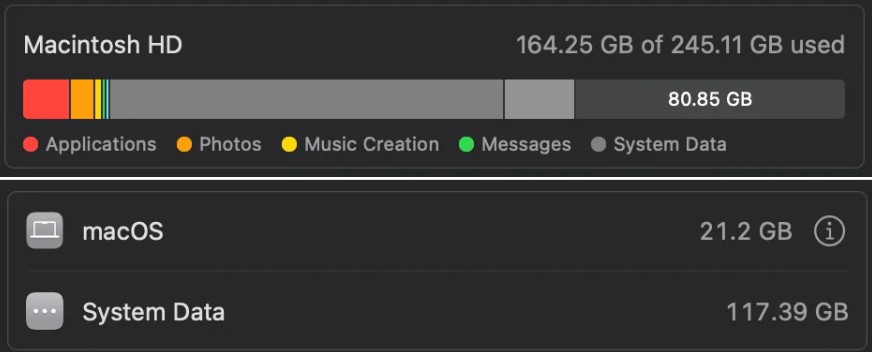
Steps to check Mac storage usage
- Click the Apple menu.
- Select System Settings.
- Click General.
- Open Storage.
- Wait for macOS to analyze disk usage.
This panel shows how much space categories such as Applications, Documents, and System Data are using.
2. Restart Your Mac
Large temporary files sometimes remain in memory or temporary directories until the system restarts. A simple reboot can clear many temporary items.
This is especially common after installing system updates or running resource heavy applications.
Steps to restart your Mac
- Click the Apple menu.
- Select Restart.
- Wait for the Mac to reboot.
If the system becomes unresponsive, you can follow this guide to force restart or shut down your Mac safely.
3. Clear System Cache Files
Cache files help apps load faster, but over time they can grow very large. Deleting them forces macOS and applications to rebuild fresh caches.
This is one of the most effective ways to reduce System Data size.
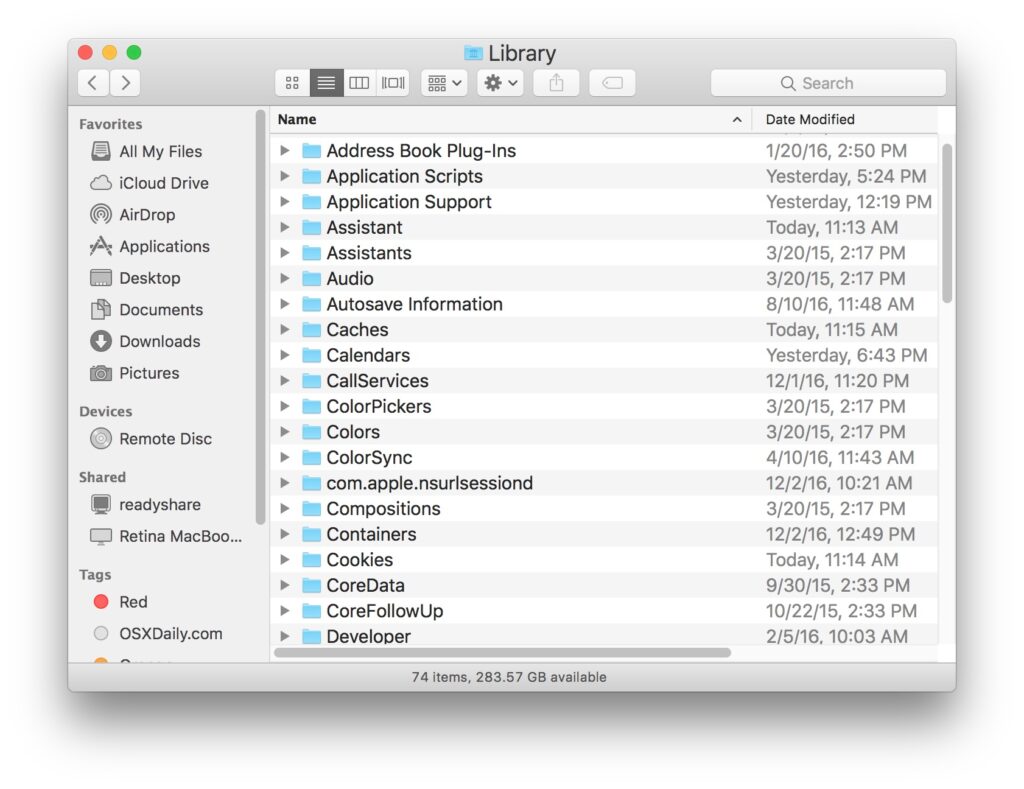
Steps to clear system cache
- Open Finder.
- Click Go in the menu bar.
- Select Go to Folder.
- Type
~/Library/Caches. - Press Return.
- Move unnecessary cache folders to the Trash.
Avoid deleting folders if you are unsure what they belong to. Most apps recreate cache files automatically.
4. Delete Old Time Machine Snapshots
macOS automatically creates local Time Machine snapshots when your backup drive is not connected. These backups can accumulate and consume significant storage.
Removing outdated snapshots can quickly free large amounts of space.
5. Remove Large Log Files
System and application logs help diagnose problems, but they can grow unexpectedly large. Some apps generate logs continuously.
Deleting old logs is safe and can reclaim significant disk space.
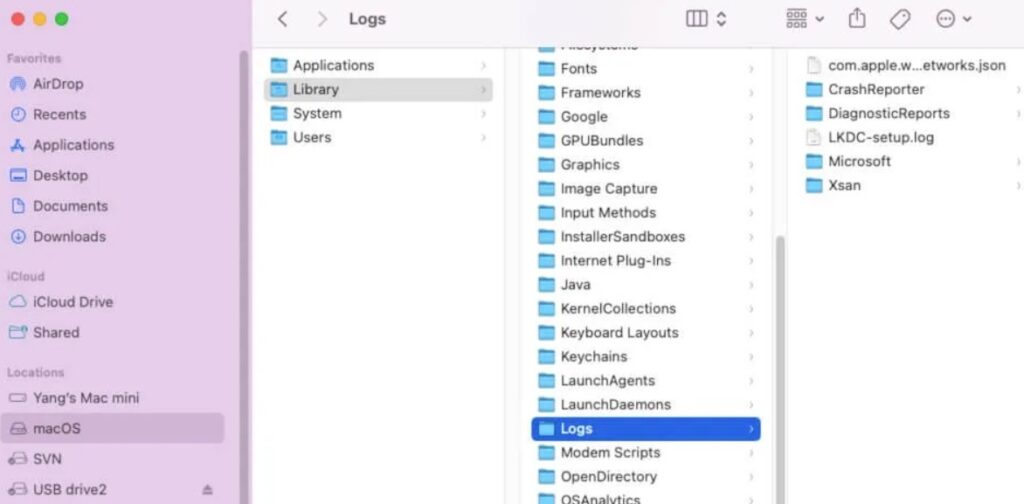
Steps to remove log files
- Open Finder.
- Click Go in the menu bar.
- Select Go to Folder.
- Enter
~/Library/Logs. - Press Return.
- Move large log files to the Trash.
After restarting the Mac, macOS will recreate only the necessary logs.
6. Delete Old iOS Device Backups
If you sync an iPhone or iPad with your Mac, Finder may store large device backups locally. These backups appear as System Data in storage reports.
Removing outdated backups can free several gigabytes.
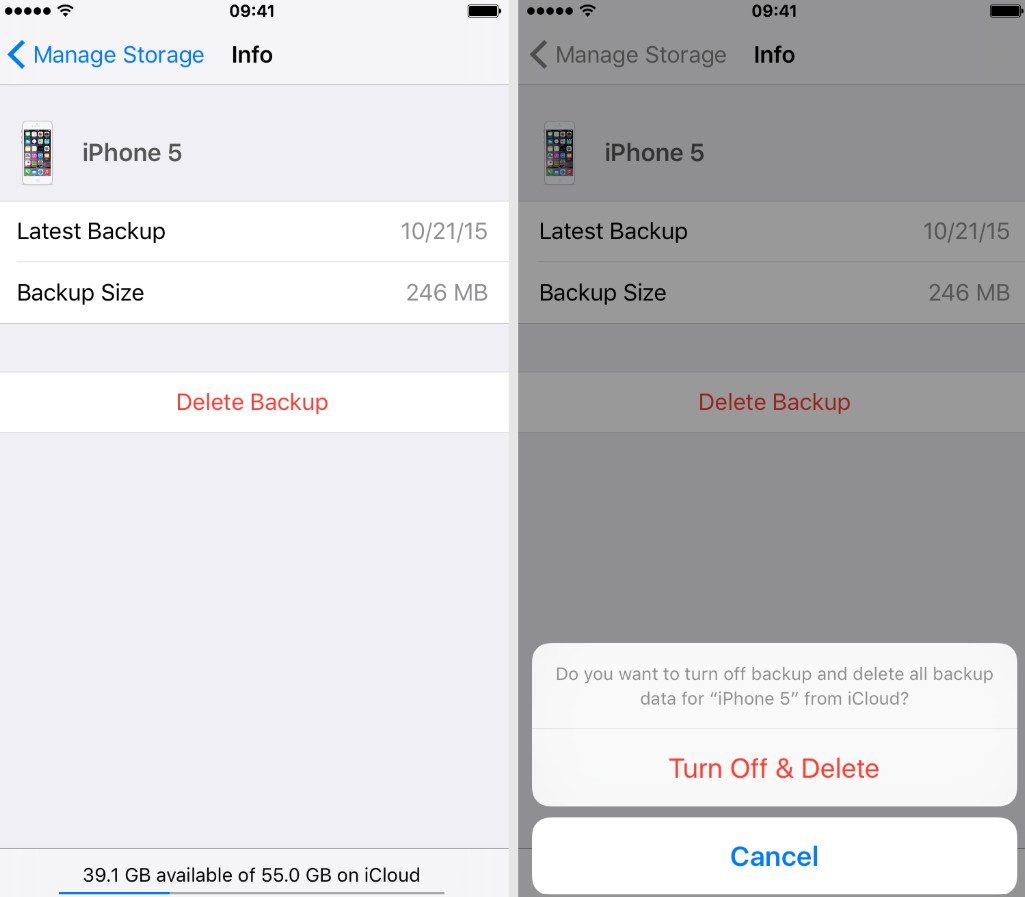
Steps to delete iPhone backups
- Open Finder.
- Click your iPhone in the sidebar.
- Select Manage Backups.
- Choose an old backup.
- Click Delete Backup.
If you still need the backup, consider moving it to external storage first.
7. Remove Large Application Support Files
Some applications store large amounts of data in the Application Support folder. Games, development tools, and editing software often leave large unused files behind.
Checking this folder can reveal hidden storage usage.
Steps to inspect Application Support files
- Open Finder.
- Click Go.
- Select Go to Folder.
- Type
~/Library/Application Support. - Press Return.
Look for unusually large folders and remove files related to apps you no longer use.
8. Update macOS
System storage bugs occasionally appear after major macOS upgrades. Apple often fixes them in later updates.
Installing the latest version of macOS can correct inaccurate storage calculations or remove temporary update files.
Steps to update macOS
- Click the Apple menu.
- Open System Settings.
- Select General.
- Click Software Update.
- Install any available update.
If you want to understand how macOS has evolved across updates, you can also explore the full list of Mac operating system versions throughout history.
Tips
• Restart your Mac periodically to clear temporary system files.
• Keep at least 15 to 20 percent of disk space free for system operations.
• Remove unused applications that store large support files.
• Regularly delete outdated iPhone or iPad backups.
• Monitor storage usage after major macOS updates.
Reclaiming Storage on Your Mac
A huge System Data category usually means hidden files, caches, or backups are accumulating on your Mac. Fortunately, these files are rarely critical and can often be removed safely.
By checking storage usage, clearing caches, removing snapshots, and deleting old backups, you can reclaim significant disk space. Most users recover several gigabytes after performing these steps.
Key Takeaways
macOS System Data includes caches, logs, snapshots, and hidden system files that can grow over time. When these files accumulate, your Mac may report unusually large storage usage. Clearing caches, deleting local backups, and removing log files are the most effective ways to reduce System Data. These steps help Mac users quickly recover valuable disk space.
FAQ
System Data includes caches, logs, system resources, local Time Machine snapshots, and application support files that macOS groups together in the storage overview.
Many System Data files such as caches and logs are safe to remove. However, avoid deleting files if you are unsure what they are used for.
System updates often create temporary installation files and logs. These files are sometimes cleaned up automatically after restarting the system.
For most users, System Data typically ranges from 10GB to 30GB depending on installed apps and system activity.
Yes. Erasing and reinstalling macOS removes most System Data files, but this should only be done as a last resort after trying other fixes.




0 Comments