How to Fix iCloud Syncing Paused on iPhone [2026 Guide]
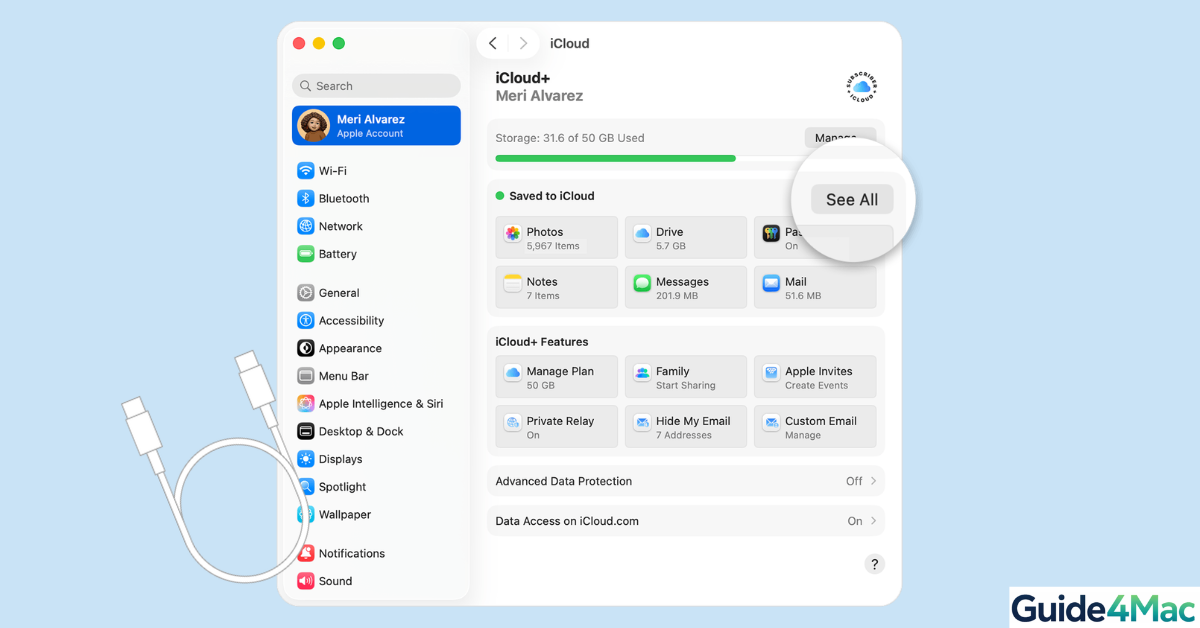
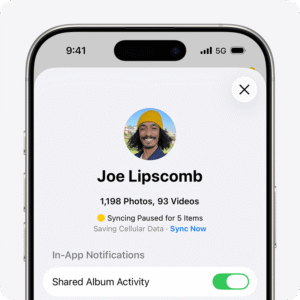
Have you ever opened your iPhone and noticed “iCloud Syncing Paused”? You’re not alone. Millions of users encounter this issue, especially after iOS updates or when iCloud storage is nearly full. According to Apple Discussions, syncing pauses are often triggered by battery-saving measures, unstable Wi-Fi, or account verification issues.
The good news? This problem is usually easy to fix without losing data. By following the steps below, you can resume syncing for Photos, Contacts, iCloud Drive, and backups quickly. You can also ensure your emails continue syncing properly by learning how to add an email account to iPhone.
Fix iCloud Syncing Paused on iPhone
Sometimes iCloud syncing pauses because your iPhone isn’t meeting Apple’s syncing conditions. The first solution is to ensure your iPhone is charging, connected to Wi-Fi, and unlocked, which are all required for large data syncing.
Time needed: 3 minutes
- Plug in your iPhone
Connect to a charger using an original or certified cable.
- Connect to Wi-Fi
Open Settings → Wi-Fi and join a stable network.
- Unlock your iPhone
Keep the device unlocked for a few minutes.
- Check iCloud status
Go to Settings → [Your Name] → iCloud and wait to see syncing progress.

If your Apple ID credentials were recently changed, make sure everything is correct by updating your password or verifying your Apple account.
1. Check iCloud Storage Availability
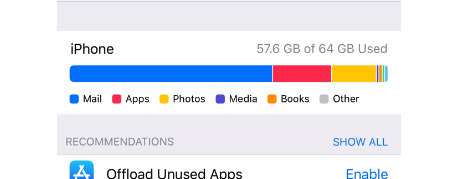
When your iCloud storage is full, syncing automatically pauses. This is one of the most common causes of syncing issues.
Steps to fix:
- Go to Settings → [Your Name] → iCloud → Manage Storage.
- Check the storage bar to see if it’s full or nearly full.
- Review large data categories like Backups, Photos, and iCloud Drive.
- Delete old backups, unused files, or duplicate photos.
- Return to the main iCloud screen and wait for syncing to resume.
2. Enable iCloud Sync for Apps
Sometimes syncing is paused because certain apps are turned off in iCloud settings. Enabling them ensures your data continues syncing across devices.
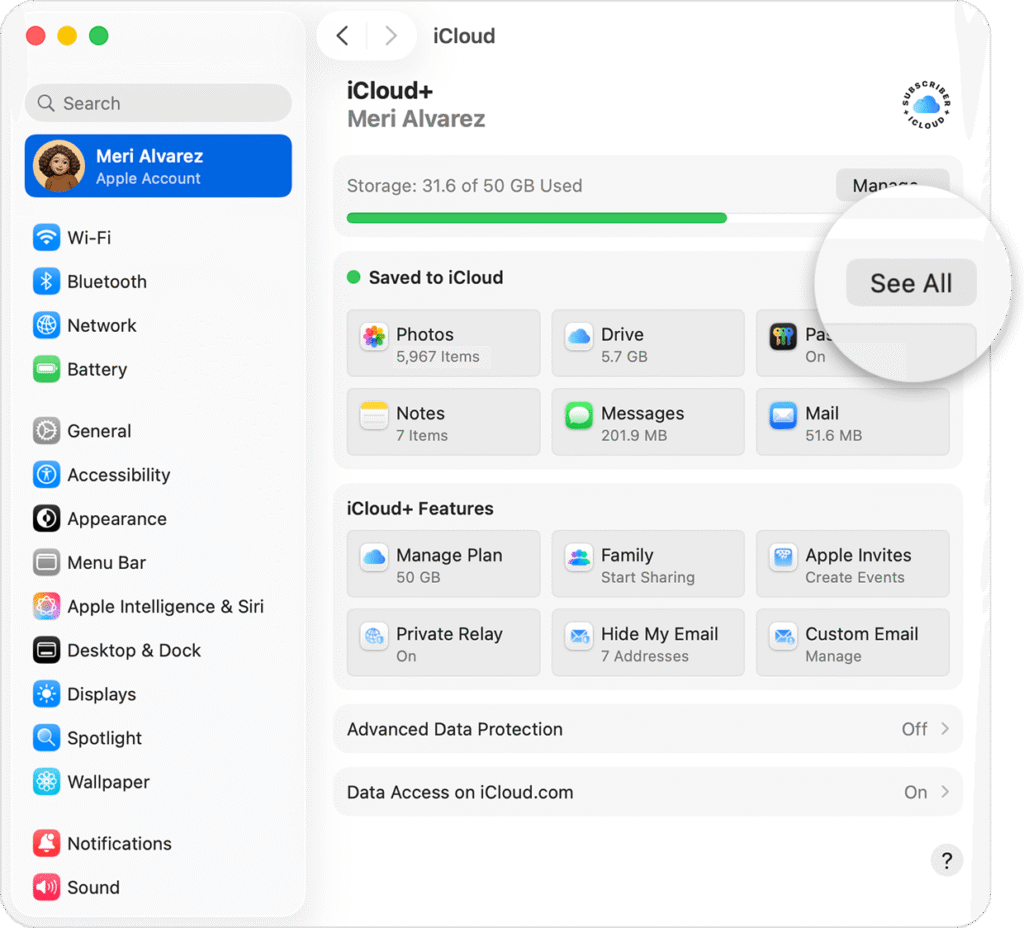
- Go to Settings → [Your Name] → iCloud.
- Scroll through the apps list and review which are enabled.
- Toggle ON apps like Photos, Contacts, and iCloud Drive.
- Wait a few minutes to allow syncing to start.
3. Restart Your iPhone
Temporary software glitches can pause iCloud syncing. Restarting your device refreshes background processes and often fixes the problem.
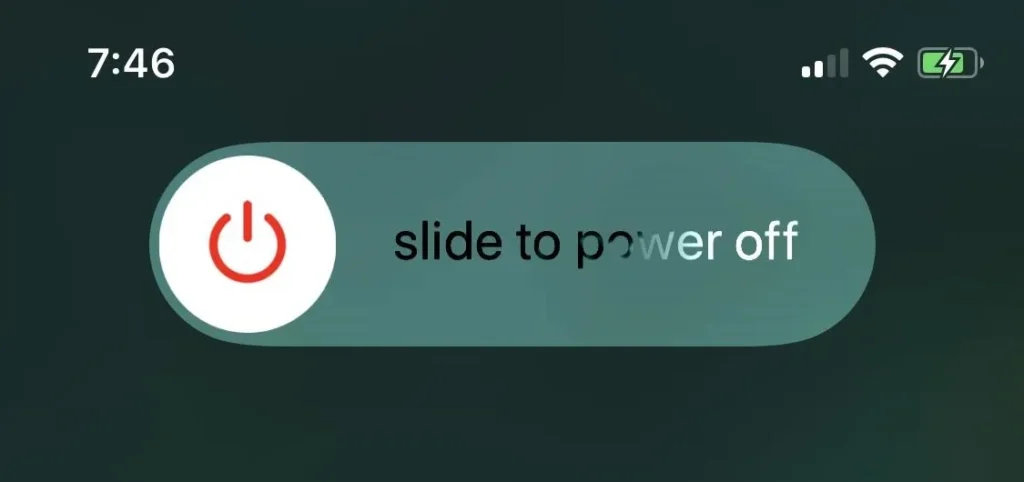
- Press and hold the Side + Volume buttons until the power slider appears.
- Slide to power off.
- Wait 10 seconds for the device to shut down completely.
- Press the Side button again to turn it back on.
4. Check Apple System Status
iCloud services may sometimes be down due to Apple server issues. Confirming system status avoids unnecessary troubleshooting.
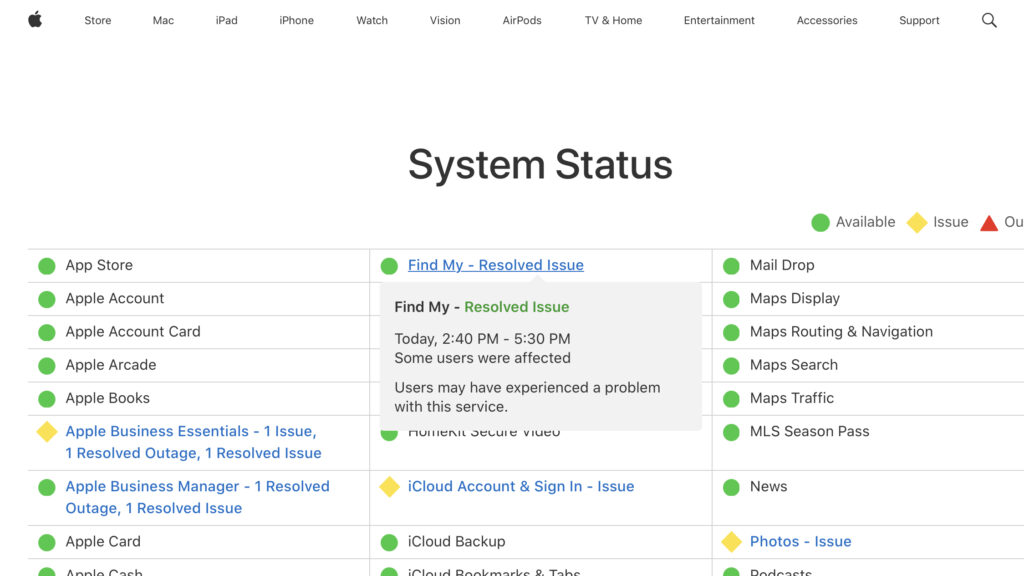
- Open Safari and go to Apple’s System Status page.
- Look for green indicators next to iCloud services.
- If any service is down, wait until Apple resolves the issue.
5. Sign Out and Back Into iCloud
Signing out and back into iCloud refreshes your connection to Apple servers and resolves account-related syncing issues.
- Go to Settings → [Your Name].
- Tap Sign Out and confirm your Apple ID password.
- Restart your iPhone.
- Sign back in with your Apple ID credentials.
6. Update iOS
Outdated iOS versions may contain bugs that pause syncing. Updating ensures you have the latest fixes. After you perform the process the iCloud syncing should works properly.
- Open Settings → General → Software Update.
- Tap Download and Install if an update is available.
- Wait for the installation to complete.
- Restart your iPhone and check iCloud syncing.
Tips to Avoid iCloud Sync Pauses
- Keep iPhone charged during syncing
- Use stable Wi-Fi instead of mobile data
- Regularly check iCloud storage
- Keep iOS updated
FAQs (People Also Ask)
Occurs when your iPhone isn’t charging, connected to Wi-Fi, or has low battery.
Limited syncing may occur, but large files require Wi-Fi.
Depends on data size—minutes to hours.
Yes, it often resolves temporary glitches.
Yes, iCloud pauses syncing when storage is full.
Yes, under the right conditions (Wi-Fi, power, unlocked device).
SEO On-Page Optimization
SEO Title: iCloud Syncing Paused on iPhone? Fix It Fast (2026 Guide)
Meta Description: Step-by-step solutions to fix iCloud syncing paused on iPhone. Resume backups, photos, and iCloud Drive quickly.
Focus Keyword:
Slug:
Featured Image Suggestion: iPhone iCloud syncing paused screen settings
ALT Text Suggestions:
- iPhone iCloud syncing paused message
- iPhone charging for iCloud sync
- iCloud storage full warning screen
- Apple ID sign in screen iPhone

0 Comments