Solved: Apple Mail Not Syncing with Comcast [8 Simple Checks]
Comcast (Xfinity) still powers email for over 30 million users, yet it’s also one of the most common accounts to break inside Apple Mail. The reason is simple and its’s not a poor development of their email service: Comcast relies heavily on correct IMAP settings and security permissions, so even a small mismatch can stop syncing completely.
If your Comcast email works in webmail but not in Apple Mail, you are lucky to read this fixing guide now. The issue is usually tied to authentication, server settings, or sync configuration, and in most cases, it can be fixed in just a few minutes.
How to Fix Apple Mail Not Syncing with Comcast
1. Verify IMAP Settings in Apple Mail
Time needed: 5 minutes
Apple Mail must connect to Comcast using the correct IMAP and SMTP settings. If these are incorrect, your emails will not sync, or sending will fail.
- Open Mail Settings
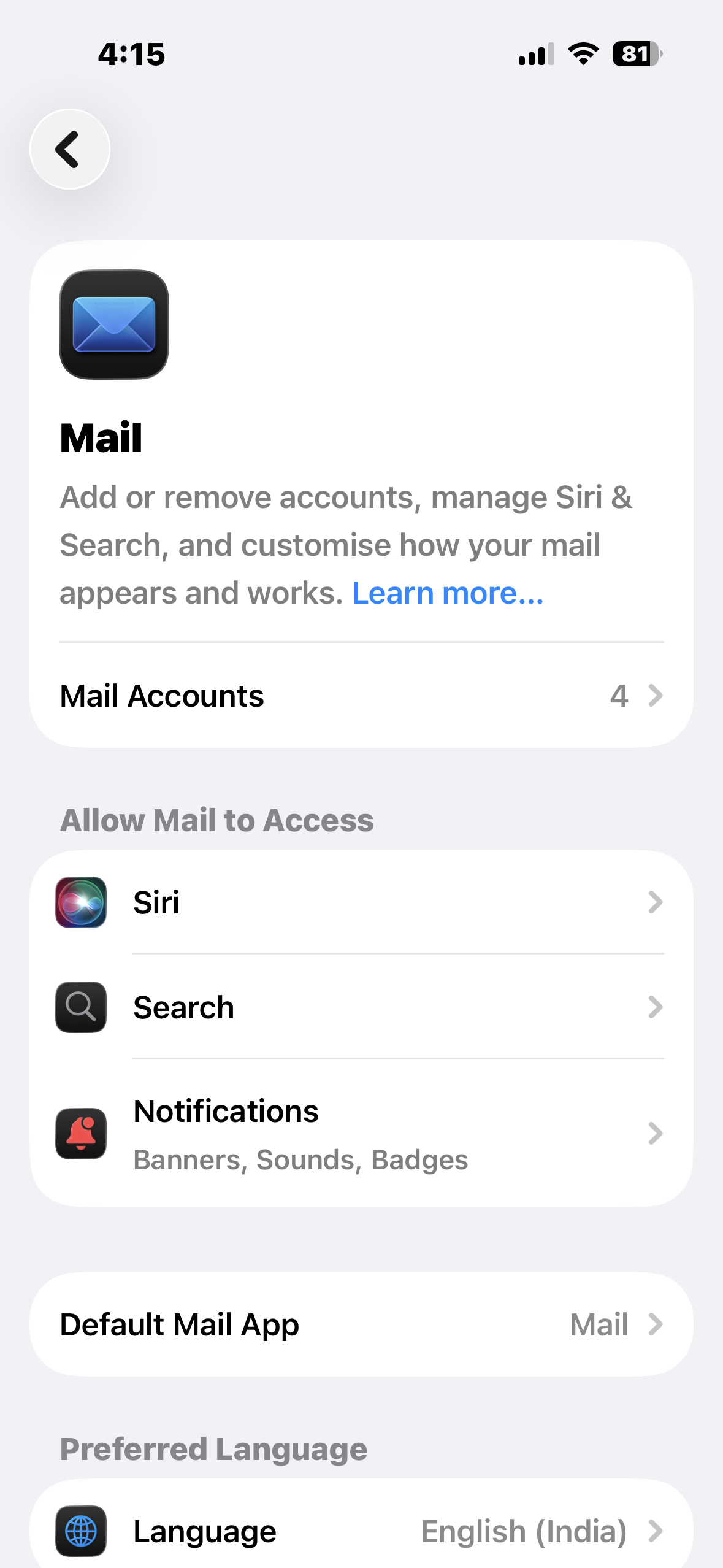
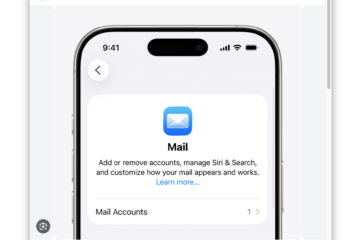
On iPhone/iPad: Settings → Apps → Mail → Mail Accounts → select your Comcast account.
On Mac: Mail → Settings → Accounts → select your Comcast account.
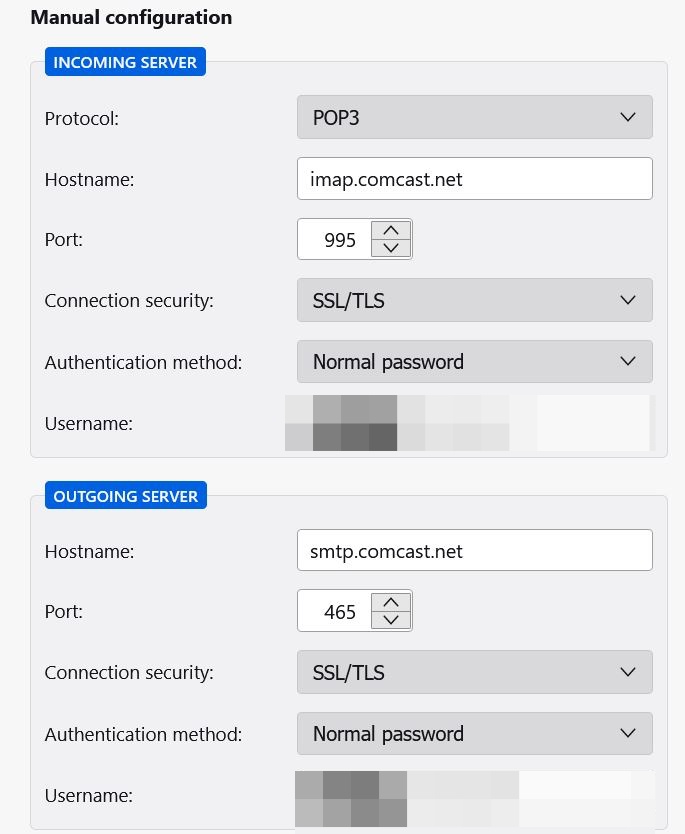
- Check Incoming Server (IMAP)
Server:
imap.comcast.net
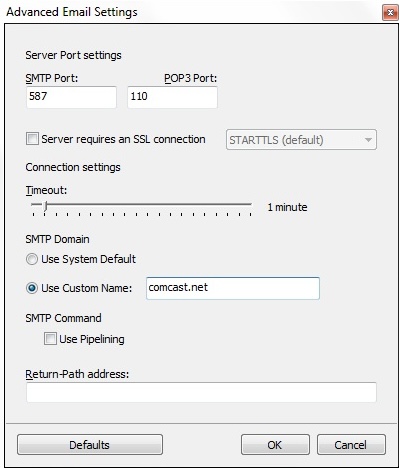
Port: 995
SSL: Enabled - Check Outgoing Server (SMTP)
Server:
smtp.comcast.net
Port: 465 or 587
SSL: Enabled - Verify Credentials
Use your full Comcast email address and correct password
- Save and Test Sync
Open Apple Mail and refresh your inbox
- Reauthenticate if Needed
If prompted repeatedly, update your credentials or follow this guide to change email password on iPhone
2. Remove and Re-Add Comcast Account
If your settings are correct but syncing still fails, the account itself may be corrupted. Removing and re-adding it refreshes all configurations and authentication tokens.
This is one of the most effective fixes, especially after password changes or failed login attempts.
- Go to Mail Accounts settings.
- Delete your Comcast account.
- Restart your device.
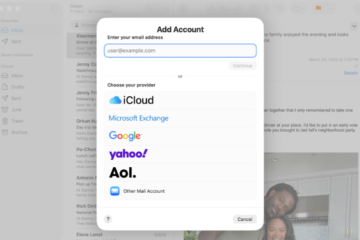
- Add the account again using IMAP.
3. Enable Third-Party App Access in Xfinity
Comcast may block Apple Mail if third-party access is disabled. Without this permission, Apple Mail cannot authenticate properly, even with the correct password.
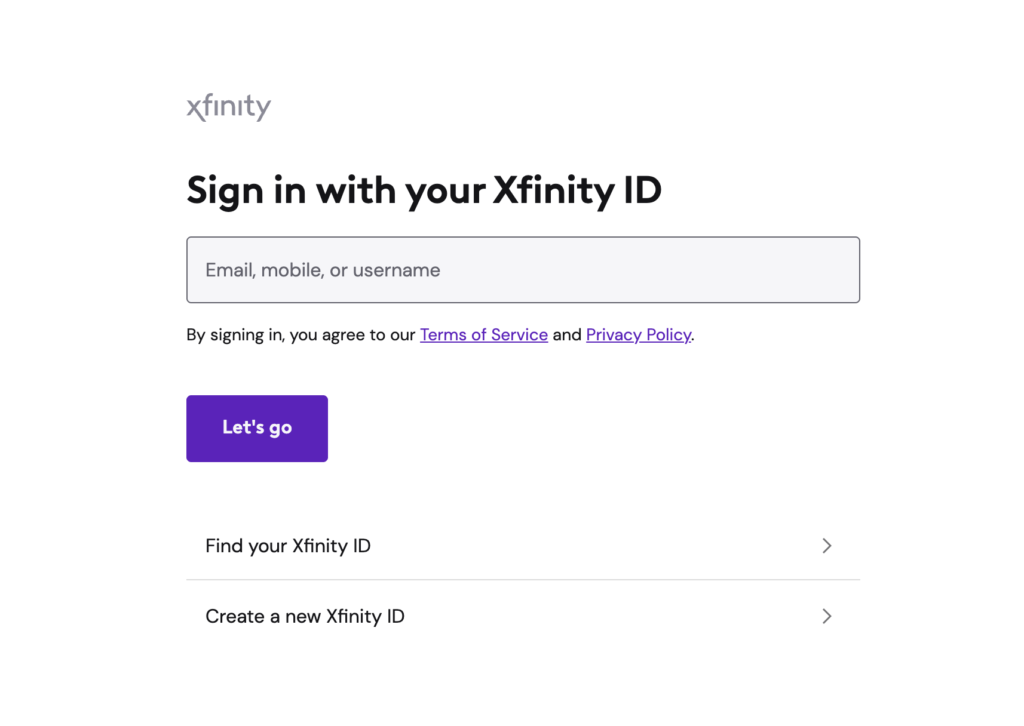
- Log in to Xfinity webmail.
- Go to Security Settings.
- Enable Third-Party Access.
- Return to Apple Mail and refresh.
4. Reset Password and Reauthenticate
Authentication issues are common with Comcast accounts. Resetting your password forces the server to generate new login tokens and often resolves persistent sync problems.
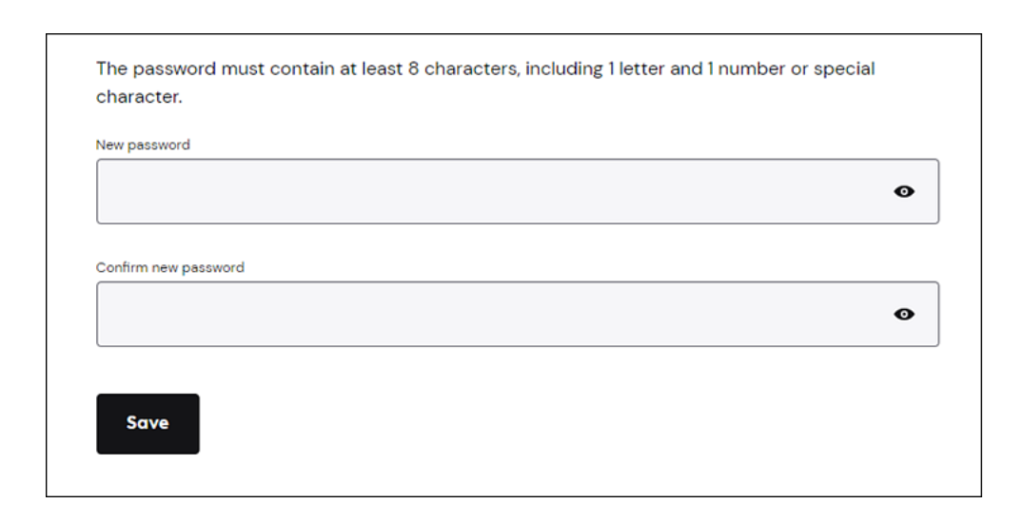
- Change your password via Xfinity.
- Update it in Apple Mail.
- Restart your device.
- Test syncing again.
5. Check Internet Connection
Apple Mail needs a stable connection to sync with Comcast servers. Even small interruptions can prevent emails from updating or sending.
- Switch between Wi-Fi and mobile data.
- Restart your router.
- Disable VPN temporarily.
- Test other apps for connectivity.
6. Restart Apple Mail and Device
Temporary glitches in Apple Mail or the operating system can block syncing. Restarting clears cached processes and forces a fresh connection.
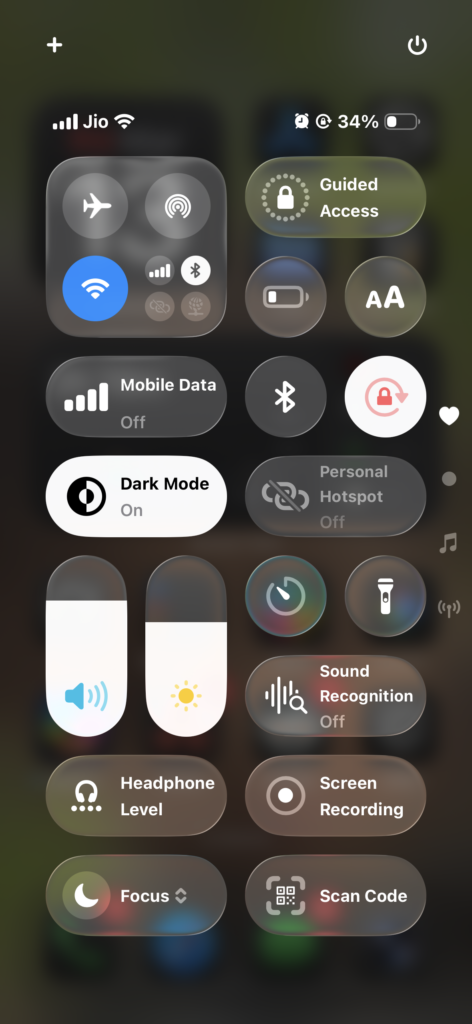
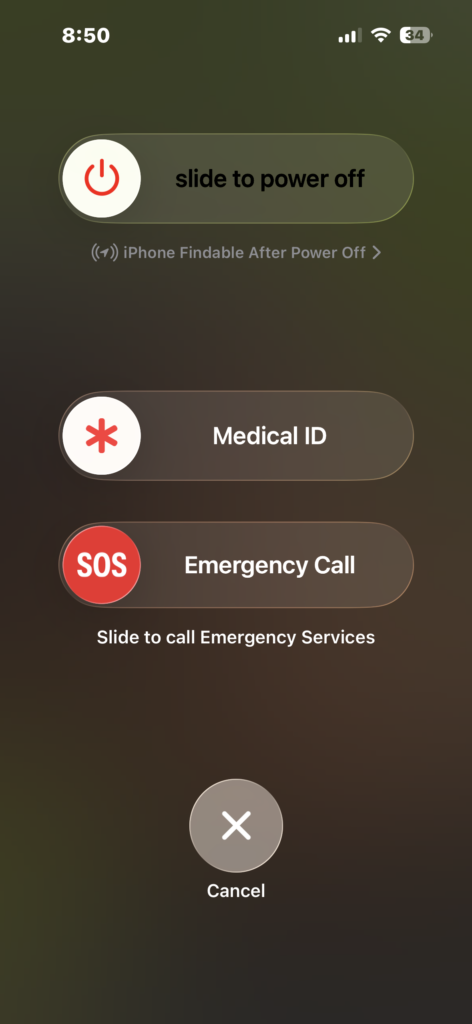
- Force close Apple Mail.
- Reopen it.
- Restart your iPhone, iPad, or Mac.
7. Make Sure You’re Using IMAP (Not POP)
POP accounts do not sync emails across devices properly. If your Comcast account is set to POP, you may see missing emails or unsynced folders.
- Check the account type in Mail settings.
- Switch to IMAP if needed.
- Re-add the account if switching is not available.
8. Check Folder Sync Settings
If only some emails appear, your folders may not be syncing correctly. This usually happens when IMAP folders are not fully enabled.
- Open Mail settings.
- Check folder subscriptions.
- Enable all important folders.
- Refresh Apple Mail.
Common Problems
- Comcast email not showing in Apple Mail.
- Inbox not updating automatically.
- Missing folders or messages.
- Repeated password prompts.
- Emails not sending.
Fixes / Troubleshooting
- Verify IMAP and SMTP settings.
- Remove and re-add account.
- Enable third-party access.
- Reset password and reauthenticate.
- Check internet connection.
- Restart device and Mail app.
Tips
Keeping Comcast email working in Apple Mail comes down to correct setup and maintenance:
- Always use IMAP, not POP
- Double-check server settings after setup
- Keep your password and credentials updated
- Enable third-party access in Xfinity
- If you face similar issues with other accounts, see fixes for Gmail, Yahoo Mail, Hotmail, or iCloud
Apple Mail and Comcast can work perfectly together once everything is configured correctly. By fixing your IMAP settings, authentication, and connection, you can restore full email syncing across all your devices.
FAQs?
Usually due to incorrect IMAP settings, disabled third-party access, or authentication issues.
Verify IMAP settings, re-add the account, and check your internet connection.
This is typically caused by authentication errors or disabled third-party access.
Yes, POP does not support full syncing across devices. IMAP is required.
Folder sync issues usually happen due to IMAP misconfiguration or unsubscribed folders.
Yes, it often resolves authentication problems by generating new login tokens.

0 Comments