Are temporary files slowing down your Mac? If you’re searching for how to delete Mac temp files, you’re likely looking to free up storage and improve performance without risking your system while deleting manually important files that make your Mac or Macbook work.
Whether you have an older Apple PC or laptop or a new M5 device, managing temporary files is a practical step to keep your Mac running efficiently
If your storage shows large “System Data” or “Other” usage, temp files may be a major contributor. Below, we’ll guide you step by step, manually or using a trusted tool, on how to remove temporary files safely.
Why Do Temp Files Accumulate on Mac?
Macs create temporary files to help apps and system processes run faster. Over time, these files can accumulate and occupy a significant amount of storage.
Common temp files include:
– System temporary files
– Browser temp and cache files
– App-generated temp data
While temporary files serve a purpose, many are no longer needed and can be safely removed to recover storage and maintain system responsiveness.
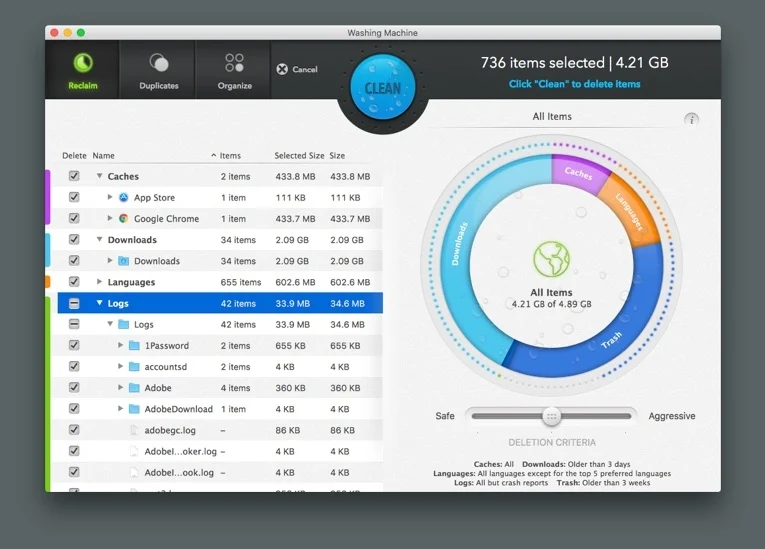
How Intego Washing Machine Works
1. Scan & Detect
– Launch the tool to scan your Mac for temp files across system and applications.
2. Review Findings
– See a clear report of which apps and processes are storing temp files and how much space they occupy.
3. Clean Safely
– Remove selected temp files safely, ensuring no essential system files are affected.
Key Features
1. Temp File Detection: Identifies temp files across macOS and apps
2. Safe Cleanup: Protects critical system data while freeing space
3. App File Management: Cleans leftover temp files from apps
4. Duplicate Finder: Identifies unnecessary duplicate files
5. Organizational Tools: Keeps your Mac tidy for smoother performance
Verified Safety: AppEsteem Certified / Mac Safe
Compatibility: Works on all modern macOS versions
How to Delete Mac Temp Files Manually
1. Clear User Temp Folders
User temp folders store data that apps need temporarily but often don’t delete automatically:
– Open Finder
– Click Go in the top menu
– Select Go to Folder
– Type: ~/Library/Caches/
– Remove contents of folders you no longer need
Tip: Keep the folder structure intact, delete only contents.
2. Clear System Temp Files
System temp files can accumulate over time and take up storage.
1. Open Finder
2. Go to Go > Go to Folder
3. Type: /Library/Caches/
4. Remove unnecessary files after reviewing carefully
3. Delete Browser Temp Files
Browsers store temp files to improve speed. Clearing these can recover storage:
Safari:
– Open Safari
– Go to Settings > Privacy
– Select Manage Website Data
– Remove unwanted data
Chrome:
– Open Chrome
– Go to Settings > Privacy and Security
– Click Clear Browsing Data
– Select cached images and files
4. Remove App Temp Files
Some apps create temp data during use that remains after closing.
1. Navigate to ~/Library/Caches/
2. Identify app-specific folders
3. Delete unneeded files (but be careful when doing it manually)
So, How to Delete Mac Temp Files?
Learning how to delete Mac temp files is a straightforward way to free up storage and keep your system organized. Removing unnecessary temp files can help improve responsiveness and recover disk space.
Always Empty the Trash after cleaning: storage space is only fully recovered once files are permanently removed.
For a faster and guided solution, using Intego Washing Machine can simplify the process, automatically detecting and removing temp files safely.