

Every time you browse the web or open an app, your computer creates temporary files known as cache to help speed up future sessions. However, over time, these files accumulate into a massive digital junkyard that consumes your storage and can actually slow down your system. Mac users often find is the quickest way to reclaim gigabytes of space and fix persistent software bugs that rebooting alone won’t solve.
Whether you are running the latest macOS Sequoia or an older version, managing your cache is a critical part of maintaining a healthy machine. This guide will show you both the manual methods for surgical precision and the best automated tools to keep your system lean without the risk of deleting important data.
How Do I Effectively Clear Cache on My Mac?
Manual Deletion of User Cache Files 📂
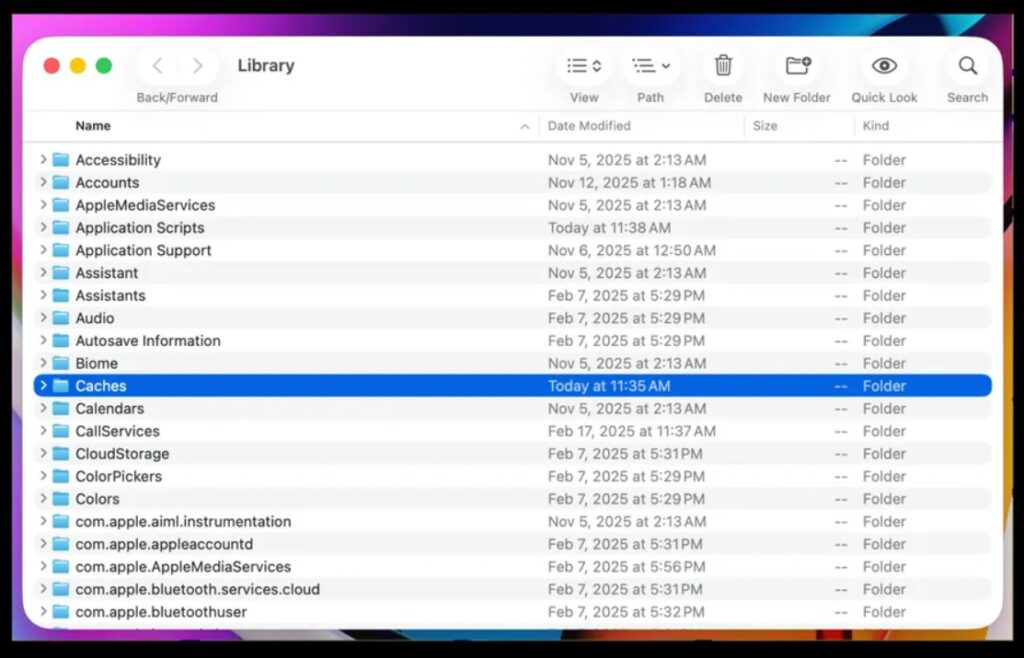
User cache is the most common type of storage-clogging data because it is generated by every individual application you use. From Spotify’s offline song data to Photoshop’s temporary project previews, these files can easily grow to exceed 20GB if left unchecked for a year. Removing them manually requires navigating to hidden folders that Apple hides by default to prevent accidental system changes.
- Open a new Finder window.
- Select Go from the top menu bar.
- Click on Go to Folder.
- Type
~/Library/Cachesinto the text box. - Press the Return key.
- Open an application folder you recognize.
- Select the files inside that folder.
- Drag the selected files to the Trash.
- Empty the Trash to permanently free up the space.
Use a Third-Party Tool
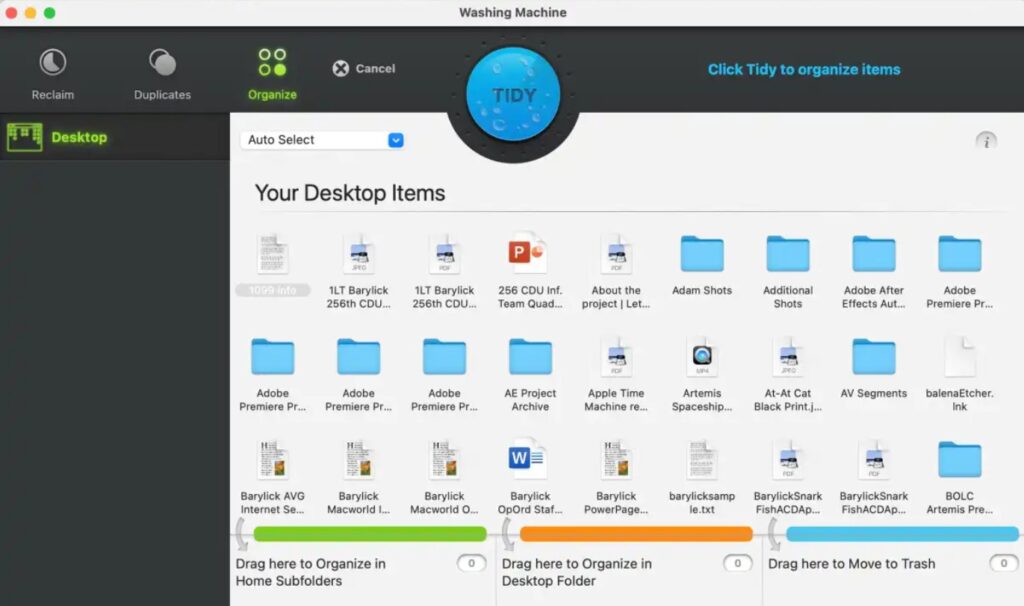
Intego Washing Machine is a dedicated cleanup utility designed by the Mac security experts at Intego to simplify the process of reclaiming disk space. It acts as a digital vacuum that specifically targets the “junk” categories like logs, caches, and duplicate files that users often miss. It is particularly useful for those who want a visual representation of how much space they are losing to different types of temporary data.
The software features a unique “Reclaim” mode that scans your entire drive and categorizes files based on their safety for deletion. It also includes an “Organize” tool that helps you tidy up your Desktop and Dock, making it more than just a simple cache cleaner. It is widely considered one of the most user-friendly options for people who are nervous about manual file management.
- One-click Reclaim tool for cache and logs
- Advanced duplicate file finder and remover
- Smart desktop and dock organization features
- Lightweight design that doesn’t drain resources
Clearing System Cache for macOS Stability ⚙️
System cache is generated by macOS itself and its core services to handle background tasks and system-level operations. While these files are vital for the OS to function, they can occasionally become corrupted after a major software update, leading to kernel panics or extreme UI lag. Clearing this cache is more delicate than user cache and often requires a full system restart to ensure the files are properly regenerated.
- Close all active programs to prevent file write errors.
- Click on Finder.
- Select Go to Folder.
- Type
/Library/Caches(ensure you do not include the tilde~). - Hit the Enter key.
- Identify the folders for system processes that are behaving poorly.
- Move those specific files to the Trash.
- Restart your Mac immediately.
Optimizing Browser Performance in Safari and Chrome 🌐
Web browsers are notorious for aggressive caching, storing everything from high-resolution images to heavy JavaScript files to make websites load faster. If you notice that a specific website is showing outdated information or that Safari is becoming sluggish, a browser-specific purge is necessary. Each browser has its own dedicated menu for this, and doing it manually is much safer than digging through the system library.
For Safari, you first need to go to Settings and then to the Advanced tab to enable the “Show features for web developers” option. Once this is checked, a new Develop menu will appear in your top bar; simply click it and choose Empty Caches. For Google Chrome, the fastest way is to press Command + Shift + Delete to open the “Clear browsing data” menu, where you should select “Cached images and files” and choose “All time” as the range.
CleanMyMac X 💎
CleanMyMac X is an all-in-one optimization suite that goes beyond simple cache removal to offer full system health monitoring. It uses a safety database to ensure that it never deletes a file that your Mac actually needs to boot or run an app. The tool is highly recommended for users who want to automate their entire maintenance routine, including malware scanning and software uninstallation.
The app’s interface is sleek and provides real-time notifications when your disk space is getting low or if an app is consuming too much RAM. By using its “System Junk” module, you can clear user, system, and browser caches simultaneously. It also flushes DNS cache, which can solve connectivity issues that standard file deletion might miss.
- Intelligent “System Junk” scanning technology
- Built-in uninstaller to remove app leftovers
- Real-time system health and RAM monitoring
- Privacy module for clearing sensitive history
Mac Cache Cleanup Comparison 📊
Choosing the right method for your Mac depends on your technical comfort level and how much time you want to spend on maintenance. While manual cleaning is free, it is time-consuming and carries a small risk of error if you delete the wrong folder.
| Method | Space Reclaimed | Safety | Time Required |
| Manual (Finder) | Variable | Moderate | 15+ Minutes |
| Washing Machine X9 | High | High | 2 Minutes |
| CleanMyMac X | Maximum | High | 1 Minute |
| Safe Mode Boot | Low | Very High | 5 Minutes |
Pro Maintenance Tips for macOS 💡
- Restart Weekly: A simple restart triggers macOS’s built-in maintenance scripts that purge temporary logs and rotated files automatically.
- Use Safe Mode: Booting in Safe Mode (hold the Power button on M-series or Shift on Intel) forces a basic system cache cleanup and disk check.
- Watch System Data: Regularly check System Settings > General > Storage to see if your “System Data” is growing unexpectedly.
- Update Apps: Developers often release updates that improve how their apps manage cache, preventing them from bloating your drive over time.
Master Your Mac Speed and Health
Maintaining a clean cache is the easiest way to ensure your Mac stays as responsive as the day you bought it. By combining a seasonal manual deep-clean with an automated tool like Intego Washing Machine X9, you can prevent storage bottlenecks before they disrupt your work.
FAQ
No, cache files are temporary data used by the system and apps; they are completely separate from your personal files like photos, videos, or documents.
While it is generally safe, it is better to delete the contents of the folders rather than the folders themselves to avoid causing errors in specific applications.
This is normal because the system now has to re-download or rebuild the files it needs. Your Mac will actually feel much faster after a few minutes of use.
Most users only need to do a manual purge every 3 to 6 months unless they are running out of storage space or experiencing specific app crashes.
No, passwords are stored in the Keychain or browser cookies, which are distinct from the image and script files found in your cache folder.