Is your Mac running slower than expected? One common reason is accumulated cache files. If you’re searching for how to delete cache on Mac, you’re likely trying to free up space and improve performance quickly.
Whether you’re using an older MacBook or a newer M5 model, clearing cache regularly can help maintain system responsiveness and storage availability.
If your storage shows large “System Data” or “Other” usage, cache files may be contributing. Below, you’ll learn how to delete cache on Mac step by step, manually or with a guided tool.
Why Does Cache Grow on Mac And Make Your Mac Slow?
Cache files are created by macOS and applications to speed up processes. Over time, these files can accumulate and take up significant storage space.
Common types include:
– Browser cache (Safari, Chrome)
– App cache from installed software
– System cache used by macOS processes
While useful temporarily, older cache files are often no longer needed and can be safely removed.
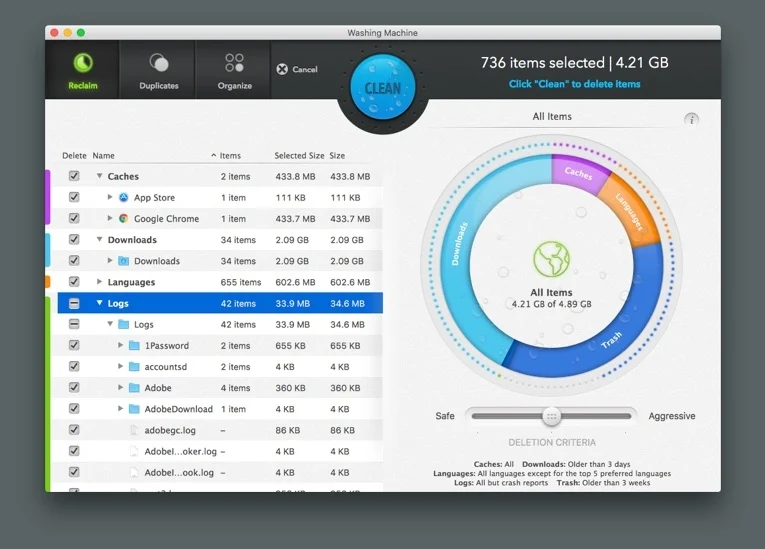
How Intego Washing Machine Works
For over 29 years, Intego protects Mac and macbook users and help them keep their devices running well and safe. Here is what the product can do to help you with your Mac or Macbook usage:
1. Scan & Analyze
– Start a system scan to locate cache files and temporary data across your Mac.
2. Review Files
– See which apps and processes are generating the most cache data.
3. Clean Safely
– Remove selected cache files using a guided process designed to avoid essential system data.
Key Features
-Cache Detection: Identifies cache files across system and apps
-App Cleanup: Finds leftover files from installed or removed applications
-Safe Removal: Helps avoid deleting important macOS files
-Duplicate Finder: Locates unnecessary duplicate files
-File Organization: Keeps your system structured and easier to manage
Verified Safety: AppEsteem Certified / Mac Safe
Compatibility: Supports modern macOS versions
How to Delete Cache on Mac Manually?
1. Clear User Cache Files
This is one of the most effective ways to delete cache on Mac.
– Open Finder
– Click Go in the menu bar
– Select Go to Folder
– Type: ~/Library/Caches/
– Delete contents of folders you no longer need
Tip: Do not delete the main folders — only their contents.
2. Clear System Cache
System cache can also take up space over time.
– Open Finder
– Go to Go > Go to Folder
– Type: /Library/Caches/
– Review and remove unnecessary files
3. Clear Browser Cache
Browsers often store large amounts of cached data.
Safari:
1. Open Safari
2. Go to Settings > Privacy
3. Select Manage Website Data
4. Remove stored data
Chrome:
1. Open Chrome
2. Go to Settings > Privacy and Security
3. Click Clear Browsing Data
4. Select cached images and files
4. Remove App Cache
Applications may store additional cache locally.
– Navigate to ~/Library/Caches/
– Identify app-related folders
– Remove unnecessary cache files
So, How to Delete Cache on Mac?
If you were looking for how to delete cache on Mac, the steps above provide a clear and practical approach. Removing unused cache files can help free up storage and keep your system organized.
After cleaning, make sure to Empty the Trash, as storage space is only recovered once files are permanently removed.
For users who prefer a faster and more guided process, a tool like Intego Washing Machine can simplify cache management and reduce manual work.