Fix: Apple Screen Time Not Updating? Parent’s Guide to Digital Supervision (2026)
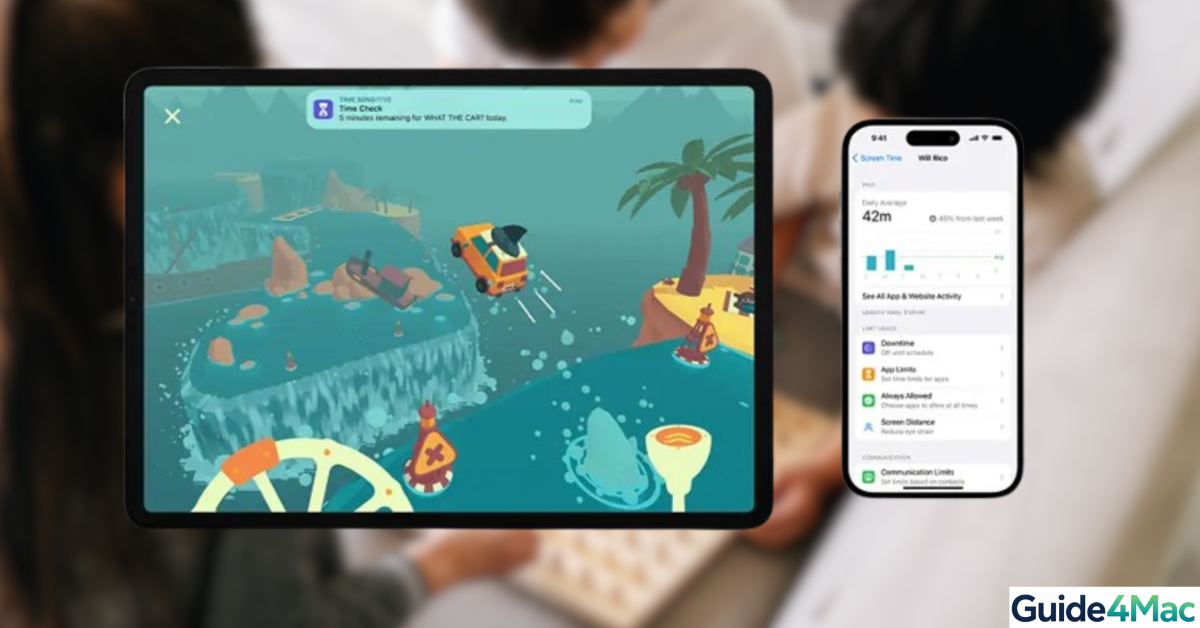
Apple introduced Screen Time with iOS 12 as a proactive response to digital wellness and device addiction. Unlike traditional “lock-and-block” tools, Screen Time was designed as a transparent mirror of our digital habits. For parents, this shift is critical: the goal isn’t just control, but supervision and mentorship. By accessing real-time usage data, parents can move away from surveillance and toward helping children find a healthy balance between the digital and physical worlds.
The Science of Screen Time: Why Supervision Matters
Research shows that many children are exposed to digital media as early as 4 months old. While technology offers educational benefits, the World Health Organization (WHO) and the American Academy of Pediatrics (AAP) emphasize that excessive usage—especially “solo” screen time—can crowd out essential developmental activities like sleep and physical play.
- Long-Term Health Risks: Excessive daily screen use (3+ hours) in children is linked to a higher risk of obesity, cardiovascular issues, and myopia (near-sightedness).
- Developmental Impact: Heavy usage in early childhood is associated with delays in language acquisition and social-emotional skills. In adolescents, high screen use correlates with increased anxiety, depression, and poor sleep quality.
- Physical Strain: “Tech Neck” is a growing concern; prolonged hunched posture can lead to chronic neck and back pain that may impact a child’s health long-term.
For specific age-based guidelines, visit the official WHO recommendations.
5 Solutions to Fix Screen Time Syncing Issues:
1. The “Guardian” Verification
Even if you are part of a Family Sharing group, you cannot supervise a child’s usage without specific authorized access. Apple requires a “Parent/Guardian” flag to be active on your account to protect the child’s privacy while allowing for proper oversight.
- Open Settings and tap on your <Name> at the top.
- Select Family Sharing and find your name under the Family Members list.
- Enable the Parent/Guardian role (NOTE: If you are not the primary Family Organizer, you will need to ask them to tap your name and toggle this switch on for you.)
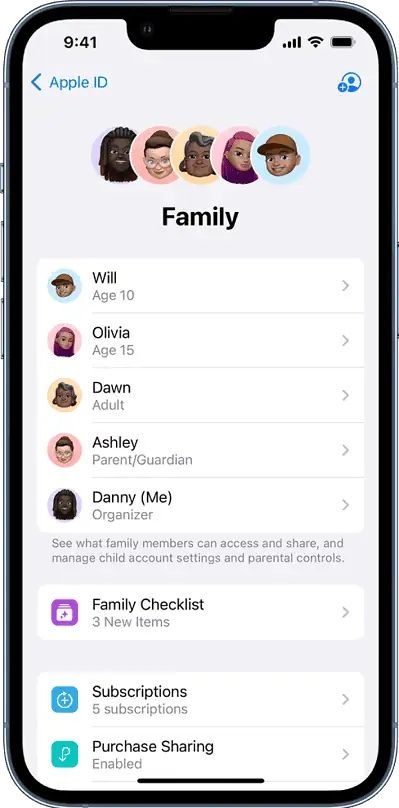
Once this role is active, your Apple ID is granted the “handshake” permissions required to pull Screen Time data from any account labeled with a “Child” role in the group.
2. Standardize iOS Versions
Screen Time for children relies entirely on a functional Family Sharing group. If this was disabled during a recent iOS update or turned off by accident, the data sync will break immediately. Re-enabling it ensures the “Family Organizer” has the necessary permissions to supervise connected devices.
- Open Settings on your iPhone or iPad.
- Tap your Name at the very top to enter your Apple Account settings.
- Select Family Sharing.
- If it isn’t active, select Set Up Your Family and follow the prompts.
Note: As the Family Organizer, you are the primary supervisor. Once set up, you can invite your child’s Apple Account to the group, which restores your ability to view their usage data and manage healthy boundaries.
3. Clear “Ghost” Device Cache
If your child recently upgraded to a new device, Screen Time may still be trying to pull data from their old, inactive hardware.
- Open Settings > Tap your Name.
- Tap Family Sharing > Select your child’s name.
- Review their registered hardware.
- Tap any old or duplicate devices and select Remove from Account.
4. Enable “Share Across Devices”
If this toggle is off on the child’s device, their usage stays local and never reaches your phone.
On the child’s device, go to Settings > Screen Time and toggle Share Across Devices to ON.
5. Manually Resetting Screen Time Sync on 2 devices
If your child’s data is not updating despite correct settings, you likely need to force a refresh of the iCloud sync queue.
Time needed: 5 minutes
Tools Needed:
Parent’s iPhone/iPad
Child’s iPhone/iPad
- Turn Off Screen Time on the Child’s Device
On your child’s device, go to Settings > Screen Time. Scroll to the bottom and tap Turn Off Screen Time. You must enter the Screen Time passcode. This clears the local temporary log cache.
- Restart Both Devices
Perform a hard restart on both your device and your child’s device. This clears any stalled background processes related to iCloud syncing.
- Re-enable Screen Time
Return to Settings > Screen Time on the child’s device. Tap App & Website Activity, then tap Turn On App & Website Activity. Select This is My Child’s iPhone and re-configure your desired limits.
- Lock Settings with a Passcode
Scroll down and tap Lock Screen Time Settings. Enter a 4-digit passcode, then enter it again to confirm. This prevents the child from altering settings.
Viewing Your Child’s Activity Summary
Once Screen Time is active, you can monitor their usage directly from your own device:
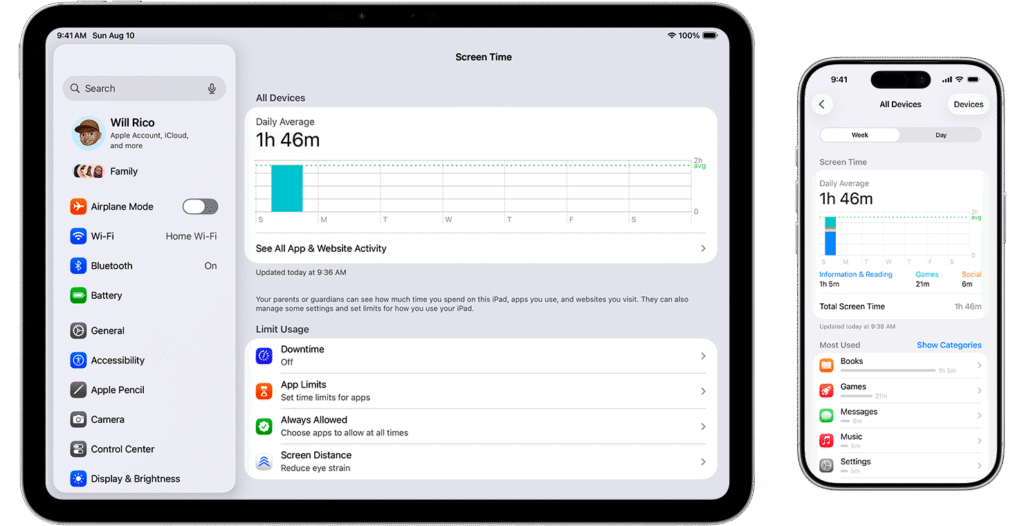
- Open the Settings app on your iPhone or iPad.
- Tap Screen Time.
- Scroll down to the Family section and tap your child’s name.
- Tap See All App & Website Activity to view their daily or weekly reports.
- Pro-Tip: Tap Devices in the top-right corner to see usage for a specific device (e.g., just their iPad).
FAQs?
This is often caused by “phantom” usage from background apps or website tabs that never fully closed. To fix this, ensure all apps are closed before bedtime and check if a specific website is “Always Allowed” in Screen Time settings.
The WHO recommends no screen exposure for children under 2 and no more than 1 hour per day for children aged 2 to 5. For adolescents, the focus should be on ensuring screen use doesn’t replace sleep, physical activity, or direct social interaction.
Children often find “loopholes,” such as changing the device time or using Siri to bypass app blocks. Always ensure all devices are on the latest iOS, as Apple frequently patches these vulnerabilities.
Available on newer devices, Screen Distance uses the TrueDepth camera to alert your child if they are holding their device too close to their face, helping reduce the risk of myopia and eye strain.



0 Comments