How to Book and Use the Genius Bar at Apple Stores
If you need technical support for an Apple device, knowing how to book and use the Apple Genius Bar can save you time and help resolve hardware or software problems quickly. The Genius Bar is Apple’s in-store technical support service, available at most Apple Store locations and other Apple retail stores worldwide.
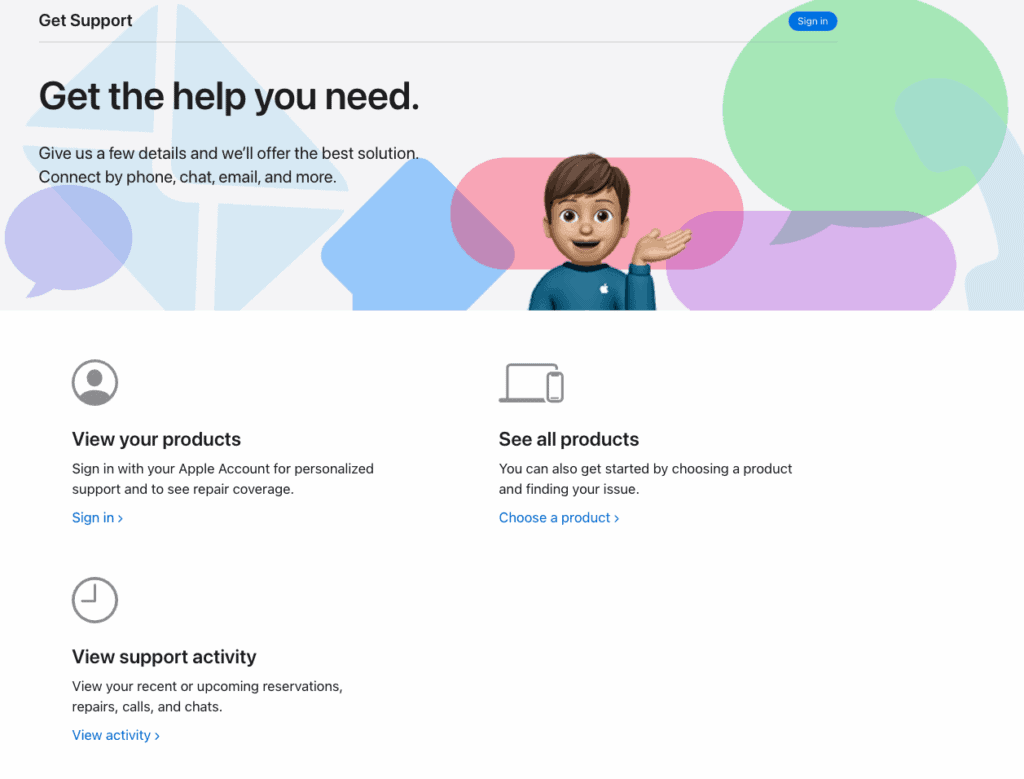
Appointments allow Apple technicians to diagnose issues with devices such as iPhone, iPad, Mac, Apple Watch, or AirPods. Instead of waiting in line, you can reserve a support slot through Apple’s website or the Apple Support app. If you want to verify whether your device is still covered before visiting, it can also help to check Apple warranty and AppleCare coverage first.
This guide explains how to book a Genius Bar appointment and what to expect during your visit.
What Is the Apple Genius Bar and How Does It Work?
The Genius Bar is Apple’s dedicated in-store technical support counter. It is staffed by trained Apple technicians who diagnose hardware issues, perform troubleshooting, and help customers with device setup or repairs.
You typically need an appointment because demand for support can be high, especially for popular devices like the iPhone, MacBook Pro, or Apple Watch.
During an appointment, technicians may:
- Diagnose software or hardware problems
- Run Apple diagnostic tools
- Provide repair or replacement options
- Recommend AppleCare service coverage
Appointments usually last between 15 and 30 minutes, depending on the issue.
Book a Genius Bar Appointment Using the Apple Support App
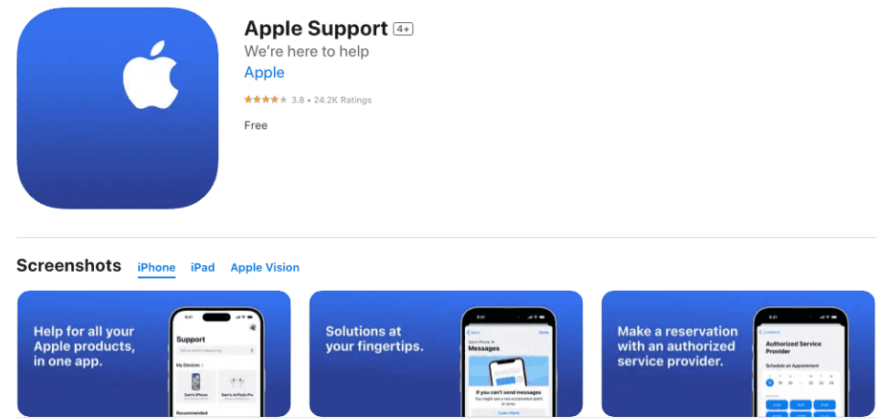
The easiest way to schedule a Genius Bar appointment is through the Apple Support mobile app.
Time needed: 3 minutes
What you need:
• iPhone or iPad
• Apple ID
• Apple Support app installed
Follow these steps:
- Open the Apple Support app
Install and launch the Apple Support app on your iPhone or iPad.

- Sign in with your Apple ID
Enter your Apple ID credentials to access your registered Apple devices.
- Select your Apple device
Choose the device that needs assistance from the list connected to your Apple ID.
- Choose the issue category
Select the problem category that best matches the issue you are experiencing.
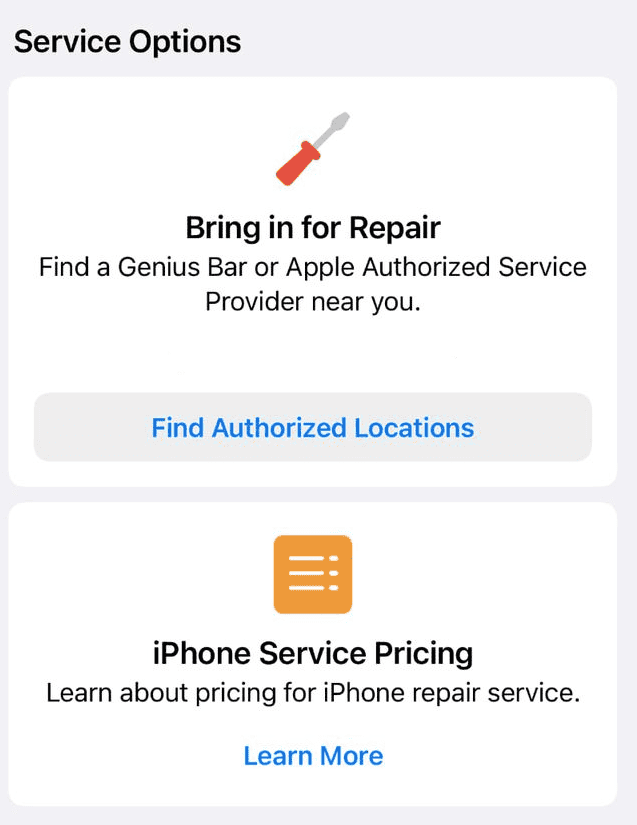
- Tap Bring in for Repair
Choose Bring in for Repair or Find Locations to view Apple Store support options.
- Select the nearest Apple Store
Pick the closest Apple Store location offering Genius Bar appointments.
- Choose an appointment time
Select the time slot that works best for your schedule.
- Confirm the booking
After confirming, you will receive a notification with your appointment details.
Once scheduled, the appointment confirmation will appear in your Apple account.
Check In When You Arrive at the Apple Store
When you arrive for your appointment, you will need to check in with a store employee.
- Enter the Apple Store.
- Inform a staff member that you have a Genius Bar appointment.
- Provide your name or appointment confirmation.
- Wait until your technician calls you.
Apple stores often have waiting areas where customers can sit until their support session begins.
What Happens During a Genius Bar Appointment
Once your appointment starts, the technician will examine your device and ask questions about the issue.
Typical steps include:
- Describe the problem you are experiencing.
- Allow the technician to run diagnostic tests.
- Follow recommended troubleshooting steps.
- Review repair or replacement options.
For hardware issues, the technician may offer repair services or recommend sending the device to an Apple repair center.
If the device is still covered under warranty or AppleCare, the repair may be free.
Prepare Your Device Before the Appointment
Preparing your device before visiting the Genius Bar can help speed up the troubleshooting process.
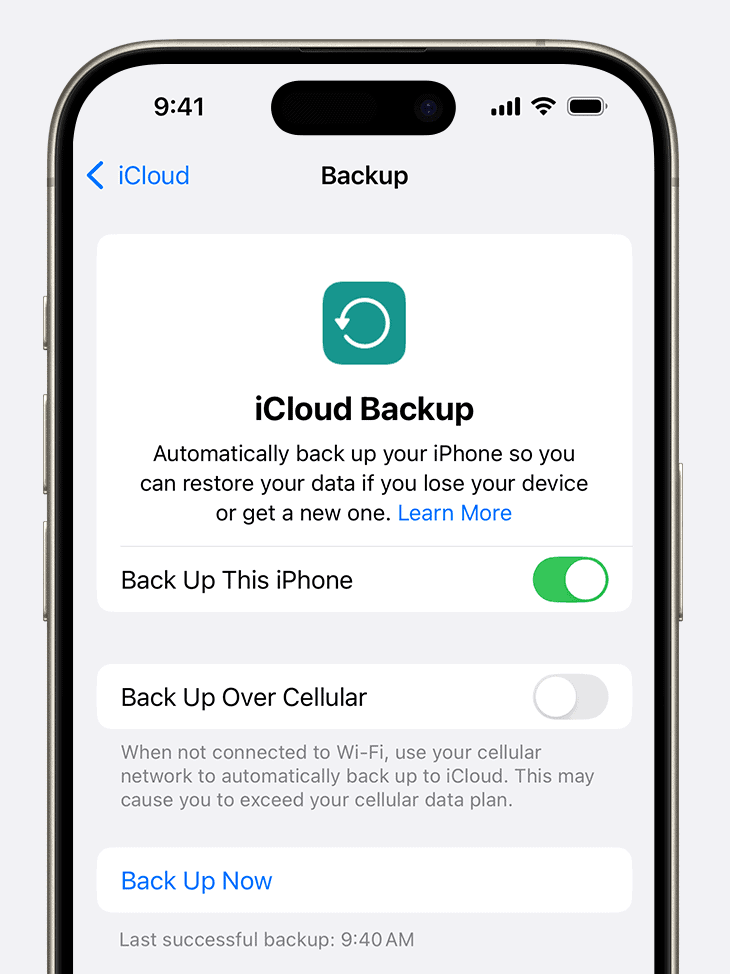
- Back up your device using iCloud or a computer.
- Bring your Apple ID login information.
- Charge the device if the battery is low.
- Remove any case or accessories if requested.
- Bring proof of purchase if needed.
Backing up your device is important because some repairs may require data resets. If you have not done this before, learning how to back up your iPhone properly can prevent accidental data loss.
Can You Visit the Genius Bar Without an Appointment?
Yes, but it is not always recommended.
Many Apple Stores accept walk-in support requests, but available time slots depend on technician availability. During busy hours, customers without appointments may need to wait much longer.
Booking in advance ensures you receive help at a specific time.
Tips
- Book your appointment several days in advance when possible.
- Arrive 10 minutes early to check in.
- Bring your Apple ID credentials if troubleshooting account issues.
- Back up your device before visiting the store.
- Write down the problem details so you can explain them clearly.
Getting the Most From Your Apple Store Visit
The Apple Genius Bar remains one of the most convenient ways to receive expert support for Apple devices. By booking an appointment ahead of time, you can avoid long waits and ensure a technician is available to diagnose your issue.
Whether you need help fixing a hardware problem, troubleshooting software, or understanding device features, a Genius Bar appointment connects you directly with Apple specialists who can provide reliable solutions.
Key Takeaways
The Apple Genius Bar is Apple’s in-store support service that helps diagnose and repair device problems. You can book an appointment through the Apple Support app or the Apple Support website. During the visit, technicians run diagnostic tests, troubleshoot issues, and recommend repair options. Preparing your device and backing up data beforehand helps make the appointment smoother.
FAQs?
Appointments themselves are free, but repairs may cost money if the device is not covered by warranty or AppleCare.
Most appointments last between 15 and 30 minutes, depending on the problem.
Yes. You can modify or cancel your appointment through the Apple Support app or Apple’s website.
Usually no, but it can help if there are warranty verification issues.
Some repairs can be completed the same day, while others require sending the device to an Apple repair center.

0 Comments