How To Check Apple Warranty And Coverage For All Your Devices
Knowing how to check your Apple warranty and coverage helps you find out if your device is eligible for repairs, technical support, or AppleCare benefits. Whether you own an iPhone, MacBook, iPad, or Apple Watch, Apple provides several official tools that show your service eligibility very easy for every user.
Below, we will show you how to check your Apple service and support coverage using your device serial number, your Apple ID account, or directly from your device settings. You will also see what coverage details Apple provides and how to verify your warranty before requesting repairs.
If you are unsure how to locate your device serial number first, you can also follow this guide on how to find your Apple serial number which explains all available methods.
How to check Apple Support coverage and warranty easy?
1. Check Apple Coverage Using Serial Number
The fastest way to check Apple warranty status is through Apple’s official coverage checker using your device serial number. This works for most Apple devices including iPhone, Mac, iPad, Apple Watch, and AirPods.
Apple’s coverage page instantly displays warranty status, service eligibility, and AppleCare information once you enter the serial number. Basicly, everything you need to know about your device.
Time needed: 2 minutes
Here is how to check coverage using the serial number, step-by-step:
- Open the Apple coverage checker website.
- Enter your device serial number.
- Complete the CAPTCHA verification.
- Click Continue.
- Review the warranty and support information displayed.
The page will show the coverage status and the expiration date for hardware support.
2. Check Coverage Using Your Apple ID
If your devices are linked to your Apple account, you can check coverage for all devices at once by signing in to the Apple Support portal.
This method is helpful when you own multiple Apple products such as an iPhone, Mac, or iPad connected to the same Apple ID.
Steps to check coverage with your Apple account:
- Open the Apple Support website.
- Sign in using your Apple ID.
- Open the My Devices section.
- Select a device from the list.
- View the service and warranty information.
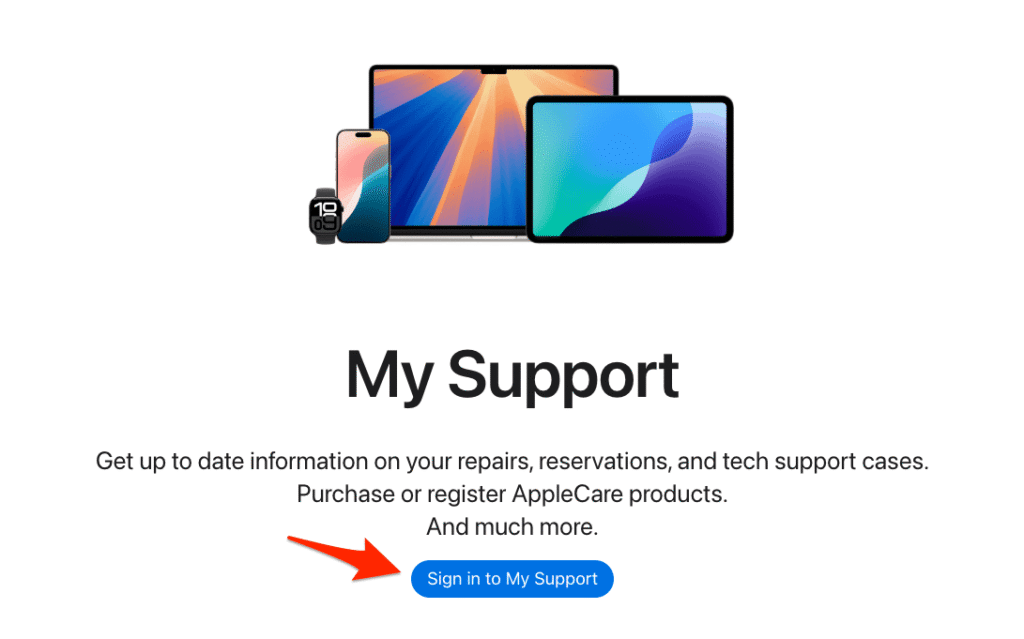
The page will show all devices registered to your account along with their warranty and repair eligibility.
3. Check AppleCare Status From Your Device
Apple also allows you to view warranty information directly from your device settings. This option is available on modern versions of iOS and macOS.
Checking coverage locally is often the easiest method because the device automatically retrieves warranty data from Apple’s servers.
Steps to check AppleCare from iPhone or iPad:
- Open Settings.
- Tap General.
- Tap About.
- Select AppleCare & Warranty.
- Review the coverage information.
Steps to check coverage on Mac:
- Click the Apple menu.
- Select System Settings.
- Click General.
- Open AppleCare & Warranty.
- View the coverage details.
This method works on both Apple Silicon Macs such as the MacBook Air and Intel based Macs.
Why Is Your Apple Device Coverage Important?
Every Apple device includes a limited warranty and access to Apple support services. Checking your coverage lets you confirm whether your device still qualifies for hardware repairs, battery replacements, or AppleCare+ benefits.
Most Apple devices such as the iPhone, MacBook Pro, iPad, and Apple Watch include a one year limited hardware warranty and 90 days of complimentary technical support. If you purchased AppleCare+, coverage may extend for multiple years and include accidental damage protection.
Checking coverage can also help when:
- Buying a second hand Apple device
- Preparing for a repair appointment
- Confirming AppleCare activation
- Verifying battery replacement eligibility
What Information Apple Coverage Shows
When you check Apple service and support coverage, the page displays several important details about your device.
Typical information includes:
- Warranty status
- AppleCare+ protection
- Coverage expiration date
- Technical support eligibility
- Repair and service options
Apple also shows whether your device qualifies for hardware repairs or battery replacement services.
For example, Apple may replace a battery under warranty if its capacity falls below 80 percent during the coverage period.
How To Find Your Apple Device Serial Number
If you cannot check coverage because you do not know the serial number, you can find it directly on your device.
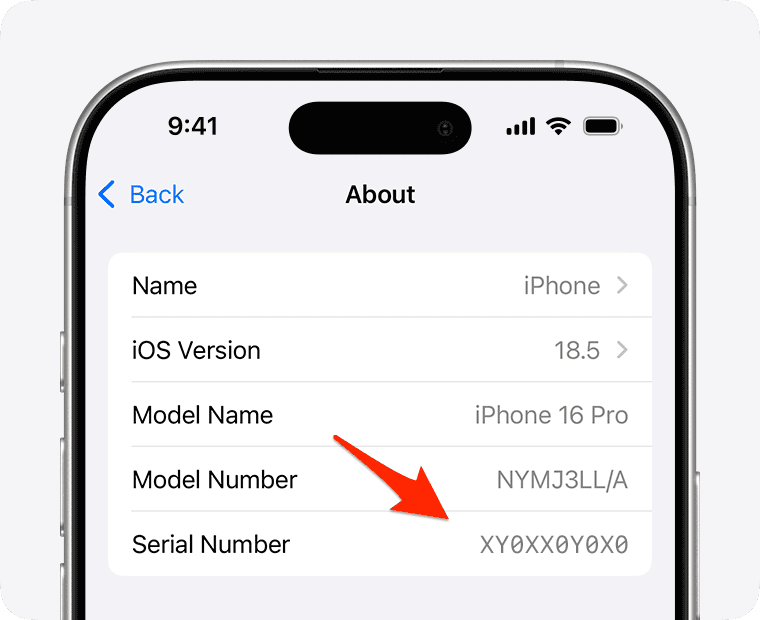
Steps to find the serial number on iPhone or iPad:
- Open Settings.
- Tap General.
- Select About.
- Locate the Serial Number field.
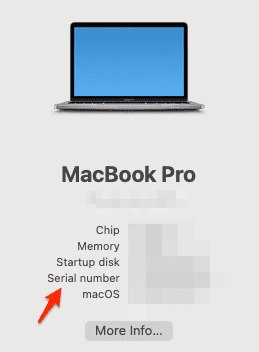
Steps to find serial number on Mac:
- Click the Apple menu.
- Select About This Mac.
- Locate the serial number in the window.
Serial numbers are also printed on original packaging and purchase receipts.
If you lost access to the device, you can still find it through your Apple account device list.
You can also read this guide explaining how to identify which iPhone model you own if you are unsure about your device details.
What To Do If Coverage Information Is Missing
Sometimes Apple’s coverage checker may not display warranty details correctly. This usually happens if the purchase date was not validated or if the device was recently activated.
To fix this issue:
- Open Apple Support.
- Sign in with your Apple ID.
- Locate your device.
- Submit proof of purchase if required.
Apple can update the purchase date manually after reviewing the receipt.
If your device is still under warranty but the system shows expired coverage, contacting Apple Support can resolve the issue quickly.
You can also schedule a repair appointment using this guide on how to book an Apple Genius Bar appointment.
Tips
• Always use Apple’s official coverage checker instead of third party websites.
• Save your device serial number in a secure place in case the device becomes inaccessible.
• Check warranty status before buying a used Apple device.
• Verify AppleCare activation shortly after purchasing a new device.
• Keep your purchase receipt for warranty verification.
Check Coverage Before You Need Repairs
Checking Apple service and support coverage only takes a minute but can save a lot of time when your device needs repairs. Using the serial number checker or signing into your Apple account instantly reveals whether your device qualifies for support.
Once you confirm coverage, you can schedule service, contact Apple Support, or visit an Apple Store for repairs with confidence.
Key Takeaways
Apple provides several official tools that allow you to check warranty and AppleCare coverage for any Apple device. You can verify coverage using your serial number, Apple ID account, or directly through device settings.
These tools show warranty status, repair eligibility, and expiration dates so you know exactly what support is available. This guide helps Apple users quickly confirm their coverage before requesting repairs or technical assistance.
FAQs:
Visit Apple’s coverage checker and enter your device serial number. The page will display warranty status, expiration date, and service eligibility.
Yes. If the device is linked to your Apple ID, you can sign in to Apple Support and view coverage for all registered devices.
Most Apple devices include a one year limited warranty and 90 days of technical support.
Yes. AppleCare+ extends coverage and includes additional services such as accidental damage protection and priority support.
Yes. Signing into your Apple Support account allows you to see coverage information for every device connected to your Apple ID.

0 Comments