How to Check Apple Warranty Status on Any Apple Device?
Knowing how to perform an Apple warranty check helps you confirm whether your device is still covered by Apple’s limited warranty or AppleCare plan, or not. This is important when troubleshooting hardware problems on devices like iPhone, iPad, MacBook, or Apple Watch.
Apple provides several official ways to check warranty coverage using your device serial number or Apple ID. In this guide, you will learn the easiest methods to verify Apple warranty status directly from your device or through Apple’s support tools. If you are already troubleshooting Apple services, it may also help to review common account-related steps, such as signing in properly.
How Can You Check Apple Warranty Coverage?
The most reliable method to check your Apple warranty coverage is to use the serial number of the product and Apple’s official coverage lookup tool. Apple also offers a few simple ways to verify the warranty status of any Apple device, and we will present them below.
You can also check warranty details directly on the device itself through system settings. This works on iPhone, iPad, Mac, Apple Watch, and other Apple products connected to your Apple ID.
1. Check Apple Warranty Using the Coverage Website
Time needed: 3 minutes
The fastest way to check your Apple warranty is through Apple’s official coverage verification page:
- Find your device serial number
Open the device settings and locate the serial number of your Apple product.
- Open the Apple coverage check page
Visit Apple’s official warranty coverage lookup website.
- Enter the serial number
Type your device serial number into the search field.
- Complete the security code
Enter the CAPTCHA verification code displayed on the screen.

- Click Continue
View your device warranty status, AppleCare eligibility, and support coverage.
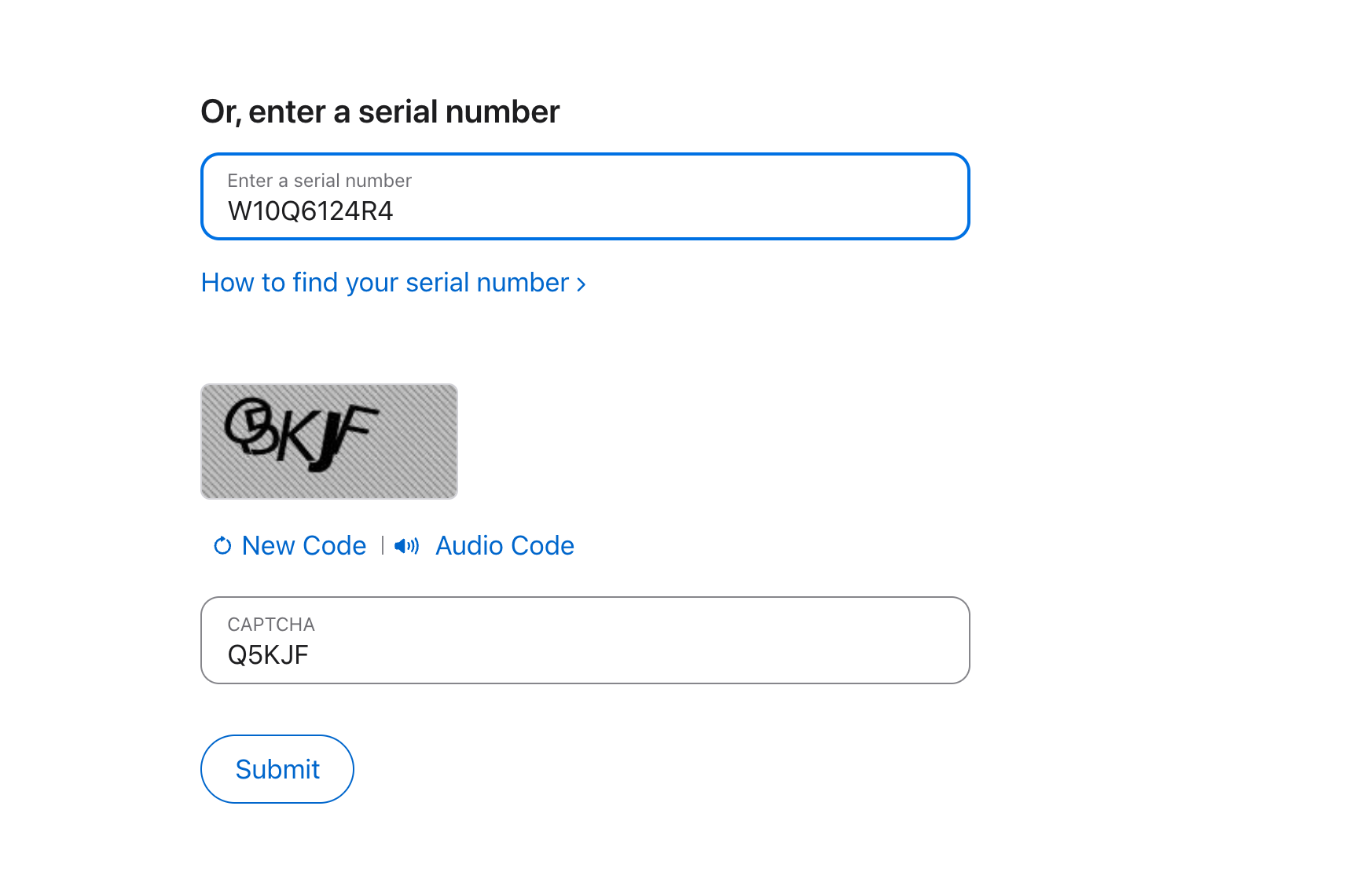
This method works for iPhone, iPad, MacBook Air, MacBook Pro, iMac, Apple Watch, AirPods, and other Apple hardware.
2. Check Apple Warranty on iPhone or iPad
You can also check your warranty directly from your iPhone or iPad settings.
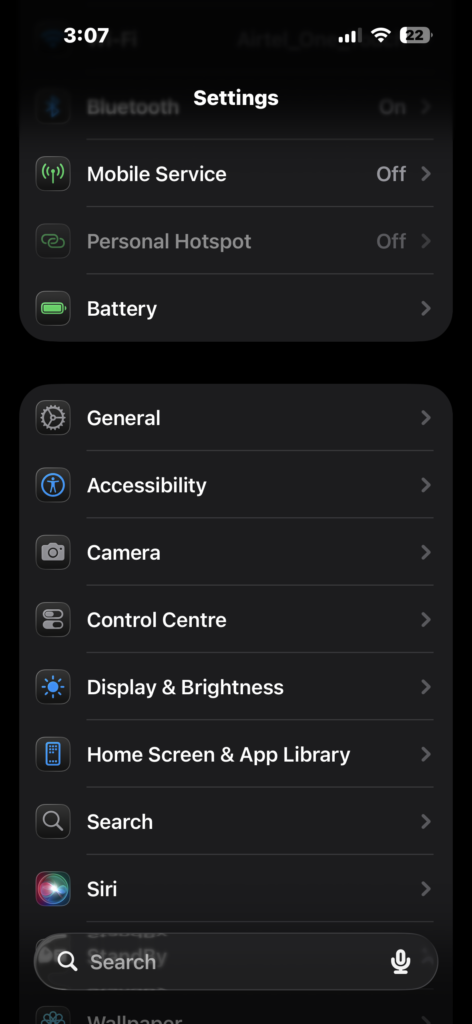
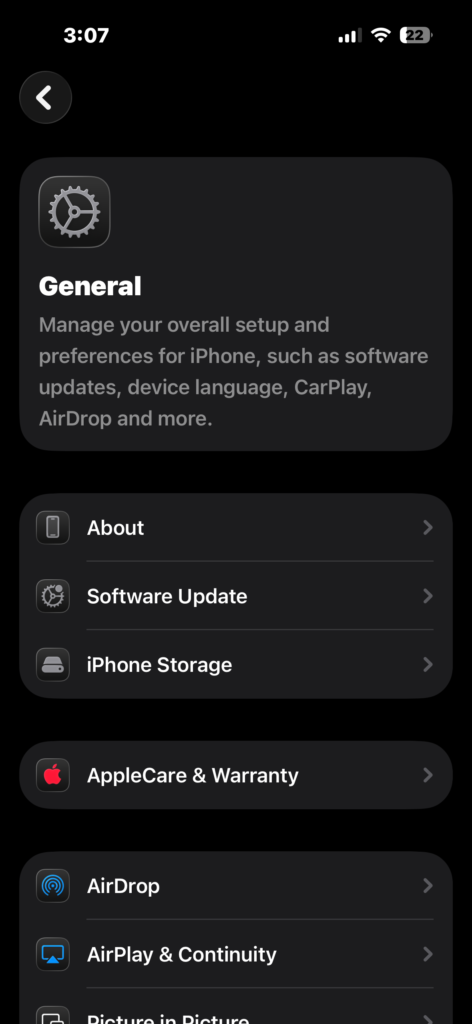
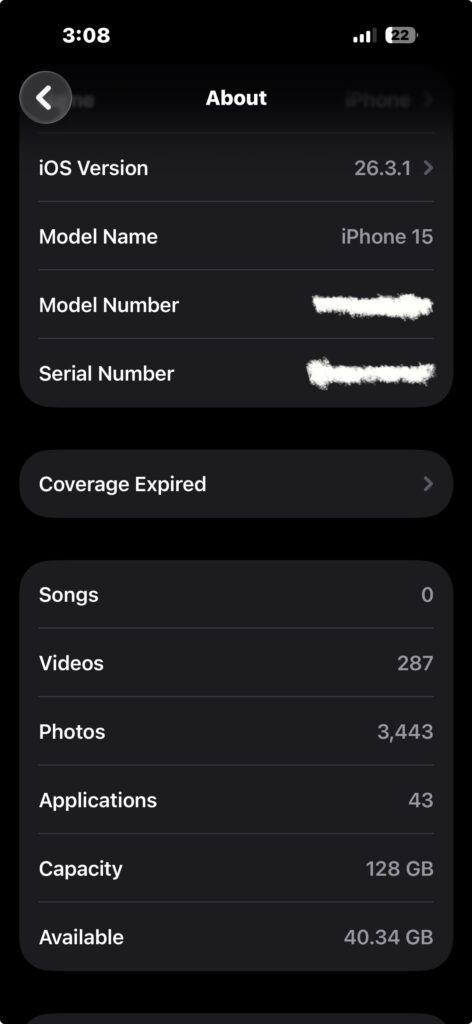
- Open the Settings app.
- Tap General.
- Tap About.
- Scroll down to Coverage.
- View the warranty or AppleCare information.
If your device is covered, you will see the expiration date for Apple’s limited warranty or the AppleCare plan.
If you are diagnosing other iPhone issues, it may also help to review troubleshooting steps like those explained in this guide on fixing iPhone calls going straight to voicemail.
3. Check Apple Warranty on Mac
Mac users can check warranty coverage directly through macOS.
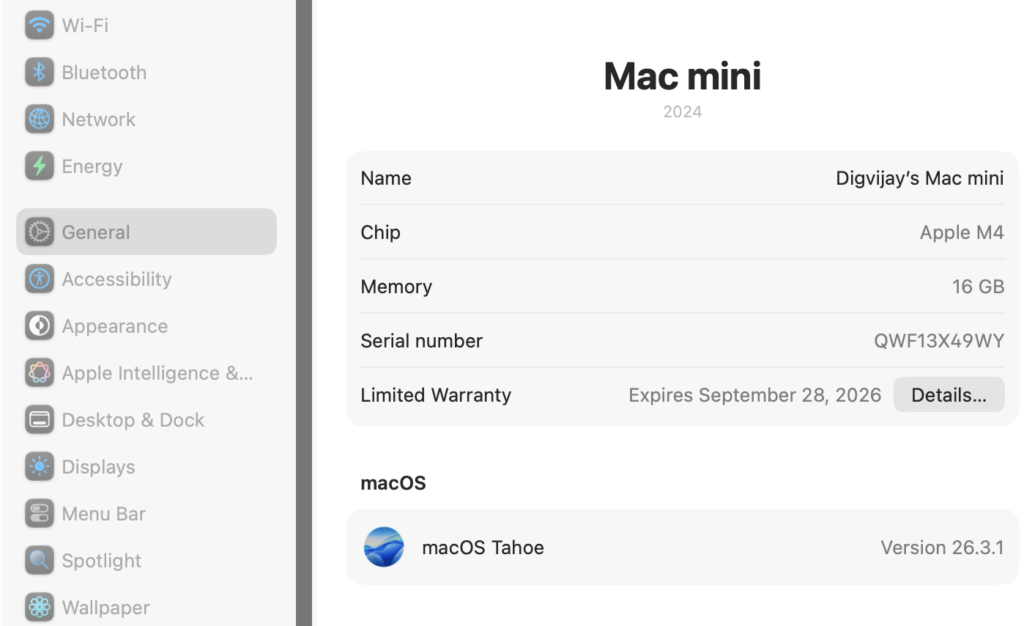
- Click the Apple menu in the top left corner.
- Select About This Mac.
- Click More Info.
Your Mac will open Apple’s support page showing warranty coverage and AppleCare eligibility.
If you are already troubleshooting Mac-related problems, you might also want to review how to fix security warnings, as explained in this guide on fixing macOS cannot verify that an app is free from malware.
4. Check Warranty Through Apple Support App
The Apple Support app provides another simple way to view warranty coverage for devices connected to your Apple ID.
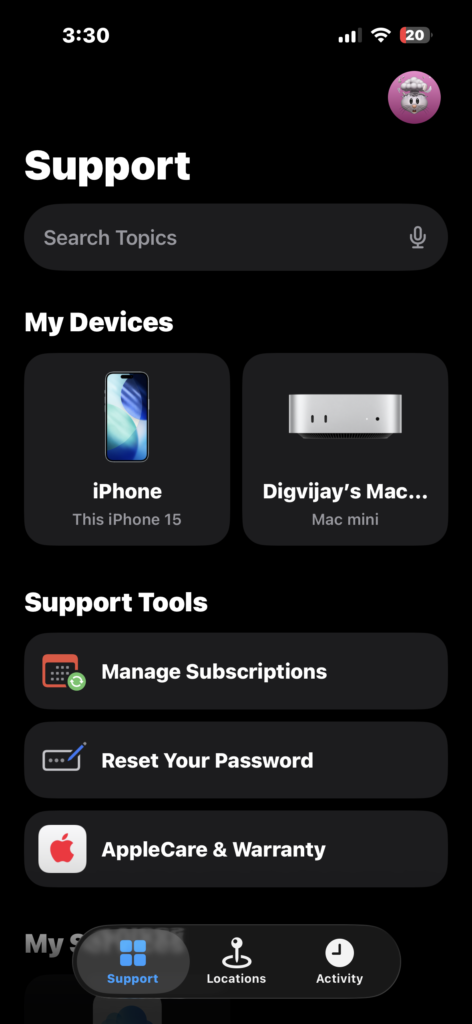
- Install the Apple Support app from the App Store.
- Open the app.
- Sign in with your Apple ID.
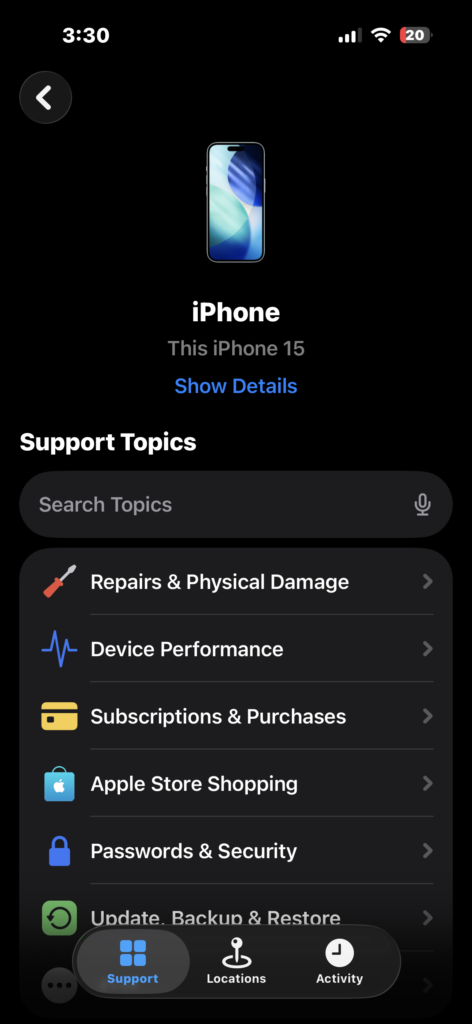
- Select your device from the list.
- Tap Show Details.
This method works well if you manage multiple Apple devices, such as an iPhone, iPad, Mac, or Apple Watch.
If you are planning to buy a used Apple device, it is also helpful to understand device reset procedures, like those explained in this guide on resetting an iPad properly.
Tips
- Always check the warranty status before repairing a device.
- Save your device serial number in a safe location.
- Use Apple Support if your warranty is still active.
- Consider AppleCare if your device is still eligible.
- Verify warranty coverage before buying used Apple products.
Know Your Apple Device Coverage
Checking Apple warranty coverage only takes a few minutes and can save you time and repair costs. Apple provides several simple methods using device settings, serial numbers, and the Apple Support app.
If your device is still covered by Apple’s limited warranty or AppleCare, you may be eligible for free repairs or replacements through Apple Support or an authorized service provider.
Key Takeaways
Apple warranty coverage can be checked using your device serial number, system settings, or the Apple Support app. The official Apple coverage website provides the fastest method for verifying warranty status. Knowing your warranty expiration date helps determine whether your device qualifies for repairs or AppleCare support.
FAQs?
Apple provides a one-year limited warranty for most devices, covering manufacturing defects and hardware failures.
Yes. You can use the device serial number on Apple’s coverage check website.
Yes. AppleCare and AppleCare+ extend warranty coverage and may include accidental damage protection.
You can find it in Settings, in the About section, or printed on the device hardware.
Yes. Apple’s coverage check tool supports all Apple hardware, including AirPods, Apple Watch, iPhone, iPad, and Mac.

0 Comments