How to Install Delta Emulator on iPhone Without a Computer

Over 2 million iPhone users have downloaded retro gaming emulators in the last year alone, showing a growing appetite for classic Nintendo games on mobile devices. Whether it’s reliving childhood favorites like Super Mario or exploring Game Boy classics, the Delta emulator lets you do it all—directly on your iPhone—without ever touching a computer.
In this guide, you’ll discover the easiest ways to install Delta on iPhone or iPad, common issues users face, practical fixes, and tips for smooth gameplay.
How to Install Delta Emulator on iPhone Without a Computer
Total Time: 5–10 minutes
The simplest and safest method is to download Delta directly from the App Store (if available in your region). This avoids profiles, certificates, or revocation issues.
- Open the App Store
Launch the App Store on your iPhone or iPad and tap the search icon at the bottom.
- Search for Delta Emulator
Type “Delta Emulator” in the search bar and locate the official app.
- Download and Install
Tap “Get” and install it like any other iOS app.

- Open Delta
Once installed, open the app from your Home Screen.
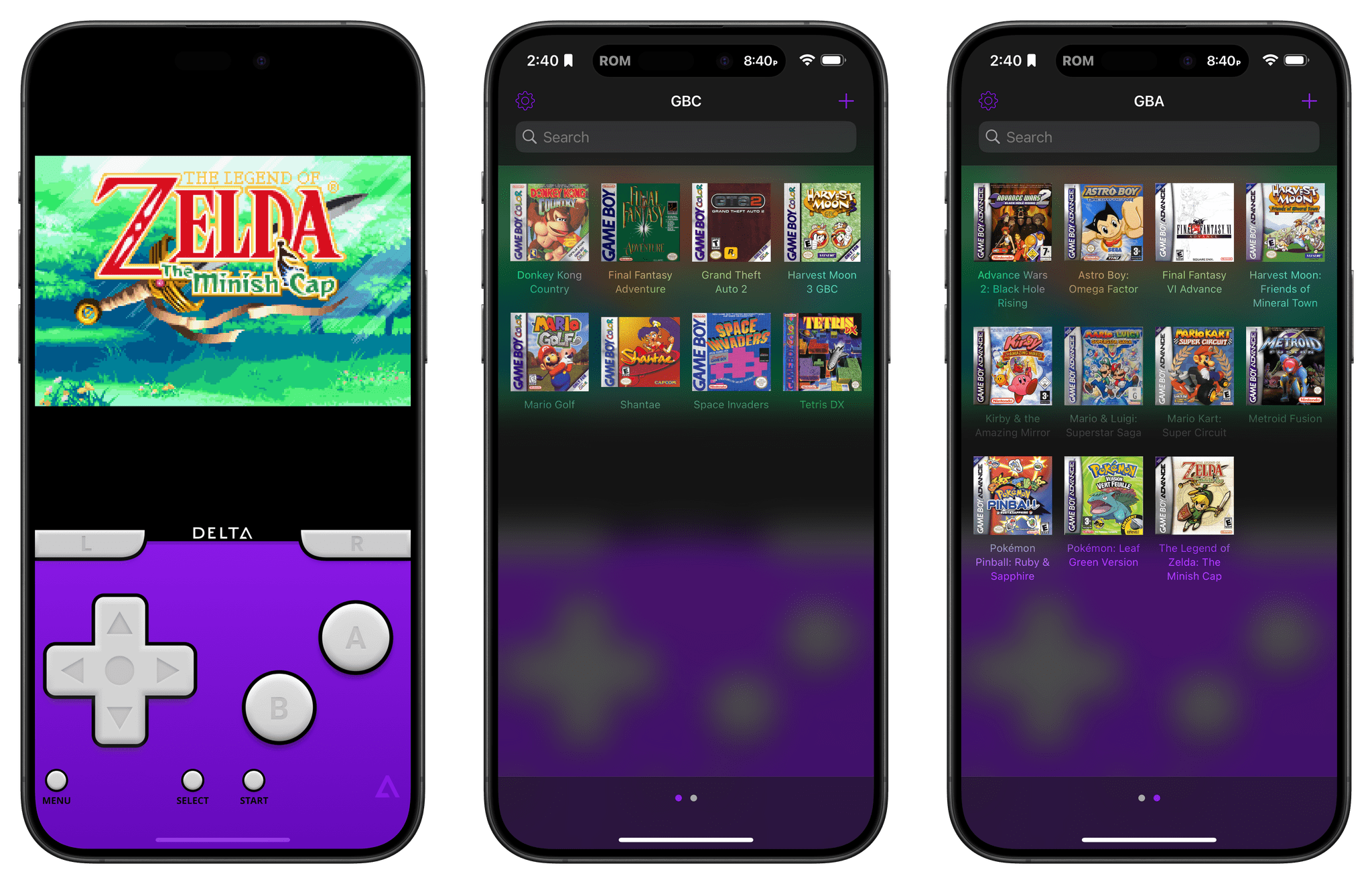
- Import Your Games
Use the “+” button inside Delta to import your own legally owned game ROMs.
Alternative Methods (If App Store Isn’t Available)
If Delta isn’t available in your country, you can still install it directly on your iPhone using these methods.
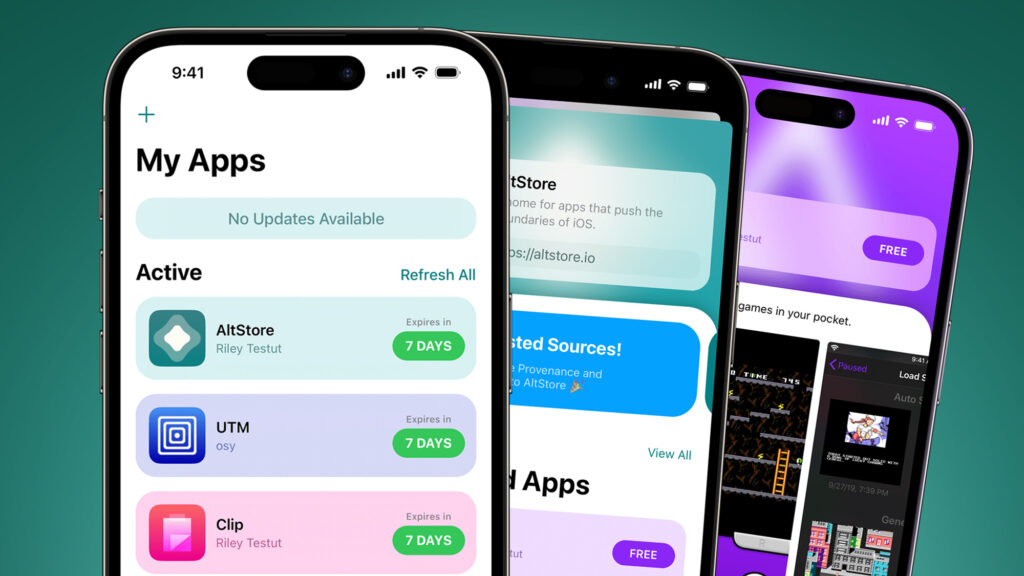
1. Use AltStore (No Computer After Setup)
AltStore allows you to install Delta using your Apple ID. Once installed, the process is fully iPhone-based. Ensure your Apple account is correctly signed in to avoid issues: sign into your Apple account easily.
2. Use Third-Party App Stores
Platforms like Scarlet, Panda Helper, or AppDB let you install Delta using enterprise certificates. These may occasionally be revoked, causing the app to stop working.
3. Use Online IPA Signing Services
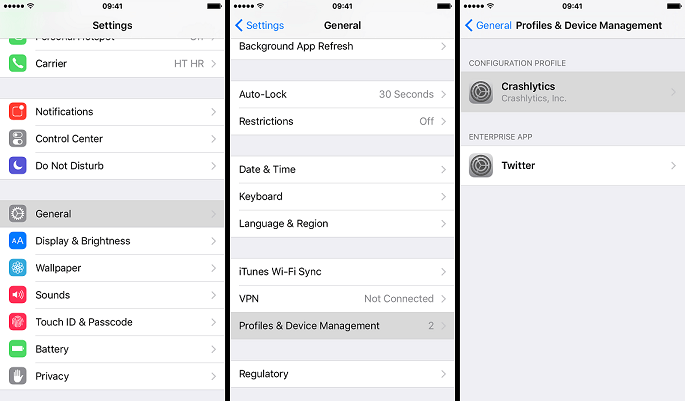
Websites like Signulous allow you to sign the Delta IPA file directly from Safari. You’ll need to trust the resulting profile in Settings → General → VPN & Device Management.
Common Problems You Might Run Into
Many users encounter these issues when installing Delta without a computer:
- App won’t open after installation
- “Untrusted Developer” message appears
- App crashes immediately
- Installation fails midway
- Delta disappears after a few days
Before diving into fixes, note that syncing issues with your Apple ID or email can sometimes interfere. Learn how to change your email password on iPhone to prevent authentication errors.
Fixes and Troubleshooting
Here’s how to resolve common issues quickly:
- Go to Settings → General → VPN & Device Management and trust the developer profile
- Reinstall the app if it crashes on launch
- Use the App Store version for better stability
- Switch to AltStore if third-party installs keep getting revoked
- Ensure your Apple ID is properly signed in
Helpful Tips for a Smooth Experience
To maximize Delta’s performance and avoid interruptions:
- Prefer the App Store version whenever possible
- Only install from trusted sources
- Keep your iOS updated
- Use a stable internet connection during installation
- Regularly back up your ROMs and save files
FAQs?
Yes, Delta itself is legal. You must only use legally obtained game ROMs that you own.
Non-App Store installations can get revoked by Apple, causing the app to stop functioning.
Most methods require an Apple ID, especially AltStore and online signing services.
Yes, Delta works smoothly on iPad, offering a larger screen experience.
Yes, and here’s guidance on how to login to Gmail on iPhone easily.
No necessary, all methods covered in this guide allow installation directly from your iPhone.
0 Comments