How to Fix Apple Mail Not Syncing with Yahoo Mail
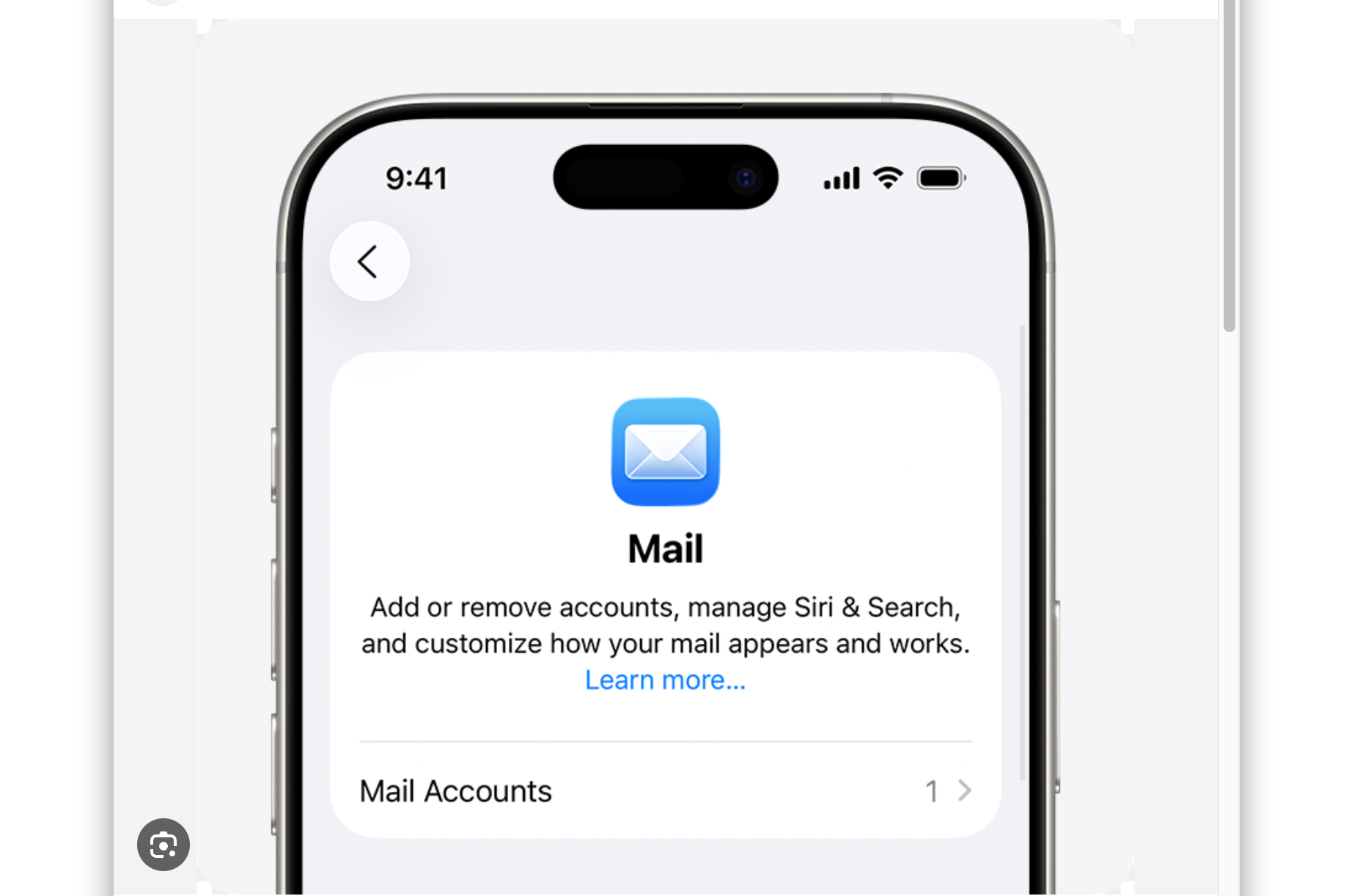
With Yahoo still serving over 225 million active users, you may be one of those opening Apple Mail and realizing your Yahoo emails just aren’t showing up. Maybe new messages aren’t loading, or your inbox feels stuck in the past. In most cases, this isn’t a serious issue, it’s usually caused by a small setting, a sync delay, or a login problem that’s easy to fix once you know where to look.
This guide walks you through the exact steps to fix Apple Mail not syncing with Yahoo Mail on iPhone, iPad, and Mac, using simple solutions that actually work.
How to Fix Apple Mail Not Syncing with Yahoo Mail?
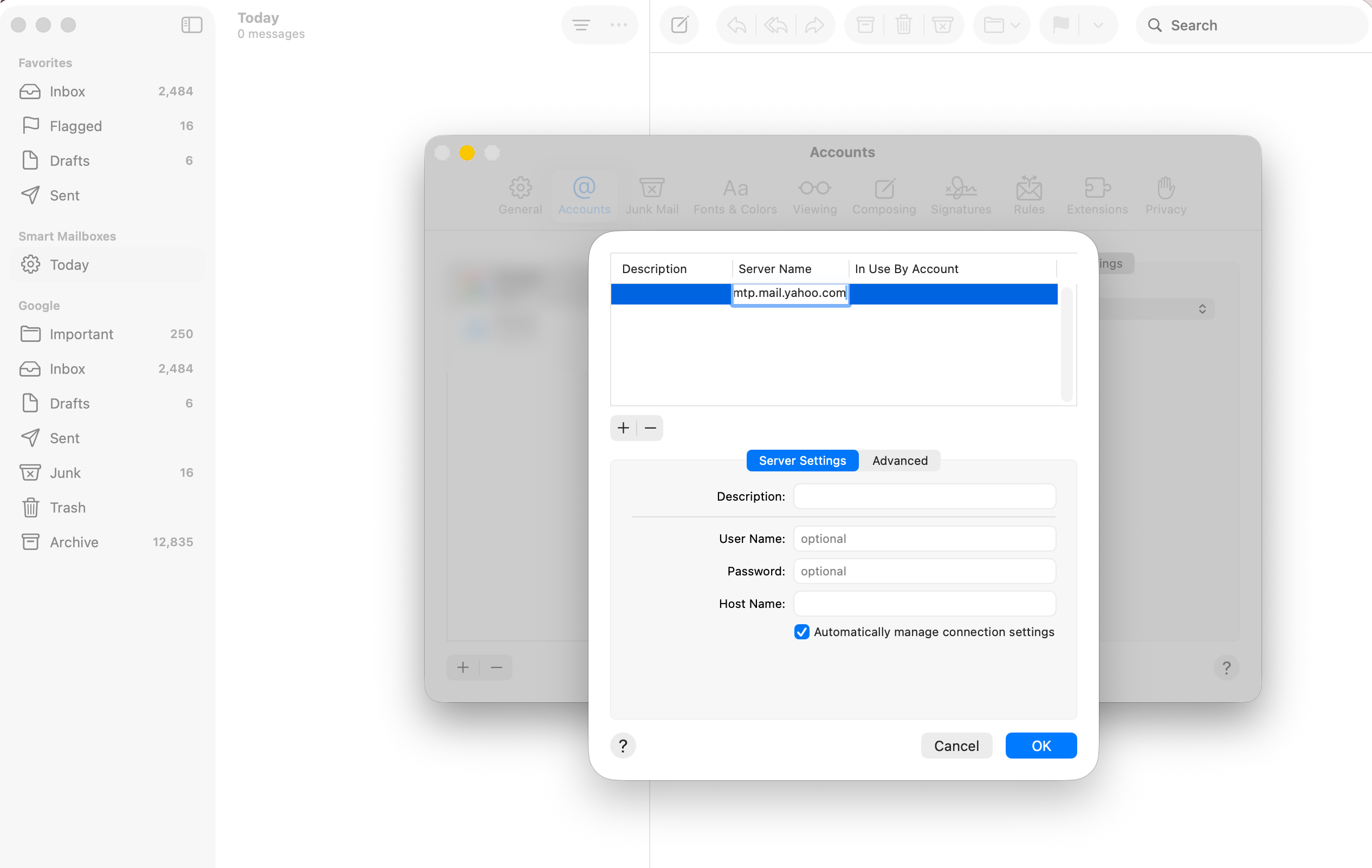
1. Check and Correct Yahoo Mail Server Settings
Time needed: 5 minutes
Apple Mail needs the correct Yahoo IMAP and SMTP server settings to sync emails. If these are incorrect or outdated, your Yahoo Mail won’t update properly.
- Open Mail Account Settings
On iPhone or iPad, go to Settings → Mail → Accounts → Yahoo. On Mac, open Mail → Settings → Accounts and select your Yahoo account.
- Verify Incoming Mail Server
Make sure the incoming server is set to imap.mail.yahoo.com, using port 993 with SSL enabled.
- Verify Outgoing Mail Server
Check that the SMTP server is smtp.mail.yahoo.com, using port 465 or 587 with SSL enabled.

- Save and Refresh Mail
Save the settings and open Apple Mail to see if emails begin syncing again.
2. Make Sure Mail Sync Is Enabled
Before changing anything complex, it’s worth confirming that Yahoo Mail is actually allowed to sync with Apple Mail. This setting can sometimes be turned off after updates or account changes.
3. Adjust Fetch and Background Refresh Settings
If your emails are delayed or not updating, the issue may come from how often Apple Mail checks for new messages. Adjusting fetch settings usually fixes slow syncing.
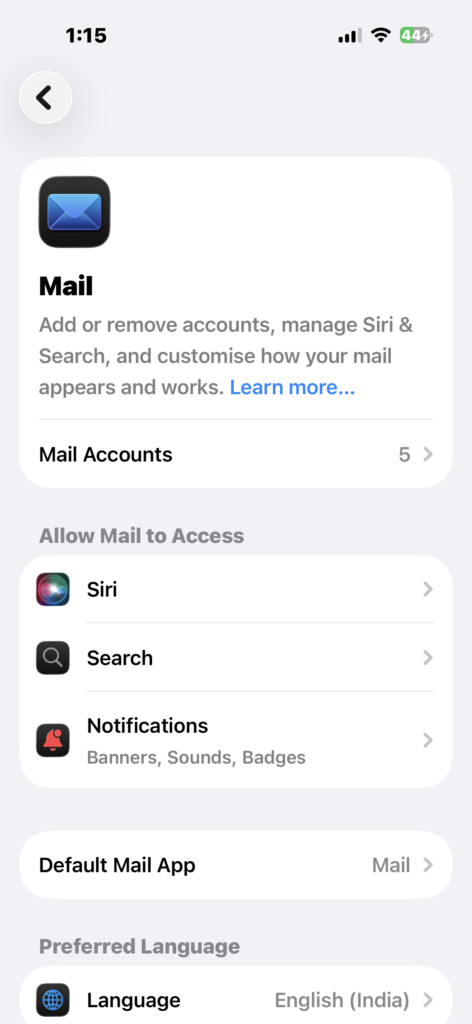
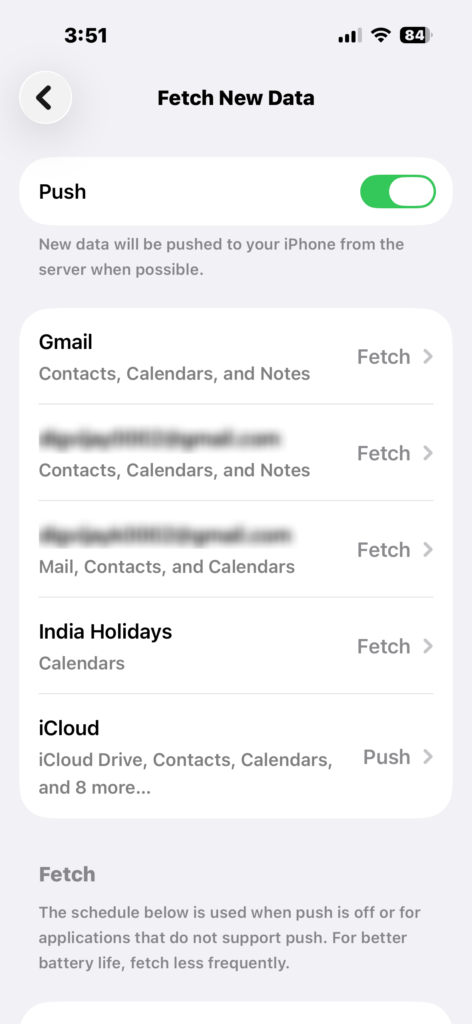
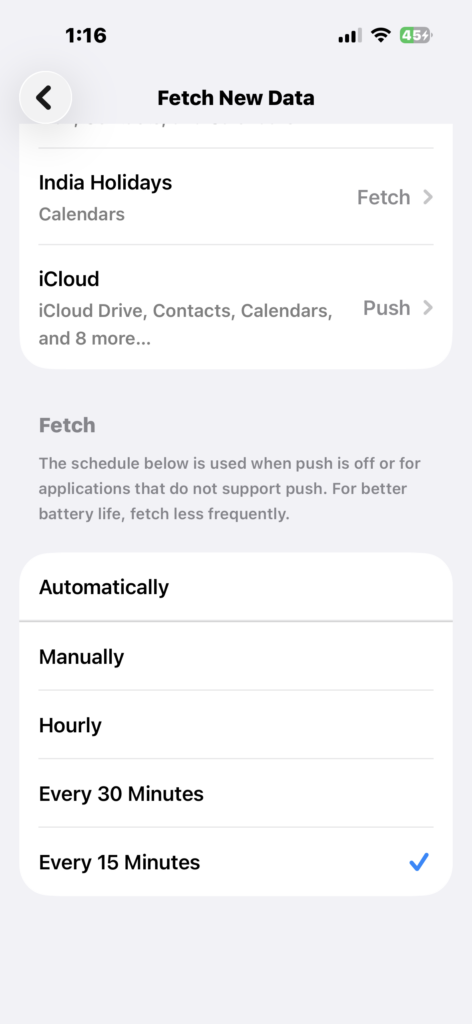
- On iPhone/iPad: Settings → Mail → Accounts → Fetch New Data
- Turn Fetch ON and select every 15 or 30 minutes
- Enable Background App Refresh
- On Mac: Mail → Settings → General → set Check for new messages to Automatically
4. Restart Your Device and Mail App
Sometimes, Apple Mail just needs a quick reset to restore normal syncing. This is one of the simplest but most effective fixes.
- Force close Apple Mail
- Reopen the app
- Restart your iPhone, iPad, or Mac
5. Remove and Re-Add Yahoo Account
If syncing still doesn’t work, resetting the connection between Yahoo and Apple Mail can solve authentication and configuration problems.
- On iPhone/iPad → Settings → Mail → Accounts → Yahoo → Delete Account
- Restart your device.
- Add the account again → Settings → Mail → Add Account → Yahoo.
- On Mac → Mail → Settings → Accounts → remove Yahoo → add it again.
For a clean setup, it helps to follow the proper steps to add an email account to iPhone or add an email account to Mac
6. Update iOS, iPadOS, or macOS
Outdated software can cause compatibility issues with Yahoo Mail, especially after system updates that affect syncing behavior.
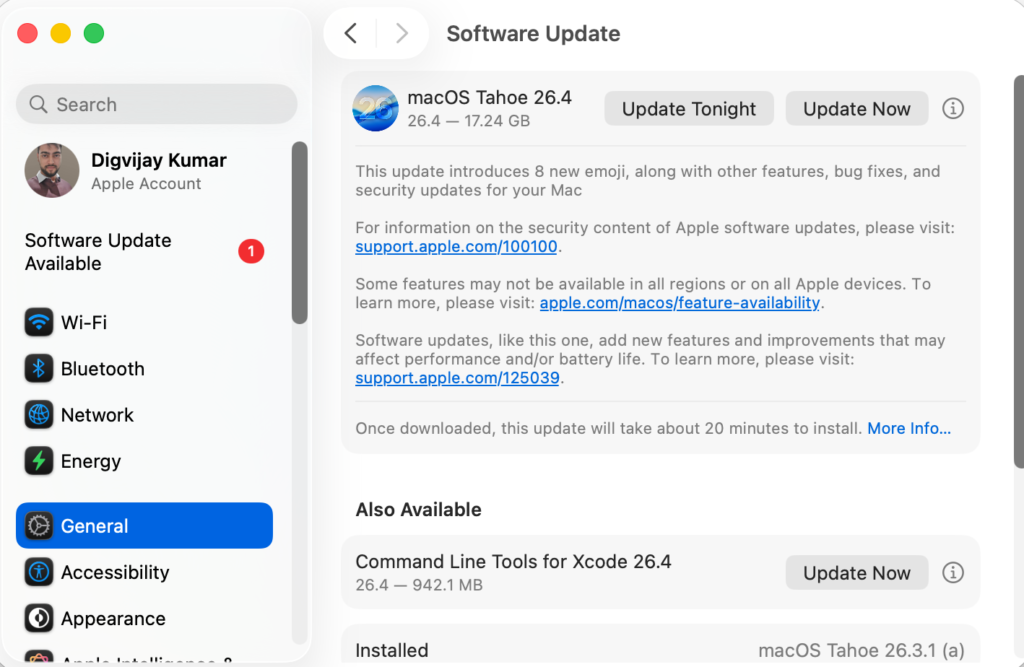
- On iPhone/iPad → Settings → General → Software Update.
- Install any available updates.
- On Mac → Apple menu → System Settings → General → Software Update.
Keeping your Apple ID properly connected also helps, if needed, you can check how to sign in to your Apple account
7. Fix Yahoo Authentication Issues
Login problems can silently break syncing, especially if Yahoo requires re-authentication or stronger security verification.
- Sign out and back into your Yahoo account
- Generate an app-specific password if two-factor authentication is enabled
- Re-authenticate your account when prompted
Common Problems
- Yahoo emails not appearing in Apple Mail
- “Cannot Get Mail” or connection errors
- Inbox not updating
- Emails stuck in Outbox
Fixes / Troubleshooting
If none of the main solutions work, these quick checks can help you pinpoint and resolve the issue faster.
- Double-check IMAP and SMTP server settings
- Confirm Mail is enabled in account settings
- Test your internet connection
- Remove and re-add your Yahoo account
- Restart your device after making changes
Tips
To keep Yahoo Mail syncing smoothly in Apple Mail, a few small habits can prevent most issues from coming back.
- Always use IMAP instead of POP for Yahoo Mail
- Keep your Apple devices updated
- Enable Background App Refresh
- Re-add your account after major updates
- Similar syncing issues can also happen with Gmail in Apple Mail when settings or authentication are misconfigured
Apple Mail and Yahoo Mail usually work seamlessly once everything is configured correctly. By checking your server settings, refreshing your account, and keeping your device updated, you can restore reliable email syncing across all your Apple devices.
FAQs?
This usually happens due to incorrect server settings, disabled sync, or outdated authentication.
Restart the Mail app, adjust fetch settings, or remove and re-add your Yahoo account.
IMAP: imap.mail.yahoo.com (port 993, SSL). SMTP: smtp.mail.yahoo.com (port 465/587, SSL).
Yes, updates can reset fetch settings or authentication, requiring reconfiguration.
No, emails remain on Yahoo servers. Re-adding the account only refreshes the connection.
Yes, if two-factor authentication is enabled, Apple Mail may require an app-specific password.


0 Comments