Apple Pencil Not Charging? How to Fix Any Mode Safely
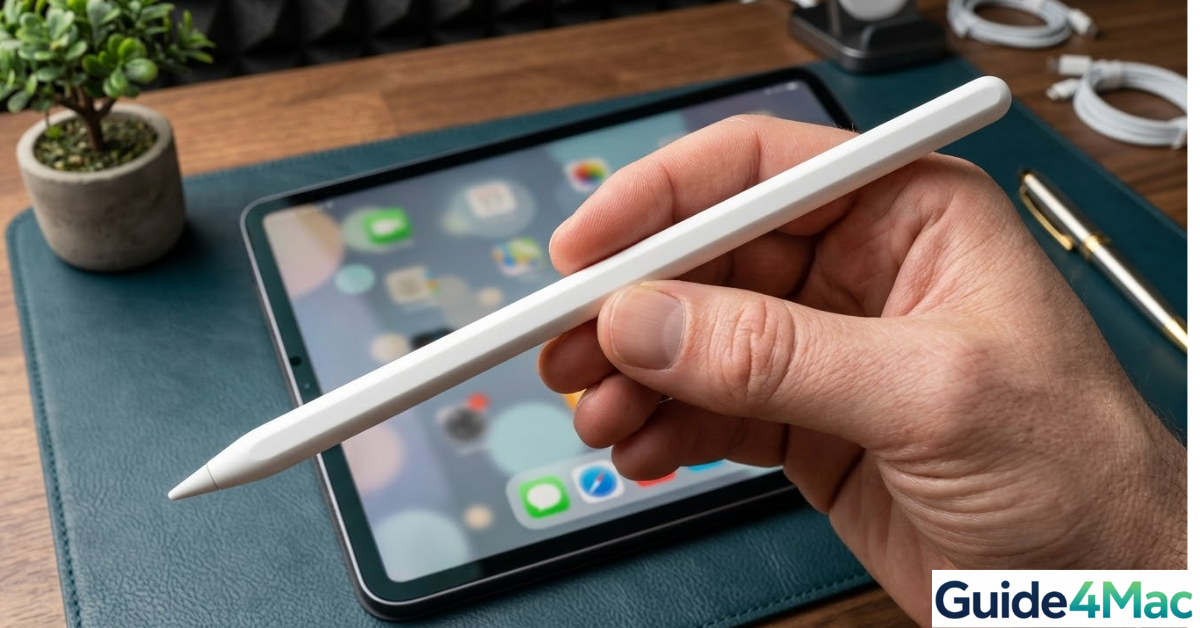
If your Apple Pencil is not charging, you may notice that it remains at 0 percent battery, disconnects frequently, or does not appear in the battery widget on your iPad. This issue can affect both Apple Pencil (1st generation) and Apple Pencil (2nd generation) when paired with compatible iPad models.
In many cases, the problem is related to pairing glitches, dirt in the charging connectors, or software bugs in iPadOS. If your stylus appears paired but still does not respond, you may also want to check how to fix Apple Pencil connected but not working for additional troubleshooting.
This guide walks through the most effective ways to fix an Apple Pencil that refuses to charge.
Why Is Your Apple Pencil Not Charging?
An Apple Pencil may stop charging for several reasons. Because the charging method differs between the first and second generation models, the cause may depend on which version you own.
Common causes include:
- A loose or damaged Lightning connector
- Bluetooth pairing issues
- Debris blocking charging contacts
- Outdated iPadOS
- A completely drained battery
- Hardware damage
The solutions below address the most common problems.
Check Apple Pencil Compatibility
Before troubleshooting, confirm that your Apple Pencil model is compatible with your iPad.
Apple Pencil (1st generation) works with:
- iPad (6th to 10th generation)
- iPad mini (5th generation)
- iPad Air (3rd generation)
- Some early iPad Pro models
Apple Pencil (2nd generation) works with:
- iPad Pro (2018 and later)
- iPad Air (4th generation and later)
- iPad mini (6th generation)
If the stylus is not compatible with the device, charging will not work correctly.
Check the Apple Pencil Battery Widget
Sometimes the Pencil is charging but the battery percentage is not visible.
- Swipe right on the Home Screen to open Widgets.
- Scroll down and tap Edit.
- Add the Batteries widget.
- Check if the Apple Pencil battery appears.
This helps confirm whether the Pencil is actually charging.
Reconnect the Apple Pencil
Pairing issues may prevent the stylus from charging properly.
- Open Settings.
- Tap Bluetooth.
- Find Apple Pencil in the device list.
- Tap the Info (i) icon.
- Select Forget This Device.

- Reconnect the Pencil by attaching it magnetically (2nd generation) or plugging it into the Lightning port (1st generation).
Clean the Charging Contacts
Dust or debris can block the charging connectors.
- Remove the Apple Pencil from the iPad.
- Inspect the charging connectors or Lightning tip.
- Use a soft dry cloth to clean the contacts.
- Reattach the Pencil and test charging again.
Avoid using liquids or sharp objects when cleaning.
Restart the iPad
A system restart refreshes Bluetooth and charging services.
- Press and hold the Top button and Volume button together.
- Wait for the Power Off slider.
- Drag the slider to turn off the iPad.
- Wait about 30 seconds.
- Press the Top button again to power it on.
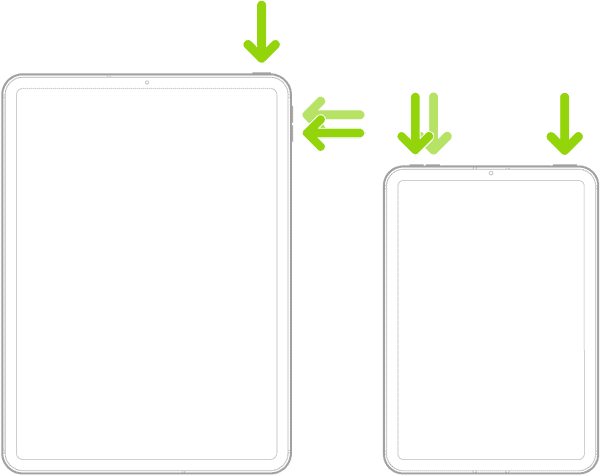
After restarting, reconnect the Apple Pencil and check if charging begins.
Update iPadOS
Software bugs can sometimes interfere with charging and pairing.
- Open Settings.
- Tap General.
- Tap Software Update.
- Install any available updates.
Keeping iPadOS updated improves compatibility with Apple accessories.
Charge the Apple Pencil for Longer
If the battery has completely drained, the stylus may need several minutes before showing any charge indicator.
- Attach the Apple Pencil to the iPad.
- Leave it connected for 10 to 15 minutes.
- Check the battery widget again.
Sometimes the device needs a short period before the battery status appears.
Test the Pencil on Another iPad
If none of the fixes work, testing the stylus on another compatible iPad can help determine whether the issue is hardware related.
- Pair the Apple Pencil with another compatible iPad.
- Check whether it begins charging.
- Compare the behavior with your original device.
If the Pencil still refuses to charge, the internal battery may need replacement.
Tips
- Keep your Apple Pencil attached to the iPad when not in use.
- Clean the charging connectors periodically.
- Avoid letting the Pencil battery drop to 0 percent frequently.
- Use a protective case that does not block charging magnets.
- Keep your iPadOS updated.
Bring Your Apple Pencil Back to Life
An Apple Pencil that will not charge is usually caused by pairing issues, dirty connectors, or a completely drained battery. Simple fixes such as reconnecting the stylus, cleaning the charging contacts, and restarting the iPad resolve most cases.
If the problem persists after troubleshooting, testing the Pencil on another device can confirm whether the stylus itself requires repair or replacement.
Key Takeaways
Apple Pencil charging problems usually occur because of pairing glitches, dirty connectors, or drained batteries. Reconnecting the stylus, cleaning the contacts, and restarting the iPad are the most effective solutions. Updating iPadOS and checking the battery widget can also help confirm whether the Pencil is charging properly. These steps resolve most Apple Pencil charging issues.
FAQs
This often happens when the battery is completely drained or the stylus is not properly paired with the iPad.
Apple Pencil usually reaches a significant charge within about 15 minutes and can fully charge within roughly an hour.
This may be caused by Bluetooth pairing issues or dirty charging contacts.
Apple Pencil batteries are not user replaceable, but Apple may offer replacement options through support.
This usually means the Pencil is not connected through Bluetooth or is not properly attached to the iPad.

0 Comments