How to Log in Gmail on Mac Mail App? (Step-by-Step Guide)
Over 1.8 billion people use Gmail worldwide, yet many Mac users still don’t take full advantage of having it integrated into their Apple Mail app (which is odd, as it is easy to set up, as you will see below). Setting it up takes just a few minutes, and once it’s done, you can manage all your emails from one clean, distraction-free inbox.
Whether you’re using a MacBook or iMac, macOS lets you connect Gmail securely with minimal effort. Once everything is in place, your emails will sync automatically across your Apple devices, including iPhone and iPad. Hop in, buckle up, and let’s set it up properly!
What Is The easiest way to log in Gmail on Mac Mail
1. Add and log into Gmail on Mac Mail
Time needed: 5 minutes
This method uses macOS System Settings to securely connect your Gmail account to the Apple Mail app using Google’s official sign-in system.
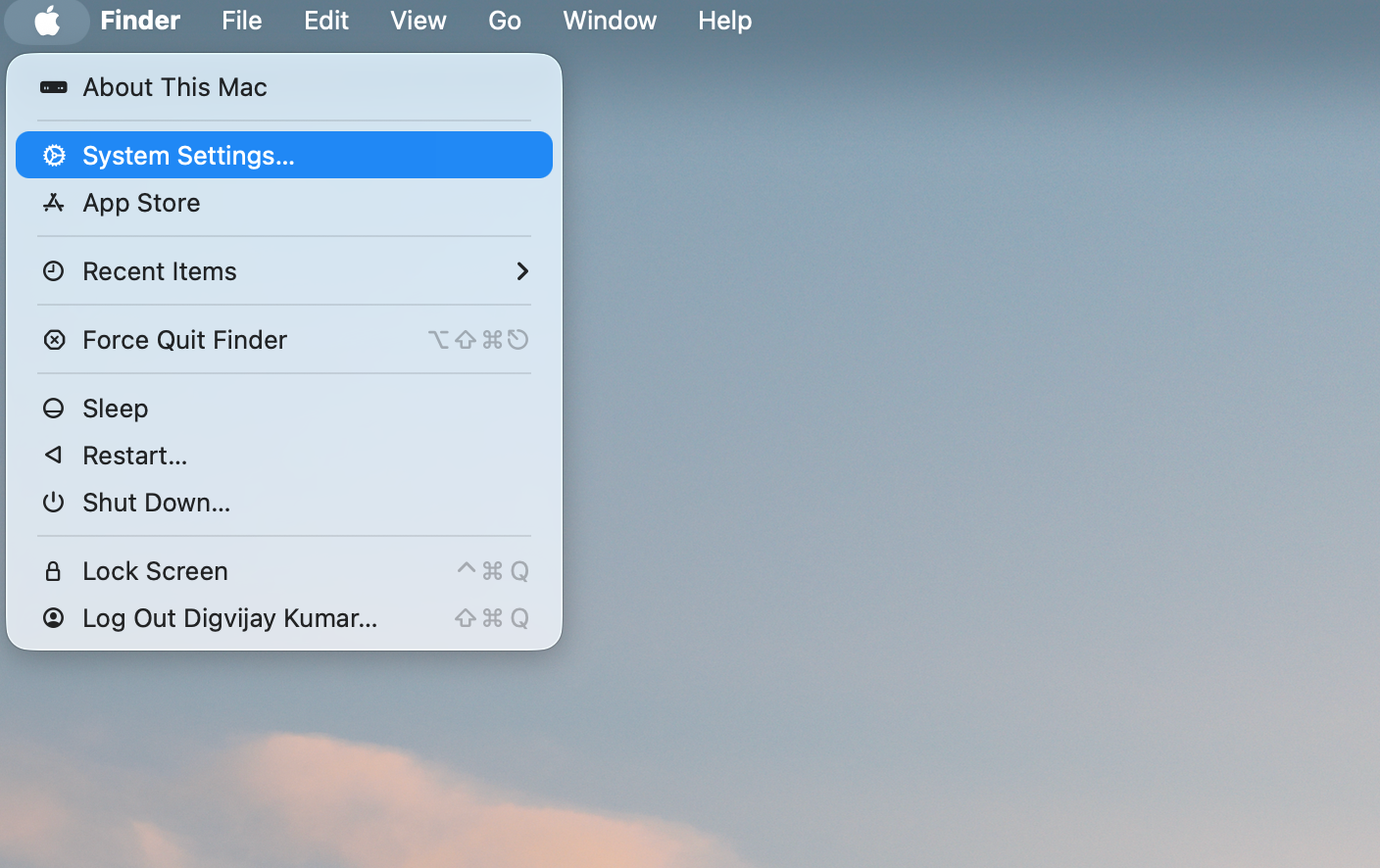
- Open System Settings
Click the Apple menu in the top-left corner of your screen and select System Settings. This is where all account connections are managed on macOS.

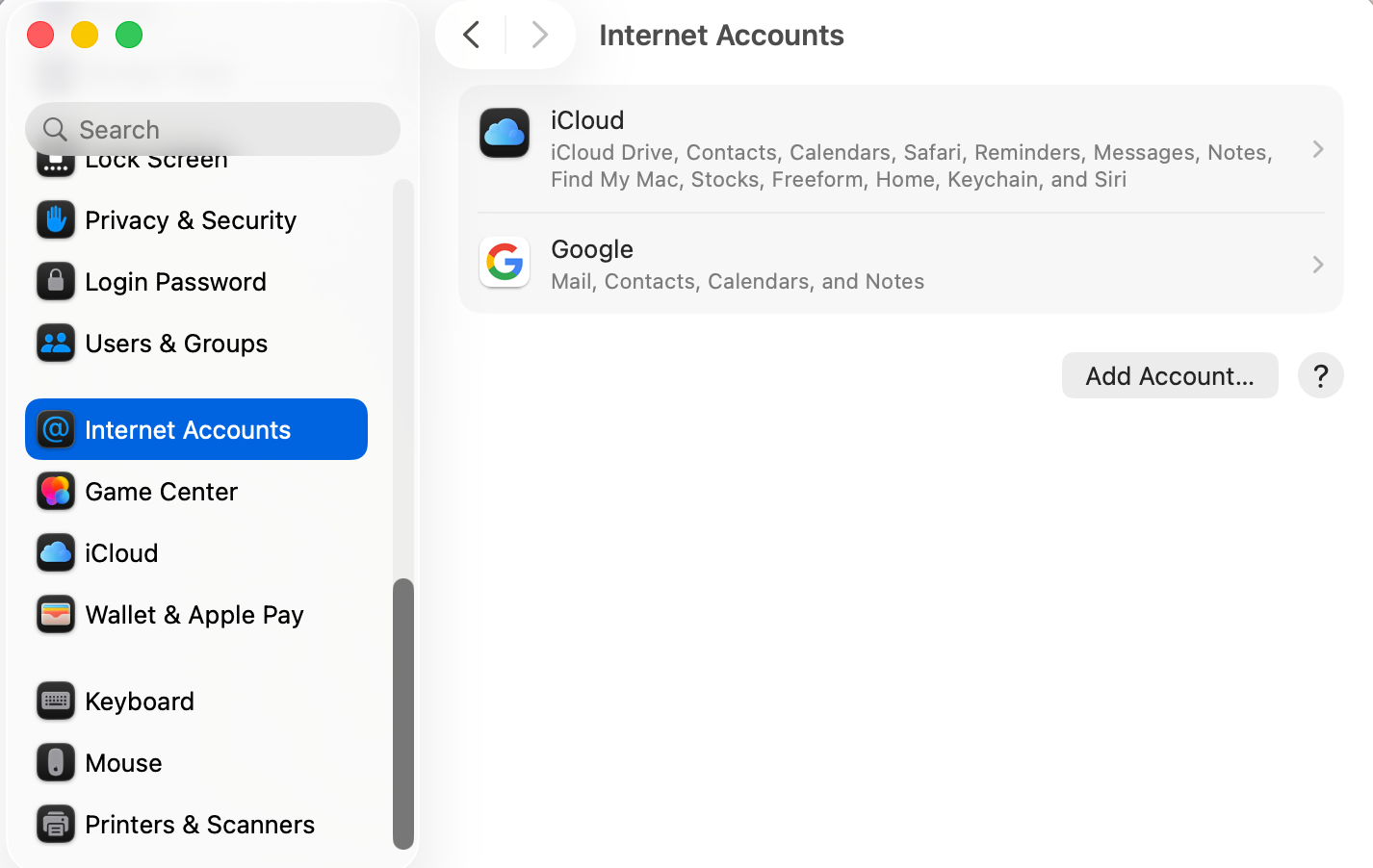
- Access Internet Accounts
Scroll down and tap on “Internet Accounts.” This section allows you to connect services like Google, iCloud, and Outlook.
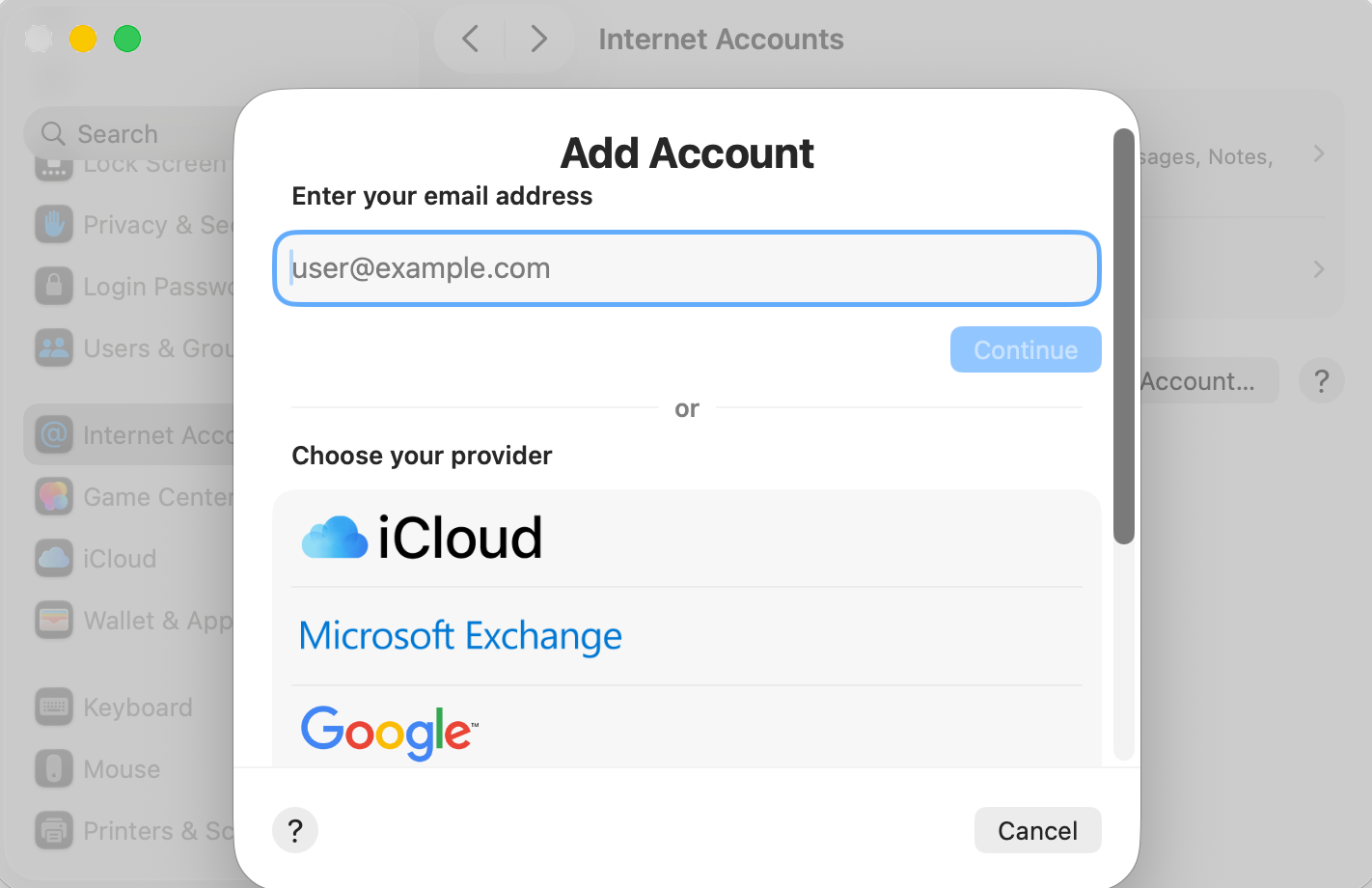
- Select Google
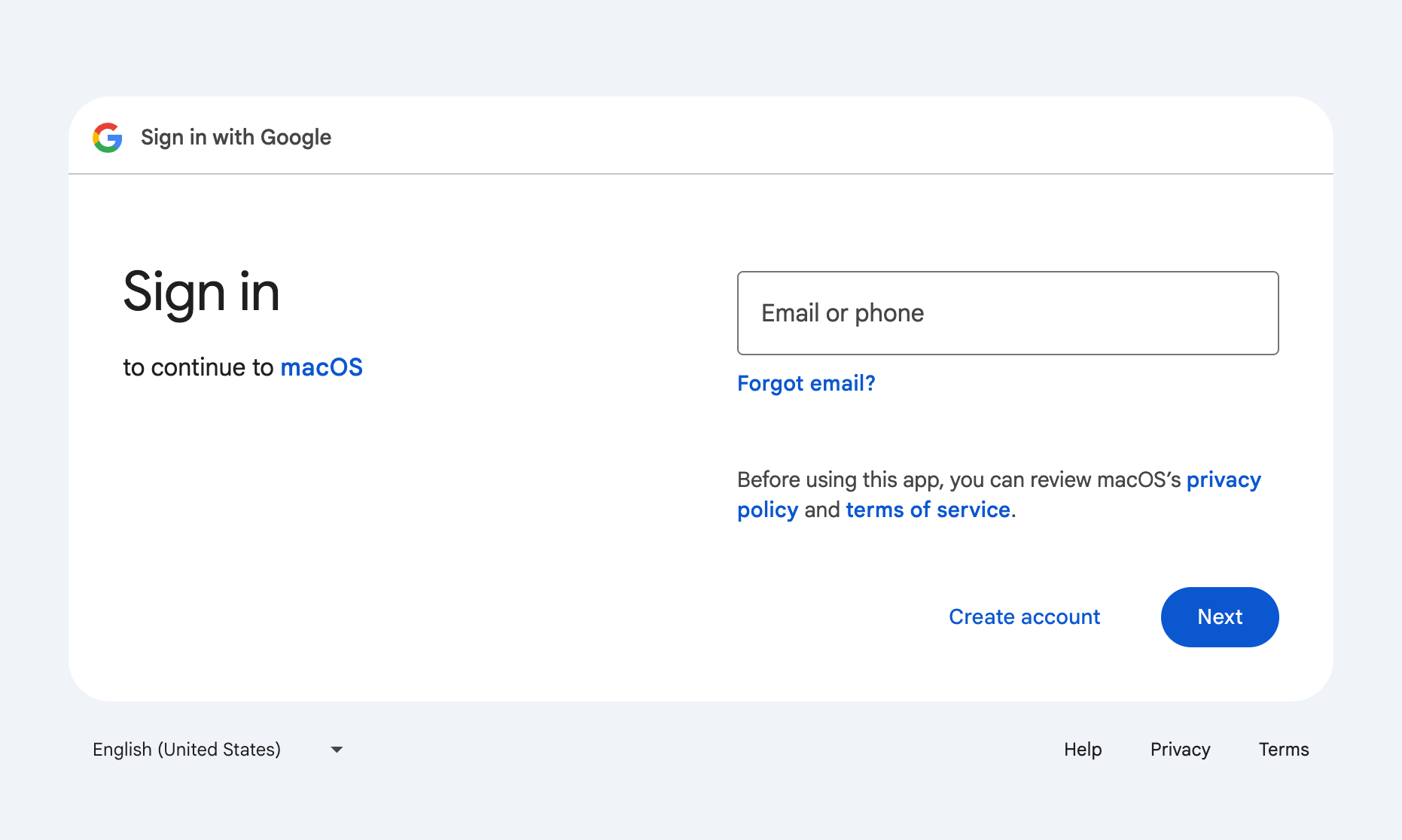
Choose Google from the list of providers. A secure Google login window will open automatically.
- Enter your Gmail details
Type your Gmail address and password. If your password was recently updated, make sure it matches across all devices. If needed, you can quickly learn how to change your email password on iPhone to prevent login errors.
- Approve permissions
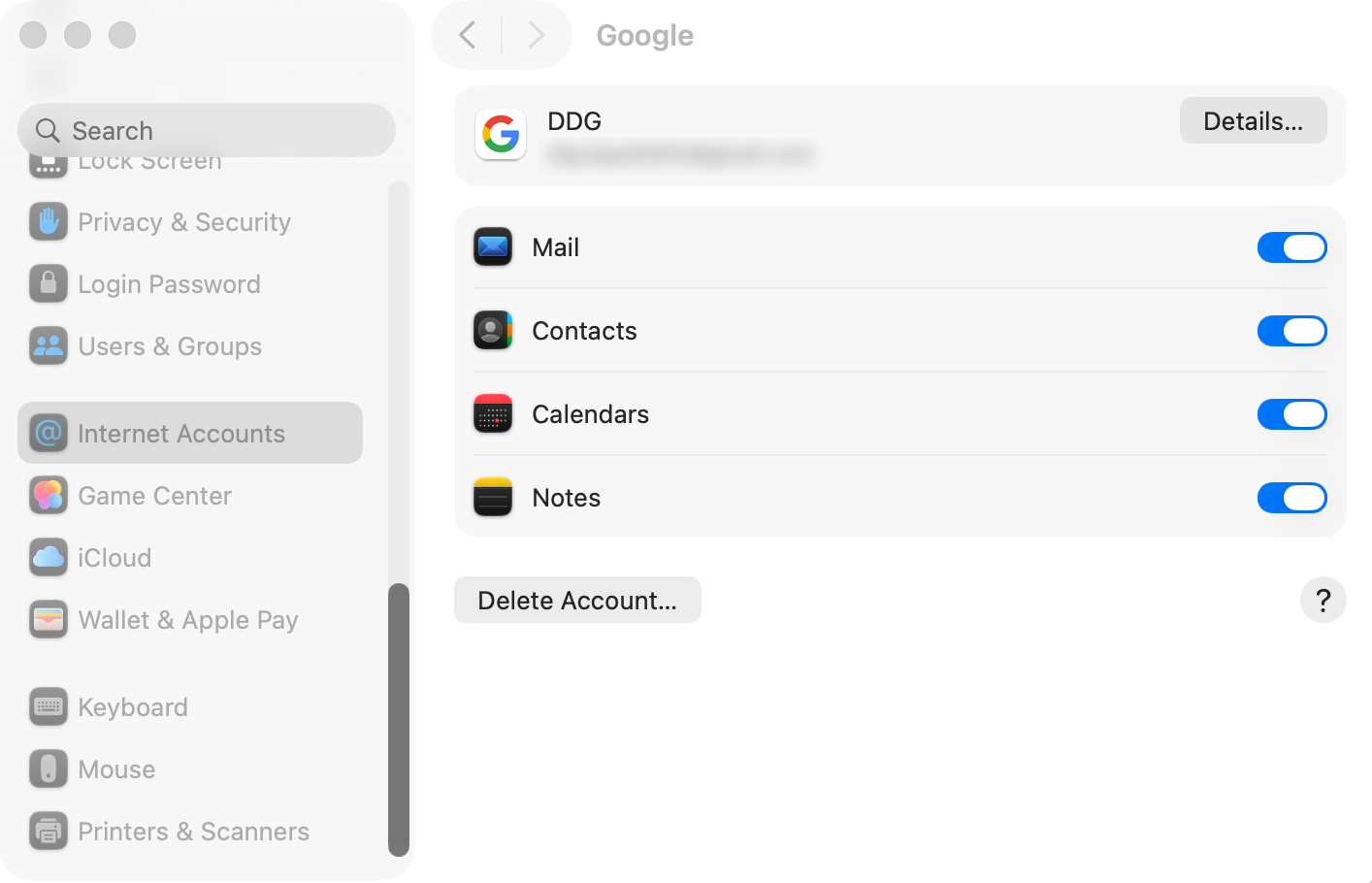
Allow macOS to access your Mail, Contacts, and Calendars. These permissions ensure Gmail works properly inside Apple Mail.
- Enable Mail syncing
Make sure the “Mail” toggle is turned on so your Gmail inbox appears inside the Mail app.
- Open the Mail app
Launch the Mail app, and your Gmail inbox should load automatically. For better syncing across all Apple devices, it’s also useful to sign in to your Apple account correctly.
2. Add Gmail directly from the Mail app
If you prefer working directly inside the Mail app, this method is just as effective and often feels faster.
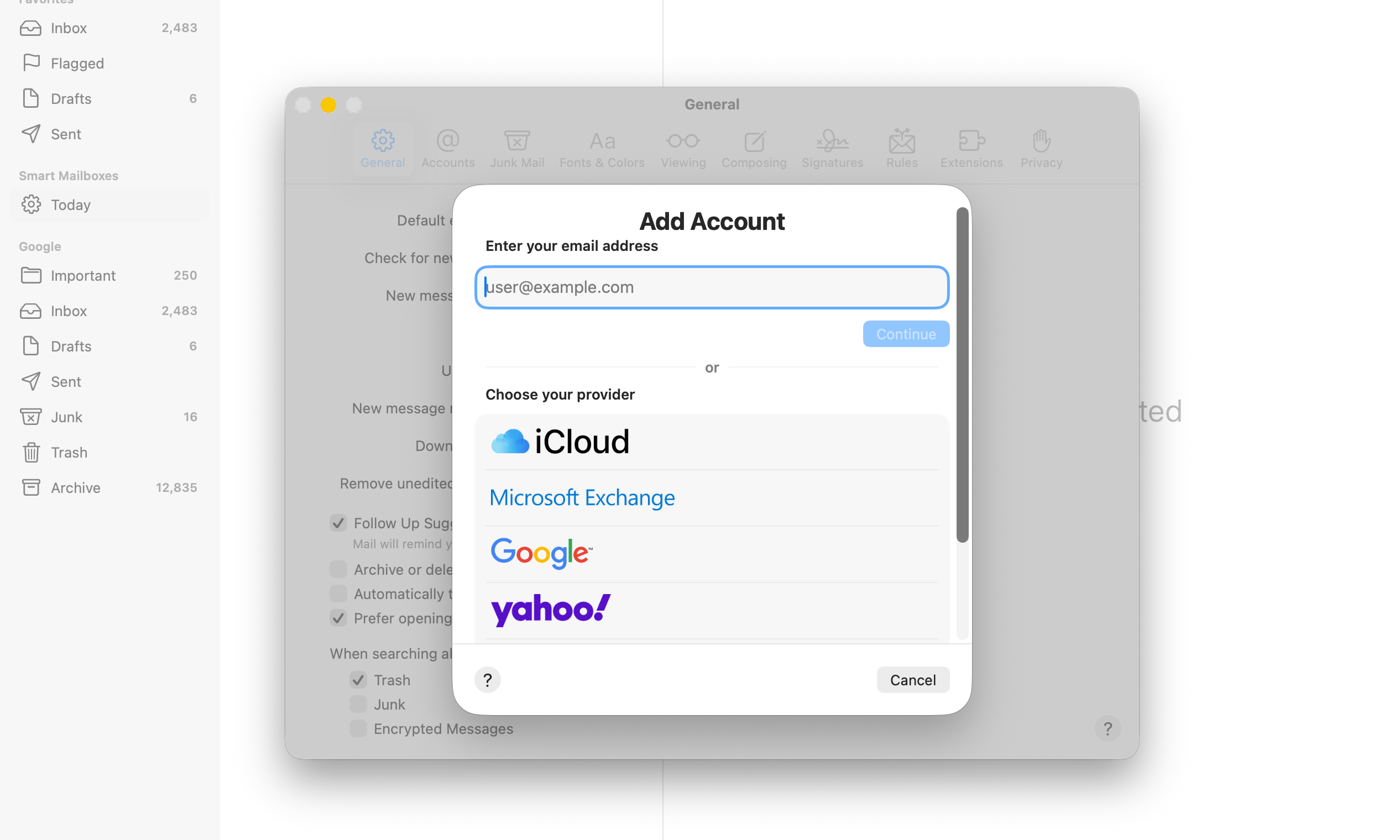
Open the Mail app, click “Mail” in the top menu, then choose “Add Account.” Select Google and follow the same login steps. This option is especially helpful if you’re already using Mail and want to quickly connect a new account.
The process is very similar to what you’d do when you add an email account to your Mac, so once you’ve done it once, it becomes second nature.
Common problems when logging into Gmail on Mac Mail
Even though the setup is simple, a few issues can sometimes appear. These are the most common situations users run into:
- Gmail not syncing with the Mail app
- Incorrect password or repeated login errors
- Google blocking the sign-in attempt
- Mail app stuck loading emails
- Missing or delayed messages
These problems usually happen because of incorrect settings, missing permissions, or outdated credentials.
Fixes and troubleshooting steps
If something isn’t working as expected, these fixes typically resolve the issue quickly and reliably:
– Re-enter your Gmail password in System Settings
-Make sure IMAP is enabled in Gmail settings
-Use an App Password if two-factor authentication is active
-Remove and re-add your Gmail account
-Update macOS to the latest version
If syncing continues to be a problem, you can follow steps that explain how to fix Gmail not syncing with Apple Mail and restore proper email flow.
Helpful tips for a smoother Gmail experience on Mac
Once your Gmail is connected, a few simple habits can improve your overall experience and keep everything running smoothly:
- Keep your macOS updated for better performance and compatibility
- Organize emails using folders and Gmail labels
- Enable notifications so you never miss important messages
- Sync your Gmail across iPhone and iPad for a consistent experience
If you also use Gmail on other Apple devices, it helps to understand how the process works on each one. For example, you can easily log into Gmail on iPhone or follow similar steps to log into Gmail on iPad. The setup on laptops is nearly identical, especially if you’re trying to log into Gmail on a MacBook.
FAQs?
You can add Gmail through System Settings under Internet Accounts by selecting Google and signing in with your account.
This usually happens due to incorrect passwords, disabled IMAP, or Google blocking the login attempt. Checking credentials and permissions fixes it in most cases.
Yes, Apple Mail fully supports Gmail using IMAP, allowing emails to sync seamlessly across Apple devices.
Only if you have two-factor authentication enabled. In that case, Google requires an app-specific password.
Make sure IMAP is enabled in Gmail settings and that Mail is toggled on in macOS Internet Accounts.
IMAP: imap.gmail.com (Port 993, SSL)
SMTP: smtp.gmail.com (Ports 465 or 587, SSL)
These settings are usually configured automatically when signing in through Google.


0 Comments