How to Use Apple AirTags: Setup, Tracking, and Fixes
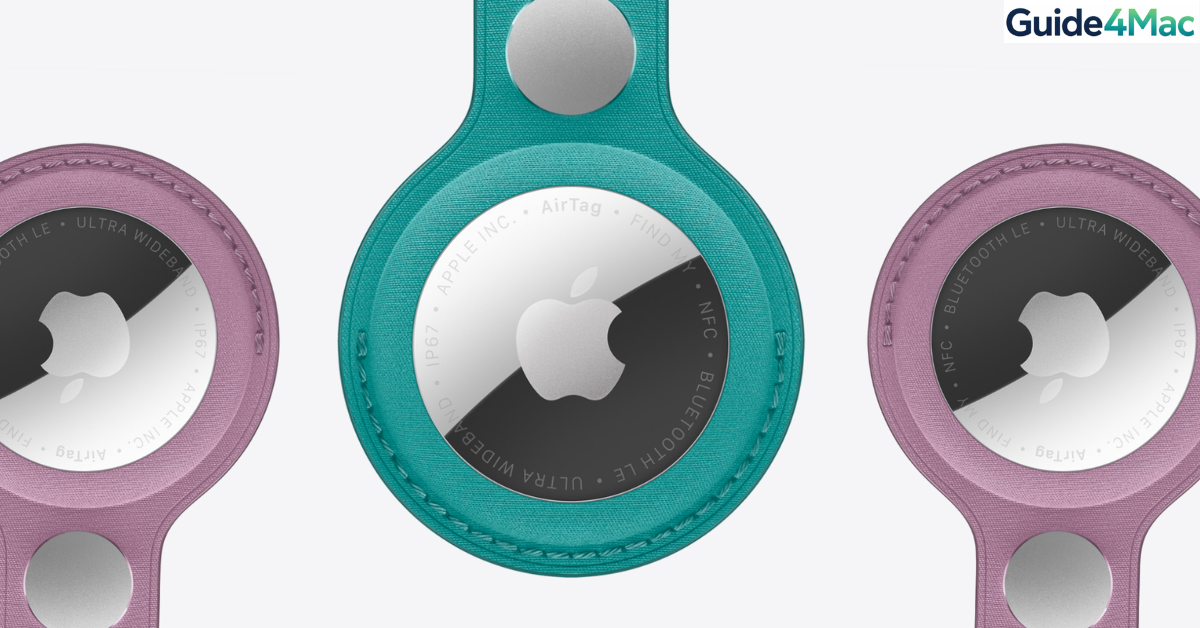
Apple AirTags help you keep track of everyday items like keys, bags, or luggage using the Find My network. These small trackers connect to your Apple devices and allow you to locate lost items directly from your iPhone.
AirTags are easy to set up, but some users still struggle with pairing, tracking accuracy, or alerts. In this guide, you will learn how to set up an AirTag, track it using Apple’s Find My network, and troubleshoot common issues. If you are new to Apple’s ecosystem, you may also want to learn how to sign in to your Apple account before configuring your device.
How Do Apple AirTags Work?
Apple AirTag devices use Bluetooth signals to communicate with nearby Apple devices. When another iPhone, iPad, or Mac detects your AirTag, it securely updates the item’s location in the Find My network.
If you are close to the AirTag, compatible iPhones with Ultra Wideband chips can guide you to it using Precision Finding. This feature shows direction arrows and distance to help locate the item more accurately.
The sections below explain how to set up and use AirTags properly.
Set Up an Apple AirTag
Setting up an AirTag only takes a few seconds and works similarly to pairing AirPods.
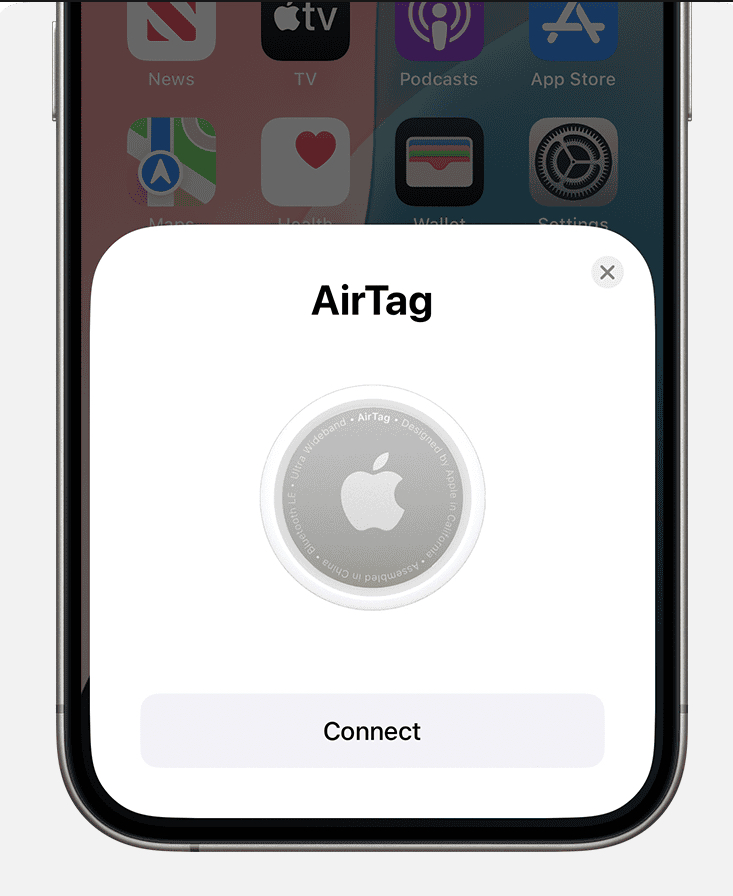
Steps to set up an AirTag
- Remove the plastic tab from the AirTag battery compartment.
- Hold the AirTag near your iPhone.
- Wait for the setup animation to appear.
- Tap Connect.
- Choose a name for the item.
- Tap Continue.
- Confirm the AirTag is linked to your Apple ID.
After setup, the AirTag automatically appears in the Find My app.
Track an AirTag Using Find My
Once your AirTag is connected, you can track it anytime using the Find My app.
Steps to track your AirTag
- Open the Find My app.
- Tap the Items tab.
- Select your Apple AirTag.
- View its location on the map.
- Tap Play Sound to help locate it nearby.
The Find My network updates the location whenever another Apple device detects the AirTag.
Use Precision Finding
Precision Finding helps you locate an AirTag when you are nearby. It uses the Ultra Wideband chip in newer iPhones for directional tracking.
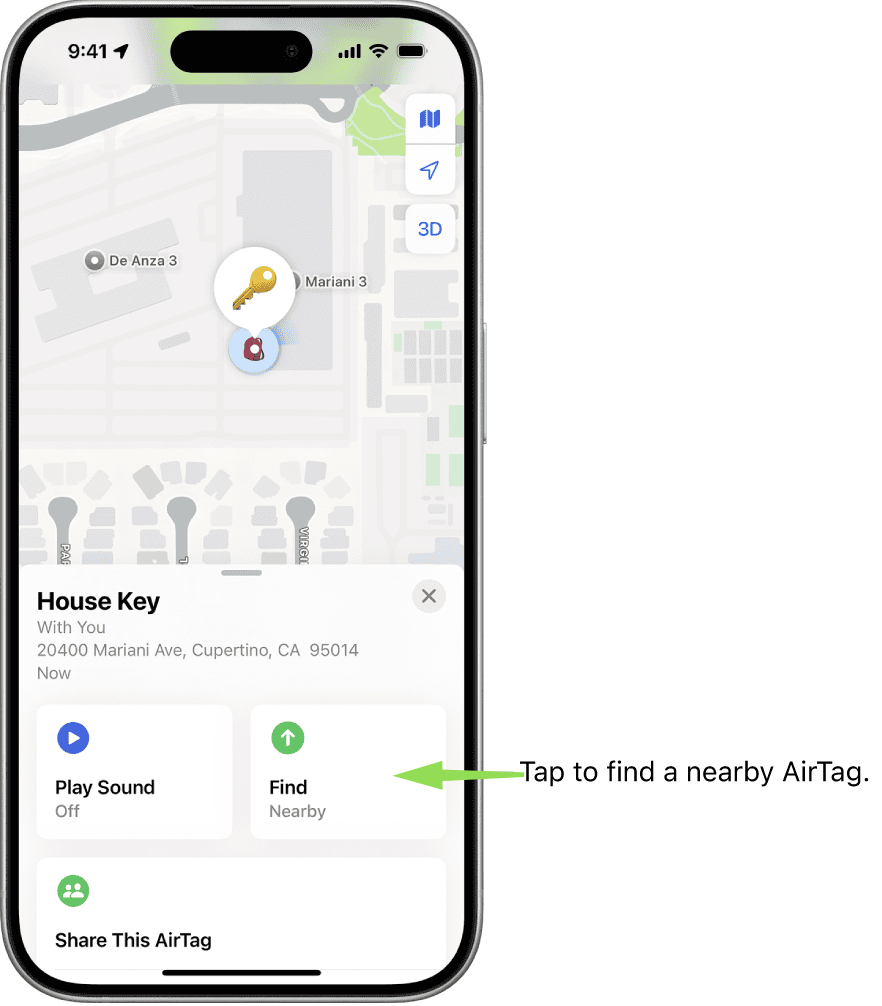
Steps to use Precision Finding
- Open the Find My app.
- Tap Items.
- Select your Apple AirTag.
- Tap Find Nearby.
- Follow the arrows and distance indicators.
This feature works best with iPhones that include the U1 chip.
Enable Lost Mode
If you lose an item with an AirTag attached, Lost Mode helps other Apple users return it to you.
Steps to enable Lost Mode
- Open the Find My app.
- Tap Items.
- Select the missing Apple AirTag.
- Scroll to Lost Mode.
- Tap Enable.
- Add a contact phone number.
If someone finds your AirTag, they can tap it with an NFC phone to see your contact details.
Replace the AirTag Battery
AirTags use a replaceable coin battery that usually lasts about a year.
Steps to replace the AirTag battery:
Time needed: 2 minutes
Tools Needed: 1x CR2032 Lithium 3V Coin Battery (non-bitterant coating recommended)
- Prepare the AirTag.
Remove the AirTag from any protective case, keychain, or accessory to expose the polished stainless steel battery cover.
- Open the Battery Cover.
Press down firmly on the polished stainless steel battery cover and rotate it counterclockwise until it stops rotating.
- Remove the old battery.
Lift the metal cover off and remove the depleted CR2032 coin battery. Dispose of the old battery responsibly according to local recycling regulations.
- Insert a new battery.
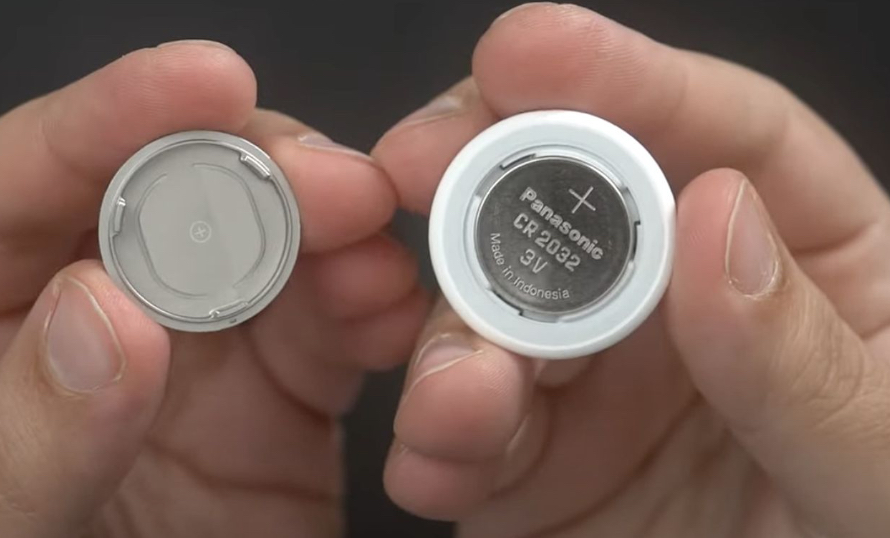
Insert a new CR2032 lithium 3V coin battery with the positive (+) side facing up.

- Listen for the Confirmation Sound.
As you press the battery down, the AirTag will play a short chime. This sound confirms the battery is correctly connected to the internal terminals.
- Align the Cover Tabs.
Replace the cover by aligning the three metal tabs on the back cover with the three corresponding slots on the AirTag body.
- Lock the Cover
Press down firmly on the cover and rotate it clockwise until it stops and clicks back into place.
Fix AirTag Not Connecting
If your AirTag does not connect or appear in the Find My app, a few quick checks usually solve the problem.
Steps to troubleshoot AirTag connection
- Make sure Bluetooth is enabled on your iPhone.
- Confirm your device is signed into your Apple ID.
- Restart your iPhone.
- Remove the AirTag battery.
- Reinsert the battery to reset the AirTag.
After resetting, try the setup process again.
Remove an AirTag From Your Account
If you plan to sell or give away an AirTag, you should remove it from your Apple account first.
Steps to remove an AirTag
- Open the Find My app.
- Tap Items.
- Select the Apple AirTag.
- Scroll down.
- Tap Remove Item.
- Confirm the removal.
The AirTag can then be paired with another device.
Tips 💡
• Attach AirTags to frequently misplaced items like keys or wallets.
• Use AirTag accessories to mount them securely on bags or luggage.
• Enable Lost Mode if an item goes missing.
• Replace the battery once per year to keep tracking active.
• Keep Bluetooth and location services enabled for best tracking accuracy.
Keep Track of Your Important Items
Apple AirTags provide a simple way to track personal items using the global Find My network. Once configured, they work automatically in the background and update their location whenever nearby Apple devices detect them.
With features like Precision Finding, Lost Mode, and replaceable batteries, AirTags are one of the easiest tracking solutions in the Apple ecosystem. Learning how to set them up and troubleshoot them ensures you can always locate your belongings quickly.
Key Takeaways
Apple AirTags allow users to track items using Bluetooth and the Find My network. Setting up an AirTag takes only a few seconds with an iPhone. The Find My app shows the location of your items and can play sounds or guide you using Precision Finding. Lost Mode and battery replacement features help keep AirTags functional for long-term tracking.
FAQ
AirTags themselves use Bluetooth, but the Find My network allows tracking from virtually anywhere when nearby Apple devices detect the signal.
AirTags communicate through Bluetooth, but location updates require nearby Apple devices connected to the internet.
Yes. Android devices can scan unknown AirTags using NFC or Apple’s Tracker Detect app.
Most AirTag batteries last about one year before needing replacement.
Apple includes anti-tracking protections that notify users if an unknown AirTag is traveling with them.


0 Comments