How To Install Apple Mobile Device Driver on Windows 11?
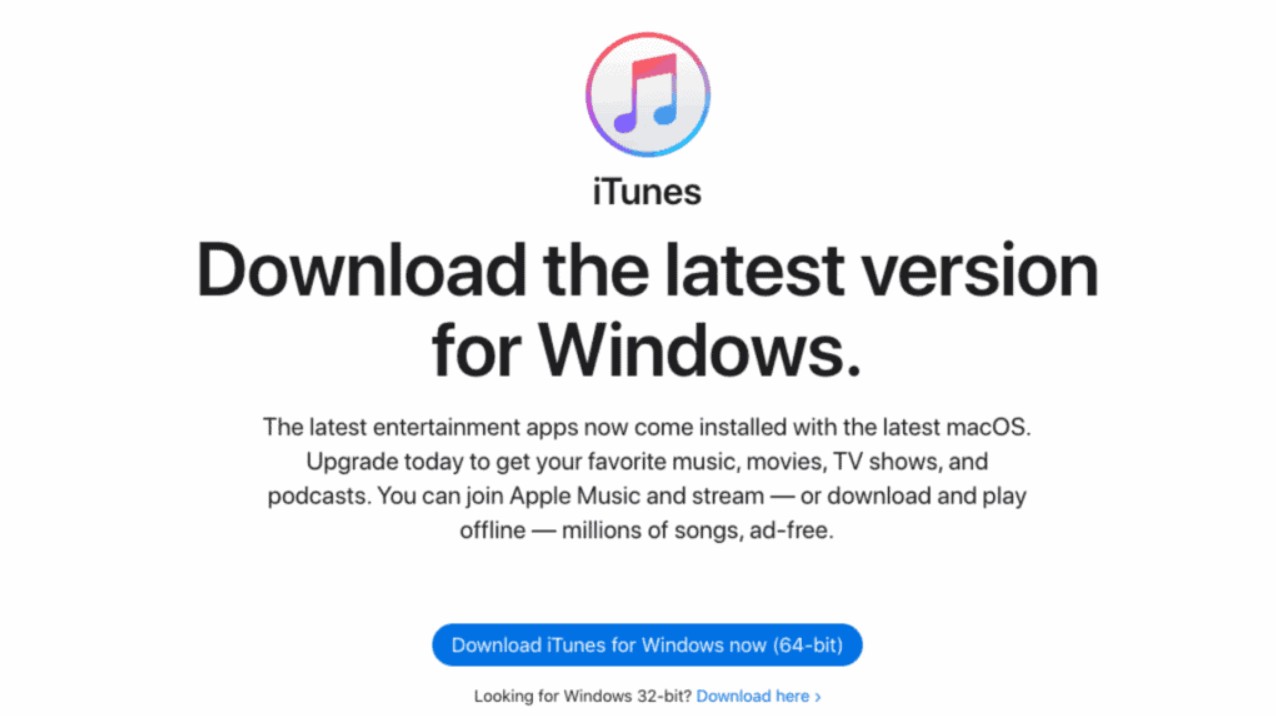
Connecting an iPhone or iPad to a Windows 11 PC should be easy (usually), but driver conflicts often get make you trouble. When your computer fails to recognize your mobile device, the problem is usually a missing or outdated Apple Mobile Device USB Driver. This specific software component acts as the bridge between iOS hardware and the Windows operating system, allowing for data syncing and local backups.
While modern versions of Windows typically attempt to handle driver installations automatically, the transition to the Microsoft Store version of iTunes has complicated the process for many users. If your device appears in File Explorer but won’t show up in management software, you likely need to manually point Windows toward the correct driver files. Fixing this ensures a stable connection for tasks like moving photos or performing a full system restore.
How do I install the Apple Mobile Device USB Driver on Windows 11?
The installation process depends on how you installed iTunes on your PC. If you downloaded iTunes from the Microsoft Store, the drivers are bundled within the app and updated through the Store interface. However, if you used the classic standalone installer from Apple’s website, you must manually locate the driver files within the Program Files folder to force an update through the Device Manager.
1. Updating via the Microsoft Store
For users running the modern version of iTunes, the first step is ensuring the application itself is current. Open the Microsoft Store app, click on the Library icon in the bottom left corner, and select Get Updates. If an update for iTunes is available, install it and restart your computer to see if the driver initializes correctly.
2. Manual Installation via Device Manager
If the Store update fails or you are using the traditional desktop version of iTunes, you must use the Device Manager to install the driver manually. This method bypasses automatic detection and forces Windows to recognize the specific Apple hardware ID:
- Disconnect your iPhone or iPad from your computer.
- Unlock your iOS device and go to the Home screen.
- Reconnect the device to your Windows 11 PC.
- Close iTunes if it opens automatically.
- Right-click the
Startbutton and selectDevice Manager. - Locate the
Portable Devicessection. - Click the arrow to expand the category.
- Look for your connected device, such as Apple iPhone.
- Right-click on the device name.
- Select
Update driver. - Choose
Browse my computerfor driver software. - Select
Let me pick from a list of available drivers on my computer. - Click
Have Disk. - Click
Browse. - Navigate to
C:\Program Files\Common Files\Apple\Mobile Device Support\Drivers. - Select the
usbaapl64.inforusbaapl.inffile. - Click
Open. - Click
OK. - Click
Nextto complete the installation.
3. Restarting the Apple Mobile Device Service
Sometimes the driver is installed correctly, but the background service responsible for the connection has stalled. You can jumpstart this manually through the Windows Services console to restore communication between the two platforms.
- Press the
Windows Key + Ron your keyboard. - Type
services.mscand pressEnter. - Locate
Apple Mobile Device Servicein the list. - Right-click the service.
- Select
Properties. - Set the Startup type to
Automatic. - Click
Stopto halt the service. - Click
Startto restart the service. - Click
OK.
4. Verifying the Connection
Once the drivers are in place, you should verify that the system sees the device properly. If you still encounter issues, it is a good idea to check Apple service support coverage for all devices to rule out hardware defects in the lightning or USB-C port of your iPhone. Additionally, if you are trying to move files, knowing how to AirDrop from iPhone to Windows PC can serve as a vital wireless alternative while you troubleshoot cable issues.
Essential Connectivity Tips
- Use Original Cables: Third-party cables often lack the necessary data pins required for Windows to recognize the Apple Mobile Device USB Driver.
- Direct USB Ports: Avoid using unpowered USB hubs. Plug your device directly into the motherboard ports on the back of a desktop or the main ports of a laptop.
- Trust This Computer: Always check your iPhone screen after plugging it in. You must tap Trust and enter your passcode for the driver to engage.
- System Updates: Ensure Windows 11 is fully updated, as many driver signatures are tied to the latest OS security patches.
Restoring Windows to iOS connection
Fixing driver issues is less about technical “wizardry” and more about ensuring Windows looks in the right folder. By manually directing the Device Manager to the Apple Mobile Device Support files, you bypass the common “Device Not Recognized” errors that plague iTunes users. Once the bridge is built, your PC gains full access to your mobile data for backups and media management.
Before moving forward with a deep restore, remember to back up iPhone once the connection is stable. If you find the physical connection continues to be flaky even after a driver refresh, you might need to fix iPhone not connecting via cable which often stems from debris in the port preventing the pins from making full contact.
Conclusion
This guide provides a technical walkthrough for installing the Apple Mobile Device USB Driver on Windows 11 systems. It explains the differences between Microsoft Store and standalone iTunes installations, offering step-by-step instructions for manual driver updates via Device Manager. By following these steps, users can resolve connection errors and ensure their iPhone or iPad is recognized by Windows for syncing and data transfer.
FAQs:
This usually happens due to a faulty cable or a port that isn’t providing enough power. Try a different USB port or a genuine Apple cable to see if the device appears under Portable Devices or Universal Serial Bus devices.
For most 64-bit Windows installations, the driver file is located at C:\Program Files\Common Files\Apple\Mobile Device Support\Drivers.
Yes, the driver components are bundled with iTunes. You must have either the Microsoft Store version or the standalone desktop version installed to have the driver files on your hard drive.
While the driver may start working immediately after a manual update in Device Manager, a restart is highly recommended to ensure the Apple Mobile Device Service initializes correctly in the background.

0 Comments