How to Get Apple’s iMessage on Windows: Step-by-Step Guide
Apple’s iMessage is one of the most popular messaging services for iPhone and Mac users. It offers end-to-end encryption, seamless syncing between Apple devices, and advanced features like reactions, read receipts, and media sharing.
However, Apple has never released a native iMessage app for Windows. If you use a Windows PC, you cannot simply download iMessage the same way you would install apps like WhatsApp or Telegram.
That said, there are still ways to access your iMessages from a Windows computer. The most reliable solution is to use a Mac as a bridge, allowing your PC to remotely access the Messages app running on macOS.
This guide explains how to get iMessage on Windows step-by-step using built-in tools, without installing third-party messaging services.
Quick Answer
You cannot directly install iMessage on Windows. The most reliable workaround is to access the Messages app on a Mac remotely from your Windows PC. By keeping your Mac connected and signed into your Apple ID, you can send and receive iMessages through your Mac while controlling it from Windows.
Why iMessage Is Not Available on Windows?
iMessage is part of Apple’s closed ecosystem. The service is tightly integrated with:
- Apple ID authentication
- iOS and macOS messaging frameworks
- Apple’s secure push notification infrastructure
Because of this architecture, Apple has never released an official Windows client for iMessage.
Unlike messaging apps such as WhatsApp or Telegram, iMessage does not offer a web interface or cross-platform client.
1. Access iMessage on Windows Using Your Mac
The most reliable workaround is to use your Mac as the host device and access it remotely from your Windows PC.
When you do this, you are technically using iMessage on the Mac, but controlling it from Windows.
This, will gives you full access to iMessage features:
- Sending and receiving messages
- Group chats
- Photos and attachments
- Message reactions
- Conversation syncing across Apple devices
This is how to get iMessage on Windows using your MAC
- Enable iMessage on Your Mac
1. Open the Messages app on your Mac.
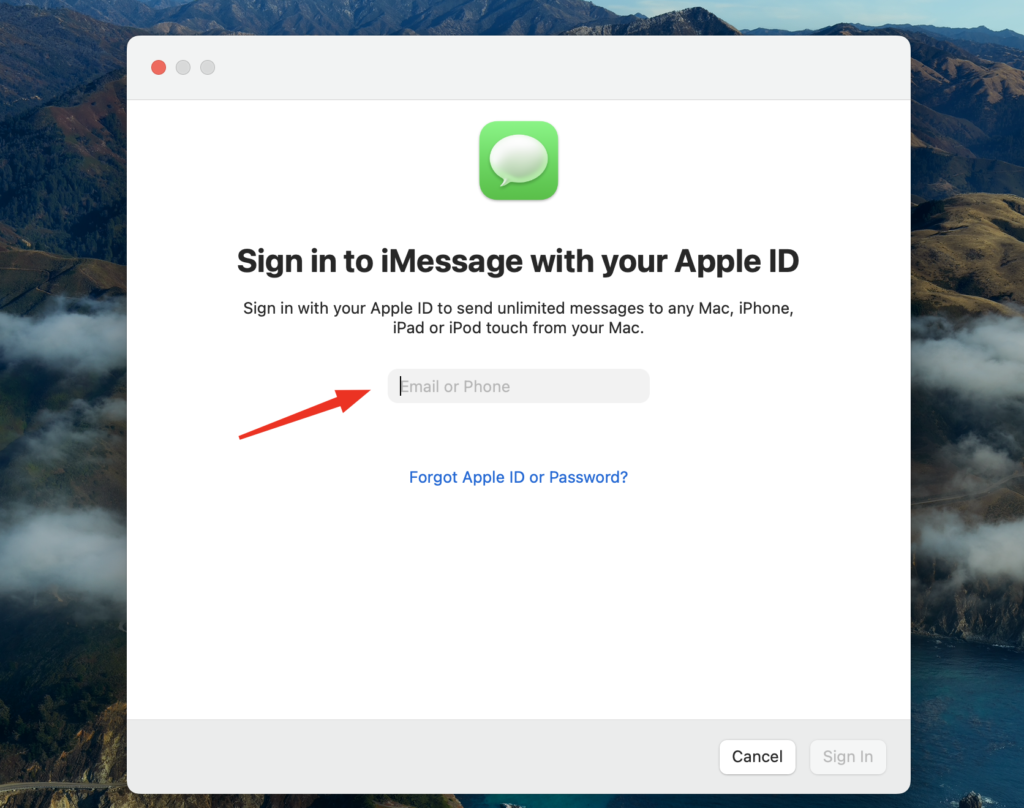
2. Click Messages → Settings → iMessage.
3. Sign in with your Apple ID.
4. Enable Messages in iCloud.
This ensures your conversations sync across your Apple devices. - Enable Remote Access on Your Mac
Next, configure your Mac so it can be accessed remotely.
1. Open System Settings.
2. Go to General → Sharing.
3. Enable Screen Sharing or Remote Management.
4. Take note of your Mac’s IP address.
This allows another computer to connect to your Mac desktop. - Connect From Your Windows PC
1. Open a remote desktop client on your Windows computer.
2. Enter the IP address of your Mac.
3. Sign in with your Mac credentials.
4. Once connected, open the Messages app.
You can now send and receive iMessages from Windows by controlling your Mac remotely.
2. Use Microsoft Phone Link (Windows 11)
Windows 11 includes an integration tool called Phone Link, which allows limited messaging access for iPhone users.
Requirements:
- Windows 11 PC
- iPhone with a recent iOS version
- Bluetooth connection between devices
Setup Steps
- Open the Phone Link app on Windows.
- Select Connect iPhone.
- Scan the QR code with your iPhone.
- Pair the devices using Bluetooth.
Once connected, you can send and receive messages directly from your Windows PC.
However, this method has some limitations:
- Attachments may not appear
- Group chats may not function correctly
- Message history may be limited
For full iMessage functionality, using a Mac remotely remains the most reliable solution.
Can You Use iMessage in a Web Browser?
Apple provides web access to several services through iCloud. However, iMessage is not available through iCloud.com. Apple does not provide a browser-based interface for reading or sending iMessages.
The only browser-based workaround is remotely accessing a Mac that is running the Messages app.
Comparison: iMessage Access Methods on Windows
| Method | Difficulty | Features | Best For |
|---|---|---|---|
| Remote access to Mac | Medium | Full iMessage functionality | Users with a Mac |
| Windows Phone Link | Easy | Basic messaging | Windows 11 users |
Tips for Using iMessage on Windows
- Enable Two-Factor Authentication → Always protect your Apple ID with two-factor authentication to ensure your messages remain secure.
- Keep Your Mac Powered On → Your Mac must remain powered on and connected to the internet for remote access to work.
- Use a Stable Internet Connection → A reliable network connection improves performance when remotely accessing your Mac.
Conclusion
Although Apple has not released an official iMessage app for Windows, it is still possible to access your messages using alternative methods.
The most reliable solution is to use a Mac as a bridge, allowing you to remotely access the Messages app from your Windows computer.
If you frequently switch between macOS and Windows, setting up remote access is currently the closest experience to using iMessage directly on a PC.
FAQs:
No. Apple does not offer a native iMessage app for Windows computers.
Not fully. Without a Mac, the only option is Windows Phone Link, which provides limited messaging support.
No. While iCloud syncs messages across Apple devices, it does not provide a web interface for accessing iMessages.
Yes, as long as you use secure connections, strong passwords, and two-factor authentication

0 Comments