How to Change Font on iPhone: iOS 26 Customization Guide
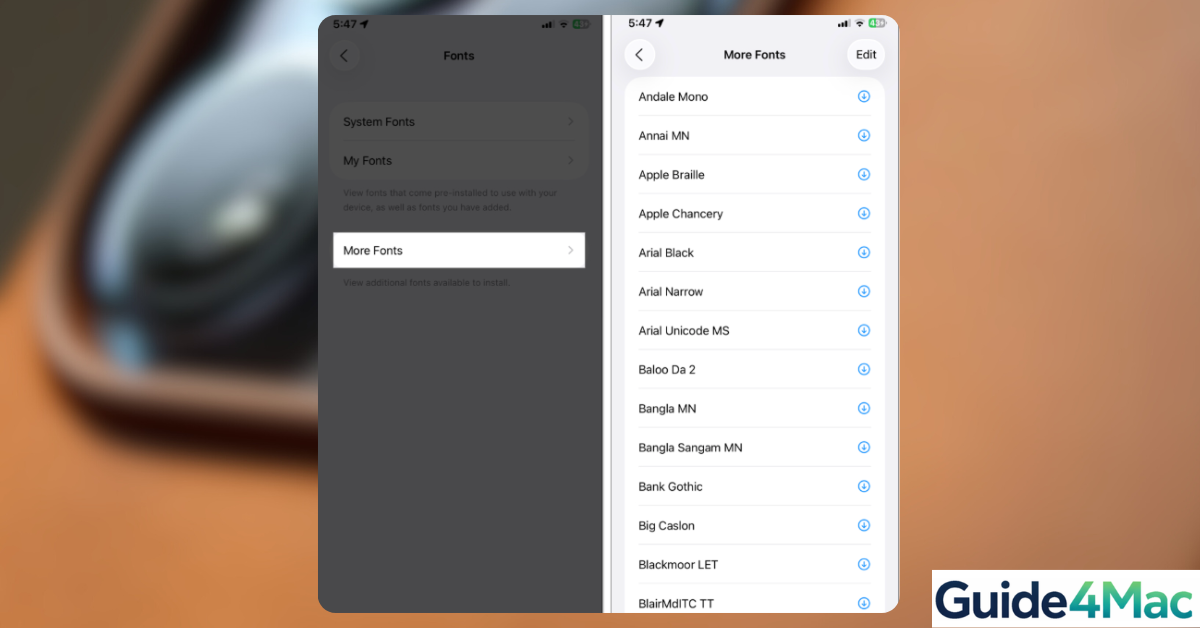
Changing the font on iPhone in iOS 26 is possible, although Apple limits system-wide font customization. You can adjust text style, increase font size, enable bold text, or install additional fonts that work inside supported apps. If you recently updated your device and want to personalize the interface, these settings can make reading much easier.
This guide explains how to change the font on iPhone using built-in settings and third-party font profiles. You will also learn how to install custom fonts, modify text appearance, and troubleshoot situations where the font settings do not apply correctly.
Why Can’t You Fully Change the iPhone System Font?
Apple designs iOS with a consistent visual identity, so the default system font cannot be completely replaced. The operating system uses Apple’s San Francisco typeface across the interface, including menus, notifications, and system apps.
However, iOS still allows several ways to customize text appearance. You can increase or decrease text size, enable bold fonts, apply display zoom, or install custom fonts that work in compatible apps such as Pages, Keynote, and certain design tools. If you recently modified display settings and something looks wrong, you can also restore interface layout using steps similar to those used to restore missing icons on the iPhone home screen.
Below are the most effective ways to change or customize fonts on an iPhone running iOS 26.
Enable Larger Accessibility Fonts
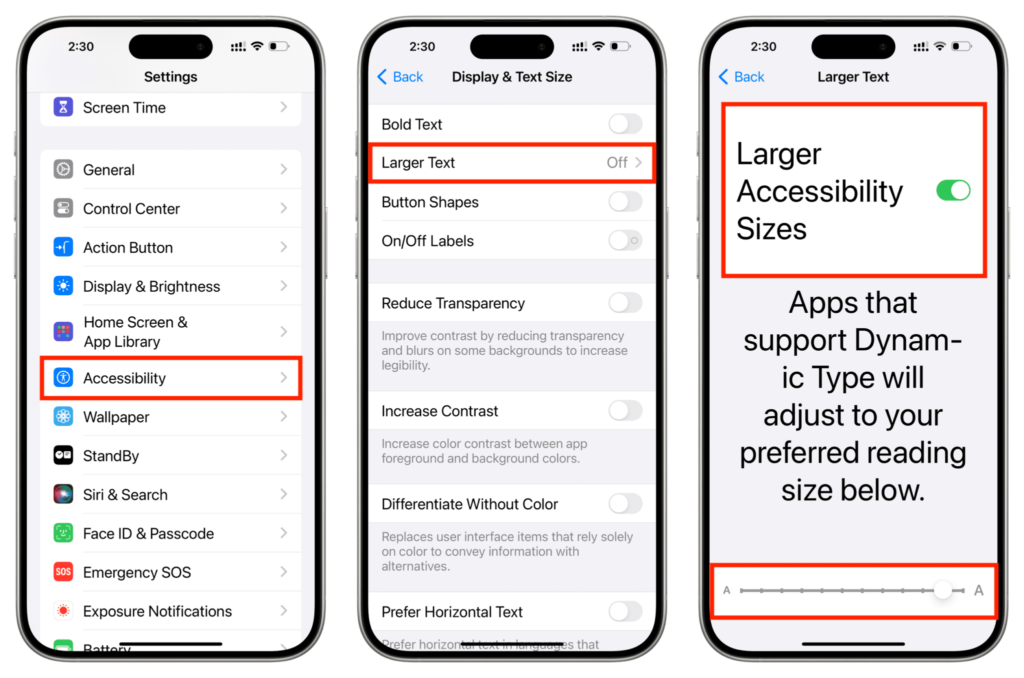
iOS includes accessibility features that allow much larger text sizes than the standard slider.
- Open Settings.
- Tap Accessibility.
- Select Display & Text Size.
- Tap Larger Text.
- Turn on Larger Accessibility Sizes.
- Move the slider to your preferred size.
This option dramatically increases font size across most apps and system menus. It is especially useful for users who need improved readability.
Turn On Bold Text
Enabling bold text changes the appearance of the system font by making it thicker and easier to read.
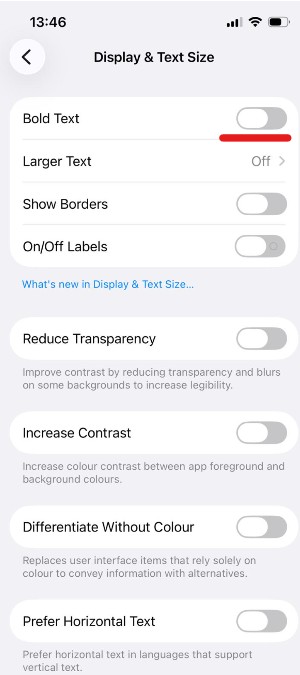
- Open Settings.
- Tap Accessibility.
- Select Display & Text Size.
- Toggle Bold Text.
Your iPhone may briefly restart the interface after enabling this option. Once active, the entire system uses a heavier version of the default font.
If you are adjusting visual settings while troubleshooting device issues, it is also useful to confirm that your Apple account is properly signed in so settings sync across devices. You can check this by following steps in this guide on how to sign in to your Apple account correctly.
Use Display Zoom to Change Text Appearance
Display Zoom enlarges interface elements, including fonts, icons, and menus.
- Open Settings.
- Tap Display & Brightness.
- Scroll to Display Zoom.
- Tap View.
- Select Larger Text.
- Tap Set to apply the change.
This setting increases the overall scale of the interface. While it does not technically change the font style, it can make the text easier to read across the entire system.
Install Custom Fonts on iPhone
You can install additional fonts on iPhone, but they only work in apps that support custom typography such as Pages, Keynote, and some design apps.
- Open the App Store.
- Search for a font installer app.
- Download the font app.
- Open the app and choose a font.
- Tap Install to add the font profile.
- Confirm the installation in Settings.
After installation, the fonts appear inside supported apps that allow font selection. They do not replace the system font used by iOS menus.
If you often customize your device, you may also want to explore personalization options like adjusting interface layouts or moving UI elements. For example, some users prefer changing where search appears on the Home Screen, which you can do by following this guide to move the iPhone search bar to the top.
How to Change Fonts on iPhone (iOS 26)
Time needed: 3 minutes
Requirements: iPhone running iOS 26 or later.
- Change the Lock Screen Clock Font
1. Go to iOS 26 features “Liquid Glass” effects for the Lock Screen.
2. Long-press your Lock Screen and tap Customize.
3. Tap on the Clock to open the “Font & Color” menu.
4. Choose a font style. Tap the “Glass” icon to add a subtle 3D reflection effect to the numbers.
5. Drag the handle on the corner of the clock to resize the font dynamically. - Install New System-Wide Fonts
While you cannot change every single menu font, you can install typefaces for use in Mail, Pages, and supported third-party apps.
1. Go to Settings > General > Fonts.
2. Tap More Fonts to see a list of Apple-verified downloadable fonts.
3. Tap the Download icon next to a font (e.g., Canela or Publico). - Adjust System Text Size & Boldness
For better readability across the entire OS:
1. Go to Settings > Display & Brightness.
2.Tap Text Size and use the slider to adjust.
3. Toggle Bold Text for a heavier, more mechanical look that complements the new iOS 26 aesthetic. - The “Hover Typing” Pro Trick
If you want a custom font to appear while you are typing:
1. Go to Settings > Accessibility > Keyboards & Typing.
2. Turn on Hover Typing.
3. Tap Font and select a unique style like Chalkduster or Courier. Now, a floating window will show your text in that custom font as you type.
Change Fonts Inside Supported Apps
Many productivity and creative apps allow manual font selection. Examples include Apple Pages, Microsoft Word, and some note-taking tools.
- Open a compatible app such as Pages.
- Create or open a document.
- Select the text you want to edit.
- Tap the formatting icon.
- Choose Font.
- Select a different font style.
Custom fonts installed earlier will appear in this list. These fonts only apply inside that specific app and document.
If you regularly store documents or files that use custom fonts, it is a good idea to maintain a backup of your device. First, you need to check how to back up your iPhone safely to ensure documents and typography settings are preserved.
Fix Font Settings Not Working
Sometimes font changes do not apply immediately. This can happen due to cached interface settings or system glitches.
Try the following quick fixes:
- Restart your iPhone.
- Update to the latest iOS version.
- Toggle Bold Text off and on again.
- Reset Display Zoom to default and reapply it.
If the issue continues, you can reset system display settings by restarting the device or updating iOS.
Tips
• Use Larger Accessibility Text for maximum readability.
• Combine Bold Text with Display Zoom for clearer menus.
• Install custom fonts only from trusted App Store apps.
• Restart your device after installing font profiles.
• Keep iOS updated to ensure compatibility with font apps.
Personalizing Your iPhone Text Experience
Although iOS does not allow replacing the system font entirely, you still have several powerful options to customize how text looks. Adjusting font size, enabling bold text, and using accessibility settings can make the interface far easier to read.
Installing additional fonts also expands what you can do inside productivity and creative apps. Once configured, your iPhone becomes more comfortable for reading, writing, and everyday use.
Key Takeaways
Changing the font on iPhone in iOS 26 mostly involves adjusting text size, enabling bold text, or installing fonts for supported apps. Apple keeps the system font locked for consistency, but accessibility tools allow major visual adjustments. By combining font size controls, display zoom, and app-specific fonts, users can significantly improve readability and personalize their device.
FAQs
No. Apple does not allow users to fully replace the system font. You can only modify its appearance using text size, bold text, and accessibility settings.
No. Custom fonts only work in apps that support them, such as Pages or certain design applications.
Most apps follow the system text size settings. However, some third-party apps may use their own font controls.
This usually happens when Display Zoom or Larger Accessibility Text is enabled. Turning those options off will return the font to normal size.
Most reputable font apps from the App Store are safe, but you should always review permissions and install profiles only from trusted developers.

0 Comments