Why Is iOS 26.1 So Laggy? Causes and Fixes
Many users report that iOS 26.1 is laggy after installing the update on their iPhone. Apps may open slowly, animations may stutter, and the device might feel less responsive than usual. Performance issues like these often appear after major iOS updates because the system is still completing background tasks.
You gotta know that the lag usually disappears after a short time or can be fixed with a few simple adjustments. In this guide you will learn the most common causes of iOS 26.1 slowdowns and several proven ways to improve performance on your iPhone.
Why Is iOS 26.1 Running Slowly on iPhone?
After installing a major iOS update, the system performs background tasks such as indexing files, optimizing apps, rebuilding Spotlight Search results, and syncing iCloud data. These processes temporarily consume system resources and may make the phone feel sluggish.
Other factors can also cause slow performance, including low storage space, outdated apps, or heavy background activity. Below are the most effective fixes for improving performance on iOS 26.1.
1. Restart Your iPhone (HowTo)
Restarting your iPhone clears temporary memory and stops background processes that may be slowing the system down.
Time needed: 4 minutes
- Open the power menu
Press and hold the side button and volume button.
- Slide to power off
Drag the Power Off slider across the screen.
- Wait 30 seconds
Allow the device to fully power down.
- Turn the iPhone back on
Press and hold the side button again.
- Wait for iOS to load
Unlock the device and check performance.
Restarting often fixes temporary lag caused by memory or system processes. If your phone freezes completely, you may need to perform a forced restart as explained in this guide on forcing a device restart.
2. Wait for Background Indexing to Finish
After installing iOS 26.1, the system rebuilds internal databases used by Spotlight Search, Photos, and Siri suggestions. This process can temporarily slow down your device.
- Keep the iPhone connected to WiFi.
- Plug the device into a charger.
- Leave the phone idle for several hours.
- Allow indexing to complete overnight.
- Check performance the next day.
Once background indexing finishes, most performance issues disappear.
3. Free Up iPhone Storage Space
Low storage is one of the most common reasons an iPhone becomes slow after a software update.
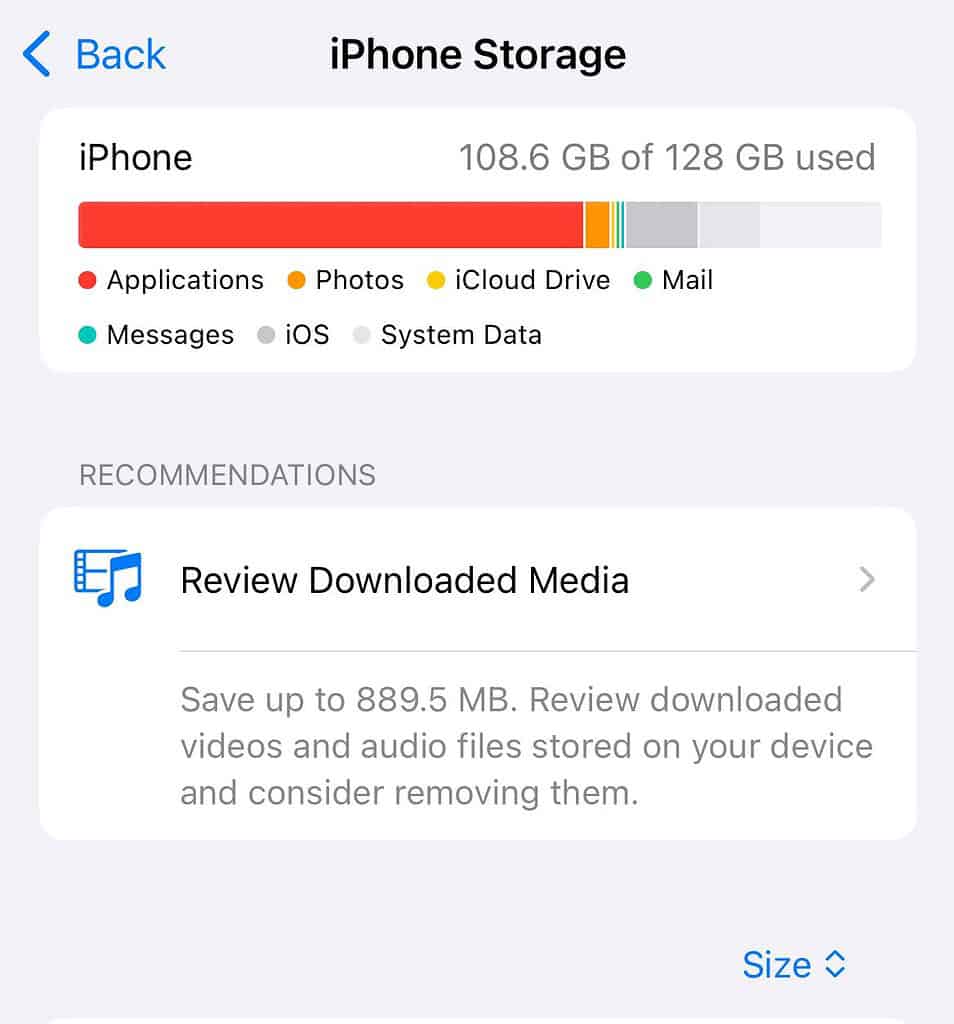
- Open the Settings app.
- Tap General.
- Select iPhone Storage.
- Review large apps and files.
- Delete unnecessary data.
If your device is almost full, iOS has less space to manage system files and caches. Removing unused apps and media often improves responsiveness and optimize iPhone storage.
Storage problems can also affect messaging apps. If you have thousands of conversations saved, clearing them can help free space. This guide on how to mass delete text messages on iPhone explains how to remove large message threads quickly.
4. Update All Installed Apps
Older apps may not be optimized for the latest iOS version, which can cause slowdowns or crashes.
- Open the App Store.
- Tap your profile icon.
- Scroll to Available Updates.
- Tap Update All.
- Wait for the apps to finish installing.
Developers frequently release updates that improve compatibility with new iOS versions.
5. Reduce Motion and Visual Effects
Animations and visual effects can consume additional system resources on older iPhone models.
- Open Settings.
- Tap Accessibility.
- Select Motion.
- Enable Reduce Motion.
- Return to the Home screen.
Reducing motion decreases animation effects and may make the device feel faster.
6. Reset All Settings
If lag continues after other fixes, resetting system settings may resolve configuration conflicts.
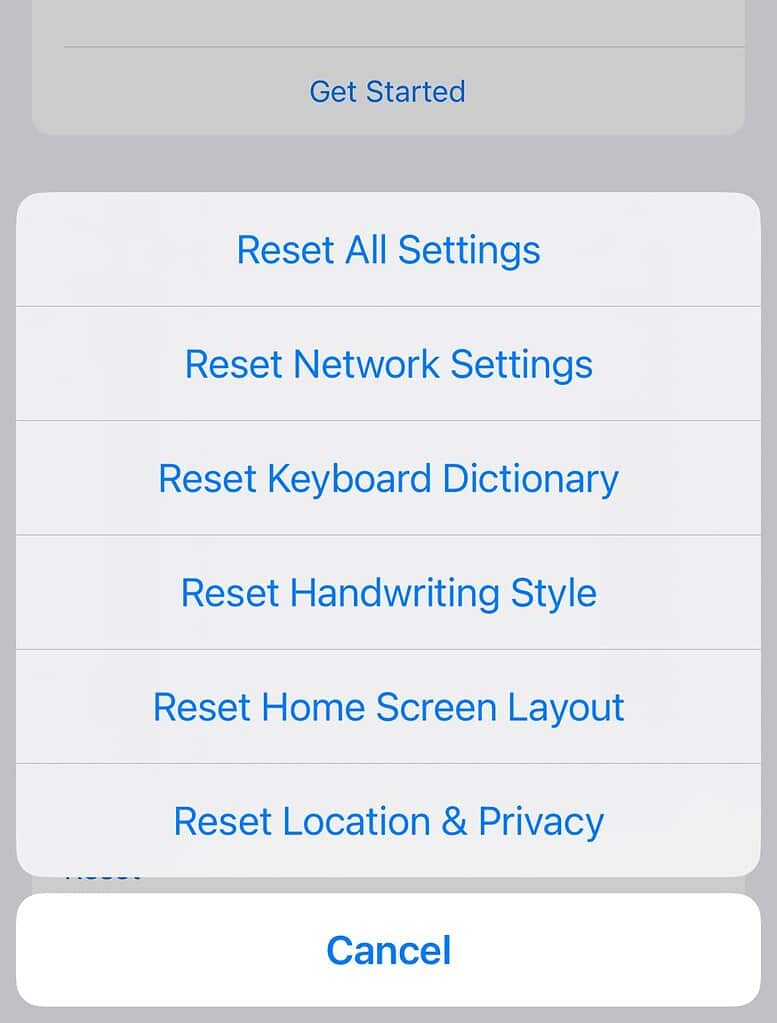
- Open Settings.
- Tap General.
- Scroll to Transfer or Reset iPhone.
- Tap Reset.
- Select Reset All Settings.
This process resets system preferences such as WiFi networks, keyboard settings, and notification configurations without deleting personal data.
If you are troubleshooting multiple iPhone system issues, it may also help to review notification and Focus settings. For example, incorrect Focus configurations can cause communication problems similar to those described in this guide about calls going straight to voicemail.
Tips
- Restart the iPhone after major updates
- Keep at least 10 to 15 percent of storage free
- Update apps regularly through the App Store
- Avoid running too many apps in the background
- Install future iOS updates that include performance fixes
Make Your iPhone Smooth Again
Performance issues after major iOS updates are common and usually temporary. In many cases the device simply needs time to finish background indexing and optimization processes.
If the lag persists, restarting the device, freeing storage space, updating apps, and adjusting system settings can significantly improve performance. These steps help restore smooth operation on both older iPhones and newer models.
Key Takeaways
iOS 26.1 may feel laggy because the system performs background indexing after the update. Other causes include low storage space, outdated apps, or heavy animations. Restarting the device, updating apps, freeing storage, and adjusting settings usually resolve the issue and restore normal performance.
FAQs
After updates, iOS performs background indexing and optimization tasks that temporarily affect performance.
It can take several hours or up to a day depending on the amount of data stored on the device.
Yes, restarting often clears temporary system processes and improves responsiveness.
Yes. When storage is nearly full, iOS has less space for system operations and performance may drop.
Resetting all settings can help if configuration conflicts are causing the slowdown, but it should be used only after trying other fixes.
0 Comments